-

Written By Rohan Wiese
-
Updated on August 8th, 2025
Reduce PDF File Size Without Losing Quality – A Quick Guide
Have you ever tried to send a PDF file and found the issue that “file too large”? It feels like an error. Another question is ever watched someone struggle to open a heavy document on a slow device? And yet, these files are part of everyday work. It is used in offices, classrooms, and design studios across the world. The problem is how to reduce PDF file size without losing quality. So that it cannot blur the image or break layouts. And that’s exactly what this guide is here to help you do. Either you have a single file or multiple PDFs, you can use Aryson PDF Manager Tool to shrink PDF file with complete accuracy.
Why Do Your PDF Files Get So Large?
Before you choose how to reduce PDF file size, it helps to understand why your PDF becomes too large. Although most of the time, it’s due to elements that add visual value but also take up space.
- High-resolution images: Sometimes graphics, scanned pages, or complicated layouts may cause an increase in the file size.
- Associated fonts and styles: In addition, some custom fonts and detailed formatting can make a PDF heavier and larger.
- Uncompressed content: If the file wasn’t compressed while saving or exporting, it can become unnecessarily large.
- Extra elements: Things like metadata, annotations, and unused objects may be sitting silently in the background.
When we are aware of these reasons, it is easy to pick the appropriate solution to compress PDF without losing quality.
How to Reduce PDF File Size Without Losing Quality
There’s more than one way to reduce PDF size without quality loss. Some methods are quick and free, while others give you better control over the outcome. Below, we will navigate through five effective ways to compress PDF files without sacrificing clarity or layout.
Procedure 01: Best Automated Method to Reduce PDF File Size Without Losing Quality
The Aryson PDF Manager Tool is a professional software to shrink large PDF files without losing any data. The oversized PDF files often lead to slow performance issues, frequent crashes, and corruption issues. This utility helps you avoid all these problems and compress your PDF files in just a few clicks. Also, you can remove attachments entirely or extract them and save them in a separate folder. Whether your PDF file is a few MBs or several GBs, this utility handles it effortlessly. All your PDF data items, like fonts, images, or layouts, remain intact after compression. Additionally, it works smoothly with all types of PDF files.
Follow these Steps to Reduce PDF File Size Without Losing Quality
- Run the Aryson PDF Manager Tool and set the LOG/Destination Path.
- Then, add the oversized PDF file from your local system>>Open>>Next.
- Proceed with the split option to Reduce PDF size without losing quality.
- Also, you can enable security and edit the PDF metadata accordingly.
- Lastly, tap on the Split to reduce the PDF file without degrading quality.

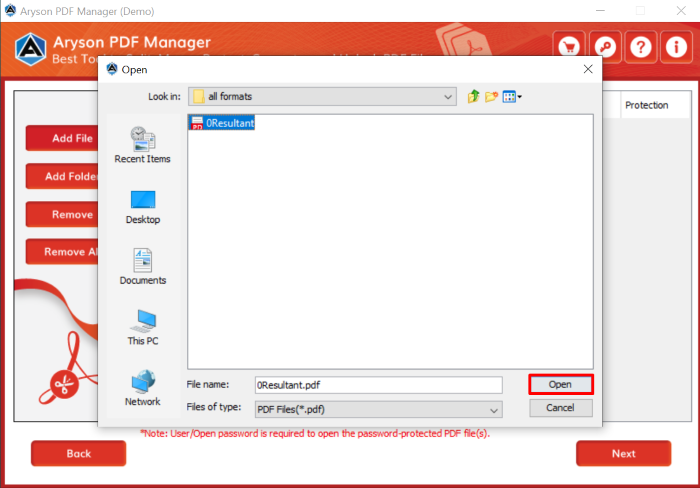

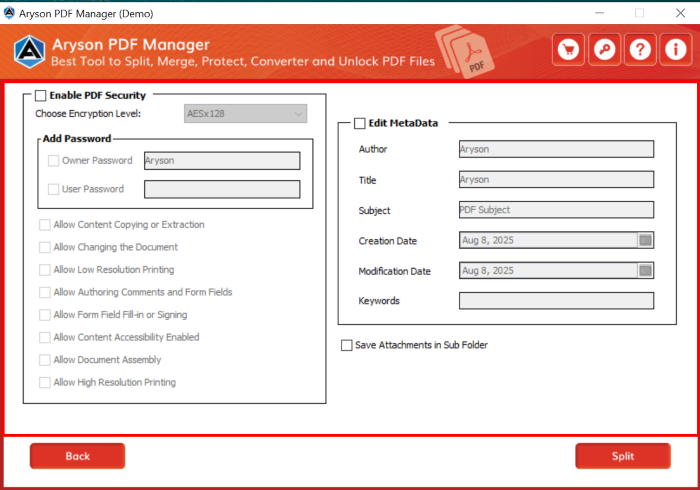

After performing these steps, you now know how to merge and split PDF Files with ease.
Procedure 02: Use Adobe Acrobat Pro
On the other hand, if you have access to Adobe Acrobat Pro, you can use its built-in compression feature. It allows you to reduce file size while keeping layout, images, and fonts intact.
- Open your PDF in Adobe Acrobat Pro.
- Click File >> Save As Other >> Reduced Size PDF.
- Choose a compatible version for your audience (e.g., Acrobat 10 or later).
- Save the file to your system.
Procedure 03: Use Google Drive and Google Docs to Reduce PDF File Size
If you’re already using Google Drive, you can depend to slim down PDFs in just a few clicks.
- Firstly, upload your PDF file to Google Drive.
- Right-click the file and select Open with >> Google Docs.
- Once it opens, re-download the document as a PDF.
Procedure 04: Use Microsoft Print to PDF
Windows doesn’t have a dedicated compression tool, but it does provide a handy Print to PDF feature. This creates a fresh copy of your PDF that often ends up smaller.
- Open the PDF file in any viewer like Microsoft Edge or Adobe Reader.
- Tap on File>> Print and choose Microsoft Print to PDF as your printer.
- If you prefer, adjust settings to lower quality or grayscale to further reduce the size.
- Save your new file.
Procedure 05: Utilize ZIP Compression to Compress large PDF files
Another simple Windows procedure is to compress the PDF into a ZIP archive. While this doesn’t reduce the file’s internal size, it does shrink the package for storage or transfer.
- Right-click your PDF file.
- Select Send to >> Compressed (zipped) folder.
- A new ZIP file will appear in the same location.
Shortcomings of Traditional Methods
When you are using any of the manual approaches, there is a chance of getting stuck. Maybe you will lose the image clarity or font formatting. Other than that, there are huge file size restrictions (5–10MB). Users have to go through the data privacy concerns when uploading confidential documents to online tools. Free and manual methods are quite helpful in terms of single or two, or three files. But when it comes to the bulk of the dataset, it is not worth it at all.
Conclusion
Although the PDF files beyond a fix can be the cause of several issues. But you can reduce PDF file size with the help of the recommended solution above. Individuals can pick the solution according to the PDF dataset. However, it will be better if you proceed with the automated one. So that you can save the high-quality, sensitive PDF content. Along with that, you can easily manage multiple PDF files and compress them within a few clicks.
Frequently Asked Questions (FAQs)
Q1. How can I reduce PDF file size without losing text or images?
Ans: You can use the Aryson PDF Manager or Adobe Acrobat Pro to retain content quality.
Q2. What is the best free tool to reduce PDF size?
Ans: Online tools like Smallpdf or ILovePDF are good options for quick, simple compression tasks.
Q3. Is it safe to upload my PDF to an online compressor?
Ans: Probably not. Although it depends on the type of data you have. For non-sensitive documents, it’s fine. For private or confidential files, use an offline tool.
About The Author:

Rohan Wiese is a Technical Writer at Aryson Technologies. He is an expert Email Forensic, Cloud Computing, and a passionate nerd with over 10 years of experience in technical content writing. He writes about Cloud Migration, Database Recovery, Email Backup, Windows, Mac, and Tech.
Related Post



