-

Written By Rohan Wiese
-
Updated on April 29th, 2026
Move Files from One Google Drive to Another G Drive – Guides for Google Users
Google Drive is one of the most reliable cloud storage platforms out there, as it is easy to access, safe to use, and available on virtually any device. Every Google account has initially 15GB of free storage, which sounds enough until you start accumulating files, photos, and documents over the years. Many users simultaneously use two or more Google accounts to manage personal & work data separately. But then, they wonder how to actually move files from one Google Drive to another? In this article, you will explore different ways to transfer Google Drive files to another account, and also you will learn the use of the Aryson Google Drive Migration Tool for both beginners and technical users.
User Query:
I have been using multiple Google accounts for personal and business use, and now I’m running out of storage on one of them. That got me wondering – how can I move Google Drive files to another account?
Can someone suggest the best ways to migrate data from one Google Drive to another?
Solution:
If you have been looking for reliable methods to move files from one Google Drive to another, you have landed in the right place. Below, we cover four practical approaches, so pick whichever works best for your situation.
Best Methods to Transfer Files Between Google Drives
There are four main ways to move Google Drive files to another account:
- Google Drive Share Feature
- Google Takeout Transfer
- Download & Upload Method
- Professional Migration Tool
Let’s go through each one.
Method 1: Move Google Drive Files Using the Share Feature
This is the quickest method to migrate Google Drive to another account. Google Drive’s built-in sharing feature lets you hand over ownership of files from one account to another without downloading anything.
- Log in to your Gmail account and open Google Drive.
- Right-click on the file(s) you want to move to another account.
- Select Share, then enter the email address of your other Google account.
- Click on Advanced settings and change the permission to Owner, then hit Send.
- Now switch to the other Google account. All your transferred files will now appear in the Shared with Me section. You can move these files into My Drive by right-clicking and selecting the Add Shortcut to Drive. Then, just drag the files in
Note: You can only transfer ownership of files you own, and both accounts must be under the same Google Workspace domain. For personal Gmail accounts, this method will work efficiently.
Method 2: Use Google Takeout Transfer
Google has actually improved Takeout over the years, and in 2026, it offers two distinct options – a direct Transfer feature (great for school or work to personal account migrations) and the classic Export as ZIP method.
Option A – Directly Transfer Google Workspace Data to Gmail
- Go to the takeout.google.com/transfer & enter the email ID of the destination Google account
- Sign in to the source Google account >> go to takeout.google.com/transfer.
- Provide the email address of the destination account & click Send Code.
- At the destination, check whether you received any confirmation email from Google and select the Get confirmation code.
- Navigate back to the transfer page on your source & enter the code to verify.
- Choose the required data you want to copy – Drive files, Gmail, or both >> Start Transfer.
- This process might take you some time, but you will receive an email notification once it is completed.
In Drive, all your copied files will appear in a labeled folder with your email address & timestamp as the folder name.
Important: Shared drives do not transfer through this method. You must also ensure you have enough storage space in the destination account, or the transfer will fail.
Option B – Classic Google Takeout
Users can utilize this method when they want to selectively export the Drive files or when option A didn’t help much.
- Go to the Google Takeout page. Google products that hold your data are automatically selected – if you only want Drive files, click Deselect all and then check only Drive.
- Click Next Step and choose your delivery method – either Send download link via email or Add to Drive.
- Select Create Export and wait for the email with a download link to arrive.
- Download and unzip the exported files on your computer.
- Log in to your other Google account, open Google Drive, click the + New button, and use Folder Upload to bring all the files in.
Note: Google Takeout only exports Drive files that you personally created or own. Files shared with you by others are not included. Also, sharing permissions and revision history are not retained in the export.
Method 3: The Download & Upload Method
In case none of the above methods helped you, you can use this one to get full control over files that need to be moved.
- Sign in to your source Google account and open Google Drive.
- Select the files or folders you want to move. You can hold Ctrl (Windows) or Cmd (Mac) to select multiple items.
- Create a new folder, name it something like Export, and move everything in there to keep things organized.
- Right-click the folder and select Download. Google will automatically compress it into a ZIP file.
- Once downloaded, extract the contents from the ZIP file.
- Now sign in to your destination Google account, go to Google Drive, click + New, and select Folder Upload to bring everything over.
This method is fully manual but gives you complete control. It works best for smaller batches of data. For large accounts with gigabytes of files, it can be time-consuming.
Method 4: Quick Solution to Move Files From One Google Drive to Another
Aryson Google Drive Migration Tool is an optimum software to move Google Drive files to another account, OneDrive, and a local drive. It provides a user-friendly interface that is easy to use and understand. Moreover, this software provides the user with advanced filters and preview functionality to cross-verify the email content. Additionally, users can migrate G-Drive folders, subfolders, and files into any local drive. There are some other benefits of this software as well. Some of them are discussed below.
Key Features of the Software are as Follows
- This software can copy files from one Google Drive to another in a few clicks.
- You can move G Drive files without any restriction on file size.
- It can migrate Google Docs as well as images, slides, videos, and all other information from Google Drive.
- This software supports all versions of Windows, such as 11, 10, 8.1, 8, 7, Vista, XP, etc.
How to Transfer Google Drive Data to Another Account
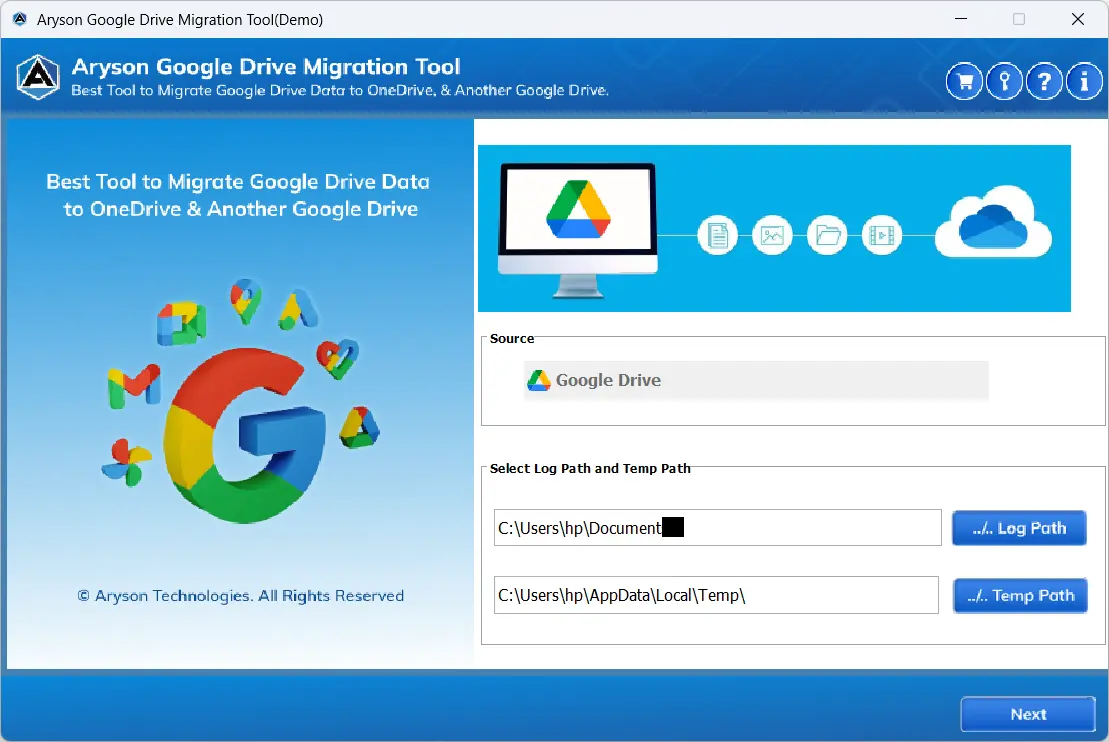
- Download, Install & Run the Google Drive Migration Tool on your existing system.
- Select your required Google Drive email ID to log in.
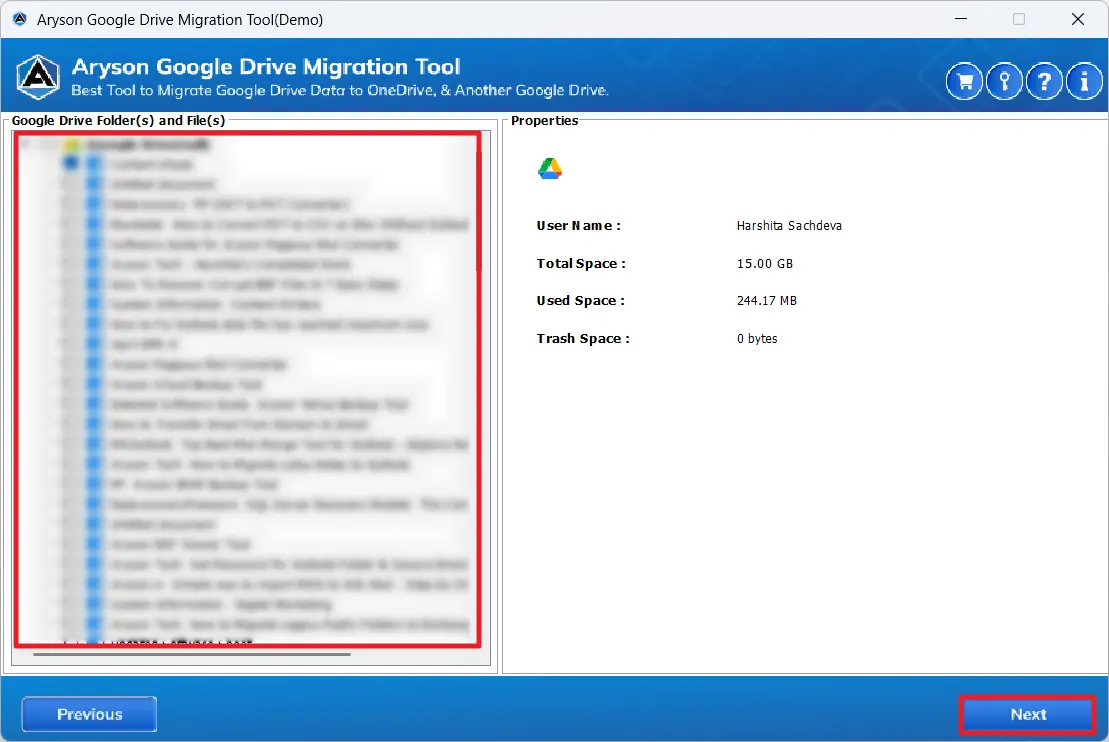
- After that, preview the Google Drive files/folders in the preview panel >> Next.
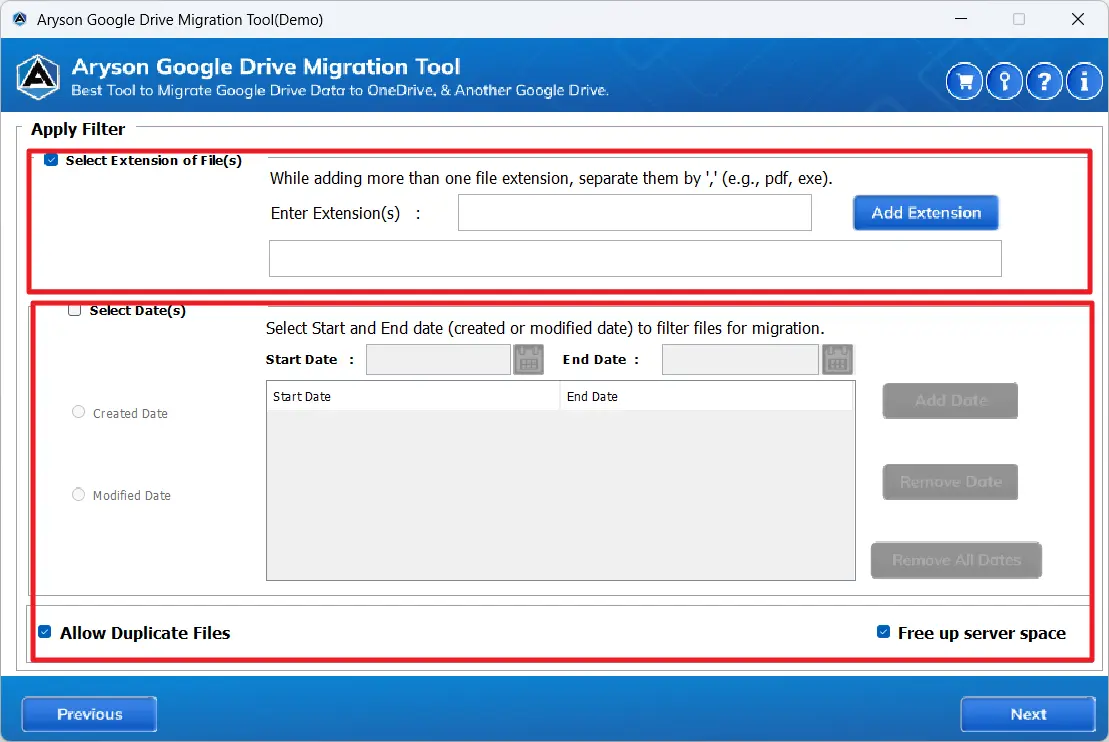
- Apply the required filters as per your requirements.
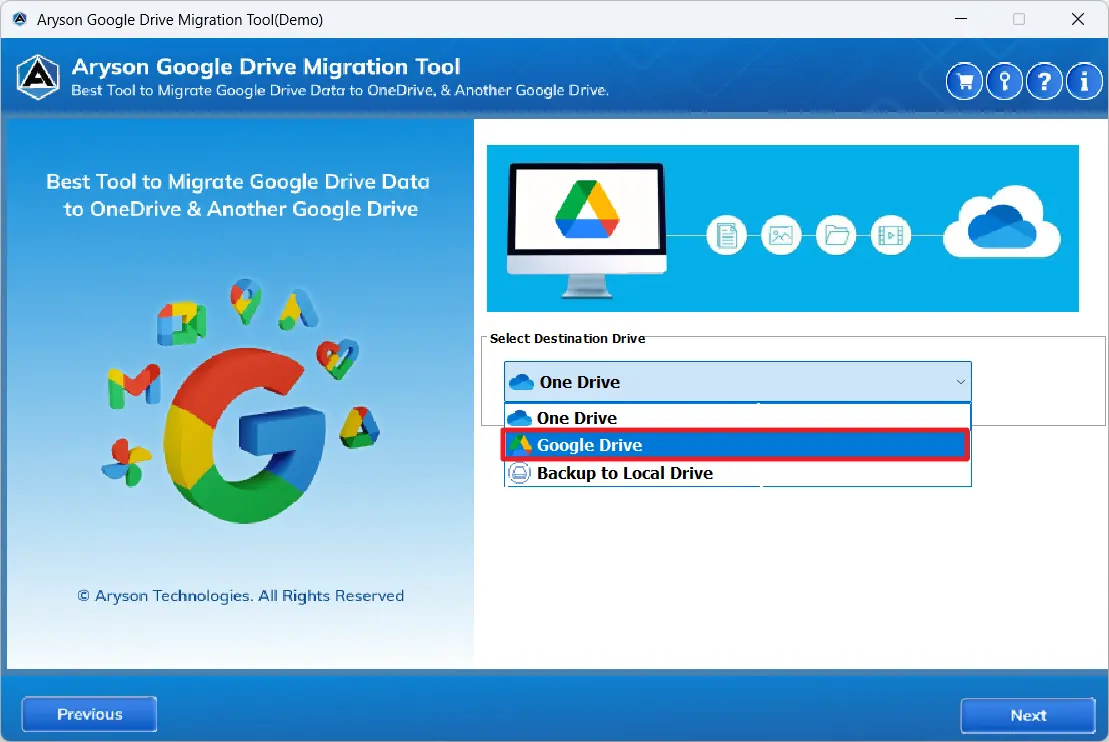
- Choose Google Drive among the three different cloud-based platforms.
- Sign in to the Google Drive ID with valid credentials.
- The software will map the emails of both accounts.
- Click on the Convert button to begin the migration process.
Conclusion
In this blog, we have explored four different methods to move files from one Google Drive to another, including three manual ways and one automated solution. No doubt manual approaches are reliable and secure, but they also have many disadvantages. However, you can opt for any of the above solutions, but we recommend that you use the professional solution to move Google Drive files to another account in bulk.
FAQs
Q1. How do I move an entire folder to another drive?
Ans: With the help of the Aryson Google Drive Migration Tool, you can efficiently move an entire folder to another drive.
Q2. How do I move files from a shared Google Drive to my drive?
Ans: However, there are a number of methods to do so, but it is highly recommended to opt for the above advanced solution to move files from a shared Google Drive.
Q3. How to bulk transfer Google Drive files?
Ans: You can use the Aryson Google Drive Migration Tool to bulk transfer Google Drive files within a few seconds.
About The Author:

Rohan Wiese is a Technical Writer at Aryson Technologies. He is an expert Email Forensic, Cloud Computing, and a passionate nerd with over 10 years of experience in technical content writing. He writes about Cloud Migration, Database Recovery, Email Backup, Windows, Mac, and Tech.
Related Post



