-

Written By Rohan Wiese
-
Updated on November 20th, 2025
05 Different Ways to Migrate Google Drive to OneDrive [2025]
Today, most of us store everything online—photos, projects, reports, and even confidential work files. Because of this, switching from one cloud platform to another needs more than just copy-paste. Many users move from Google Drive to OneDrive as they start using Microsoft 365 more actively for meetings, documents, and teamwork. So, the need for a smooth and reliable migration becomes important. In this guide, you will explore five different methods, including the Aryson Google Drive Migration Tool, that help you migrate Google Drive to OneDrive in a simple and structured way.
Users’ Need to Transfer Files From Google Drive to OneDrive
Every user has a reason behind changing their cloud platform. These reasons highlight why the shift Google Drive to OneDrive keeps growing.
- Many users want better integration with Microsoft 365 apps like Word, Excel, PowerPoint, and Teams.
- Some people prefer OneDrive because it offers stronger security and data protection features.
- Students and professionals often switch schools or jobs, and therefore need to move their existing Google Drive data.
- Many users want a clean workspace, so they move files to a single cloud platform instead of managing multiple accounts.
- Businesses adopt OneDrive to create a unified collaboration environment for all team members.
- Some users need to free up space in Google Drive to avoid storage limits and extra costs.
Since the reasons vary, understanding them makes it easy to pick the right migration method for your needs.
Common User Queries Found on Reddit About Google Drive to OneDrive Migration: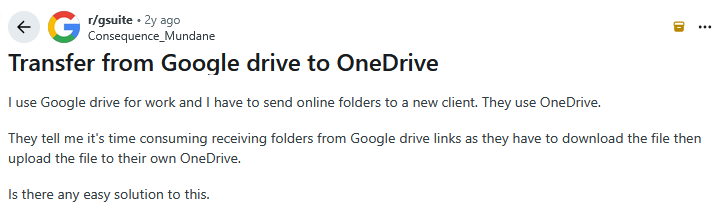
How Many Ways Can You Migrate Google Drive to OneDrive
There are five effective ways to move Google Drive files to OneDrive. Some are manual, while others use automation. The manual options involve downloading and uploading data, using Google Takeout, syncing desktop folders, or using shared folders. On the other hand, the automated solution helps you transfer large files without errors or a long wait. Each method has its own use case, and choosing the right one depends on your data size and comfort level.
Method 1: Download and Upload Manually
You simply download large files from Google Drive to your computer and then upload them to OneDrive. Although it sounds basic, it is still helpful for users who want direct control over what they are moving.
- First, open Google Drive in your browser.
- Then, select the specific files or folders you want to migrate.
- After that, click Download to save the selected data to your computer.
- Now, open OneDrive in another browser tab or window.
- Finally, drag and drop the downloaded files into OneDrive to upload them.
This method is easy; however, it becomes slow and tiring when you handle large folders, large files, or multiple batches.
Method 2: Google Drive to OneDrive Migration Using Google Takeout
Google Takeout helps you export your complete Google Drive data in a single archive. It creates a ZIP file that contains all your documents, folders, and media. Yet, the process may take time depending on your data size.
- To begin, visit the Google Takeout website.
- Next, select Drive from the available Google services list.
- After that, choose your preferred export format and file size options.
- Then, generate the export and download the ZIP file once it is ready.
- Extract the ZIP file on your system to access all your data.
- Lastly, upload the extracted folders and files to OneDrive.
Although Google Takeout moves everything, the ZIP extraction process can be slow. Additionally, very large exports may fail or get stuck if your internet connection is unstable.
Method 3: Migrate Google Drive to OneDrive Using Shared Folder Option
In this method, you share your Google Drive folder with another account and then migrate those shared files.. It is also a practical way to give another user access before transferring files to OneDrive.
- Start by opening Google Drive.
- Right-click on the folder you want to move.
- Select Share and add a secondary Google account or email.
- Then, log in using that secondary account and access the shared folder.
- Finally, download the shared files and upload them manually to OneDrive.
Method 4: Use Google Drive and OneDrive Desktop Apps
Both Google Drive and OneDrive provide desktop applications that sync your cloud files directly to your computer. Once installed, each app creates a dedicated folder in your system. Any file you drag into these folders automatically syncs to the respective cloud. Because of this, transferring files becomes as easy as copying them between two local folders.
- First, install Google Drive for Desktop on your system.
- Next, install the OneDrive application.
- Sign in to both accounts and allow them to sync with your computer.
- After syncing completes, open the Google Drive folder in File Explorer.
- Then, copy or drag the files from the Google Drive folder to the OneDrive folder.
While this method offers convenience, it requires enough local storage to hold your data temporarily. Moreover, a stable and fast internet is necessary to sync large files smoothly.
Point to Remember: Manual Method Limitations
Before choosing a method, it is important to know what challenges you may face with manual approaches.
- Manual steps take a long time, especially for large data.
- File size limits cause interruptions.
- Folder structure may break during download or upload.
- ZIP extraction sometimes fails due to corrupted archives.
- Requires a strong internet connection for multiple uploads.
- Not suitable for business or enterprise-level transfer.
- High chances of errors when shifting many folders.
Although Google Drive allows easy access, the real challenge appears when you try to shift large folders, shared files, or years of stored data. Manual steps often feel slow and confusing. This is why many users choose an automated option.
Method 5: Automated Tool to Migrate Google Drive to OneDrive
Aryson Google Drive Migration Tool handles everything in the background and ensures that your files stay organized and unchanged. This automated method is useful when you want to move shared files, business documents, or complete drives. It preserves the folder structure, avoids data corruption, and saves you from repeating long manual steps. Additionally, it offers advanced features like selective migration, date filtering, and direct cloud-to-cloud transfer. This utility makes the entire process smooth for both individuals and organizations.
Step-by-Step Process of Google Drive to OneDrive Migration
- First, install and open the Google Drive Migration Tool on your system.
- After that, click Next to allow access and sign in to your Google account.
- Redirected to your browser to select the Google account you want to migrate.
- Choose the correct Gmail account and provide the necessary permissions.
- Now, you can review the permissions on the screen and click Continue.
- Once the authentication is complete, return to the interface of the software.
- Fetch all your Google Drive data. Select the files or folders you want to move next.
- Now, you can apply any filters you need and proceed further with the Next button.
- Set the destination drive as OneDrive from the given drop-down list of options.
- Authenticate your destination account and click Next to migrate Google Drive to OneDrive.
Final Thoughts
Many users look for a reliable way to migrate Google Drive to OneDrive, and the right approach depends on how much data they need to transfer and how quickly they want the job done. Manual methods work for small files, but they often take time, require repeated steps, and may fail when handling large data sets. Recommended automated utility makes the entire process easier, keeps the structure intact, and reduces the chances of errors. For a better understanding of the software, you can either download the free demo version or frequently connect to our tech support team for further assistance.
Frequently Asked Questions
Q1. How do I transfer all my Google Drive files to OneDrive at once?
Ans: You can move everything with the Aryson Google Drive Migration Tool as it provides a direct cloud-to-cloud transfer without downloading anything manually.
Q2. Can I move shared Google Drive files to OneDrive?
Ans: Yes, you can transfer shared files. First, add them to “My Drive” or download them and upload them to OneDrive. Aryson Google Drive Migration Tool also supports shared file migration without losing permissions.
Q3. Which is the fastest method to migrate Google Drive to OneDrive?
Ans: The fastest and most reliable method is using Aryson Google Drive Migration Tool because it transfers your files directly between clouds. Manual methods take more time and depend on your local internet speed.
About The Author:

Rohan Wiese is a Technical Writer at Aryson Technologies. He is an expert Email Forensic, Cloud Computing, and a passionate nerd with over 10 years of experience in technical content writing. He writes about Cloud Migration, Database Recovery, Email Backup, Windows, Mac, and Tech.
Related Post



