-

Written By Harshita Sachdeva
-
Approved By
Shivam Rathore -
Updated on July 3rd, 2026
Migrate from Amazon S3 to SharePoint: Expert Migration Guide
Query: Any recommendations for a cloud-to-cloud migration tool for syncing an Amazon S3 tenant to a SharePoint Online Document library?
Summary: Most of the businesses store files in Amazon S3, a cloud storage service. They often need to move these files to the SharePoint Online Document Library for better collaboration. An Aryson Amazon S3 to SharePoint Migration Tool helps transfer data safely between both platforms without manual work. It keeps folders, files, and structure organized during migration. This makes the process simple, fast, and suitable for students or beginners learning cloud data management. It reduces errors and saves a lot of time overall.
When Should Organizations Move to SharePoint?
You may consider moving files from S3 to SharePoint if:
- Most of the organizations prefer to move when they adopt Microsoft 365.
- When the Teams need better document collaboration.
- Users spend too much time searching across multiple S3 buckets.
- You need stronger document version control and sharing features.
- When the users want centralized file management.
Amazon S3 to SharePoint: Key Difference
|
Feature |
Amazon S3 |
SharePoint |
| Primary Purpose | Store large-scale data, backups, application files | Team collaboration & document sharing |
| Service Type | Object storage service | Document management & collaboration platform |
| Access Control | IAM Policies | Microsoft 365 role-based permissions |
| Integration | AWS ecosystem | Microsoft 365 ecosystem |
| Best Use Case | Backups, data lakes, cloud apps | Internal document management, teamwork |
Pre-Migration Checklist
- Audit S3 buckets and files
- Identify active vs inactive data
- Clean up duplicate files
- Check file size limits in SharePoint
- Prepare the Microsoft 365 environment
- Set user permissions and roles
Manual Method to Migrate Amazon S3 Bucket to SharePoint
Follow the methods to accomplish the migration manually. It allows users to migrate Amazon S3 data.
01: Download & Load Method
You have to first download data from Amazon S3 to your system, then upload it to SharePoint.
- Sign in to AWS Management Console and open the S3 service >> select the required bucket.
- Choose files or folders you want to migrate that include single or multiple objects.
- Click on the Download option & save data to your local system or external drive.
- Organize downloaded files properly & make sure the folder structure is maintained.
- Log in to your Microsoft 365 account >> open the target SharePoint site.
- Navigate to the required document library >> create a new folder if needed.
- Click Upload or use drag & drop to add files or folders from local storage.
- Verify uploaded data by checking structure and confirming the file count matches the source.
Limitations of Manual Methods
- This is a slow process for migrating large data.
- In this method, there is no metadata preservation.
- This method is risky for large batch files, and some files might be missed.
- It requires manual effort to perform the migration.
02: Sync-Based Method
You have to sync data locally first, then upload or sync it to SharePoint.
- Install AWS CLI or a sync tool, configure IAM credentials, & sync the Amazon S3 bucket to a local folder.
- Review the downloaded data & organize files by maintaining proper folder structure & naming conventions.
- Remove any unnecessary or duplicate files before you start the migration process.
- Log in to Microsoft 365 >> open your target SharePoint site.
- Upload files via drag & drop or sync the SharePoint library via the OneDrive Sync Client.
- Copy or move local files into the synced SharePoint folder >> wait for automatic upload completion.
- Validate migration by checking file count, folder structure, & opening sample files for verification.
Drawbacks of Manual Methods
- You must have enough disk space to store the entire S3 bucket before uploading it to SharePoint.
- File metadata, permissions, & version history are generally not preserved.
- Users must track sync status & resolve any upload failures manually.
- Slow internet connections can significantly increase migration time.
- Repeated sync operations can sometimes create duplicate files if not managed carefully.
- There is usually no detailed migration report to verify every transferred file.
Professional Method to Migrate from Amazon S3 to SharePoint
The Aryson Amazon S3 to SharePoint Migration tool is used to move files from Amazon S3 buckets to SharePoint Online document libraries. It helps transfer folders, files, and structure between both cloud platforms. The tool reduces manual downloading and uploading. It is used to manage cloud data migration in one process without much technical work or complex steps involved overall.
- Moves data from Amazon S3 to SharePoint Online directly.
- Transfers multiple files and large data sets together.
- Reduces manual download and upload work.
- Supports the cloud-to-cloud migration process.
- Designed for a simple and step-by-step data transfer workflow.
Working Steps to Move Files from S3 to SharePoint
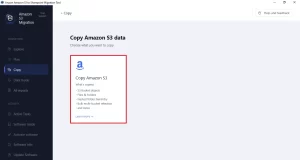
- Download, and install the Aryson Amazon S3 to SharePoint Migration.
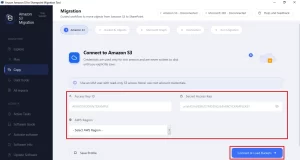
- Provide the valid Access Key and Secret Key >> click on Connect & Load Buckets.
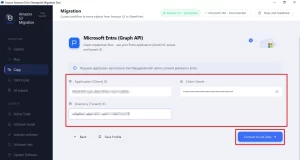
- Enter the credentials, Client ID, Application ID, & Directory Tenant >> click Connect & List Sites
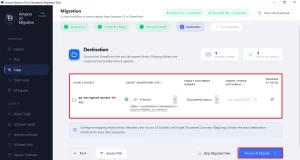
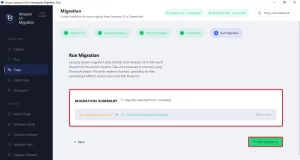
- Connect Source Bucket to Target SharePoint Sites >> click Review & Migrate.
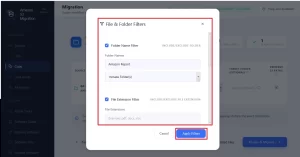
- Apply the Additional filters for selective data migration.
- Click on Start Migration to begin the migration of Amazon S3 to SharePoint.
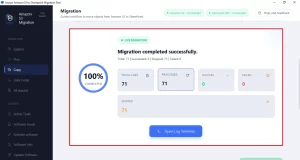
- In the end, “Migration Completed Successfully” is appear.
Conclusion
Moving data from Amazon S3 to SharePoint can make file sharing and teamwork easier. It also helps keep everything in one place with better control & access. Manual methods can work, but they are better for small amounts of data. They take time, and mistakes can happen in the process. Files may also get missed or lose their structure. A migration tool makes the job smoother. It moves files faster and keeps folders and data intact. In the end, the right approach depends on how much data you have and how complex the migration is.
Frequently Asked Questions
Q.1 How to migrate from Amazon S3 to SharePoint?
Ans. You can migrate from Amazon S3 to SharePoint by connecting your AWS S3 account and SharePoint site, selecting the required buckets, mapping them to SharePoint libraries, applying filters if needed, and starting the migration process.
Q.2 How does the migrator connect to Amazon S3?
Ans. The migrator connects to Amazon S3 using AWS IAM credentials, specifically the Access Key ID and Secret Access Key provided by the administrator.
Q.3 Can I migrate multiple S3 buckets at once?
Ans. Yes. The Aryson Amazon S3 to SharePoint Migration software supports bulk migration and allows you to select and migrate multiple Amazon S3 buckets.
Q.4 Will my S3 folder structure be preserved in SharePoint?
Ans. Yes. The Aryson Amazon S3 to SharePoint Migration tool maintains the original folder hierarchy during migration to ensure files remain organized in SharePoint.
Q.5 Can I map S3 buckets to specific SharePoint locations?
Ans. Yes. You can map selected S3 buckets to specific SharePoint sites, document libraries, or folders before starting the migration.
Q.6 How does the migrator authenticate with Microsoft 365?
Ans. The migrator authenticates using Microsoft 365 application credentials, including the Client ID, Client Secret/Application ID, and Directory (Tenant) ID.
Q.7 Does the migrator provide reports for auditing and troubleshooting?
Ans. Yes. The software generates detailed migration reports and logs that help administrators track progress, verify migrated data, and troubleshoot issues.
Q.8 Is the migration process secure end-to-end?
Ans. Yes. The migration process uses secure authentication methods and encrypted communication channels to protect data during transfer.
Q.9 Can I use this tool to migrate files of 0 KB as well?
professional Aryson Amazon S3 to SharePoint Migration tool supports the migration of all supported files, including 0 KB files, while maintaining their original structure.
Q.10 What credentials are used to connect to Amazon S3?
Ans. You need AWS IAM credentials, including the Access Key ID and Secret Access Key, with appropriate permissions to access the required S3 buckets.
Q.11 How are AWS IAM credentials secured during migration?
Ans. AWS IAM credentials are used only for authentication and secure access to S3 resources. They are processed through encrypted connections and are not exposed during the migration process.
About The Author:

Harshita Sachdeva, a professional technical writer at Aryson Technologies, specialize in delivering clear, hands-on documentation for data management, migration, and recovery solutions. With a meticulous, reader-first approach, I break down complex technical processes into simple, actionable content - helping IT professionals and decision-makers tackle challenges efficiently.
Related Post

