-

Written By Harshita Sachdeva
-
Approved By
Shivam Rathore -
Updated on June 23rd, 2026
Upload 10000+ Emails PST to Office 365: Easy Guide for 2026
Query: I have a 95 GB PST file that contains emails and calendars from 1+ year ago at Rackspace. I would like to import that file into my new Office 365 account. I am using 3.1 GB currently at Microsoft 365. When I try to import the PST file into Outlook, I receive a memory error and am unable to complete the task. I have 32 GB of RAM. I have a 100 GB mailbox limit at Microsoft. I have a ticket open with Microsoft about importing this, but they haven’t provided a solution.
What is the best way to upload 10000+ email PST to Office 365 without facing Outlook memory errors or risking data loss?
Summary: A large segment of organizations and enterprises consists of Outlook data in PST files, and moving that data into Office 365 isn’t always easy. Microsoft does offer built-in import options, but they come with rules, roles, and waiting periods. This blog walks IT admins through manual ways to upload 10000+ email PST to Office 365 and the Aryson PST to Office 365 Migration Tool to efficiently import bulk PST files.
Professional Roles That Benefit from PST to Office 365 Import
- IT admins are migrating old desktop Outlook data to the cloud.
- Organizations are consolidating PST files from multiple employee systems.
- Enterprises are preparing for compliance audits with archived mail records.
- Professionals joining a new company who need access to old PST archives.
- Remote teams are shifting from local storage to Office 365 mailboxes.
- IT professionals handling mailbox cleanup after device replacements.
Proven Solutions to Upload 10000+ Email PST to Office 365
Now that we have covered who typically needs this migration, let’s walk through the actual methods of PST to Office 365 import. Go through each manual approach carefully and weigh the requirements against your PST file size and technical knowledge. If the manual workflows are complicated for your situation, the tool-based method covered later in this blog is worth considering.
Method 1: Upload PST to Office 365 Using Outlook
- Launch Microsoft Outlook>> File>> Open & Export button.
- An import and export wizard has now opened.
- Then, click on “Import from another program or file.”
- Now choose Outlook Data File (.pst) >> then click on the next button.
- Select the .pst file as per your choice.
- Click on the Finish button to complete the process
Method 2: Network Upload Method
-
- Sign in to the Microsoft Purview portal (admin account) >> Data lifecycle management >> Microsoft 365 >> Import.
- Launch the Azure AzCopy tool >> copy SAS URL.
- Upload PST file via AzCopy.
- View uploaded PST in Azure Storage Explorer (optional).
- Create a CSV mapping file.
- Create a PST import job in the Purview portal >> import PST into mailboxes.
Method 3: Drive Shipping Method
- Sign in to the Microsoft Purview portal (admin account) >> Data lifecycle management >> Microsoft 365 >> Import.
- Download the Azure Import/Export tool (WAImportExport.exe) >> get the storage key.
- Copy PST files to a BitLocker-encrypted hard drive using a tool.
- Generate a CSV mapping file for Azure storage migration.
- Create an import job in the Purview portal.
- Ship encrypted drive to Microsoft data center—Microsoft uploads data to Azure (~7-10 biz days). After your hard drive is received at the Microsoft data center, it will take between 7 to 10 business days to upload the PST files to the Azure Storage area for your organization.
Note: Drive shipping availability is limited by region/country and requires a Microsoft Enterprise Agreement. Drive Shipping to import PST files to Microsoft 365 is available through a Microsoft Enterprise Agreement (EA).
How Does the PST Import Process Handle Duplicate Email Items?
This is a common concern for IT admins who migrate 10,000+ PST emails to Office 365 mailboxes. Microsoft’s native import tools generally don’t filter duplicates, so the same emails can appear twice if a PST is imported more than once into the same mailbox.
To avoid this issue, you must consider the professional solution provided by Aryson below. This software detects duplicates and removes them via a Remove Duplicates feature built into it.
Enterprise-Level Solution to Upload 10000+ Email PST to Office 365
For enterprises and IT teams that deal with bulk PST files, the Aryson Outlook to Office Migration Tool offers a faster alternative to the manual Microsoft processes. This software allows users to import 10000+ PST emails to Office 365 mailboxes, public folders, or online archives. Moreover, it does not require the installation of MS Outlook and also allows them to import Outlook data with complete data integrity. This software also includes a duplicate-removal filter, which addresses the duplicate concern raised above, along with date-range filters for selective migration.
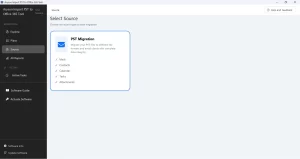
Simplified Steps to Migrate 100,000+ PST Emails to Microsoft 365 Account:
- Download and install the Aryson Import PST to Office 365 Tool.
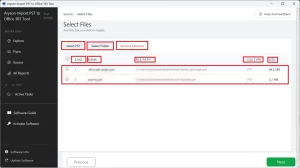
- Launch the tool and click Select PST or Select Folder to load PST files.
- Select the required PST files or folder to import to Office 365.
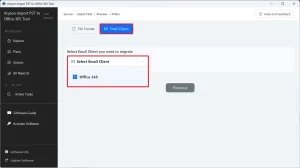
- Select Office 365 as the destination email client.
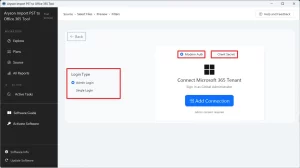
- Log in to the O365 account via modern auth or client secret methods.
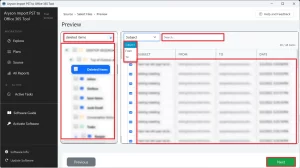
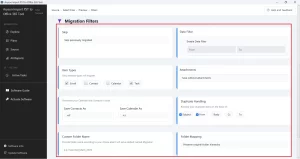
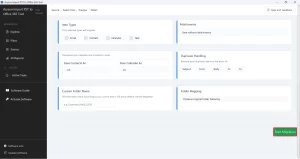
- Use the required filters of the software as per your requirements.
- Click Start Migration to begin the PST to Office 365 migration.
How Aryson PST to Office 365 Converter Surpasses The Manual Methods
- Import PST files to Thunderbird, Gmail, IMAP, Hotmail, Yahoo, & Zimbra successfully
- Performs batch conversion of PST files to save the user’s time and effort.
- It helps to save a PST file as an MBOX file and split a file of more than 500 MB into small pieces of MBOX
- Offers a direct export feature to export Outlook PST to Gmail, Yahoo, Thunderbird, IMAP, Hotmail, Zimbra, etc
- It offers two conversion modes, Single and Multiple, for converting PST files
- The Date-Range feature sorts email items by providing the start and end dates
- A self-intuitive and easy-to-use GUI for converting the PST file into other file formats without any expertise
- A free PST converter is available to evaluate the features and working of the utility software
- Export the first 50 emails using the demo version of the software wizard.
- It helps us to upload or import PST file into Live Exchange server.
- Allows saving and converting Outlook PST contacts to a CSV file
David’s Success Story
David, an IT administrator at a logistics company, needed to upload a 95 GB PST file that contains over 100,000 emails to Office 365. Outlook repeatedly crashed with memory errors, delaying the project. He switched to Aryson PST to Office 365 Converter, which migrated all emails, attachments, and folder structures successfully. The migration finished without data loss, duplicates, or mailbox corruption.
Conclusion
To upload 10000+ email PST to Office 365, there are various procedures and methods available. You can either use the manual approach or the automatic approach. The professional way requires you to just download the software and upload the PST file to Office 365, which is the easiest way.
Frequently Asked Questions
Q.1 How do I upload 10,000+ PST emails to Office 365 without Outlook?
Ans: Aryson PST to Office 365 Converter directly uploads PST files to Office 365 without requiring Outlook installation. Simply add the PST file, authenticate your Office 365 account, and start the migration. The tool supports large-scale PST imports with ease.
Q.2 Is there any PST file size limitation when uploading PST to Office 365?
Ans: Aryson PST to Office 365 Converter supports both small and large PST files without imposing software-based size restrictions. It efficiently handles oversized PST files while maintaining data integrity. This makes it suitable for enterprise-level migrations.
Q.3 Can I upload PST files to Office 365 archive mailboxes?
Ans: Yes, the software allows migration of PST data to both primary and archive mailboxes in Office 365. Users can choose the desired destination during the migration process. This helps manage historical email records effectively.
Q.4 Will the folder hierarchy remain intact after PST migration?
Ans: Yes, Aryson PST to Office 365 Converter preserves the original folder hierarchy throughout the migration. All mailbox folders remain organized in the destination account. Email properties and metadata are also retained.
Q.5 Can I create a custom folder in Office 365 for imported PST data?
Ans: Yes, the software offers destination folder mapping options for better organization. Users can migrate PST content into existing or newly created folders. This prevents imported data from mixing with active mailbox content.
Q.6 Does the tool remove duplicate emails before uploading PST files?
Ans: Yes, Aryson PST to Office 365 Converter includes an advanced duplicate detection feature. It identifies previously migrated emails and skips duplicate items automatically. This helps reduce storage consumption and migration time.
Q.7 Is there a free demo available for PST to Office 365 migration?
Ans: Yes, Aryson provides a free demo version for evaluation purposes. Users can test the software’s interface, features, and migration workflow before purchasing. This helps verify compatibility with their requirements.
Q.8 Is user data secure during PST to Office 365 migration?
Ans: Yes, the software performs secure PST to Office 365 migration without altering the source data. It preserves email content, attachments, metadata, and folder structure. User credentials and mailbox data remain protected during the process.
Q.9 What should I do if I face issues while uploading PST files to Office 365?
Answer: Aryson PST to Office 365 Converter generates detailed migration reports to help identify errors quickly. Users can review logs and retry the migration if needed. For additional assistance, dedicated technical support is available.
About The Author:

Harshita Sachdeva, a professional technical writer at Aryson Technologies, specialize in delivering clear, hands-on documentation for data management, migration, and recovery solutions. With a meticulous, reader-first approach, I break down complex technical processes into simple, actionable content - helping IT professionals and decision-makers tackle challenges efficiently.
Related Post