-

Written By Rohan Wiese
-
Updated on July 14th, 2025
How to Enable Editing in PDF: Get Solution to Making PDFs Editable
Summary:- PDFs are one of the most widely used file formats for sharing documents, contracts, forms, and more. Additionally, it maintains consistency in text and layout across all devices. By default, they’re not intended to be easily edited if they’re scanned or protected with restrictions. What do you do when you need to update some text, fill out a form, or insert new data? Here, it is essential to enable editing in PDF. In this blog, we’ll walk you through the most effective ways, including the Aryson PDF Unlocker Tool, to make any PDF editable with ease.
Why You Might Need to Make PDF Editable
PDFs are usually used for sharing final versions of documents. However, there are many situations where editing them becomes necessary. Here are some common reasons:
- You might spot a typo, wrong date, or outdated detail that needs to be corrected in the file.
- If the file was scanned, you’ll need to make it editable to copy or repurpose the text.
- Sometimes, the content needs to be reorganized, fonts changed, or headings updated to give the document a more professional appearance.
- You should include your company logo, add more details, or delete unnecessary parts before finalizing the file.
- When reviewing the reports or legal papers, you may need to sign the document or leave notes for others.
In all these cases, it is essential to have the ability to edit a PDF. It can save time, avoid rework, and make your documents more flexible to use.
Different Ways to Enable Editing in a PDF
In the upcoming section, we’ll walk you through the best ways to convert PDF to editable format using simple tools and techniques. Whether you want to update text, add images, or sign a form, we’ve solutions tailored to individual needs.
Method 01: Unlock and Edit PDFs Easily with Aryson PDF Unlocker Tool
Sometimes, the reason you can’t edit a PDF isn’t because of missing software. It’s because the file itself is locked. If you’re unable to copy text, make changes, or print a PDF, it’s likely restricted by the file’s creator. That’s where the Aryson PDF Unlocker Tool becomes extremely helpful to enable editing in PDF. This easy-to-use software is built specifically to unlock PDF for editing, printing, copying, and extracting the PDF file. Whether it’s a single document or a batch of locked PDFs, the tool unlocks them quickly and safely.
Follow the Given Steps to Unlock and Make PDFs Editable:
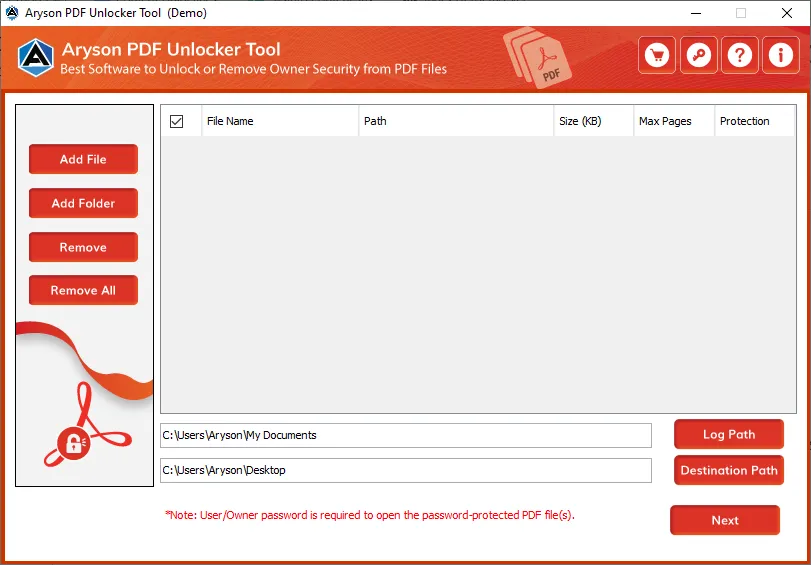
- Step 01: Install the Aryson PDF Unlocker Tool and open it on your system.
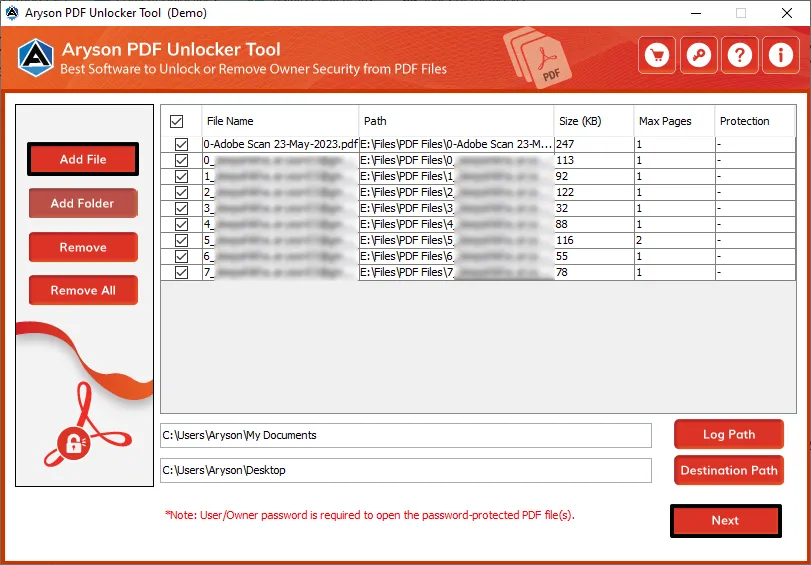
- Step 02: Then, click Add File/Add Folder to add the locked PDF file>> Next.
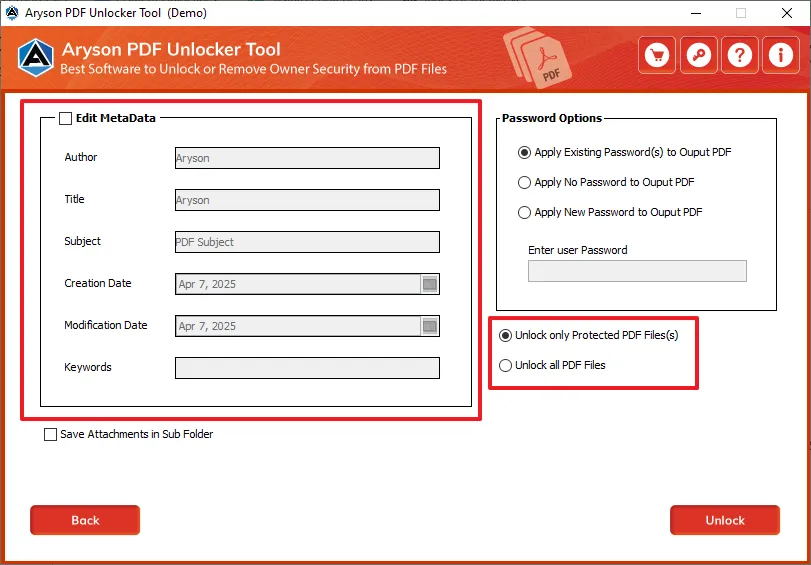
- Step 03: Now, you can pick the given options to edit the metadata of the PDF file.
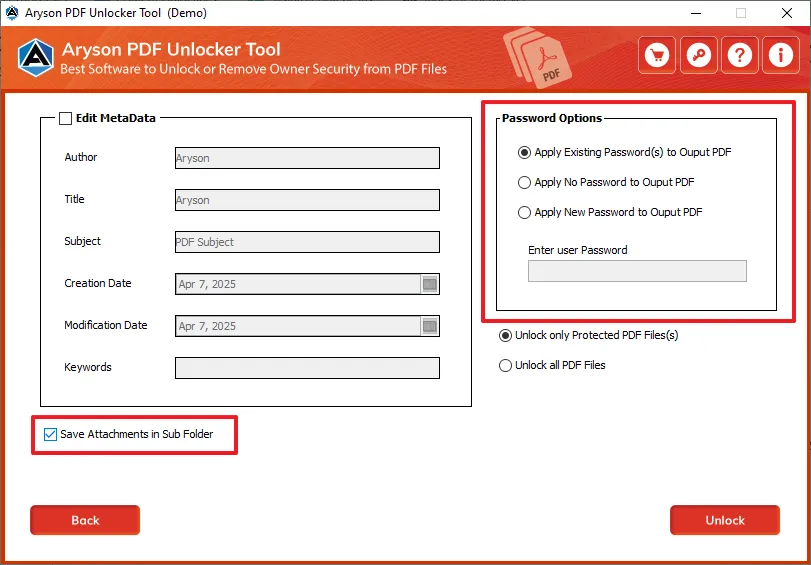
- Step 04: Also, you can apply a new password and save attachments accordingly.
- Step 05: Click on the Unlock PDF button to remove the restriction from PDF file.
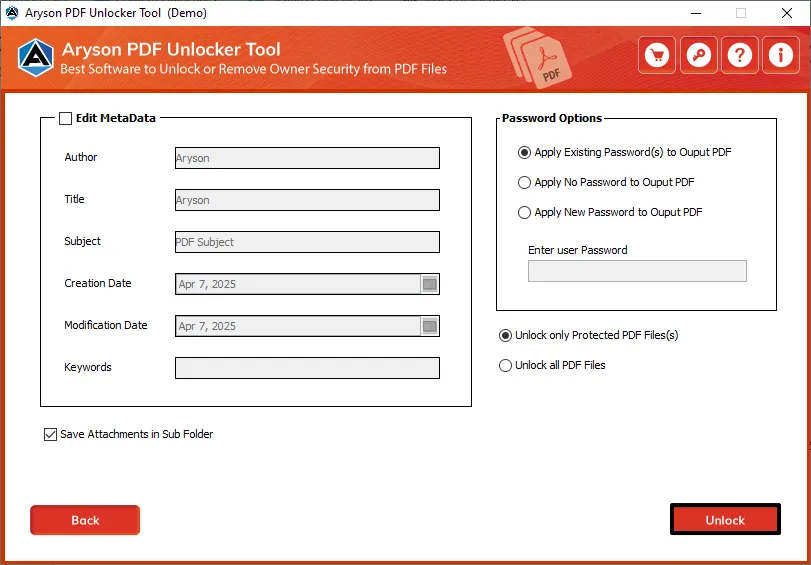
Important Note: Once the file is unlocked, open Microsoft Word, go to File > Open, select the unlocked PDF, and click OK to convert password-protected PDF to PDF. After making your edits, save the file again as a PDF via File > Save As.
Method 02: Convert PDF to Editable Format Using Google Docs
Google Docs offers a simple and free way to turn your PDF file into an editable document. This method works best for text-based PDFs. Also, you should keep in mind that this way it is hard to preserve the data integrity of your files.
- First, go to Google Drive and upload the PDF file you want to edit.
- Next, right-click the file and choose Open with > Google Docs.
- Then, wait for Google Docs to open the file in an editable format.
- After that, make the required changes in the document.
- Finally, go to File >> Download >> PDF Document (.pdf) to save it again as a PDF.
Note: This method is best for basic editing, quick text changes, and free access. If you have complex formatting, scanned files, or large PDFs, then it becomes manage the PDF files.
Method 03: Enable Editing in PDF via Adobe Acrobat Pro
With Adobe Acrobat Pro DC, you can make PDF editable. Although it’s a paid tool, Adobe offers a free trial for short-term needs.
- First, launch Adobe Acrobat Pro DC on your system.
- Next, click on File >> Open to load the PDF you want to edit.
- Then, go to the right-side panel and select the Edit PDF option.
- After that, click on any text or image element in the file to begin editing.
- Now, make the required changes and add new text, update fonts accordingly.
- Finally, click on File >> Save As to save the modified PDF document.
Method 04: Use Free Online PDF Editor Software
Another alternative is Free Online PDF Editors to edit PDF online free. They are browser-based editors that allow quick manual changes directly from your web browser.
Follow the Steps to Making PDFs Editable Using Online Software:
- First, open your web browser and visit a trusted PDF editor.
- Next, click on the Upload PDF or Choose File button to add your PDF.
- Wait for the file to load and use the available tools to insert text, shapes, or annotations.
- After that, apply all the necessary changes to your document.
- Now, preview the file and make final adjustments if needed.
- Finally, click on the Download or Save button to get the edited PDF to your device.
Method 05: Copy and Paste Text from PDF to Enable Editing
If the PDF isn’t scanned or locked, you can easily make it editable by copying the text and pasting it into a Word document.
- First, open the PDF using any standard viewer like Adobe Reader.
- Next, highlight the text you want to copy from the file.
- Then, right-click and choose the Copy option.
- After that, paste the text into Word or Notepad.
- Finally, edit the text and save the file again as a PDF if needed.
Limitations Associated With Manual Editing
Manual methods to edit PDFs can be helpful in many cases. Also, they come with certain drawbacks. Below are some common limitations you should be aware of:
- First of all, formatting often breaks during conversion to Word or Docs.
- In many cases, scanned PDFs require OCR, which may give inaccurate results.
- Moreover, password-protected PDFs cannot be edited without unlocking them.
- Along with that, free PDF editors often limit file size and basic features.
- Additionally, editing multiple pages manually can be time-consuming.
- Furthermore, uploading files online may put sensitive data at risk.
- On top of that, most manual tools lack advanced editing functions.
- Also, the results may vary depending on the file’s layout and structure.
Conclusion
So, whether you’re working with a protected file or just need a smoother way to make changes, the right method depends on your file type, editing needs, and level of security. Hence, choose what works best to enable editing in PDF and simplify your PDF editing tasks with confidence.
Frequently Asked Questions:-
Q1. Why can’t I edit my PDF file?
Ans: Most PDF files are either locked with editing restrictions or created as non-editable formats like scanned images. You’ll need to remove these restrictions or convert the file using an editor or the Aryson PDF Unlocker Tool.
Q2. How can I enable editing in a password-protected PDF?
Ans: You can use a reliable tool like Aryson PDF Unlocker to remove the password or restrictions. Once unlocked, the file becomes fully editable.
Q3. Are online PDF editors safe to use?
Ans: Free online editors are convenient but may pose privacy risks, especially for sensitive documents. Always use trusted platforms or offline tools for better security.
About The Author:

Rohan Wiese is a Technical Writer at Aryson Technologies. He is an expert Email Forensic, Cloud Computing, and a passionate nerd with over 10 years of experience in technical content writing. He writes about Cloud Migration, Database Recovery, Email Backup, Windows, Mac, and Tech.
Related Post



