-

Written By Rohan Wiese
-
Approved By
Shivam Rathore -
Updated on June 17th, 2025
SQL Server Error 5171: “MDF is Not Primary Database File” – Error Fixed
Fact-checked and reviewed in accordance with our
Editorial Policy
Summary: If you are using Microsoft SQL Server, there might be a chance of getting an error like: SQL Server Error 5171. It’s a very common error that occurs due to several reasons. It usually happens when you try to attach a database, and SQL Server can’t recognize the .mdf (primary database file). If you also face this error, then don’t worry. In this blog, we suggest the best methods to fix this error and resolve your database file. In addition, we will introduce the Aryson SQL Recovery Software to recover your MDF file without any hassle. Download Now Purchase Now
What is SQL Server Error Code 5171?
Error 5171 occurs when the SQL Server cannot read or validate the MDF (Master Database File) while attaching the database. This usually means the file is corrupted, damaged, or not recognized as a valid primary database file.
Common Reasons for SQL Server Error 5171
There are different reasons available to fix the SQL issue. Some of the key reasons are:
- The MDF file is corrupt or has a damaged header.
- If the MDF file was not properly detached before copying.
- Sometimes, the associated LDF (log) file is missing.
- A version mismatch between SQL Server and the database file.
- Hard shutdowns or power failures during database usage.
What does “not a primary database file” mean?
This error message signifies that the SQL Server instance you’re working with is unable to interpret the .mdf file as a legitimate starting point for a database. This error could be due to:
- File Corruption: The most common cause. Suppose the header page (the first 8KB page that contains vital information like file signature, size, and compatibility) or other pages within the MDF file are corrupted. In that case, SQL Server won’t recognize it as a valid database file. This corruption can be caused by:
- Sudden power failure or unexpected system shutdown while the database is in use.
- Virus or malware attacks.
- Issues with the storage drive (e.g., bad sectors).
- Improperly detaching database files.
- Incorrect File Type/Extension: While less common, sometimes users try to attach a backup file (.bak) instead of an MDF file or a secondary data file (.ndf) with an incorrect extension. Backup files need to be restored, not attached.
- Database Incompatibility: If you’re trying to attach an MDF file that was created in a newer version of SQL Server to an older version or if there’s a mismatch in the database’s internal versioning due to an improper upgrade.
- Missing or Mismatched LDF file: Every database also has a transaction log file (.ldf). While the error explicitly mentions the MDF, issues with the corresponding LDF file can sometimes indirectly lead to problems in recognizing the MDF.
- Invalid Registry Entries: Corrupted or incorrect registry entries related to SQL Server can also contribute to this error.
Best Methods to Fix SQL Server Error 5171
In the following section, we’ll explain various solutions to resolve SQL Error 5171 is based on a specific cause. Let’s review these methods step-by-step.
Method 01: Manually Repair Corrupted SQL MDF File to Fix SQL Server Error 5171
If you’re running mirrored databases in SQL Server and attempt to bring one of them online using the following command:
|
ALTER DATABASE mydb SET ONLINE; |
But you face the SQL Server MDF file corruption. This typically happens due to corruption in the mirrored database files or issues with metadata validation.
Follow these steps to resolve the issue when working with mirrored databases:
- Firstly, set the principal database.
- Then, modify the file reference by using this command:
ALTER DATABASE mydb MODIFY FILE (NAME = ‘LogicalFileName’, FILENAME = ‘C:\NewPath\mydb.mdf’);
- After that, stop the active SQL Server instance.
- Further, navigate to the directory where the database files are stored.
- Copy both the MDF and LDF files to a safe location or a new directory.
- Finally, after copying the files, restart the SQL Server instance
Method 02: SQL Server Error 5171 Due to Improper Upgrade
Another common scenario where SQL Server Error code 5171 can occur is after an improper upgrade of your SQL Server version. For instance, you may have been running SQL Server 2014 and decided to upgrade to SQL Server 2016. After completing the installation successfully, you try to attach your existing MDF file. But SQL Server repeatedly fails and throws the following error:
“MDF is not a primary database file” (Error 5171)
This error generally indicates that SQL Server cannot validate the structure of the MDF file in the upgraded environment.
You can use the sp_attach_db Command to fix this issue. Here is how you can run it:
|
EXEC sp_attach_db @dbname = N’YourDatabaseName’, @filename1 = N’C:\DatabasePath\YourDatabase.mdf’, @filename2 = N’C:\DatabasePath\YourDatabase_log.ldf’; |
Limitations of the Manual Method
The above manual methods are free to use, but have several limitations, such as:
- They have no guarantee of a 100% accurate recovery.
- Increases the risk of losing important information.
- If the MDF file is severely corrupted, not helpful to recover it.
- Requires technical expertise and knowledge of how to run commands.
If you want to avoid the limitations of the manual procedure, you can go for the alternative method mentioned below.
Method 03: Professional Tool to Fix SQL Server Error 5171
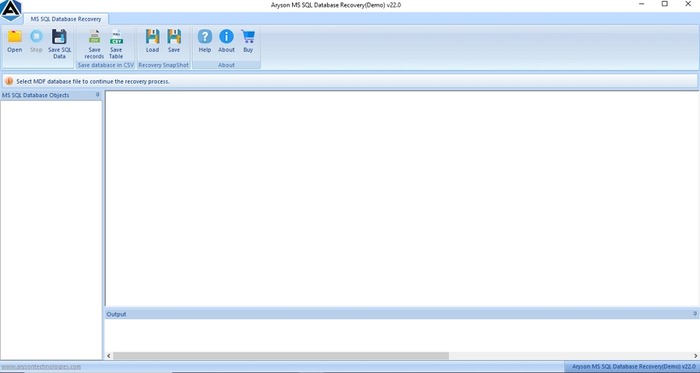
If your SQL Database file (MDF) is corrupted and shows this error: 5171. Means you have to take immediate action to recover it. You can use the experts’ recommended Aryson SQL Database Recovery Tool to repair your corrupt or damaged SQL Database file. This tool helps you to recover lost data, including tables, views, indexes, and more. Furthermore, the interface of this utility is simple, and even non-tech users can easily operate it. You can also preview the repaired MDF file before downloading it. Also, it offers several useful advanced features to make your process hassle-free.
Steps to Fix SQL Error 5171 by Repairing MDF File Using Aryson Software:
- Primarily, launch the SQL Database Recovery Tool as an admin.
- Next, click on Open and browse the MDF file.
- Choose either Standard or Advanced Recovery Mode and collation options. Click OK.
- After that, check all the recovered files and choose the file that you want to save.
- In the end, click on Save SQL Data, and the recovery process will be done successfully.


Final Thoughts
SQL Server Error 5171 can occur due to the SQL database file might be corrupted. To resolve this error, we explained the top 3 techniques in this blog post. You can choose the best method that fulfills all your requirements and provides you with a hassle-free result with minimal downtime. Moreover, many experts have tested and recommended, using the professional tool is a good option. It saves your time, efforts and gives you a 100% precise, accurate result. For any questions, our 24/7 technical support team is here to help.
Frequently Asked Questions (FAQs):-
Q1. What causes SQL Server Error 5171?
Ans: Error 5171 occurs when SQL Server can’t recognize the MDF file due to corruption, version mismatch, or improper shutdown.
Q2. How do I fix MDF is not a primary database file error?
Ans: You can fix this error by using the manual technique or a professional tool. If your file is corrupted and shows this error, you can recover it with the help of a professional tool.
Q4. What is the best tool to repair SQL Server Error 5171?
Ans: Aryson SQL Database Recovery Tool is a professional solution that can easily fix SQL error 5171 and recover MDF files.
Q5. Is it possible to recover data from an MDF file exhibiting Error 5171?
Ans: Yes, data recovery from an MDF file exhibiting Error 5171 is often possible. The most reliable method is restoring from a recent backup. If no backup exists, tools like DBCC CHECKDB with repair options (use with caution for potential data loss) or specialized third-party software like Aryson SQL Recovery can scan and extract data from the corrupted MDF file.
Q6. Can I fix Error 5171 by simply recreating the LDF file?
Ans: Sometimes, yes. If the MDF file is healthy but the LDF (log) file is missing or corrupted, you can try attaching the MDF using FOR ATTACH_REBUILD_LOG. SQL Server will then attempt to create a new LDF. However, this won’t work if the MDF itself is corrupted; a more comprehensive recovery solution would be needed then.
Q7: How can I prevent Error 5171 in the future?
Ans: To prevent Error 5171, implement regular, tested backups. Always gracefully shut down SQL Server. Use proper detach/attach procedures when moving files. Ensure the SQL Server service account has correct file permissions. Monitor disk health and maintain sufficient disk space to avoid corruption.
About The Author:

Rohan Wiese is a Technical Writer at Aryson Technologies. He is an expert Email Forensic, Cloud Computing, and a passionate nerd with over 10 years of experience in technical content writing. He writes about Cloud Migration, Database Recovery, Email Backup, Windows, Mac, and Tech.
Related Post