-

Written By Harshita Sachdeva
-
Approved By
Shivam Rathore -
Updated on May 23rd, 2026
Transfer PST File to GoDaddy: Easy Migration in a Few Clicks
Fact-checked and reviewed in accordance with our
Editorial Policy
Query: Our organization’s mailbox contains a 50GB PST archive, and Outlook freezes whenever I try importing it into GoDaddy email. How can I upload the PST without crashes or data loss?
Summary: Businesses running on Microsoft Outlook store critical data in PST files—emails, contacts, calendars, and more. With GoDaddy emerging as a preferred cloud-based email hosting platform, the need to transfer PST file to GoDaddy is growing fast. This article covers manual workarounds, their limitations, and how the Aryson PST File Converter delivers a fast, error-free PST to GoDaddy migration without data loss.
How to Quickly Import PST to GoDaddy
- Install & run the Aryson PST Converter on a Windows or Mac.
- Click Select Files to load the required PST file >> click Next.
- Check the email content & attachments of PST mailbox >> Next.
- Select GoDaddy (Office 365) from the Export to Email Client dropdown menu.
- Enter GoDaddy credentials (host, email ID, and password).
- Apply the required filters >> choose the destination folder path.
- Click “Start Export” to begin PST to GoDaddy transfer.
Who Needs to Transfer a PST File to GoDaddy?
- IT administrators who migrate the company email infrastructure to GoDaddy.
- Small business owners who shift from desktop-based Outlook to GoDaddy cloud email.
- Professionals switching jobs need to access archived PSTs inside the GoDaddy mailbox.
- Organizations that need to consolidate multiple Outlook accounts into one.
- Remote teams switching from local Outlook storage to cloud-accessible GoDaddy.
- Legal and compliance teams that are archiving old PST records into GoDaddy.
Best Methods to Transfer PST File to GoDaddy
Now, as we have discussed, the potential users who may need to transfer their Outlook PST data to GoDaddy, let’s proceed to the actual steps of migration. Carefully go through the manual approaches and consider all the important aspects. In case neither of the hands-on approaches works for you, refer to the professional method discussed in the upcoming sections of the blog.
Method 1: Transfer PST to GoDaddy via Outlook IMAP Configuration
Microsoft Outlook provides users with a built-in import feature to import PST files into GoDaddy Mail. Users just have to connect their GoDaddy as an IMAP account in MS Outlook. Then use the Import/Export wizard to push PST data directly into the configured GoDaddy mailbox folders.
Steps to Migrate Emails PST to GoDaddy Using Outlook:
- Open Microsoft Outlook on your Windows system.
- Go to File >> Account Info >> Add Account.
- Provide your GoDaddy email address >> select Manual Setup.
- Choose IMAP >> enter your GoDaddy IMAP server settings.
- Click Finish and let Outlook load your GoDaddy mailbox folders.
- Now go to File >> Open & Export >> Import/Export.
- Select the Import from another program or file >> Outlook Data File (.pst).
- Search for the required PST file >> select it to transfer.
- Map it to the GoDaddy mailbox folder >> click Finish.
After following the above steps, the PST emails will begin syncing into your GoDaddy IMAP account via Outlook.
Method 2: Transfer PST File to GoDaddy via Thunderbird
If Microsoft Outlook is not already installed on your system, Mozilla Thunderbird is a potential alternative. In this method, you just have to import PST files into Thunderbird and sync them to GoDaddy via IMAP. This entire conversion takes two stages to complete and works well for smaller mailboxes.
Manual Steps to Migrate Emails from Outlook to GoDaddy Using Thunderbird:
- Download & install Mozilla Thunderbird on your system.
- Set up the GoDaddy email account in Thunderbird via IMAP settings.
- Use the ImportExportTools NG add-on to import the PST mailbox.
- Now, Thunderbird will load all PST folders and emails into its interface.
- Select the imported emails and move them to the GoDaddy IMAP folders.
- Wait for Thunderbird to sync the moved emails to GoDaddy servers.
- Log in to your GoDaddy webmail to verify that all emails are transferred.
- Repeat the folder-level transfer for contacts and other mailbox data.
Once the sync completes, your GoDaddy webmail should reflect the transferred PST data.
Drawbacks of Manual Methods
- Large PST archives make the manual IMAP sync extremely slow and unreliable.
- Attachments and embedded images may drop out silently during the process.
- No built-in duplicate detection leads to repeated emails inside GoDaddy.
- Folder hierarchy does not always migrate accurately in the Thunderbird workaround.
- Technical expertise is required to configure IMAP settings without errors.
Method 3: Quick Solution to Transfer PST File to GoDaddy
Enterprises prefer to use Aryson PST Converter to convert their large amount of Outlook data to Thunderbird. This software helps them save hours of manual work and directly imports Outlook data files to GoDaddy mail within a few clicks. It even lets them detect the corrupted, invalid, and blank PST files among the large dataset. With the help of its advanced features, even a beginner can convert PST to MD, PDF, MSG, etc. formats. The free demo version is also available for evaluation of the software performance.
Step-by-Step Tutorial to Migrate Emails PST to GoDaddy
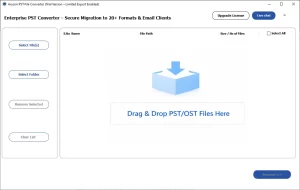
- Download and install Aryson PST Converter >> run as administrator.
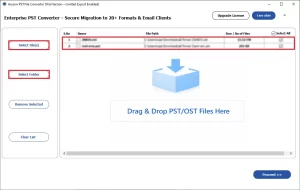
- Click Select Files / Select Folders or drag & drop your PST file.
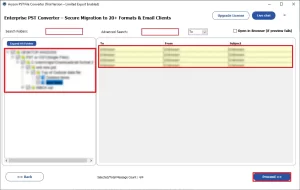
- Expand the folder tree and preview emails, contacts, and calendar items.
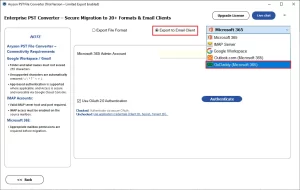
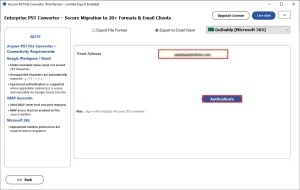
- Select GoDaddy (Office 365) from the Export to Email Client dropdown.
- Enter your GoDaddy IMAP host, email address, and password.
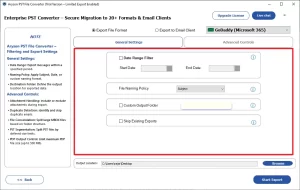
- Apply date-range or folder-level filters if selective migration is needed.
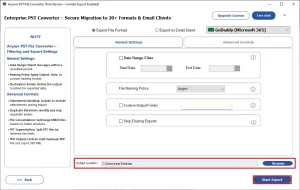
- Click Start Export to begin the PST to GoDaddy transfer instantly.
How Does Aryson PST Converter Outperform Manual Methods?
- This software can convert Outlook PST to JSON, MD, PDF, PST & more formats.
- It preserves all email metadata, including headers, attachments, and formatting.
- Built-in duplicate detection prevents redundant emails inside GoDaddy.
- Batch processing handles unlimited PST files simultaneously with no size cap.
- Advanced filters allow selective migration by folder, date range, or sender.
- The free demo version lets users test the transfer before purchasing a license.
James’s Success Story
James Carter, an operations manager from Texas, needed to import years of large PST files to GoDaddy mail. Initially, he tried to use the manual IMAP sync, which kept timing out. Later on, he used Aryson PST Converter, entered GoDaddy credentials, and exported all the required Outlook PST data—emails, contacts, and folders intact—within a few minutes.
Conclusion
In short, the choice of import method largely depends on the size of the dataset and technical knowledge. To import smaller mailboxes, the Outlook IMAP and Thunderbird workarounds work well. But for organizations managing large PST archives, missing metadata and slow sync speeds become real problems. The Aryson PST Converter eliminates all those pain points- it is fast, reliable, and does not demand any prior technical expertise to complete a safe PST to GoDaddy migration.
Frequently Asked Questions
Q.1 How can I transfer PST file to GoDaddy email?
With the help of the Aryson PST Converter, you can easily transfer PST file to GoDaddy email. Simply load the PST data into the software, preview it, select IMAP, and log in to GoDaddy. If required, apply the filters and click on the Start Export button.
Q.2 Do I need Microsoft Outlook to transfer a PST file to GoDaddy?
No, with the help of the Aryson PST Converter, there is no need to install MS Outlook to transfer PST file to GoDaddy.
Q.3 Will my folders, contacts, and calendar items transfer when I import a PST to GoDaddy?
Yes, all your folders, contacts, and calendar items will transfer if you use the above software to import a PST to GoDaddy.
Q.4 How do I configure GoDaddy email in Outlook before importing a PST file?
Configure your GoDaddy email account in Microsoft Outlook using IMAP or Exchange settings before starting the PST import process.
Q.5 Can I restore a backup PST file to my GoDaddy email account after accidental deletion?
Yes, you can restore a backup PST file to your GoDaddy email account by importing it through Microsoft Outlook.
Q.6 What should I do if my GoDaddy mailbox is full after importing a PST file?
If your GoDaddy mailbox becomes full after PST import, delete unnecessary emails or upgrade your mailbox storage plan to free up space.
About The Author:

Harshita Sachdeva, a professional technical writer at Aryson Technologies, specialize in delivering clear, hands-on documentation for data management, migration, and recovery solutions. With a meticulous, reader-first approach, I break down complex technical processes into simple, actionable content - helping IT professionals and decision-makers tackle challenges efficiently.
Related Post