-

Written By Rohan Wiese
-
Approved By
Shivam Rathore -
Updated on December 17th, 2025
Migrate IMAP to Google Workspace (G – Suite) – A Complete Guide
When the professional switches to a cloud-based email platform, migrating emails from an IMAP server to Google Workspace (G Suite) becomes important. Large mailboxes, data loss during migration, are some of the difficulties that many users face when migrating. All the emails, folders, and attachments will transfer data securely and retain their original structure. To migrate IMAP to Google Workspace in a more advanced way, you can use the Aryson IMAP Backup Tool.
Why should you Move IMAP email to Google Workspace (G-Suite)?
Here are the key factors to migrate your IMAP to G Suite:-
- Through Gmail, you can connect with other apps such as Google Drive, Meet, and calendars.
- You can manage emails with powerful labels and search.
- It allows you access to emails anytime, anywhere with cloud-based Gmail.
- The G-Suite will enhance security and protect from spam.
- G-Suite will provide a reliable backup.
Now, we will discuss how you can transfer IMAP emails to Google Workspace for easier accessibility.
Best Method to Migrate IMAP to Google Workspace
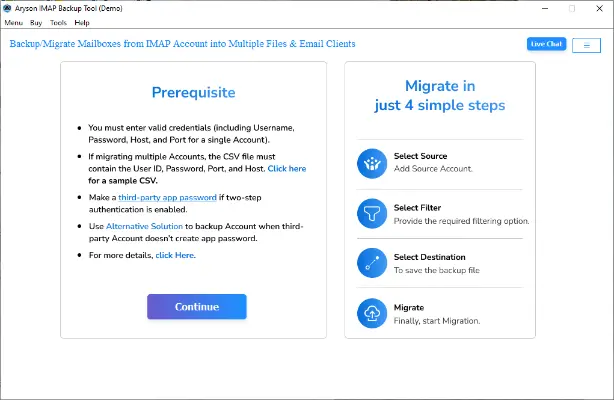
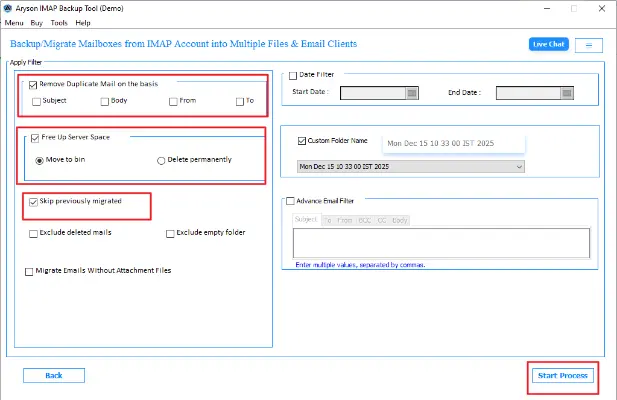
If you want to migrate IMAP data with ease, the Aryson IMAP Backup Tool is the best choice for you. This tool has several features that will help to obtain the specific data for IMAP to G Suite migration. To remove duplicates or skip previously migrated emails, this software is more reliable. It also has a feature to free up the server space by moving data to trash or deleting it permanently. To obtain a specific time period emails from the mail folder, you can apply the date filter option. You can also customize the folder name for easy recognition using the Custom Name Folder. The steps are given below:
Steps to Transfer IMAP emails to Google Workspace
- Download and install the Aryson IMAP Backup Tool and run it as an administrator.
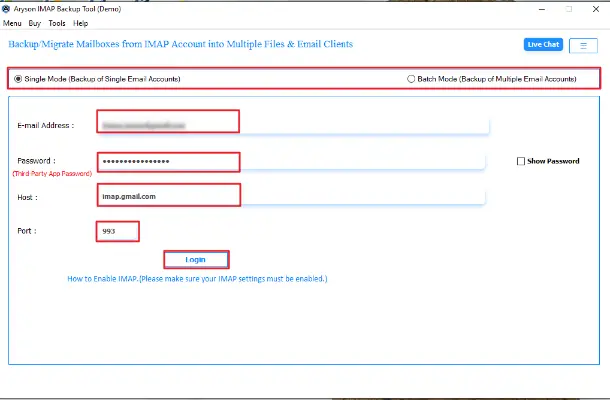
- Select Single or Batch Mode and enter the Login Credentials, such as Name, Password (Third-Party App Password), Host, and Port, then click the login button.
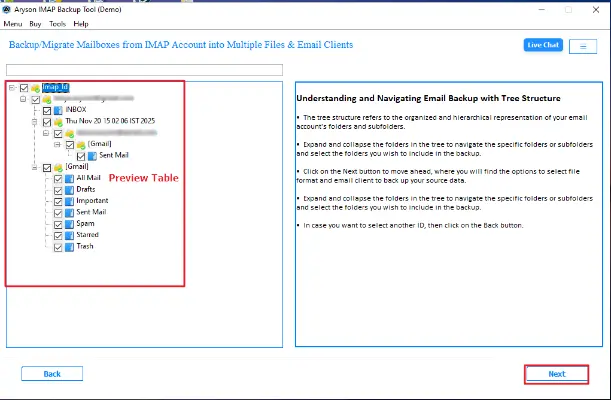
- Now, preview the emails from the tree structure and click Next.
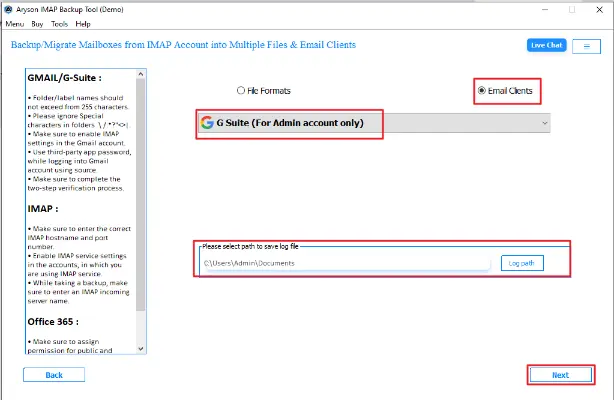
- Further, from the email client, select the G-Suite and select the log path to save files. Click Next.
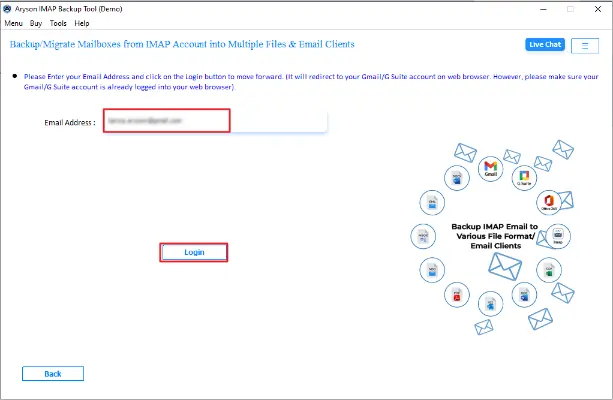
- After that, enter your Email and click the Login button. You will be redirected to the Gmail web browser.
- Lastly, Apply Filters according to the need and click on the Start Process.
Advantages of Moving IMAP Email to Google Workspace
This software offers several advantages for migrating data to the Google Workspace. The features below explain the tool capabilities to better understand the tool.
- Users find this software useful to migrate multiple files in bulk.
- Allows you to export IMAP emails to PST, PDF, MSG, CSV, etc.
- The software also migrates IMAP emails to Microsoft 365, Gmail, and Other IMAP Server accounts..
- Along with that, it supports both Mac and Windows operating systems.
- An easy-to-use interface makes it more reliable for users.
- You can remove duplicate files from the folder by using Remove Duplicates.
- To get specific time data, you can use the Date filter option.
Use Manual Method to Migrate IMAP to Google Workspace
If you are having a single file or a few files to migrate, you can use this free method to upload IMAP emails to Google Workspace (G-Suite). You can follow these steps to easily convert the files.
Step 1: Enable and Set Up Data Migration Service
- To start, log in to the Google Admin Console, go to the Menu bar, select Account, and then Data Migration.
- Now, click on the Set Data Migration Up and select IMAP server as the source, and choose Email as the data type.
- In the connection protocol field, choose IMAP and enter the Hostname for your IMAP server.
- Now, enter the Email and Password in the role account, and click Start to initiate the migration.
- Further, select the start date in the Migration Date Field.
- Select the items you want to exclude from the migration.
- At last, tap on the Select Users and choose the desired user account.
Now, the setup of IMAP to Google Workspace migration for data migration is completed for your Google account.
Step 2: Migrate IMAP to Google Workspace
- To begin with, click on Add user and enter the username in the field.
- Insert the destination Google Workspace email address in the field.
- Now, provide the password for the IMAP email account and click on Start to initiate the process.
Drawbacks of the IMAP to Google Workspace migration Method
- It requires multiple steps for the migration.
- Moreover, users need technical knowledge to perform this method.
- There is a high chance of data loss during migration.
Conclusion
To wrap up, transferring IMAP emails to Google Workspace provides a dependable and safe email environment. It makes emails simple to access at any time and protects your data. You can migrate IMAP to Google Workspace without any problems if you use the appropriate migration technique. Try the Aryson IMAP Backup Tool, which offers a free demo that allows 50 emails per folder, for a quicker and easier procedure.
Frequently Asked Questions
Q1. Is it possible to migrate IMAP emails without data loss?
Ans. Yes, when the migration is performed correctly using a professional Aryson IMAP Backup Tool, emails are transferred securely without data loss.
Q2. Do I need admin access to perform IMAP migration to Google Workspace?
Ans. No. Admin access is not required when using an Aryson IMAP Backup Tool to move data to Google Workspace.
Q3. How long does the IMAP to Google Workspace migration take?
Ans. IMAP to Google Workspace migration time using an Aryson IMAP Backup Tool depends on mailbox size, user count, server speed, and internet bandwidth.
About The Author:

Rohan Wiese is a Technical Writer at Aryson Technologies. He is an expert Email Forensic, Cloud Computing, and a passionate nerd with over 10 years of experience in technical content writing. He writes about Cloud Migration, Database Recovery, Email Backup, Windows, Mac, and Tech.
Related Post