-

Written By Rohan Wiese
-
Approved By
Shivam Rathore -
Updated on April 2nd, 2026
How to Migrate Zoho Mail to Gmail? Step-by-Step Guide (2026)
Fact-checked and reviewed in accordance with our
Editorial Policy
Zoho Mail and Gmail are both widely used cloud-based email platforms that are trusted by industry individuals & organizations across the world. However, growing organisations prefer to migrate Zoho Mail to Gmail because of the collaboration features and third-party integration support of Gmail. It can be challenging to migrate between these two platforms and might result in data loss or missing attachments. Hence, this article covers the efficient manual methods, along with the Aryson Zoho Backup Tool for a quick migration.
Why Do You Need to Transfer Zoho Email to Gmail Account?
Listed below are the most common reasons behind this migration.
- Gmail offers integration with Google Workspace tools like Drive, Meet, and Docs.
- The third-party app ecosystem of Zoho Mail is limited compared to Gmail’s.
- Gmail delivers more robust spam filtering and stronger security protocols.
- Organizations using Google Workspace require all mailbox data to be centralized within Gmail.
- Gmail’s flexible storage plans and enterprise-grade compliance features make it the preferred choice for rapidly scaling businesses.
Best Methods to Migrate Zoho Mail to Gmail
The following are the methods we will discuss in this blog to migrate email from Zoho Mail to Gmail.
- The Manual Zoho to Gmail Migration
- Automated Method to Transfer Zoho Mail to Gmail
Method 1: Using IMAP to Move Zoho Emails to Gmail
In this IMAP-based approach, users just have to enable IMAP access in Zoho Mail, add the Zoho address as a send-as account inside Gmail, and then set up email forwarding so that all incoming Zoho emails are automatically redirected to Gmail. Follow the steps below carefully to avoid any kind of data loss.
Steps to Migrate Zoho Mail to Gmail Using IMAP
- To begin, log in to your Zoho Mail account >> click the Settings (Gear) icon.
- Click on Email Forwarding and POP/IMAP & enable IMAP.
- Next, open your Gmail account, click the Gear icon, >> go to See All Settings.
- Go to Accounts and Import tab & select the Add Another Email Address option.
- Provide the valid Zoho Mail address & enter SMTP server details.
- Enter your Zoho login credentials and click Add Account.
- Open the confirmation link sent to your Zoho Mail & click on it for verification.
- Return to Zoho Mail Settings, go to Email Forwarding and POP/IMAP, & click Add Email Address.
- Enter your Gmail address, and approve the confirmation request received in Gmail.
- Then, copy the confirmation code, & paste it back into your Zoho Mail account.
- Zoho will now begin forwarding all new incoming emails to your Gmail account.
Drawbacks of the Manual IMAP Method
- Each mailbox must be migrated separately, making it impractical for users managing multiple accounts simultaneously.
- Only incoming emails transfer through this method — sent emails will not sync to Gmail at all.
- Some emails, attachments, or folders may not transfer correctly during the synchronization process.
- Contacts and calendar items do not migrate via IMAP and require a completely separate export and import workflow.
- The process requires constant confirmations and code entries, making it difficult for non-technical users to complete.
Method 2: Advanced Method for Zoho Mail to Gmail Migration
Aryson Zoho Backup Tool is the most efficient solution that allows users to migrate Zoho Mail to Gmail without affecting the data integrity. This software allows users to back up Zoho Mail in Documents, Webpage, Image, and Word formats. Moreover, using the same software, users can migrate Zoho Mail data to Office 365, Yahoo, GoDaddy Email, HostGator, IMAP, AOL, Live Exchange, iCloud, etc. Additionally, the preview panel provides the user with 100% data accuracy and integrity. Also, the advanced features of the software, like removing duplicates, freeing up server space, etc., make it ideal for large organisations as well as industry professionals.
Steps to Export Zoho Mail to Gmail using the Software.
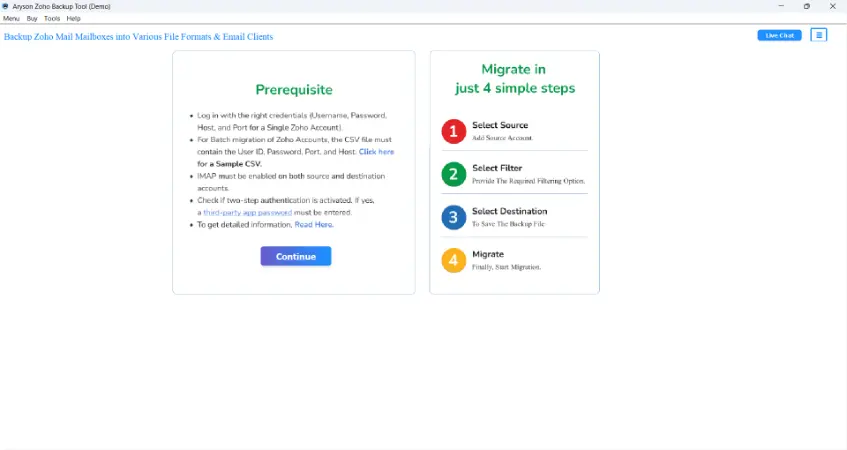
- Firstly, download and run the Aryson Zoho Backup Tool on your device.
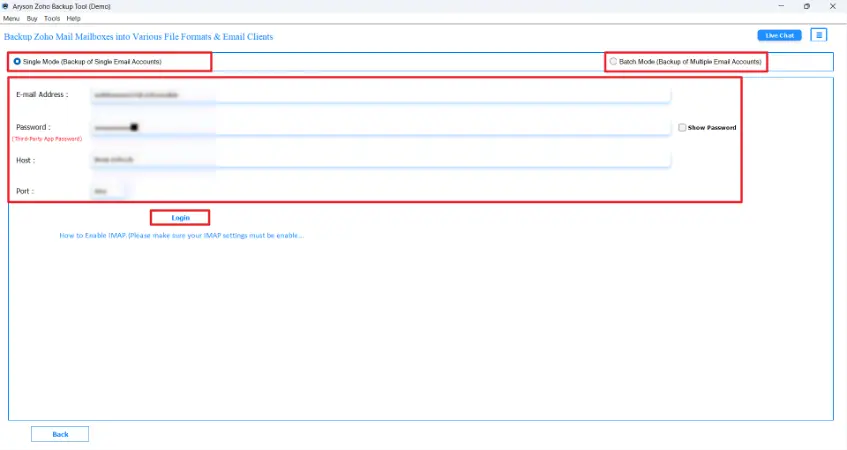
- Enter the valid Zoho ID and password to log in to an active Zoho account.
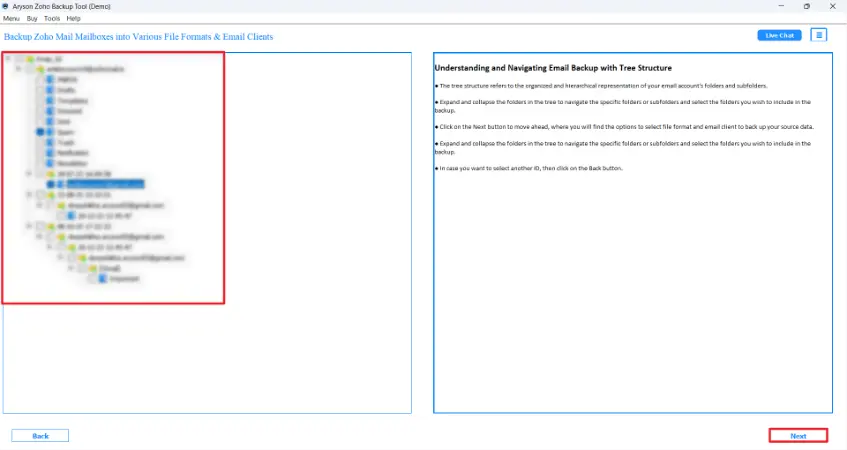
- After that, select the required files/folders from the displayed tree structure.
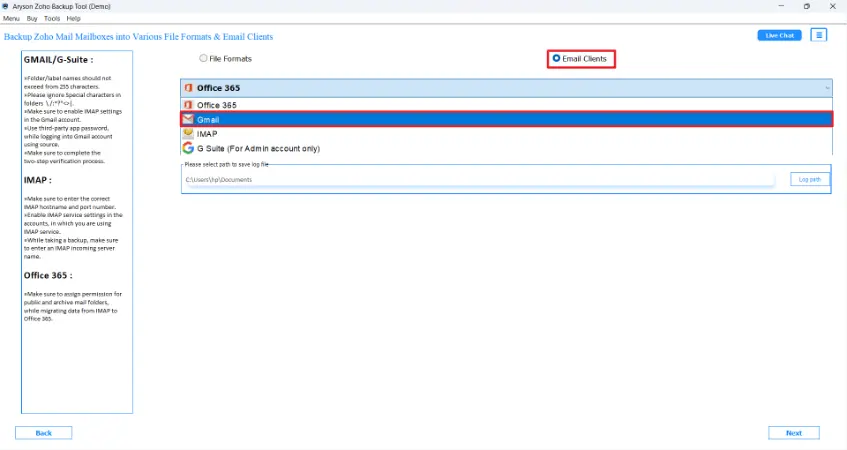
- Now, under the Email clients dropdown list, choose Gmail as the destination.
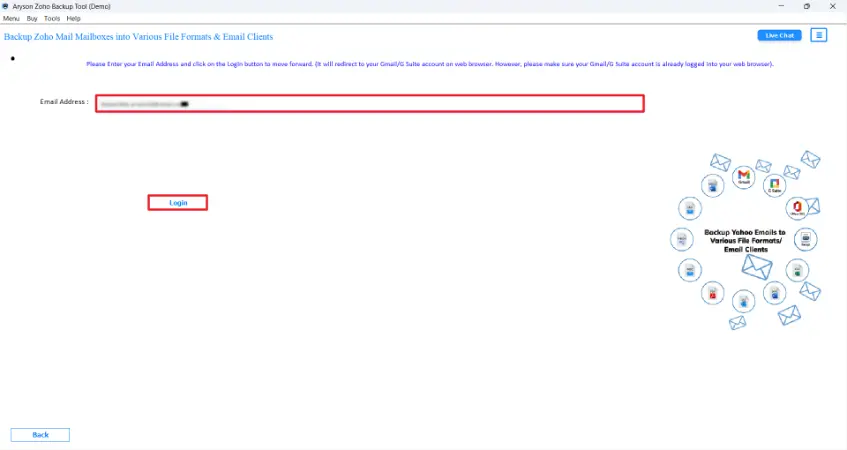
- Provide the relevant Gmail credentials to log in to your Gmail account.
- Choose the required features from the software interface.
- Now, click on the Convert button to migrate Zoho emails to Gmail.
Final Verdict
In this blog, we explored two primary methods to migrate Zoho Mail to Gmail. The first one was the manual IMAP-based method, which was ideal for the technical experts who deal with a small amount of Zoho Mail data. Whereas the automated software is capable of handling large volumes of Zoho Mail emails without affecting the data integrity. Moreover, the advanced features of the software simplify the entire migration process for both technical and non-technical users.
FAQs
Q1. Is it safe to transfer emails from Zoho to Gmail?
Ans: Yes, if you are using the above automated software, it is safe to transfer emails from Zoho to Gmail.
Q2. Can I migrate multiple Zoho accounts to Gmail at once?
Ans: Yes, with the help of the Aryson Zoho Backup Tool, you can migrate multiple Zoho accounts to Gmail at once.
Q3. Will my attachments and folder structure be preserved?
Ans: Yes, using the above-discussed software, you can ensure that all attachments, metadata, and folder hierarchy remain intact after migration.
Q4. How long does Zoho to Gmail migration take?
Ans: The duration depends on mailbox size, internet speed, and the method used, but automated software significantly reduces migration time.
About The Author:

Rohan Wiese is a Technical Writer at Aryson Technologies. He is an expert Email Forensic, Cloud Computing, and a passionate nerd with over 10 years of experience in technical content writing. He writes about Cloud Migration, Database Recovery, Email Backup, Windows, Mac, and Tech.
Related Post