-

Written By Harshita Sachdeva
-
Approved By
Shivam Rathore -
Updated on June 13th, 2026
Export 10000+ SharePoint List Records to SQL Server in 2026
Fact-checked and reviewed in accordance with our
Editorial Policy
User Query: Our organization has multiple large SharePoint Online lists with thousands of records. We need to move this data into SQL Server for reporting and analytics. Suggest the most reliable way to export 10,000+ SharePoint List Records to SQL Server without losing any records.
Summary: With the arrival of 2026, studies revealed that most of the enterprises and individual users have turned to SharePoint for document management & team collaboration. When SharePoint data is exported to SQL Server, it provides users with a structured relational database for advanced reporting, querying, and analytics. This guide explains the best methods to export SharePoint list data to SQL Server, covering both manual techniques and the Aryson SharePoint Server Recovery software, along with their limitations.
Best Methods to Load Data from SharePoint list to SQL Server
There is no universal solution for every environment. According to the environment, the size of SharePoint lists varies. Also, whether the user wants to export just one time or an ongoing sync, the choice of method varies from user to user.
Make sure to go through all the methods to export 10,000+ SharePoint list records to SQL Server below carefully before deciding which one fits best.
Method 1: Use the Export to Excel Option
SharePoint has a built-in Export to Excel option available on every list. Once you have the data in Excel, SQL Server Management Studio’s Import Wizard can fetch it.
- Run the SharePoint list >> go to the List tab on the ribbon.
- Click Export to Excel (or Export > Export to Excel in SharePoint Online).
- Save the exported .iqy or .xlsx file to your system.
- Open SQL Server Management Studio (SSMS) >> connect to your database.
- Right-click your target database and go to Tasks >> Import Data.
- In the Import Wizard, select Microsoft Excel as the data source.
- Browse to your saved Excel file and select the correct sheet.
- Choose your destination SQL Server table (create a new one if needed).
- Map the columns correctly >> click Finish.
Note: The Export to Excel option only exports the rows and columns available in the current SharePoint view. If you need additional fields, create a custom view before exporting. However, for large SharePoint lists or when you need to directly extract SharePoint list data to a separate SQL Server table, a dedicated solution can provide a more efficient and reliable approach.
Drawbacks of Manual Methods
- This method only exports the current list view—hidden columns are not included.
- Moreover, it is not practical to export 1000+ rows due to Excel row limits.
- No way to schedule or automate this—it’s purely a manual process.
- Does not support continuous syncing; you’d have to repeat this every time data changes.
Method 2: Using SharePoint Server Recovery Software
Most of the enterprises and IT admins prefer to export SharePoint list data to SQL Server to use Aryson SharePoint Server Recovery Software. This software allows users to restore different SharePoint server data, like Triggers, documents, functions, rules, lists, etc. You can then export it to SQL Server by providing server authentication.
Simplified Steps to Migrate SharePoint list data to SQL Server database
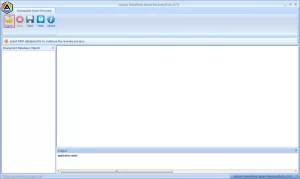
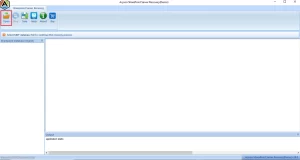
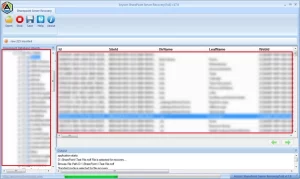
- Launch Aryson SharePoint Server Recovery Software.
- Click Open to open the corrupt MDF file for SharePoint Server recovery.
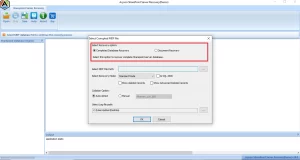
- Select either Complete Database Recovery or Document Recovery.
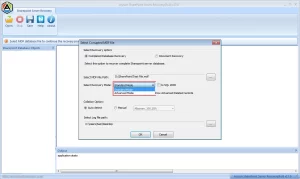
- Select among Standard, Advanced, and Deep Recovery modes.
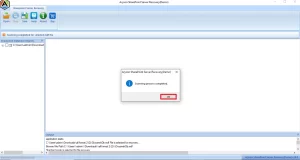
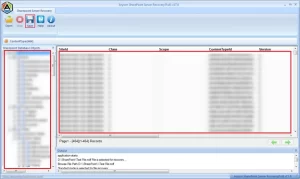
- Within a few seconds, the process is completed. Click on the OK button.
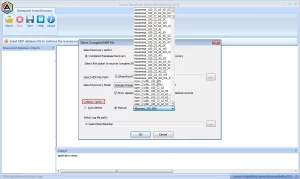
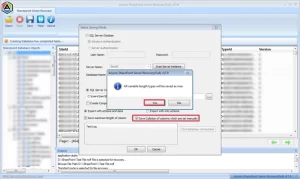
- Select the Collation Type: either auto-detect or define a collation type manually.
- Check the preview of recovered database objects like views, programmability, and tables.
- Now, click on the “Save” button to save the recovered data. Check the preview of recovered database objects like views, programmability, and tables.
- Check the “Save maximum length of column” or “Save collation of columns which are set manually“.
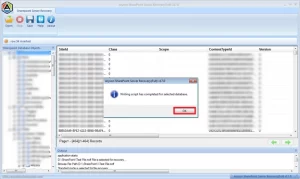
- Click OK and close the application after completion of the task.
Benefits of SharePoint Server Recovery Software
A few of the other features of Aryson SharePoint Server Recovery Software are as follows:
- Two options for SharePoint data recovery: Document Recovery and Complete Database Recovery.
- Efficiently repair SharePoint database saved with MDF extension
- Restore SharePoint Server data like triggers, functions, rules, lists, and documents from corrupt MDF file.
- Standard and Advanced recovery modes for handling the different level of corruption.
- Recovery of deleted records and advanced deleted records from corrupt MDF file.
- Collation Option to define a collation type for the selected database.
- Smart tree-structure preview of file content before saving them.
- LOG file creation for SharePoint Server recovery process.
- Highly intuitive GUI for both technical and non-technical users.
- High compatibility with all major Windows-based operating systems.
Important Note: Aryson provides its users with dedicated software to recover a corrupt SQL Server Database within a minimum time frame. Moreover, it aims to keep the data intact throughout the recovery.
Mateo’s Success Story
Mateo, IT admin at California manufacturer, needed to export 10,000+ SharePoint list records to SQL Server. Excel exports failed on large lists; column mappings broke in SSMS. Power Automate fixed the ongoing sync but not the bulk history. Aryson SharePoint Recovery Software solved it by reading the MDF directly, exporting lists, and linking records to SQL Server cleanly in under an hour. The reporting team had Power BI dashboards on the same day.
Comparison: Manual vs Automated Method
| Feature | Manual Excel Method | Aryson Software |
| Suitable for 10,000+ records | Limited | Yes |
| Direct SQL Server export | No | Yes |
| Recovery of damaged databases | No | Yes |
| Preserves database structure | Limited | Yes |
| User-friendly interface | Moderate | Yes |
Conclusion
Two ways to export 10,000+ SharePoint list records to SQL Server are described in the article given above. One method is the manual way, which directly takes the help of SharePoint and exports it to SQL Server, and the other method is an automated solution, which is one of the best ways.
Frequently Asked Questions
Q.1 How do I export 10,000+ SharePoint list records to SQL Server?
Ans: Aryson SharePoint Server Recovery Software allows you to recover SharePoint database content and export large volumes of list data directly to SQL Server. Simply load the SharePoint database, preview the recovered data, and choose SQL Server as the destination.
Q.2 Can I export more than 10,000 records from a SharePoint list to SQL Server?
Ans: Yes. The software is designed to handle large SharePoint databases and can export thousands of list records to SQL Server without the manual limitations often encountered with native SharePoint export methods.
Q.3 Does exporting 10,000+ SharePoint records to SQL Server affect the original SharePoint data?
Ans: No. The software performs a read-only operation during recovery and export. Your original SharePoint database and list data remain unchanged throughout the process.
Q.4 Can I export SharePoint list attachments along with the records to SQL Server?
Ans: The software primarily focuses on recovering and exporting SharePoint database content, including documents and list data. Attachment availability in SQL Server depends on the data structure and export configuration selected during the process.
Q.5 How long does it take to export 10,000 or more SharePoint list records to SQL Server?
Ans: The export duration depends on factors such as database size, server performance, network speed, and the number of records. However, the software is optimized to process large SharePoint datasets efficiently.
Q.6 Does the software maintain data integrity when exporting large SharePoint lists to SQL Server?
Ans: Yes. Aryson SharePoint Server Recovery Software preserves the original structure, metadata, and content during recovery and export, helping maintain data accuracy and consistency.
Q.7 Do I need technical or database administration skills to export SharePoint lists to SQL Server?
Ans: No extensive technical expertise is required. The software offers a user-friendly interface with step-by-step options that simplify the recovery and export process for both administrators and non-technical users.
Q.8 Can I get support if I face issues while exporting SharePoint list data to SQL Server?
Ans: Yes. Aryson provides technical support to assist users with installation, recovery, export configuration, and troubleshooting issues encountered during the process.
Q.9 Can enterprises use this software to export SharePoint list records to SQL Server at scale across multiple site collections?
Ans: Yes. The software is suitable for enterprise environments and can process large SharePoint databases containing multiple site collections, making it a practical solution for large-scale recovery and export requirements.
About The Author:

Harshita Sachdeva, a professional technical writer at Aryson Technologies, specialize in delivering clear, hands-on documentation for data management, migration, and recovery solutions. With a meticulous, reader-first approach, I break down complex technical processes into simple, actionable content - helping IT professionals and decision-makers tackle challenges efficiently.
Related Post