-

Written By Harshita Sachdeva
-
Approved By
Shivam Rathore -
Updated on December 9th, 2025
How to Split Oversized PST File of Outlook? Get the Best Solutions
Large or Oversized PST files slow down Outlook, affect email searching, and increase the chances of corruption. As time passes, your Outlook data continues to grow due to emails, attachments, contacts, and calendar items. Because of this, many users look for safe ways to split PST file in Outlook into smaller parts. This guide explains every manual and automated solution in a clean, explanatory, and user-friendly manner. Whether you’re a beginner or an advanced user, you will find step-by-step methods, including direct solution Aryson Split PST Software that work without risking your data.
Why Do You Need to Split Oversized PST File of Outlook?
Understanding the importance of splitting a PST file can help you prevent data loss and improve Outlook performance.
- PST files store all your Outlook data, including emails, contacts, calendars, and tasks, which can make large mailboxes hard to manage.
- As PST files grow, Outlook performance slows down, which affects open and send messages.
- Oversized PST files increase the risk of corruption, which can lead to data loss or require PST recovery tool.
- In addition, smaller PST files are easier to organize and back up, which ensures better data safety.
- Searching for emails becomes slower in large PST files, which reduces efficiency.
Can You Split PST File in Outlook Directly?
Let’s clear a common confusion before we move ahead. Outlook does not provide a built-in “Split PST” button. There is no direct feature designed specifically to divide a PST file. However, Outlook offers certain functions—like Archive and Import/Export—that allow you to indirectly create smaller PST files. These workarounds help, but they require manual effort and do not divide data based on file size.
How to Split Oversized PST File in Outlook: Complete Methods Overview
Now that you know Outlook’s limitations, let’s explore all working methods. You can split your PST file in three manual ways using Outlook and one automated method using Aryson Split PST Software. The manual methods include using Archive, Import/Export, and a manual move process. Each works differently and fits different needs.
Method 1: Split Oversized PST File Using the Archive Feature
This is one of the oldest and commonly used solutions for creating multiple PST files.
The Archive feature helps you move older emails and items into a separate PST. It effectively reduce PST file size in Outlook and keeps your mailbox organized.
- Open Outlook and click on the File menu to access mailbox settings.
- Select Info, then navigate to Tools under mailbox options.
- Click on Clean Up Old Items to begin the archiving process.
- Choose the folder you want to archive so Outlook knows which emails to move.
- Pick a specific date, and Outlook will move all items older than that date into a new PST.
- Browse and select a location on your computer to save the newly created PST file.
- Finally, click OK to start archiving, and Outlook will move the selected emails to the new PST.
Method 2: Split PST File Outlook via Import/Export Feature
The Import/Export option allows you to manually move selected Outlook data into a new PST file. Although it requires some effort to Outlook split PST file:
- Open Outlook and go to File>> Open & Export>>Import/Export to start the wizard.
- Select Export to a file and click Next to continue.
- Choose the option Outlook Data File (.pst) as your export type.
- Pick the folder or folders you want to export to the new PST file.
- Click Browse to choose a location and enter a name for your new PST file.
- Finally, click Finish to complete the export process and create your new PST.
Method 3: Create a New PST and Move Items Manually
You can manually create a new PST file and move emails or folders into it, giving you full flexibility over how your data is organized, although it is more time-consuming for large mailboxes.
- Open Outlook and click on File >> New Items >> More Items >> Outlook Data File to create a new PST.
- Enter a name for your new PST file and choose a location to save it on your computer.
- If needed, create new folders inside the PST to organize your emails by project, client, or year.
- Open your large PST file and drag and drop emails or entire folders into the new PST file.
- Repeat this process until you have moved all the emails you want into the new PST.
Drawbacks Associated with the Manual PST Splitting Methods
Although manual methods can work without any cost, but they come with several drawbacks.
- Manual methods take a lot of time and involve multiple steps.
- Splitting PST files by size (1GB, 2GB, etc.) is not supported.
- Some emails may be missed during manual movement.
- Corrupted PST files cannot be handled using these methods.
- Basic technical knowledge and Outlook installation are required.
- Folder hierarchy can get disturbed if the process is not done carefully.
- Manual methods are not suitable for very large or bulk PST files.
Because of these limitations, many users prefer an automated PST splitting tool for accurate and fast results.
Best Way to Split Oversized PST File with the Outlook PST Splitter
The Aryson PST Splitter is a simple-to-use and reliable solution to split large PST files into smaller, manageable parts without any risk of data loss. Unlike manual methods, this tool can handle both ANSI and UNICODE PST files from any Outlook version, including Outlook 2021, 2019, 2016, 2013, and earlier. Also, it maintains the original folder hierarchy and email formatting. It offers multiple options to split PST files, such as by size, date, folder, year, or email ID, which gives users full control over how their data is organized. For these advanced features, it is the best solution for Outlook users who want efficiency and reliability.
Simple Steps to Split Oversized Outlook PST File
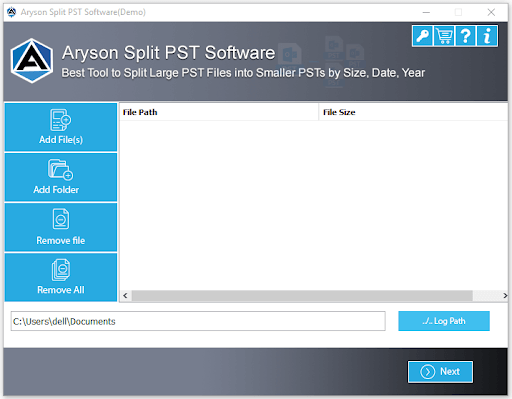
- Download the Aryson PST Splitter and open it after the installation process.
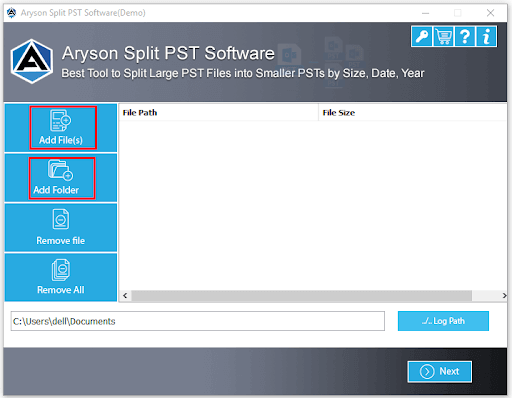
- Now, click on the Add File/Add Folder button to browse and select the PST file.
- Next, you can preview your emails, contacts, calendars, and other mailbox items.
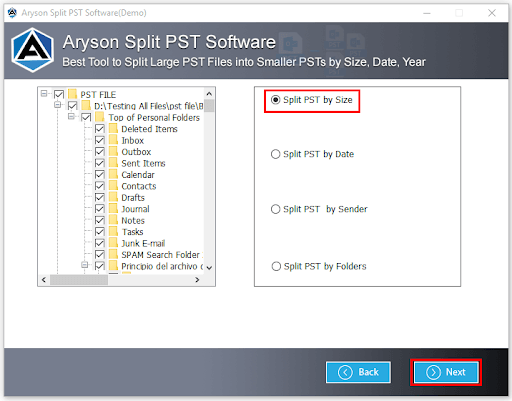
- Here, you get the option to split the PST file by Size, Date, Sender, or Folder.
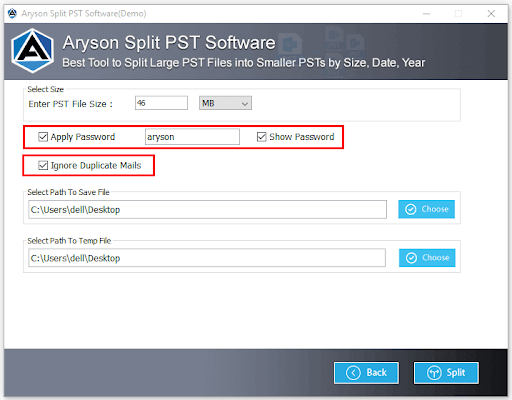
- If you want to add a password or remove duplicates, do it from this panel.
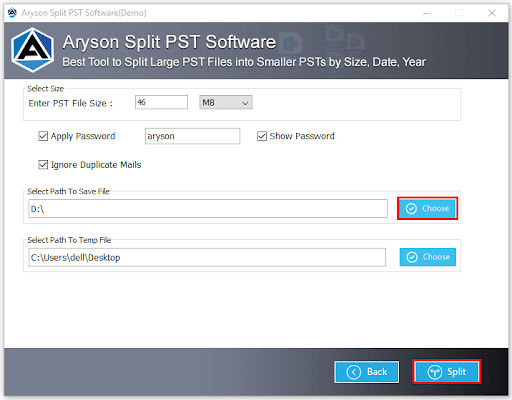
- At last, click the Split button to break PST file into smaller parts.
Additional Tips to Prevent PST File Oversizing in the Future
After splitting your PST, these tips will help you manage your mailbox better.
- Enable AutoArchive to automatically move old emails.
- Delete unnecessary emails and attachments regularly.
- Save large attachments on your computer instead of keeping them in your mailbox.
- Empty the Deleted Items and Junk folders frequently.
- Compact your PST file once in a while to reduce its size.
- Create separate PST files for different categories or years.
These practices help you maintain a healthy PST size and prevent future performance problems.
Conclusion
Large PST files can slow down Outlook and increase the risk of corruption. Manual methods help reduce PST size, but they take time and may not handle very large or corrupted files efficiently. To make it efficient and superficial, most users prefer to use the Aryson PST Split software to split PST file in Outlook. Smaller, well-structured PST files are safer to back up and easier to maintain over time. In addition, users can try a free demo and get technical support to ensure smooth and reliable PST management.
Frequently Asked Questions (FAQs)
Q1. Does Outlook offer a direct Split PST option?
Ans: No, Outlook does not have a direct split option. Only Aryson Split PST Software offers a direct Split PST option.
Q2. Can I split an Oversized PST file into equal parts?
Ans: Yes, with Aryson Split PST Software, you can split the file into equal-sized parts like 1GB or 2GB.
Q3. Will splitting my PST improve Outlook speed?
Ans: Yes, smaller PST files reduce loading time and prevent freezing issues.
Q5. Do I need Outlook installed to split oversized PST files?
Ans: Manual methods require Outlook, but some automated tools can split oversized PST files without Outlook.
About The Author:

Harshita Sachdeva, a professional technical writer at Aryson Technologies, specialize in delivering clear, hands-on documentation for data management, migration, and recovery solutions. With a meticulous, reader-first approach, I break down complex technical processes into simple, actionable content - helping IT professionals and decision-makers tackle challenges efficiently.
Related Post