-

Written By Rohan Wiese
-
Approved By
Shivam Rathore -
Updated on June 24th, 2025
How to Fix Outlook Error 0x800CCC13 “Cannot Connect to Network”
Fact-checked and reviewed in accordance with our
Editorial Policy
Summary: Microsoft Outlook, a widely used tool for managing emails, can sometimes be disrupted by technical errors. One such issue, the Outlook error 0x800CCC13, often surfaces after a Windows system upgrade. This error can halt your email communication, a crucial aspect of both personal and professional life, leading to significant inconvenience and potentially impacting your work productivity. This guide will provide practical solutions to fix the Outlook 0x800CCC13 error, ensuring you can swiftly resume your email operations. For severely corrupted Outlook PST files, a professional Outlook PST Repair Tool is also recommended for quick and reliable recovery. Download Now Purchase Now
What is Outlook Send/Receive Error 0x800CCC13?
The Outlook error 0x800CCC13 is a common send/receive error that typically appears when Outlook fails to connect to the mail server. It often displays a message like: “Cannot connect to the network. Error 0x800CCC13.” This error frequently occurs after a Windows update on Windows 10, blocking Outlook’s ability to connect to the mail server and thus preventing email transmission and reception.
What Causes Outlook Error 0x800CCC13?
This Outlook send/receive error can stem from several factors:
- Corrupted Outlook Data Files (PST/OST): Damage to your Outlook data files is a primary cause.
- Faulty Add-ins: Malfunctioning Outlook add-ins can interfere with its operation.
- Network Connectivity Issues: Problems with your internet connection or network settings.
- Damaged System Files: Corrupted Windows system files can affect Outlook’s performance.
- Antivirus or Firewall Conflicts: Security software settings might be blocking Outlook’s connection.
Effective Methods to Fix Outlook 0x800CCC13 Error
This section explores various methods to resolve the Outlook error 0x800CCC13. You can start with the manual solutions, which are effective in most cases. However, if your Outlook PST file is heavily corrupted, a professional repair tool is recommended for a 100% accurate recovery.
Solution 01: Run Windows System File Checker (SFC)
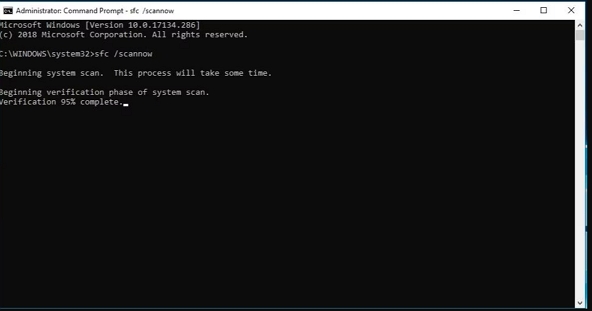
Windows includes a built-in tool called System File Checker (SFC) designed to identify and repair damaged or missing system files that can cause issues like Outlook error 0x800CCC13.
Steps to Resolve Outlook 0x800CCC13 Issue with SFC:
- Close Outlook if it is currently running.
- Click the Start menu, then type Command Prompt.
- Right-click on “Command Prompt” and choose “Run as administrator.”
- In the Command Prompt window, type the following command ( sfc /scannow ) and press Enter.
- Once the command completes successfully, restart your computer and then open Outlook.
Solution 02: Check for Stuck Emails in the Outbox
One frequent cause of the Outlook error 0x800CCC13 is an email stuck in the Outbox. Even a single unsent message can prevent Outlook from sending or receiving other emails. Here’s how to resolve it:
- Open Outlook and navigate to the Outbox folder.
- Look for any emails that appear to be stuck.
- Right-click on the stuck email and try to delete it.
- If it doesn’t delete, switch Outlook to Offline Mode from the “Send/Receive” tab, then try deleting it again.
- After deleting, switch back to Online Mode and attempt to send a new email.
Solution 03: Update MS Outlook
Updating Outlook is crucial for resolving issues like the 0x800CCC13 network error. Microsoft regularly releases updates to fix bugs and improve performance, so installing the latest version can often resolve the problem.
How to Update Outlook:
- Open any Microsoft Office application, such as Word or Excel.
- Click on “File” in the top menu.
- Select “Account” (or “Office Account”).
- Under “Product Information,” find the “Update Options” button.
- Click “Update Now” to check for and install available updates.
Solution 04: Change Registry Settings (Advanced)
Sometimes, a Windows update can alter specific registry values, leading to problems in Outlook, including the 0x800CCC13 error. If this is the case, you can manually edit the registry to fix the problem.
Important Note: Exercise extreme caution when making changes in the Windows Registry. Incorrect modifications can severely impact your system.
Steps to Modify the Registry:
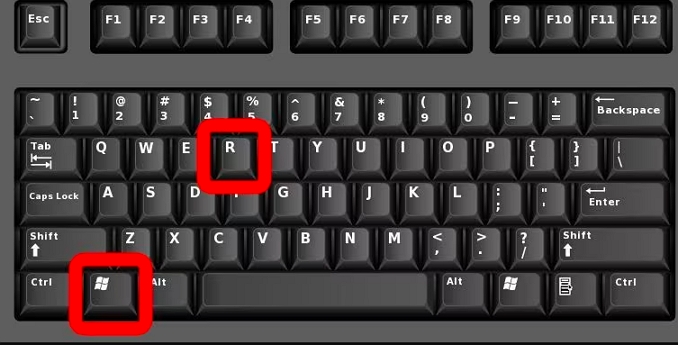
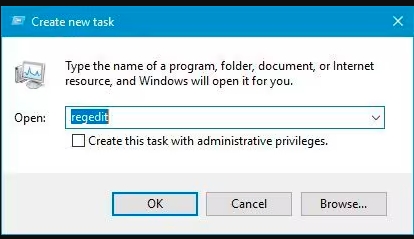
- Press the Windows key + R together to open the Run dialogue box.
- Type regedit and press Enter. It will open the Windows Registry Editor.
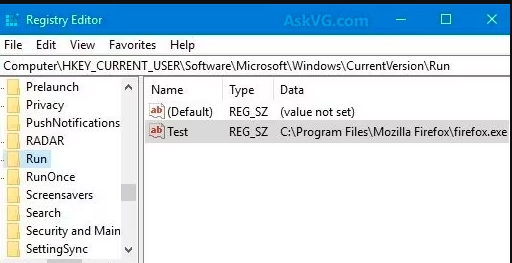
- In the left-hand panel, navigate to the following path: HKEY_LOCAL_MACHINE\SOFTWARE\Microsoft\Windows\CurrentVersion\Run
- Select the “Run” folder.
- If you see any entry related to an Outlook error, delete it and then restart your system.
Solution 05: Quick Method to Fix Outlook 0x800CCC13 Error with a Professional Tool
If your Outlook PST file is severely corrupted or damaged, directly using a professional Aryson Outlook PST Repair Tool is often the most effective solution. This type of tool is specifically designed with advanced technology to recover your permanently deleted Outlook items, such as emails, contacts, and calendars, effortlessly. With this software, you can typically preview the recovered file before saving it, and it can even repair encrypted and password-protected PST files.
Furthermore, such tools often offer advanced features like:
- Saving the recovered PST file in various formats.
- Ability to apply a date filter for selective email restoration.
- Recovery of oversized PST files without needing Outlook installed.
- A user-friendly interface, making it accessible for both technical and non-technical users.
- Fast processing speed and high compatibility with all Windows versions.
Demo Version Availability:
A demo (free) version of many professional tools is often available to explore its features and assess its functionality. The main difference is usually that the demo version does not allow you to save the recovered files. Additionally, many providers offer 24/7 technical support for any queries related to their software.
Simple Steps to Repair Outlook PST file 0x800CCC13 with Aryson Software:
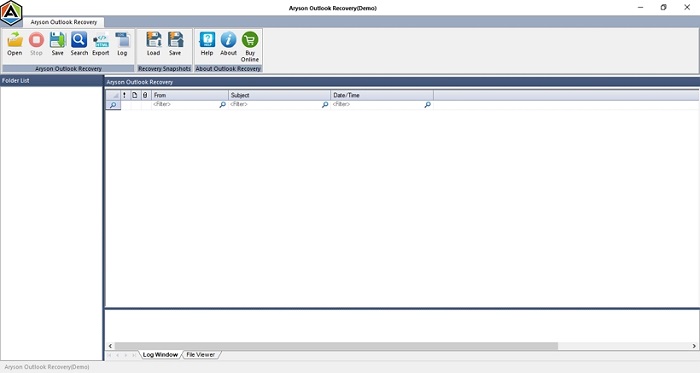
- Launch the Aryson Outlook PST Repair Tool on your PC.
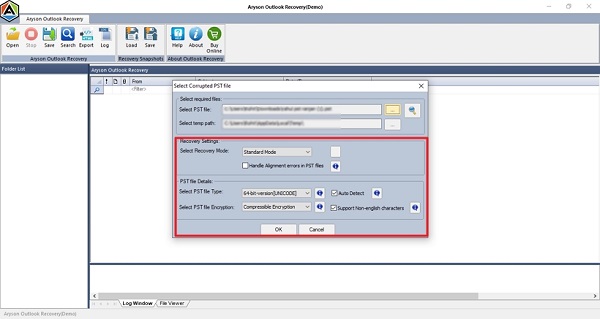
- Click on “Open” and add the corrupted/damaged PST files.
- Select the desired Recovery Mode: Standard, Advanced, or Deep.
- Preview the recovered Outlook PST file.
- Finally, click on “Save” and choose your preferred saving format.

Conclusion
This technical blog post has outlined several effective methods to fix the Outlook 0x800CCC13 error. While Windows upgrades can sometimes introduce unforeseen issues that affect installed programs, simply rolling back an update is not always the optimal solution. Often, the root cause behind this error is Outlook file corruption. For such cases, a professional Outlook Repair Tool offers a quick, hassle-free solution with minimal downtime, allowing you to repair and recover your Outlook data easily.
Frequently Asked Questions (FAQs):-
Q1. What is Outlook error 0x800CCC13?
Ans: Outlook error 0x800CCC13 occurs when Outlook cannot establish a connection to the network or mail server. This issue frequently arises after a Windows update and can prevent users from sending or receiving emails.
Q2. What causes Outlook error 0x800CCC13?
Ans: Common causes include:
✅ Corrupted Outlook Data Files (PST/OST)
✅ Faulty Outlook Add-ins
✅ Network Connectivity Issues
✅ Damaged System Files
✅ Antivirus or Firewall Interference
Q3. How do I update Outlook?
Ans: To update Outlook:
✅ Open any Microsoft Office application (e.g., Word or Excel).
✅ Click on File > Account.
✅ Under “Product Information,” click on Update Options > Update Now.
Q4. What is best solution to Fix Outlook Error 0x800CCC13?
The best solution for Outlook Error 0x800CCC13 often involves addressing PST file corruption, which faulty Windows updates frequently cause. While manual methods like running sfc /scannow, starting Outlook in safe mode, or using Scanpst.exe can help, they may fall short for severe corruption. In such cases, professional tools like Aryson Outlook PST Repair Tool offer a comprehensive solution. This software efficiently repairs highly corrupted PST files and recovers mailbox items, ensuring your Outlook connection is restored.
About The Author:

Rohan Wiese is a Technical Writer at Aryson Technologies. He is an expert Email Forensic, Cloud Computing, and a passionate nerd with over 10 years of experience in technical content writing. He writes about Cloud Migration, Database Recovery, Email Backup, Windows, Mac, and Tech.
Related Post