-

Written By Rohan Wiese
-
Approved By
Shivam Rathore -
Updated on July 10th, 2025
Solved: MS Outlook Send Receive Error 0x80040900 (Simple Steps)
Fact-checked and reviewed in accordance with our
Editorial Policy
Summary: MS Outlook is a widely used application in the digital landscape. Many users rely on the Outlook application for their day-to-day life. However, some of the users are faced with Outlook error 0x80040900 because the email server is unable to connect with the MS Outlook application. In this blog, we described various troubleshooting methods to avoid this error in the future. Also, we introduce a professional Aryson PST Recovery Tool that seamlessly resolves your Outlook error without downtime. Download Now Purchase Now
What is Outlook Send Receive Error 0x80040900?
The error 0x80040900 is a send/receive error that occurs when Outlook is unable to connect to the email server. It generally occurs due to a network or configuration issue.
Error message:
Manual Method to Fix Microsoft Outlook Error 0x80040900
The error 0x80040900 prevents the user from sending or receiving email messages. Here are various troubleshooting methods that rectify this error with ease.
1. Check Your Internet Connection
To send and receive messages and avoid this Outlook error, you must have a stable and active internet connection. If the connection is weak or inactive, Outlook may fail to function properly and trigger errors. To prevent this, make sure you are following the required troubleshooting:
- Make sure you connect with an active and stable internet.
- The wired connection, i.e., Ethernet, is well-connected.
- Open any browser and test the speed and reliability of the internet.
2. Verify Email Server Settings
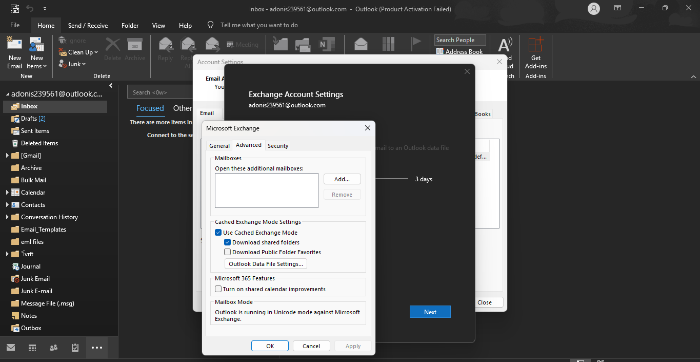
The Outlook application relies on the correct email server settings to send and receive messages. If it is not well configured, it causes an Outlook error. To prevent or rectify the error, make sure you are well configured with the server settings:
- Install the MS Outlook application on your computer and log in using the administrator credentials.
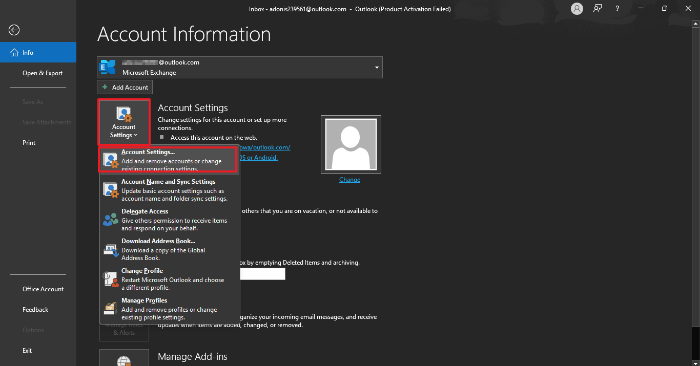
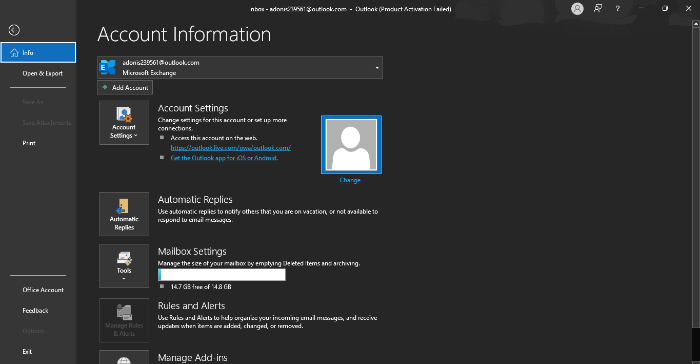
- Next, navigate to the menu and open the Info section.
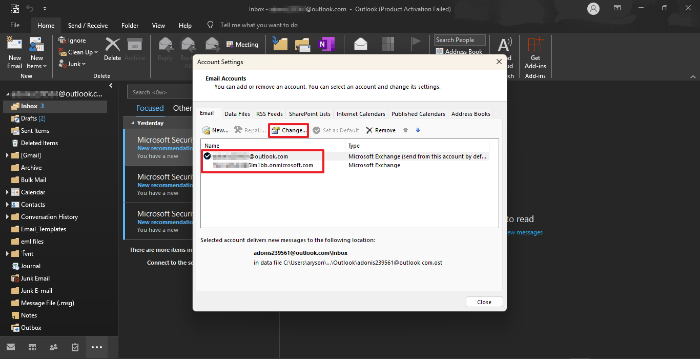
- Select Account Settings, then click on Account Settings again from the dropdown.
- Choose the email account you want to update and click the Change button.
- Verify the server settings for the selected account, and if any details are incorrect, update them with the proper configuration.
- Finally, confirm that all server settings meet the required specifications.
You can download the ScanPST.exe tool to fix this error without any issue and with convenience.
What Are the Technical Issues With The Manual Method?
Although the manual method is free and cost-effective to fix Outlook 0x80040900, it contains several limitations. The following are the limitations associated with the manual method.
- The manual method is complex and requires technical knowledge.
- Manually handling the error contains the risk of data loss.
- Diagnostics and applying troubleshooting take a significant amount of time.
- In case of a damaged Outlook profile, the manual method does not work as expected.
- Manual fixing might be challenging for non-tech users.
Professional Method to Fix Outlook Error 0x80040900
The 0x80040900 error is a frequent issue caused by damaged Outlook data files, which do not connect properly to the server. Fix this issue by using recovery software to repair the damaged file. Aryson’s PST Recovery Tool is a very useful tool for recovering lost or inaccessible data. Moreover, the tool’s interface is easy to navigate, and it is compatible with both Mac and Windows operating systems. With its advanced algorithm, the tool can recover data quickly without causing any damage to the files. With its sophisticated capability, the PST Recovery Tool can rectify several problems in Outlook data files, making it the perfect option for users looking for a reliable recovery tool. Along with that, the tool can also fix errors 0x80040116 on Windows 10, 7, 8, and the latest 11.
Steps to Fix Error Code 0x80040900 Outlook
- First, download and install the PST Recovery Tool on your computer.
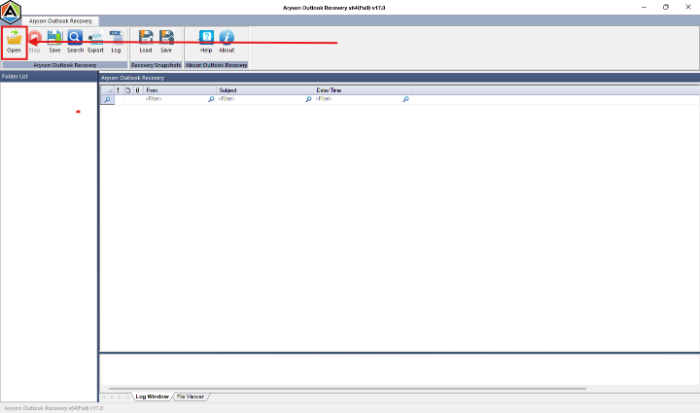
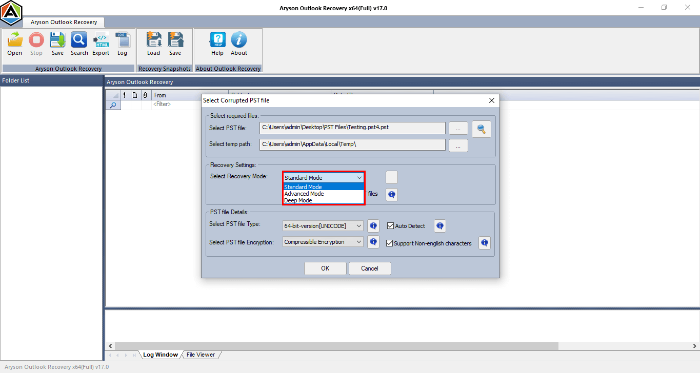
- After that, click the Open button in the top-left corner of the interface.
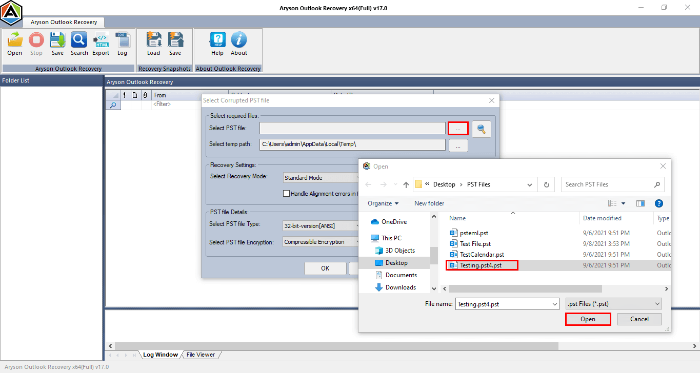
- Now, navigate your local storage and open the PST file that you want to restore.
- Utilize the features provided as per your requirements for recovery.
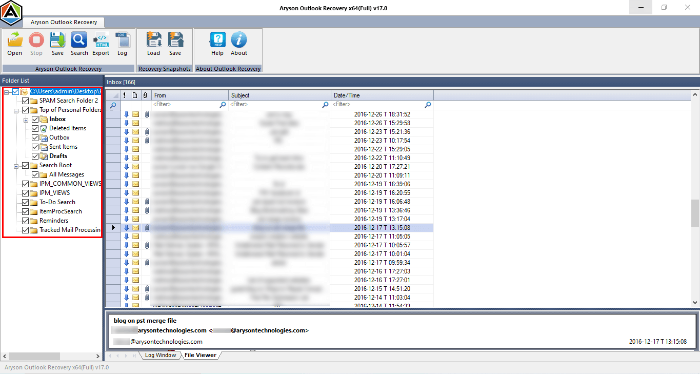
- You can view the contents of the PST file using the left panel.
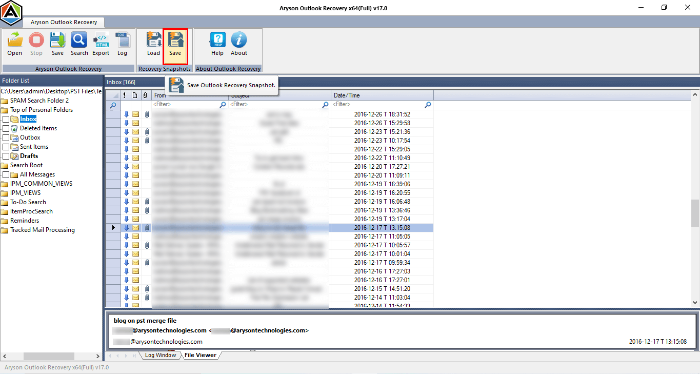
- After that, choose the individual folders by marking the respective boxes.
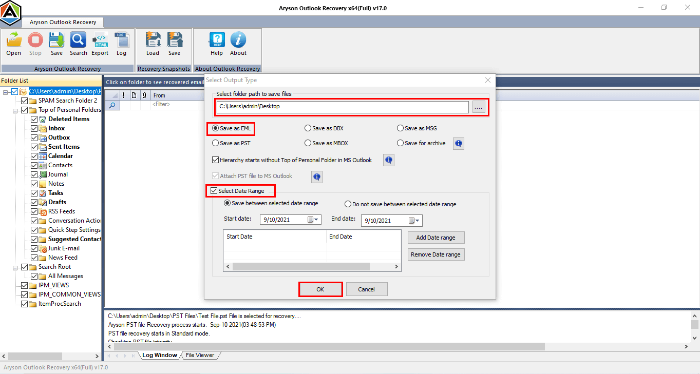
- Then, click Save to save the data in your desired format.
- Select the target folder for the output file and click Next to continue.

Conclusion
For a quick and easy fix of Outlook error 0x80040900, use a professional PST Recovery Tool. However, you can also use a manual method but it consists of several limitations. If a severely corrupted Outlook file causes this error, use a professional tool without hesitation. It uses advanced algorithms for efficient recovery and user convenience.
About The Author:

Rohan Wiese is a Technical Writer at Aryson Technologies. He is an expert Email Forensic, Cloud Computing, and a passionate nerd with over 10 years of experience in technical content writing. He writes about Cloud Migration, Database Recovery, Email Backup, Windows, Mac, and Tech.
Related Post