Complete Step-by-Step Guide for Aryson Yahoo Mail Migrator Tool
Easily convert Yahoo Inbox Data into PST, MBOX, PDF, EML, DOC, and DOCX formats on Windows and Mac. This software also migrates Yahoo Inbox Data into Gmail, IMAP-based clients, and Google Workspace (admin accounts). For any issues, you can refer to the Functional & Technical Documentation (FTD) for complete assistance.
-
Table of Content
- Software Working Process
- Activation Guide
- Installation & Uninstallation
- User Interface
Software Working Process
Software Working Process
Step 1: Download and install the Aryson Yahoo Mail Migrator on your existing PC.
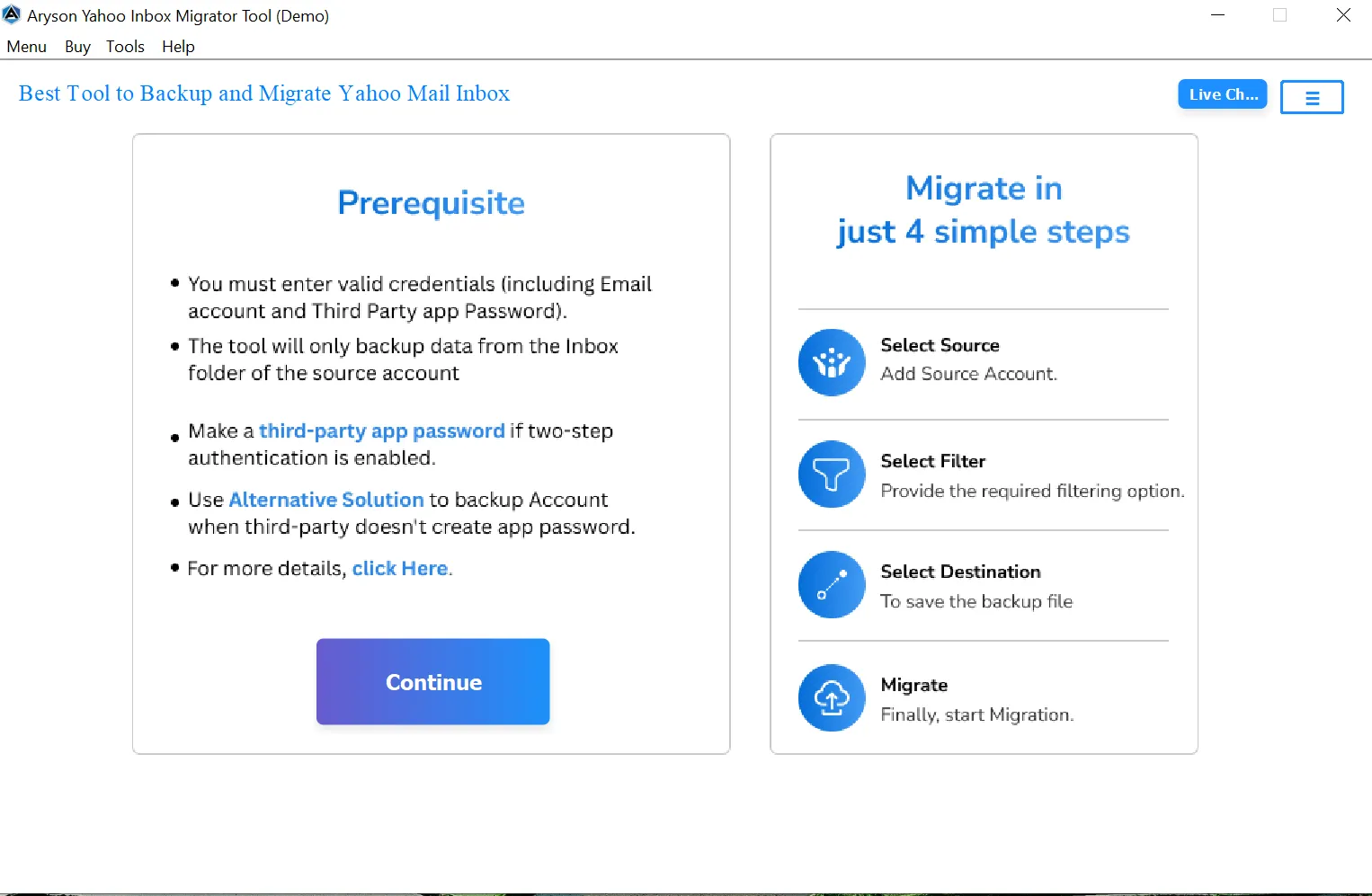
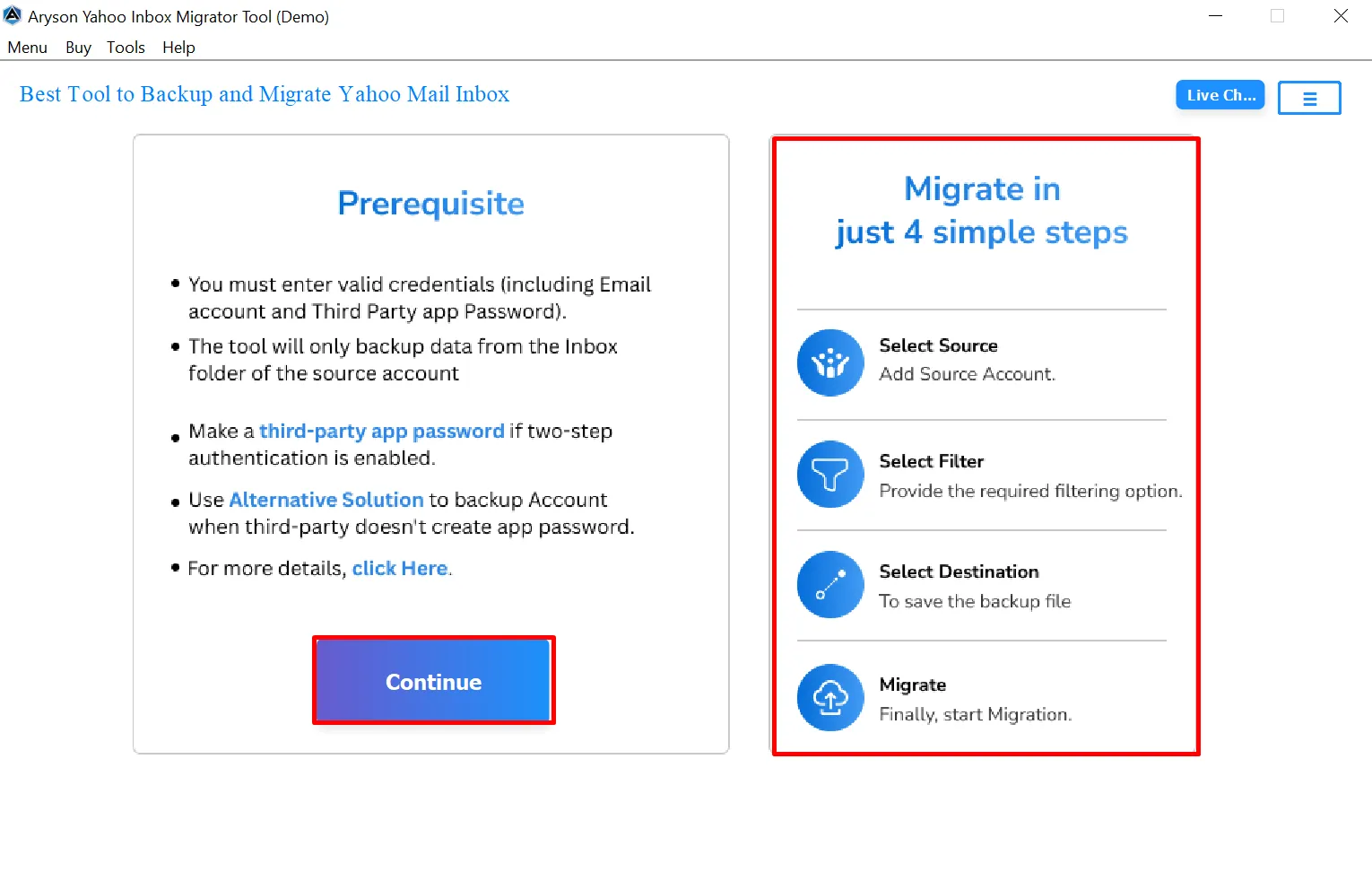
Step 2: See the Migration Overview in 4 Simple Steps. Once verified, click Continue to proceed with migration.
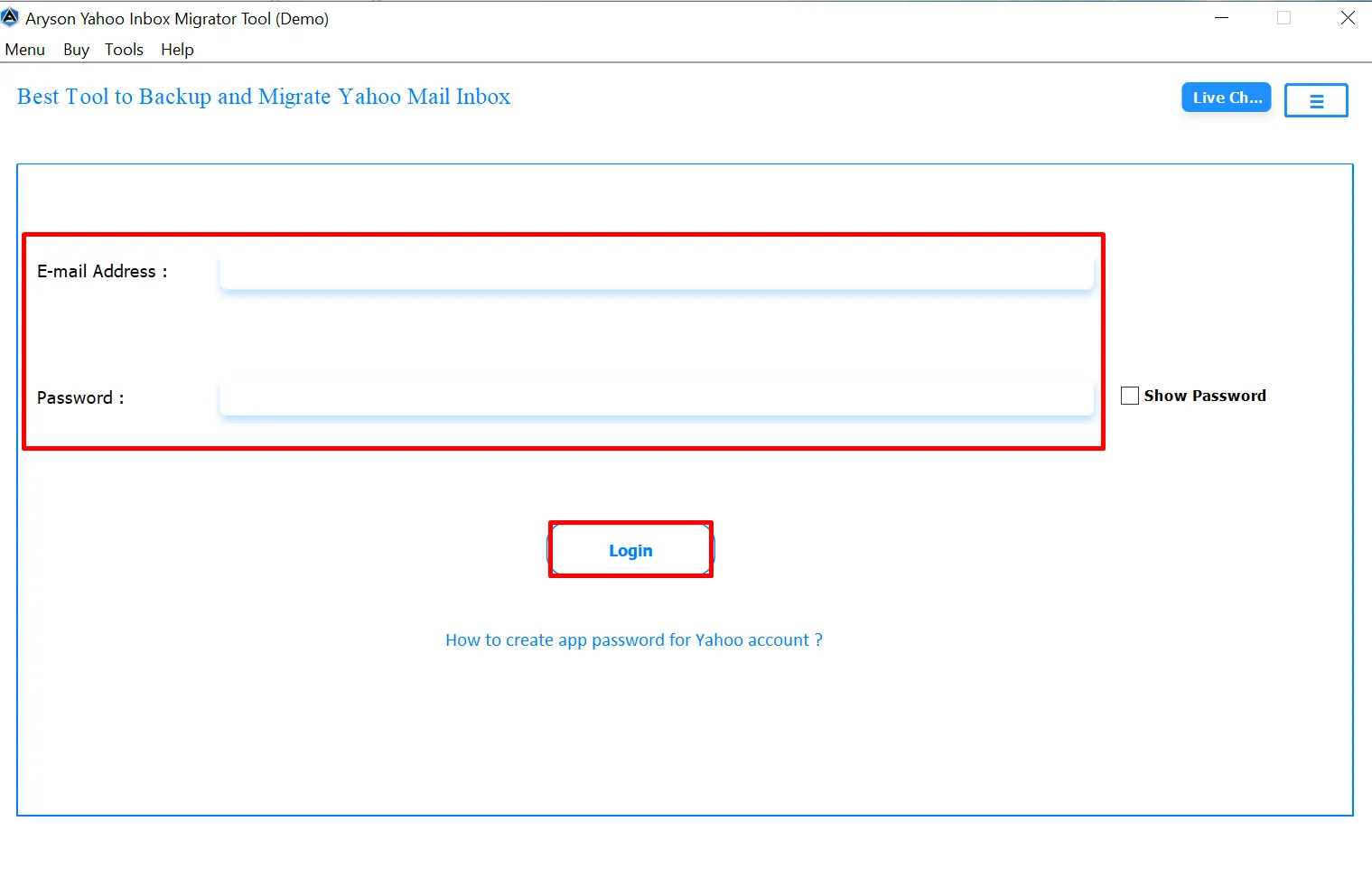
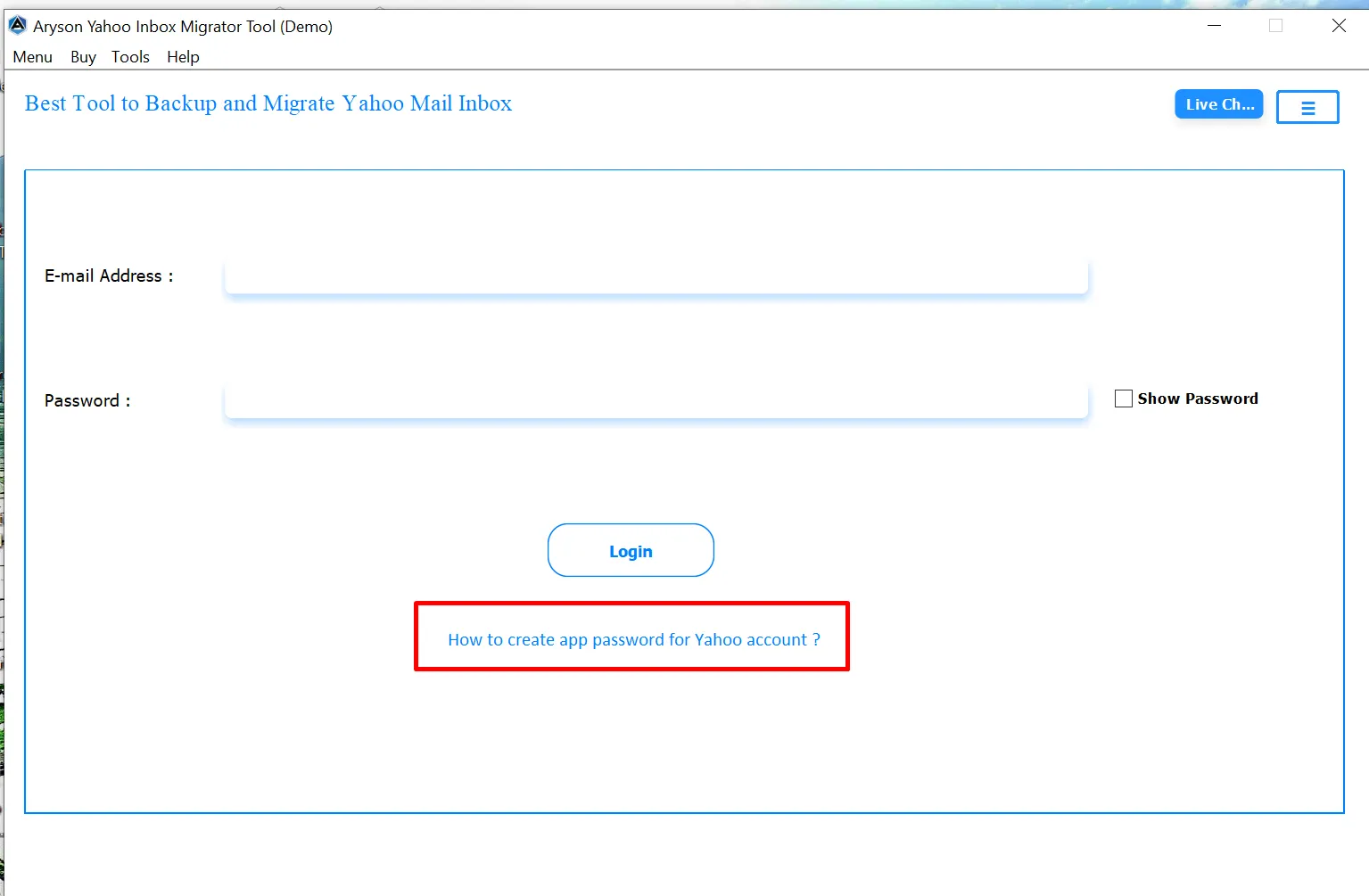
Step 3: Input your Yahoo email and app password; use Show Password to confirm. Click Login to securely connect your Yahoo account.
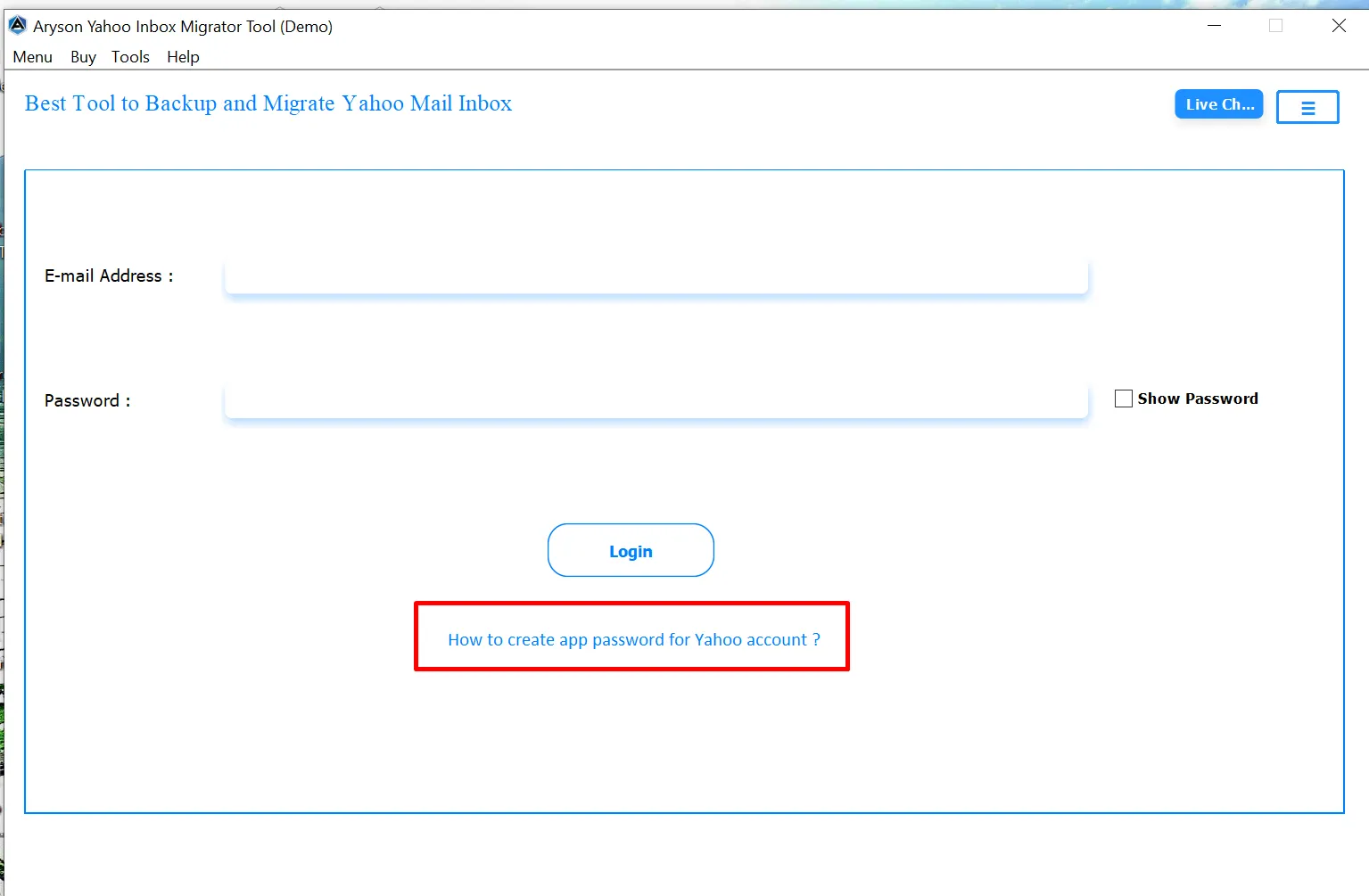
Step 4: App Password (if needed): If two-step verification is enabled, generate an app password and use it to log in.
Step 5: Choose the desired output format as PST, from the file format for migrating your Yahoo Inbox data.
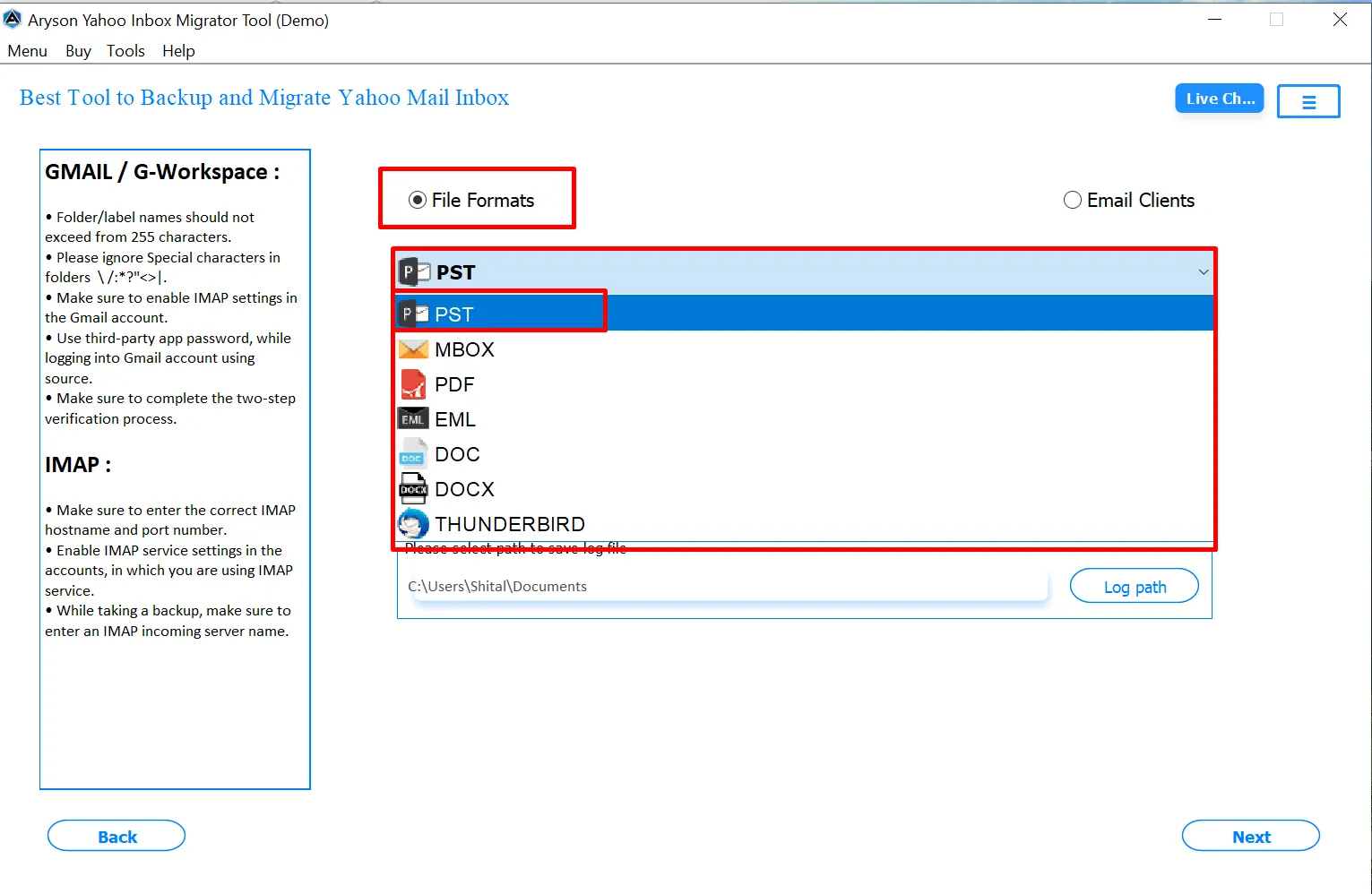
Step 6: Select the folder where the migrated Yahoo emails will be saved. Click the Destination button.
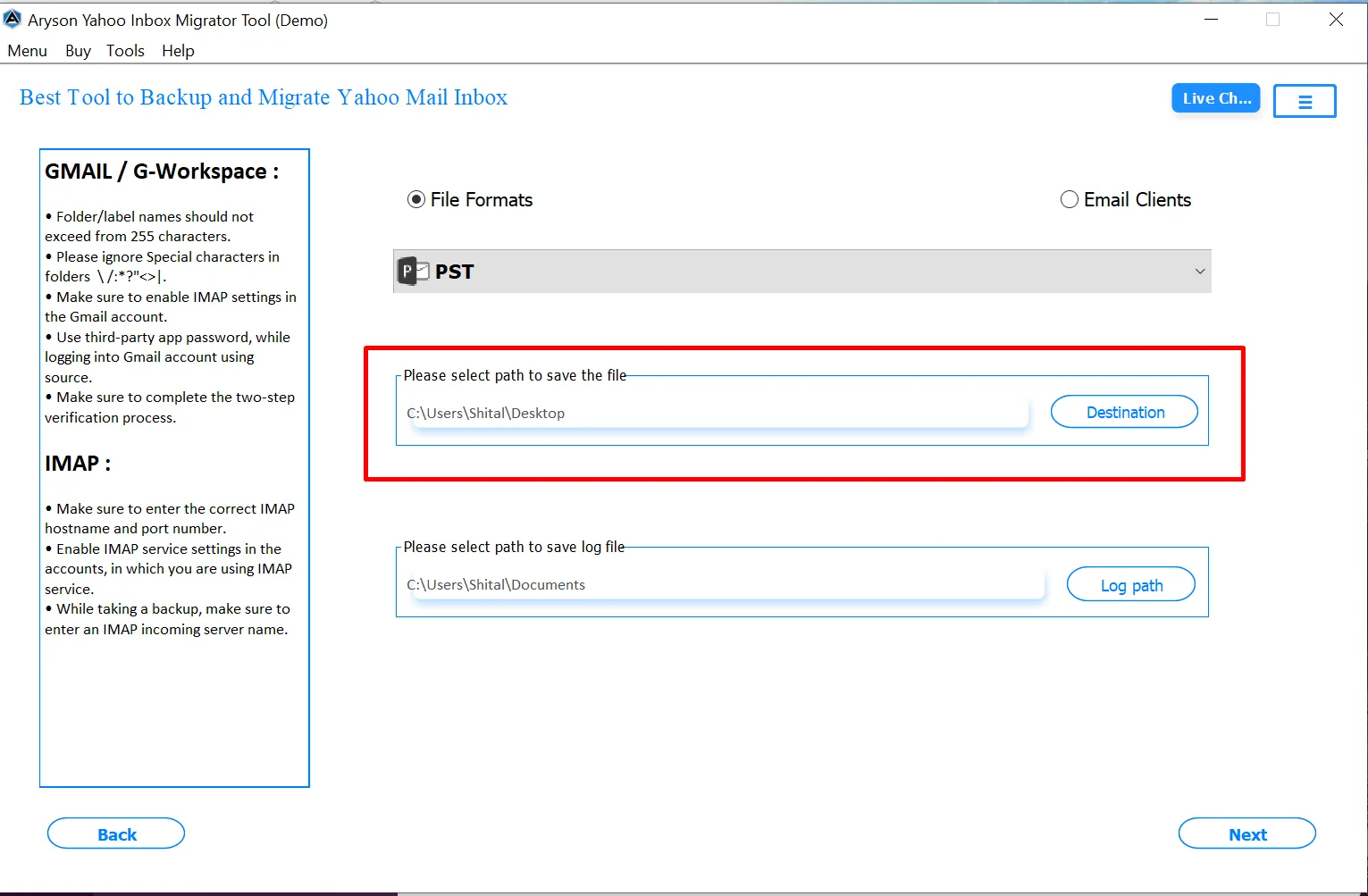
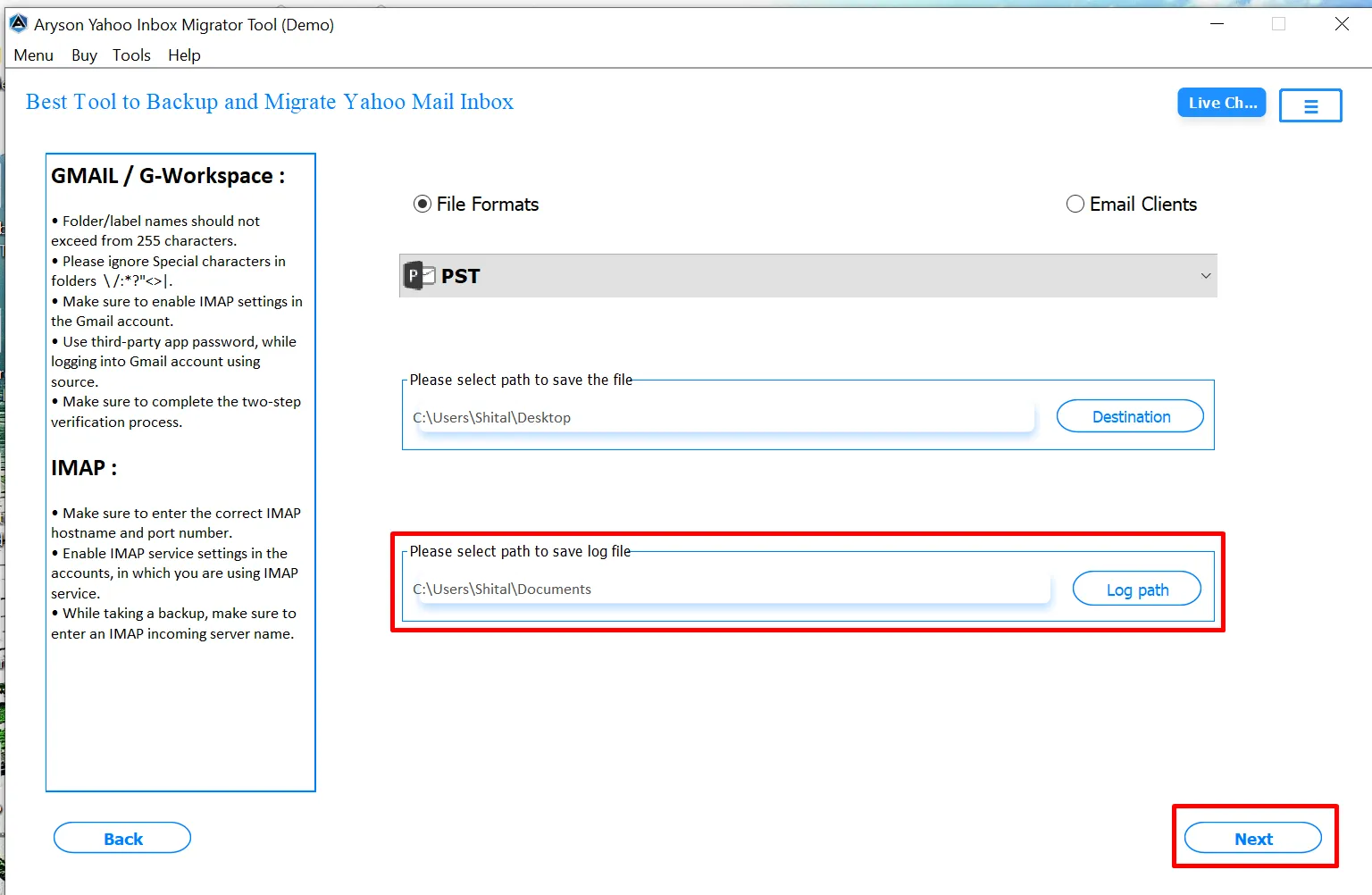
Step 7: Choose a location to save migration logs. Click Log Path, browse, and select a folder.
Step 8: Enable Remove Duplicate Mail to avoid transferring duplicate messages. Select criteria such as Subject, Body, From, or To for identifying duplicates.
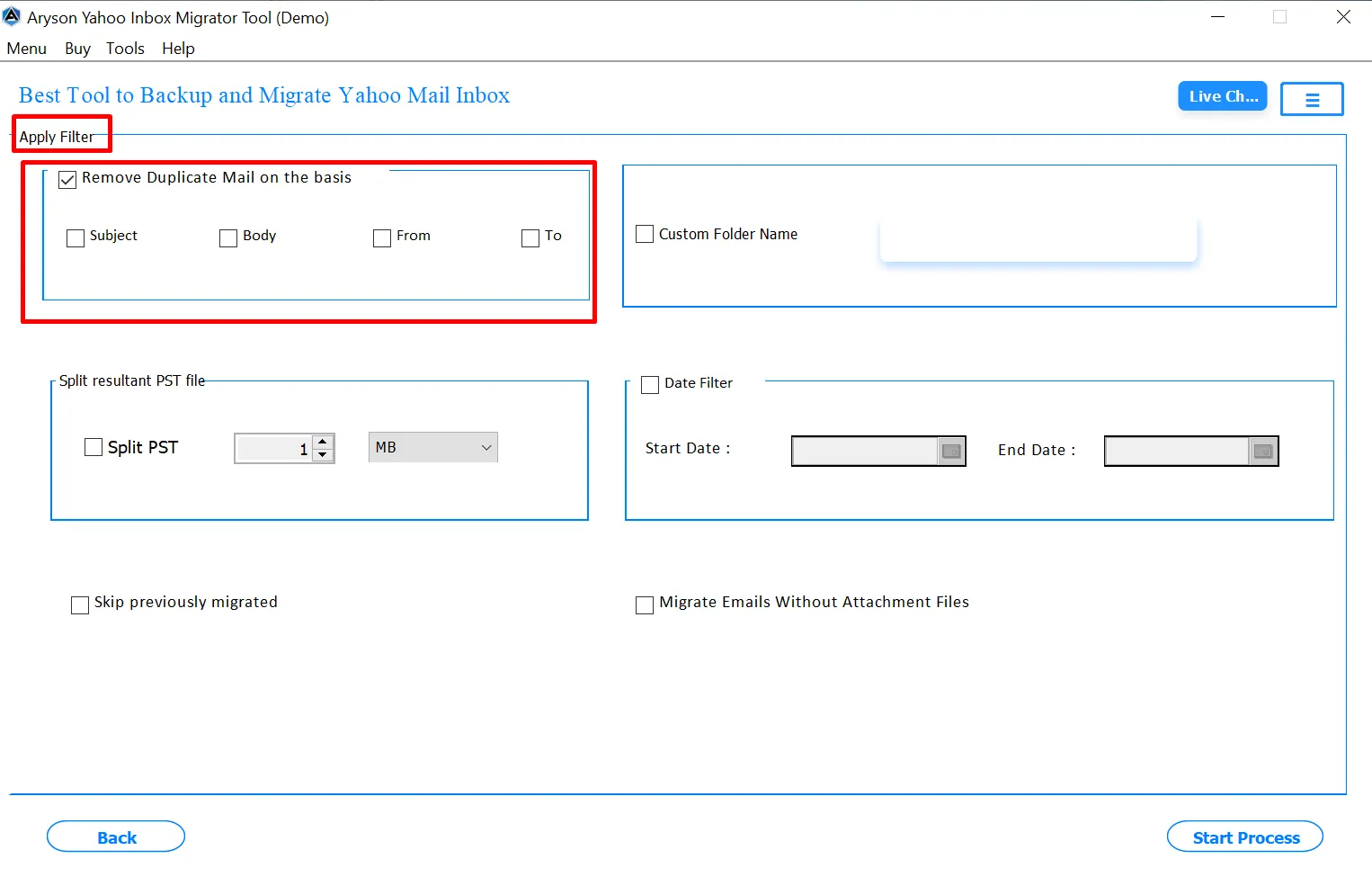
Step 9:If exporting to PST, enable Split PST to define the maximum file size. When the size limit is reached, a new PST is created automatically, and migration continues.
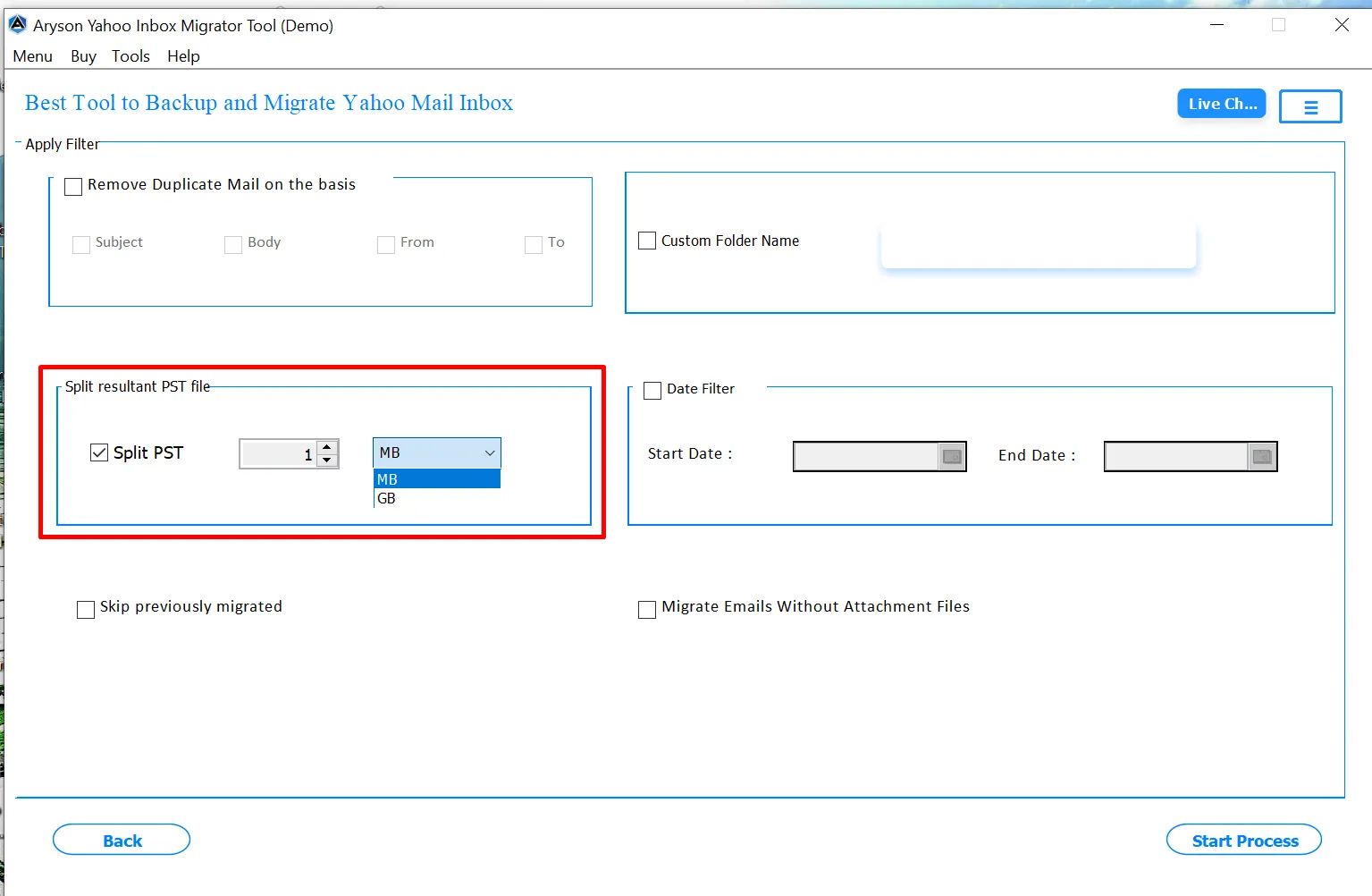
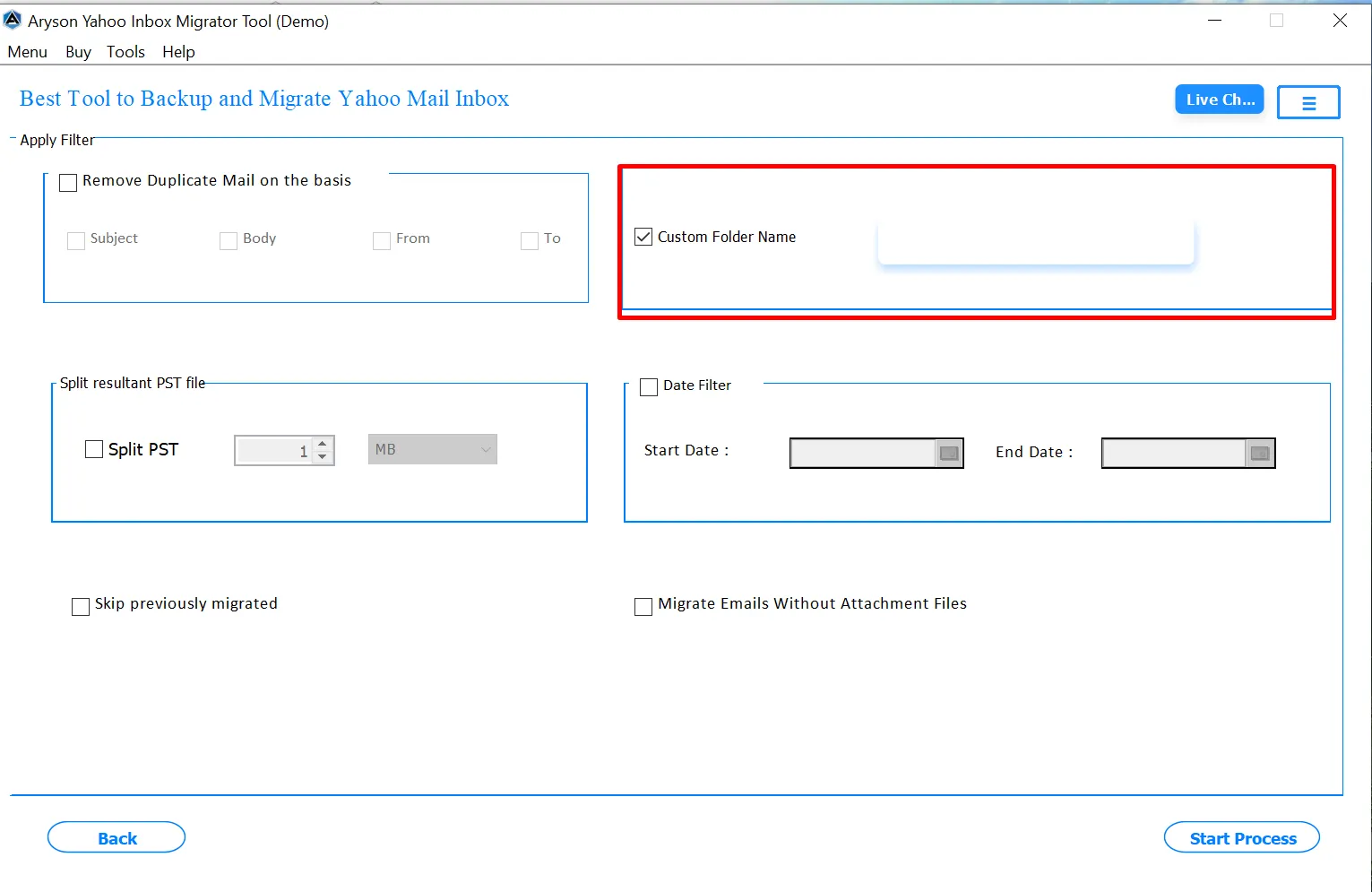
Step 10: You can define a personalized folder name to store migrated emails, helping organize data based on projects, users, or timelines.
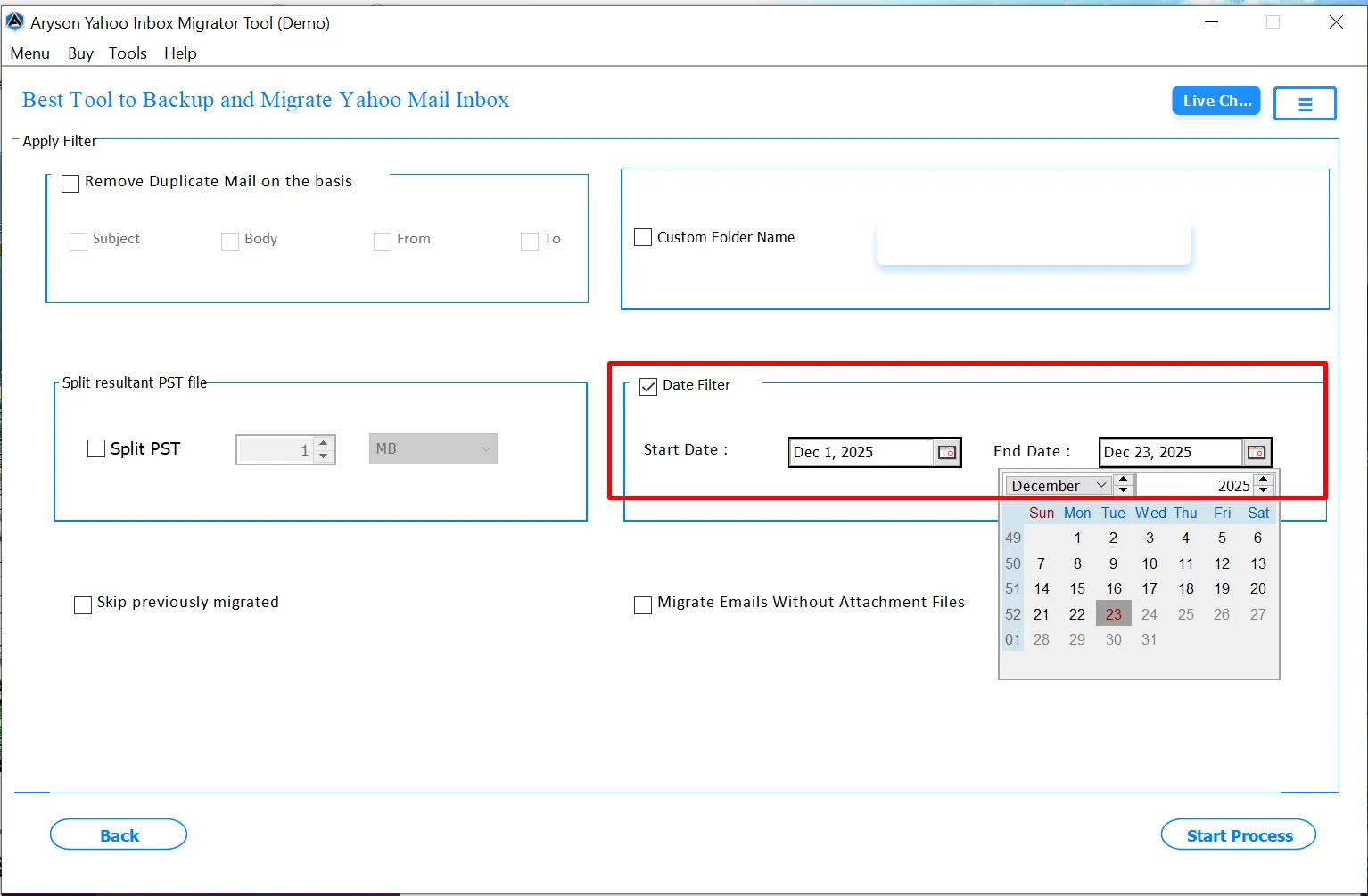
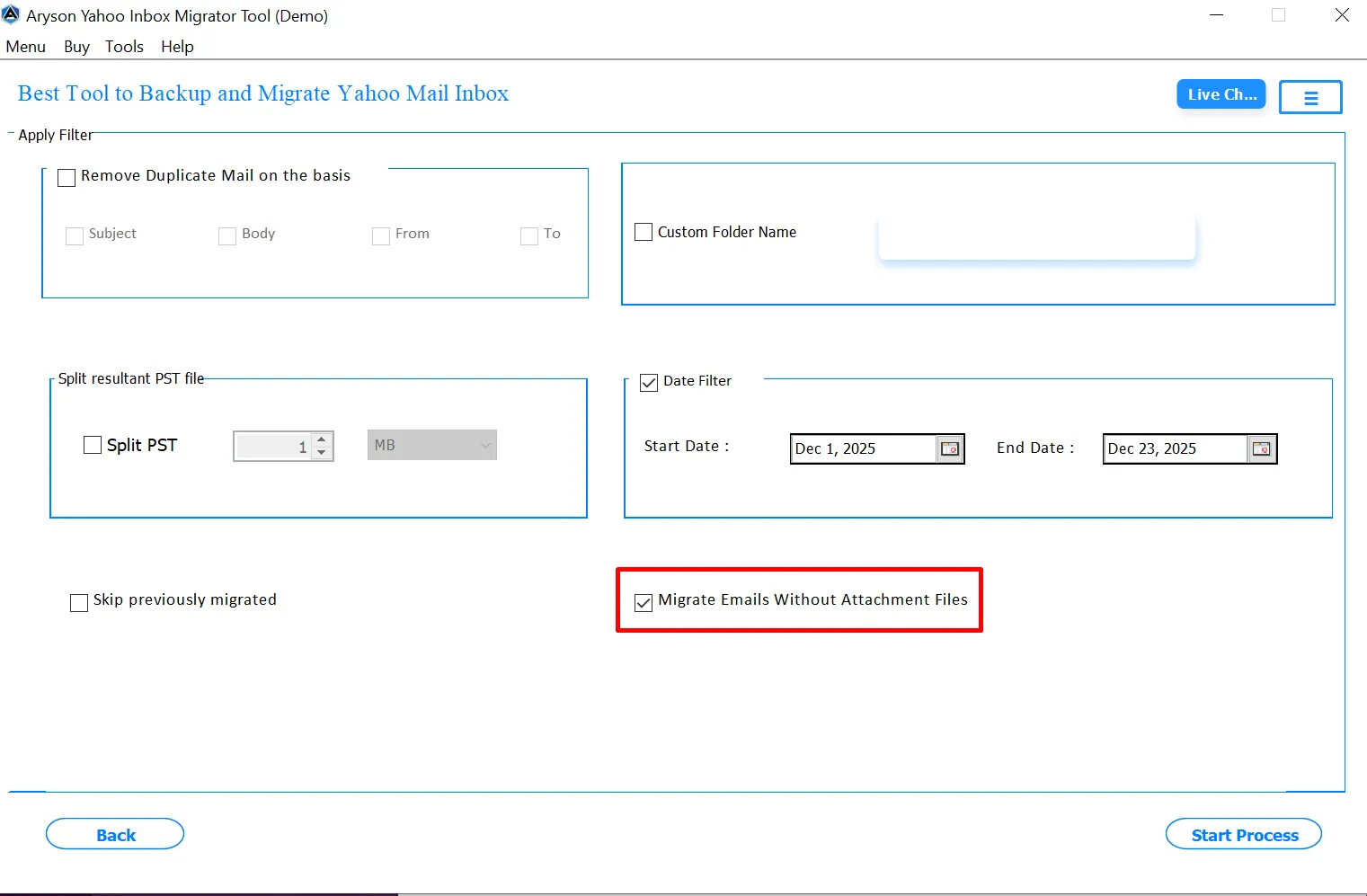
Step 11: Enable the Date Filter to migrate emails from a specific period. Set Start Date and End Date to include only emails within the selected range.
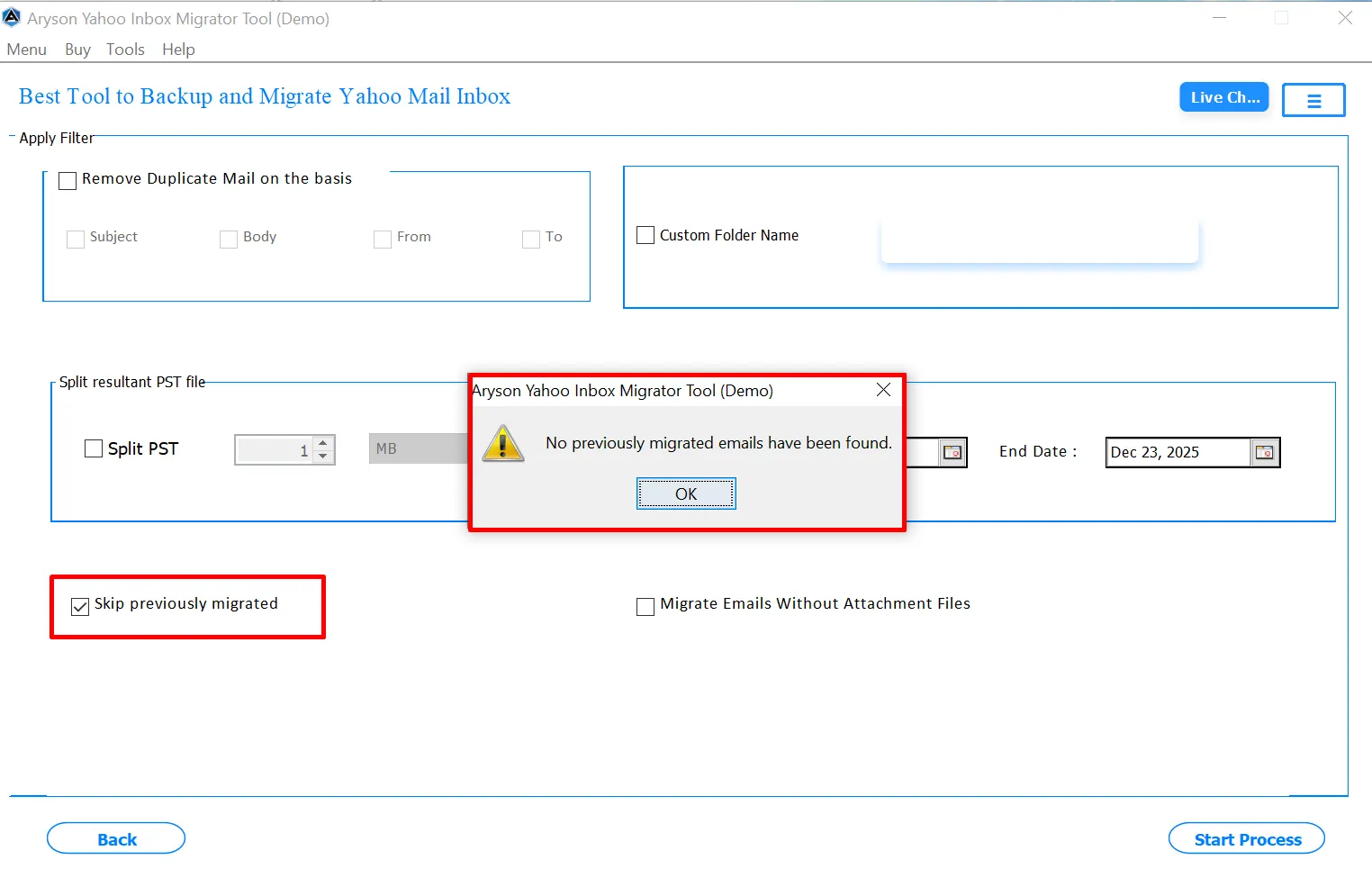
Step 12:Mark the Skip Previously Migrated Emails option to avoid re-migrating emails already transferred in earlier sessions, saving time and system resources.
Step 13:Choose the " Migrate Without Attachments option to migrate only email messages without attachments, which reduces migration time and storage usage.
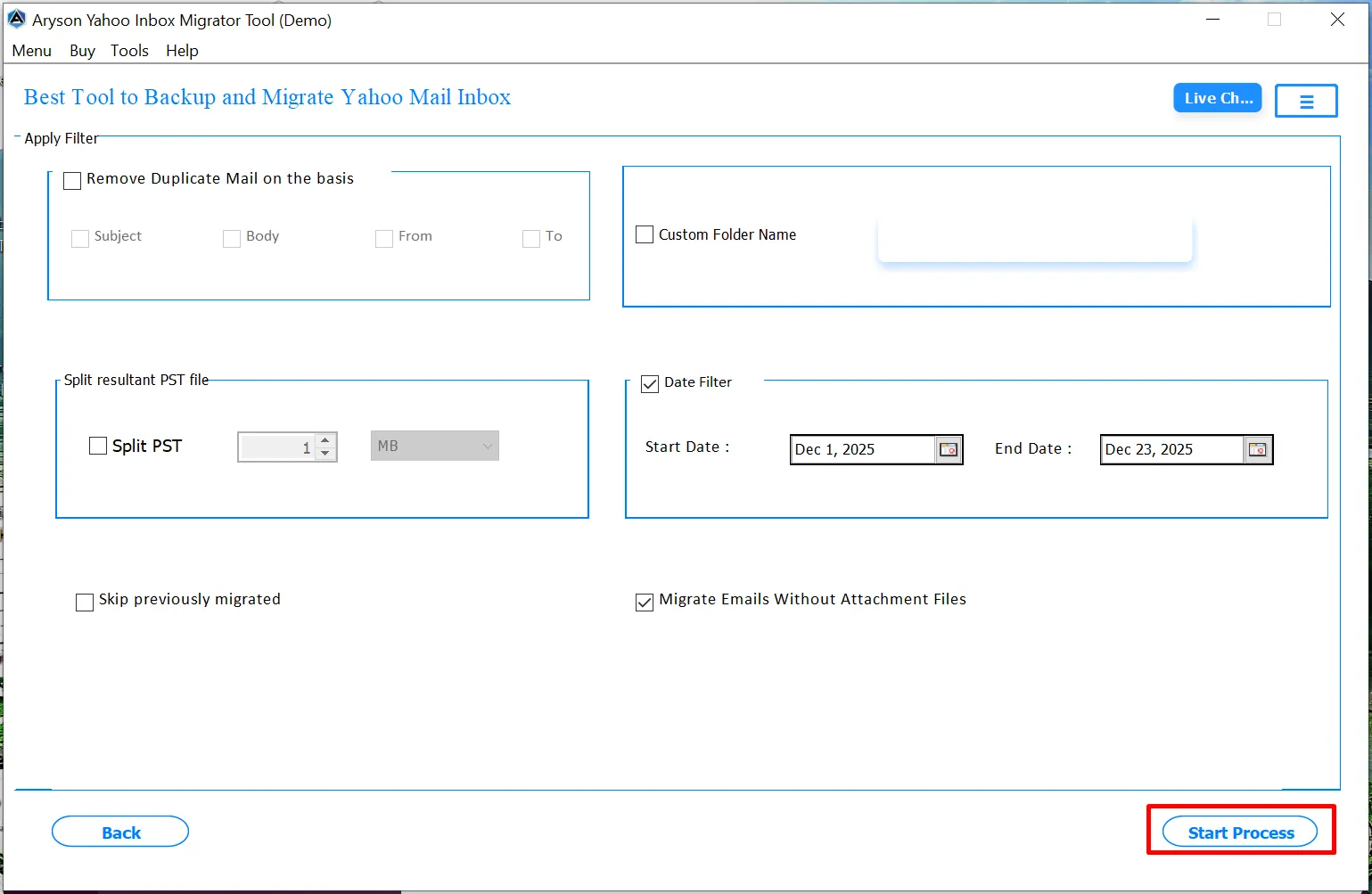
Step 14:After setting all options, click Start Process to begin migrating your Yahoo inbox. The software will transfer emails accurately to the chosen destination.
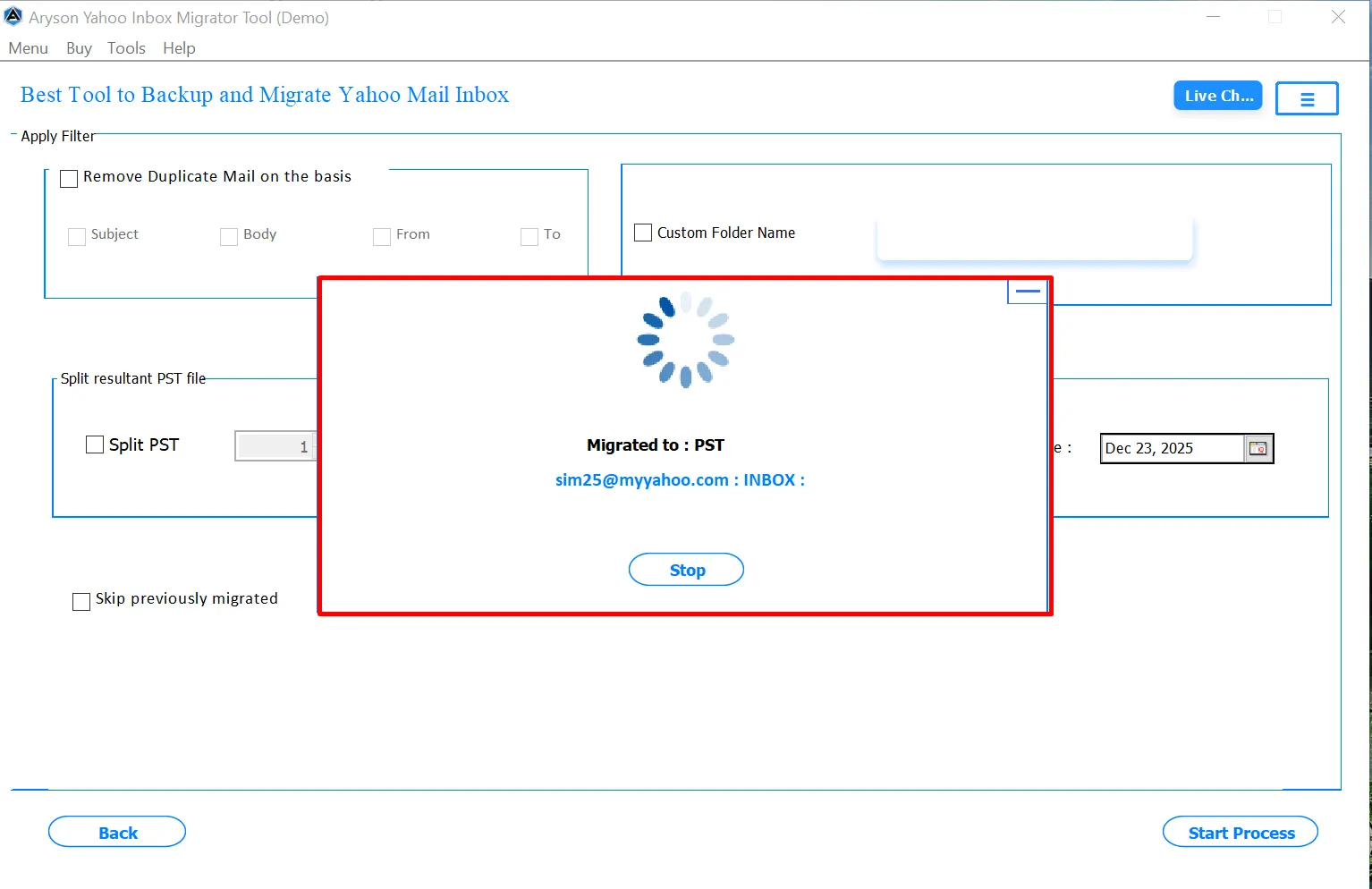
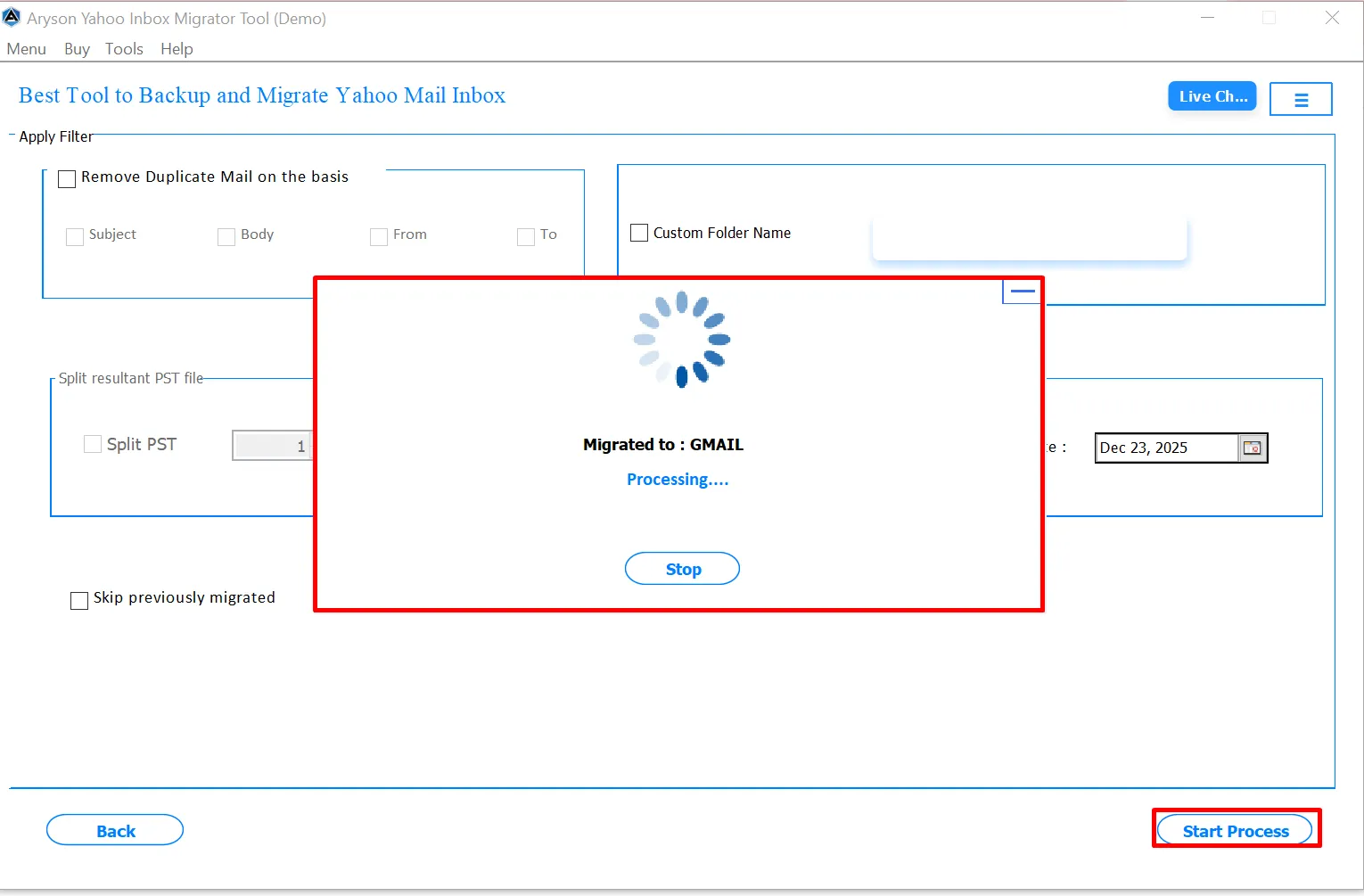
Step 15:Monitor real-time migration progress. The panel shows current status, email count, and destination. You can pause or stop the migration if necessary.
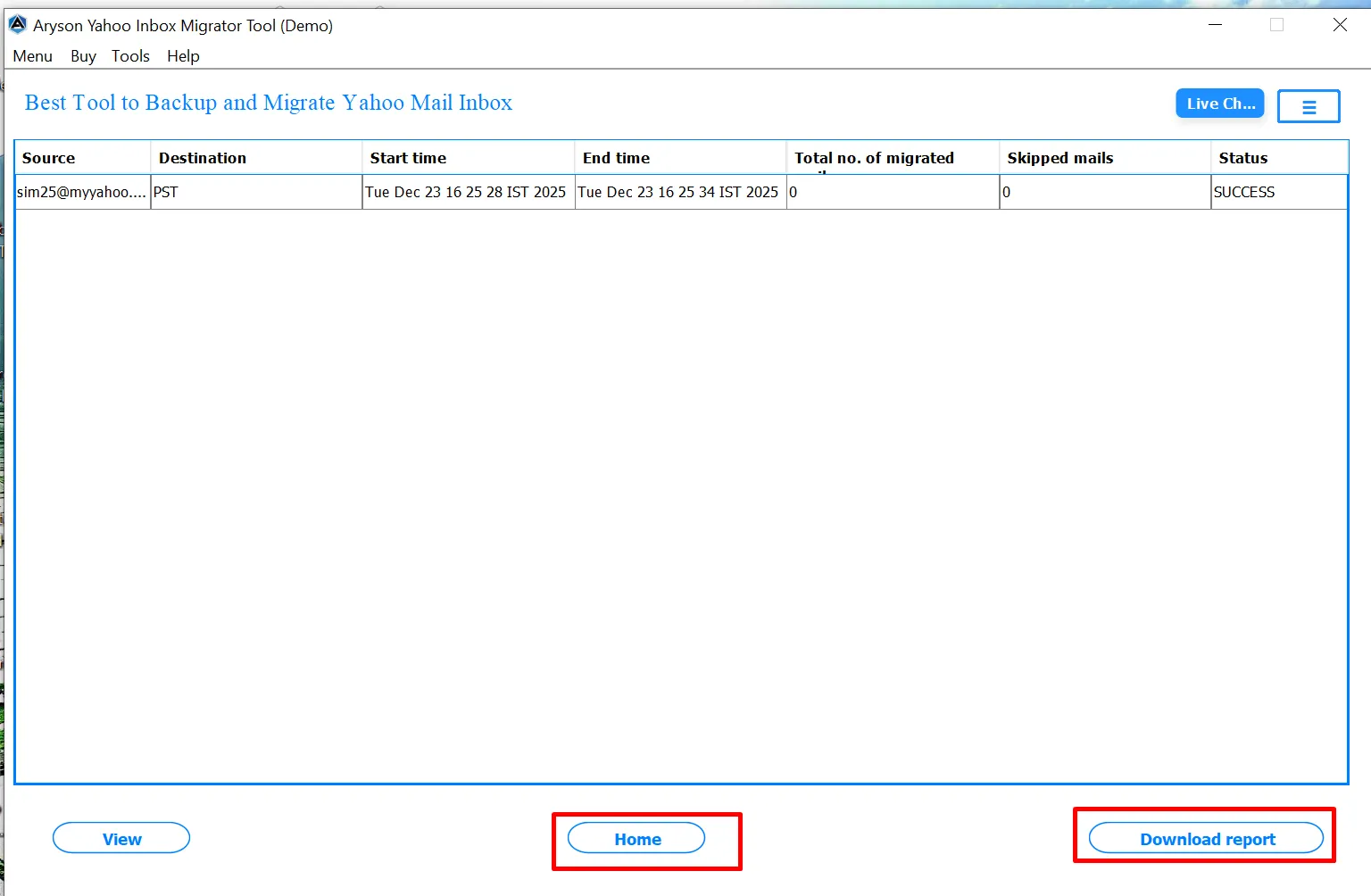
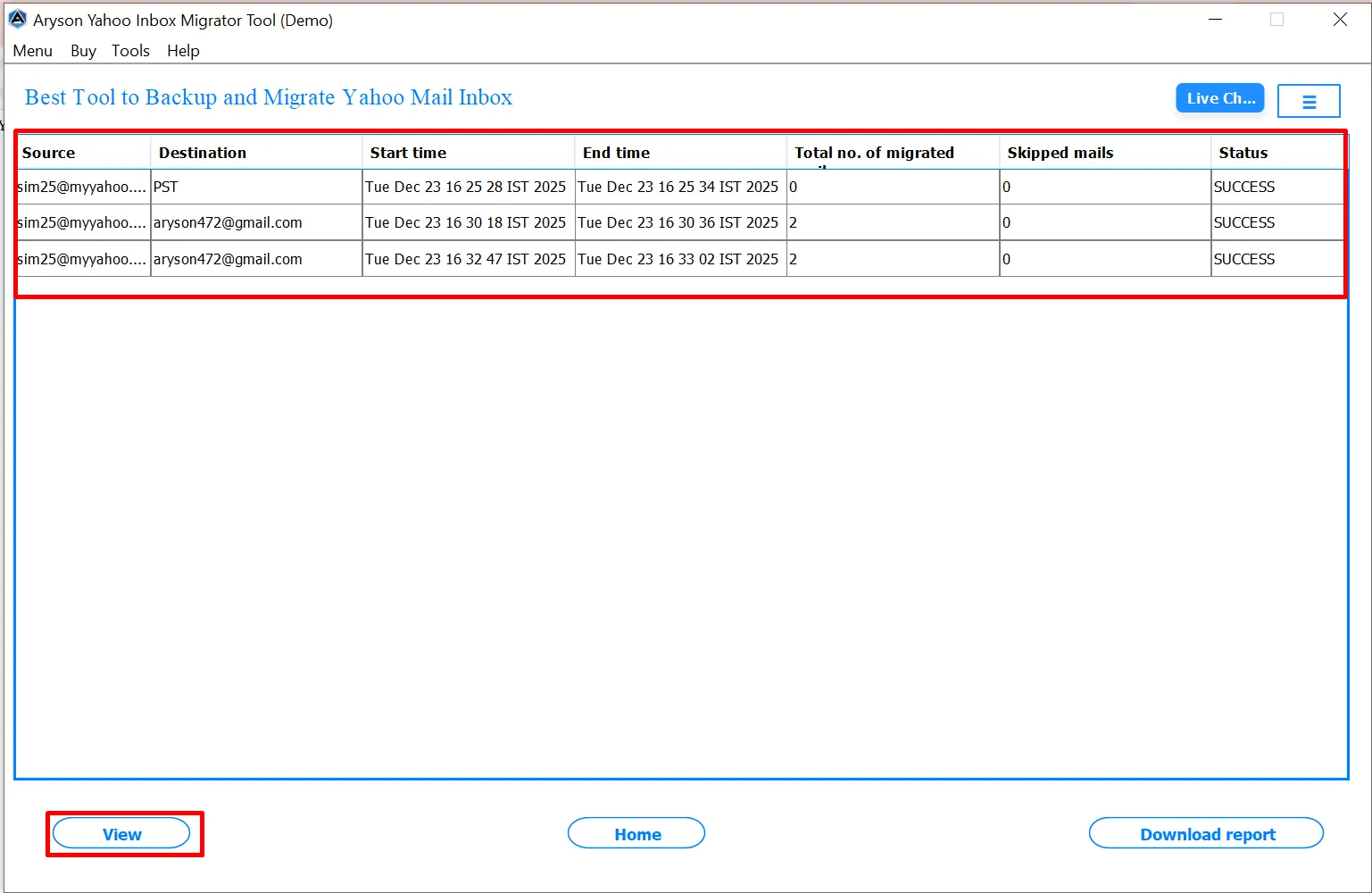
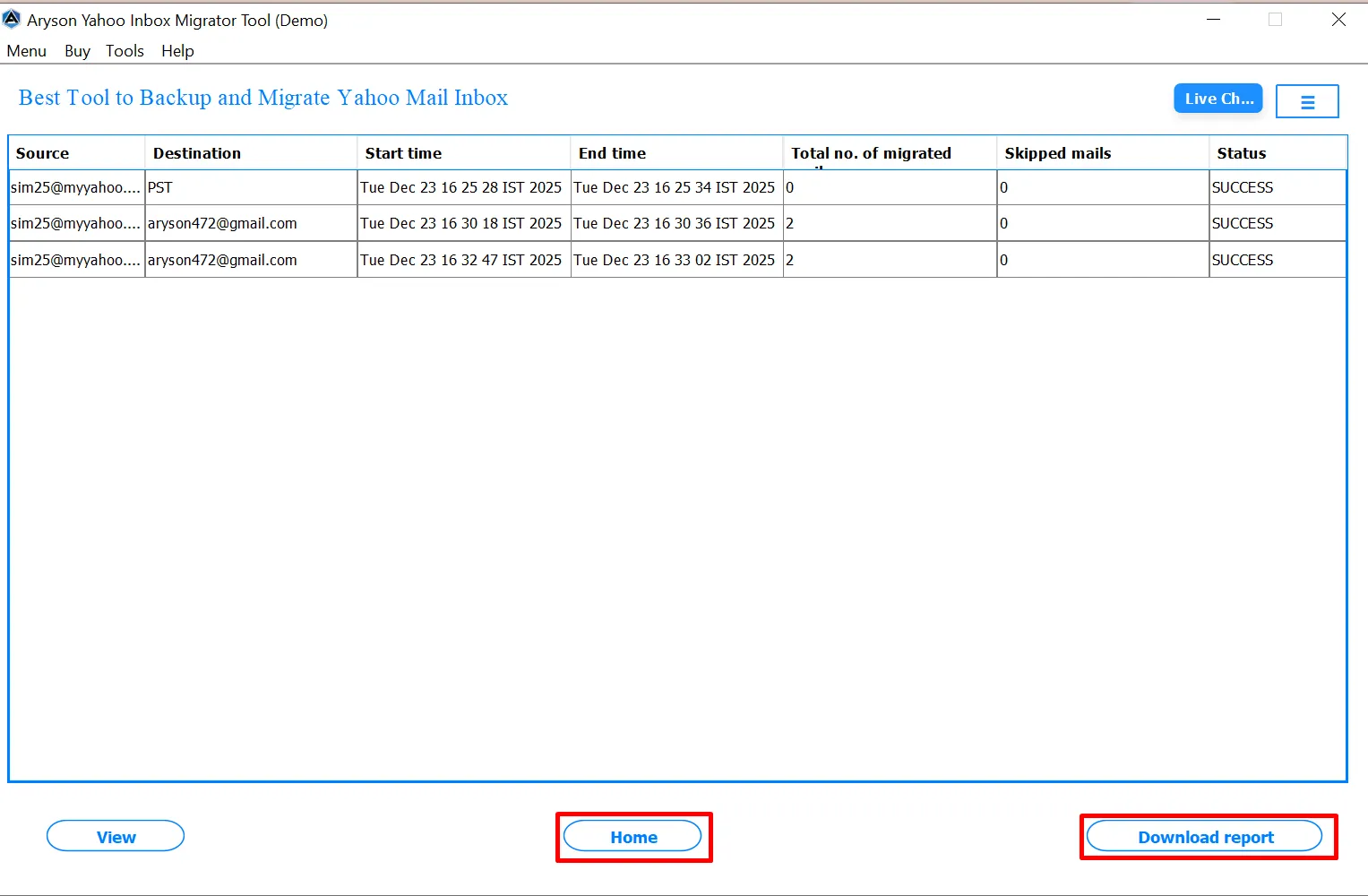
Step 16:Click the View button to confirm successful migration. A summary report appears with source account, destination, start and end time, total emails migrated, skipped emails, and overall status.
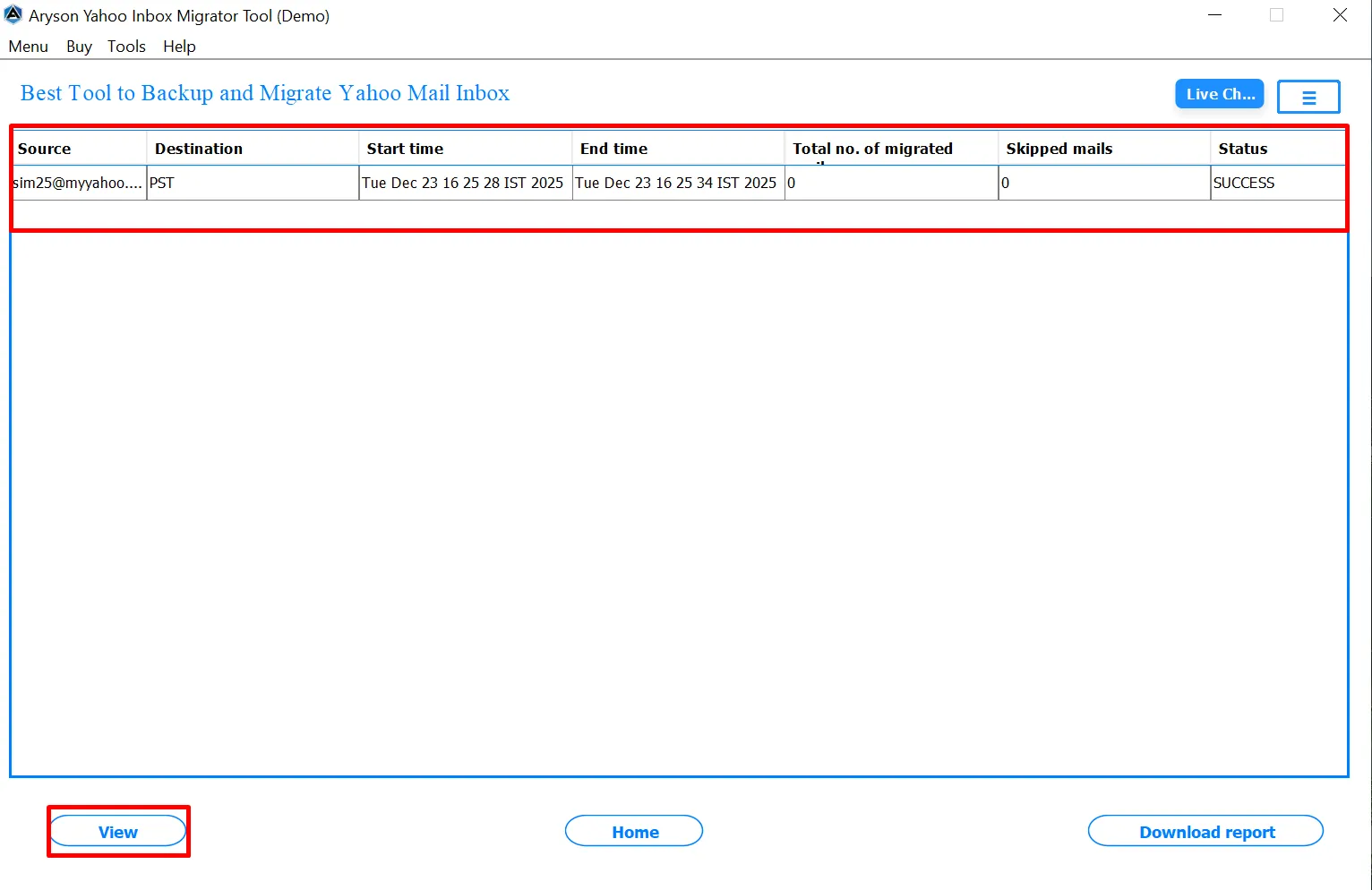
Step 17:Also, you can utilize the Post-Migration Options
- Home Button: Start a new migration without closing the tool.
- Download Report: Save a detailed migration report, including destination, times, email counts, and status for documentation or records.
Step 1: Download and install the Aryson Yahoo Mail Migrator on your existing PC.
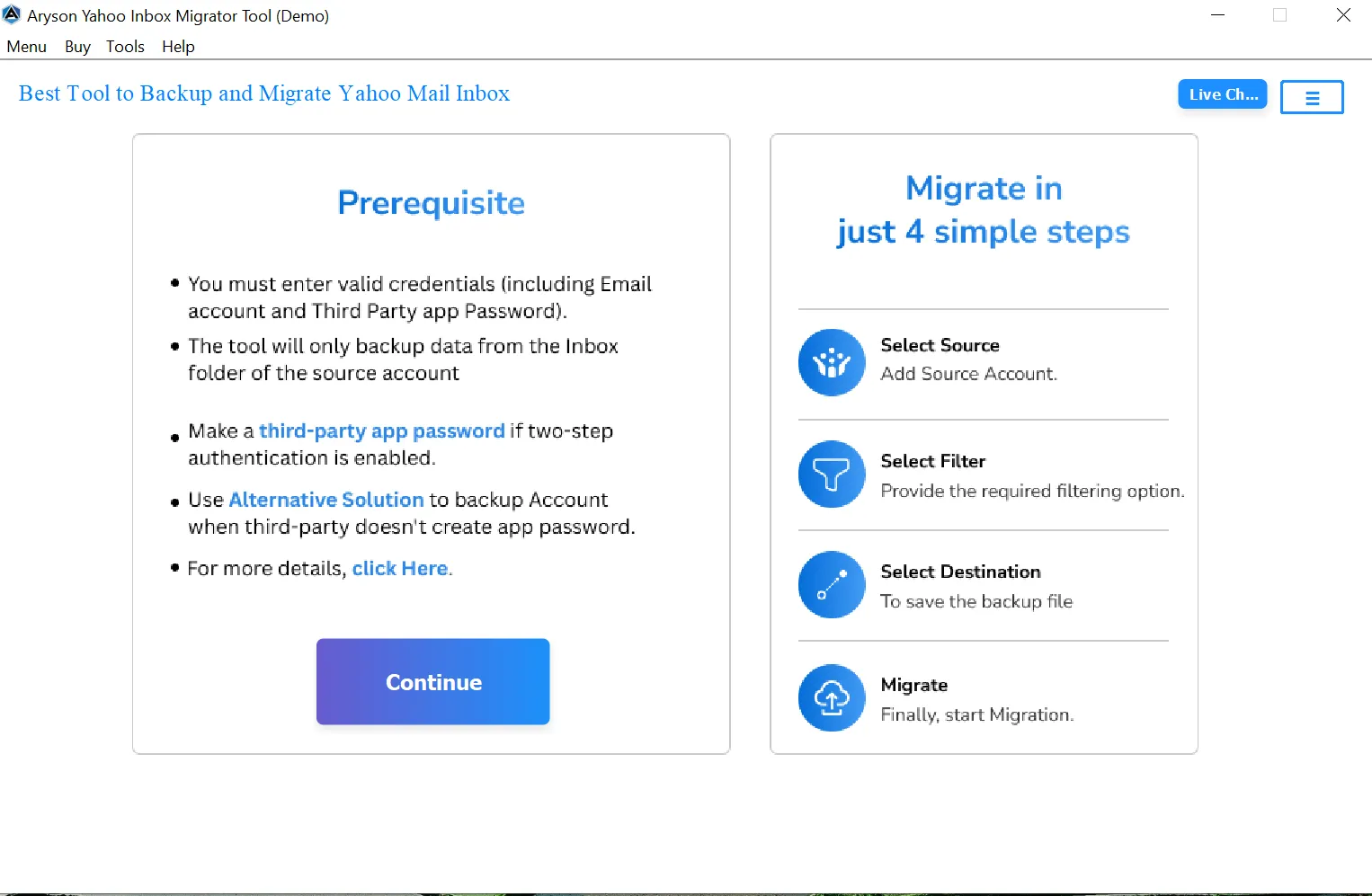
Step 2: See the Migration Overview in 4 Simple Steps. Once verified, click Continue to proceed with migration.
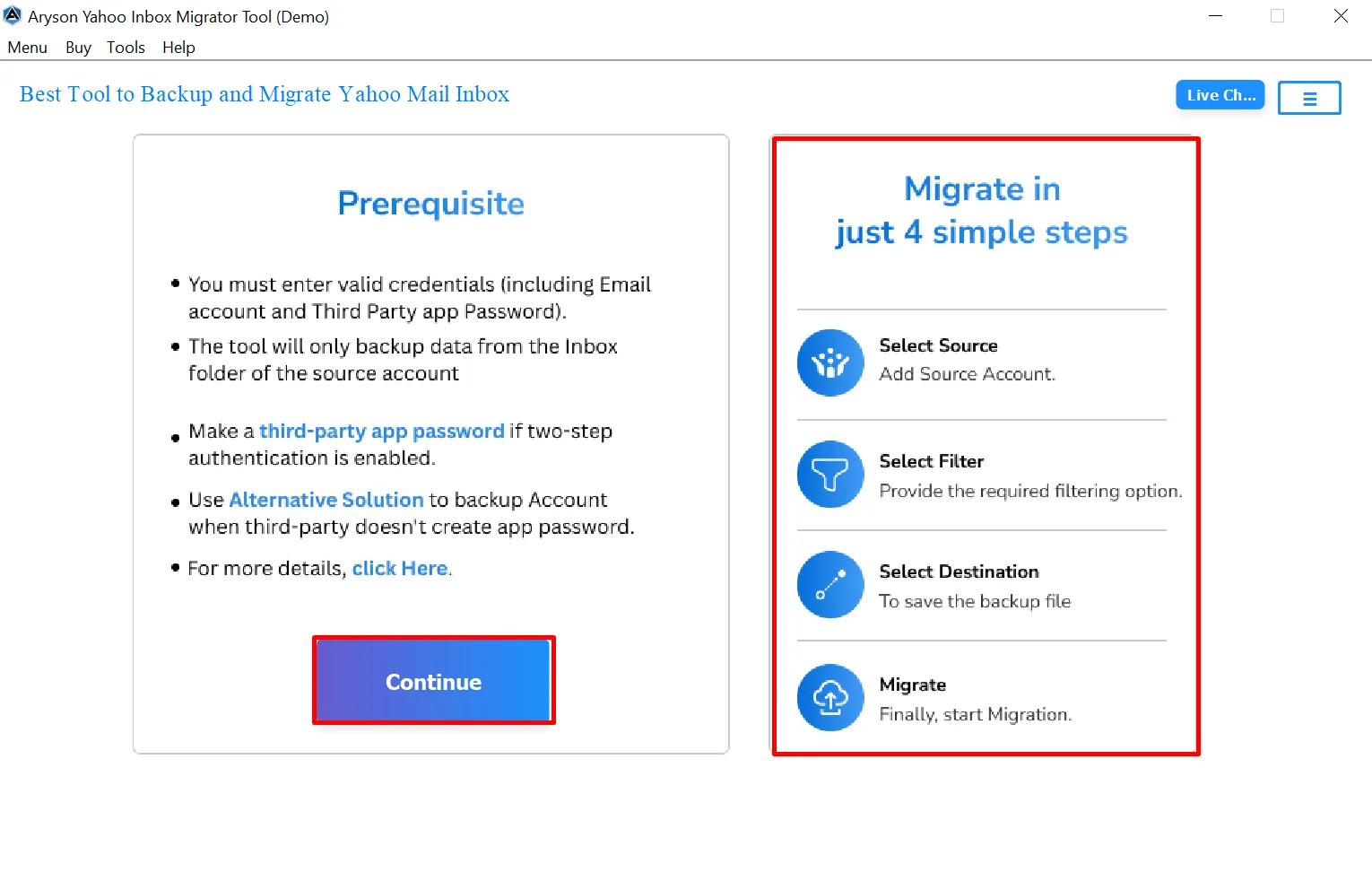
Step 3: Input your Yahoo email and app password; use Show Password to confirm. Click Login to securely connect your Yahoo account.
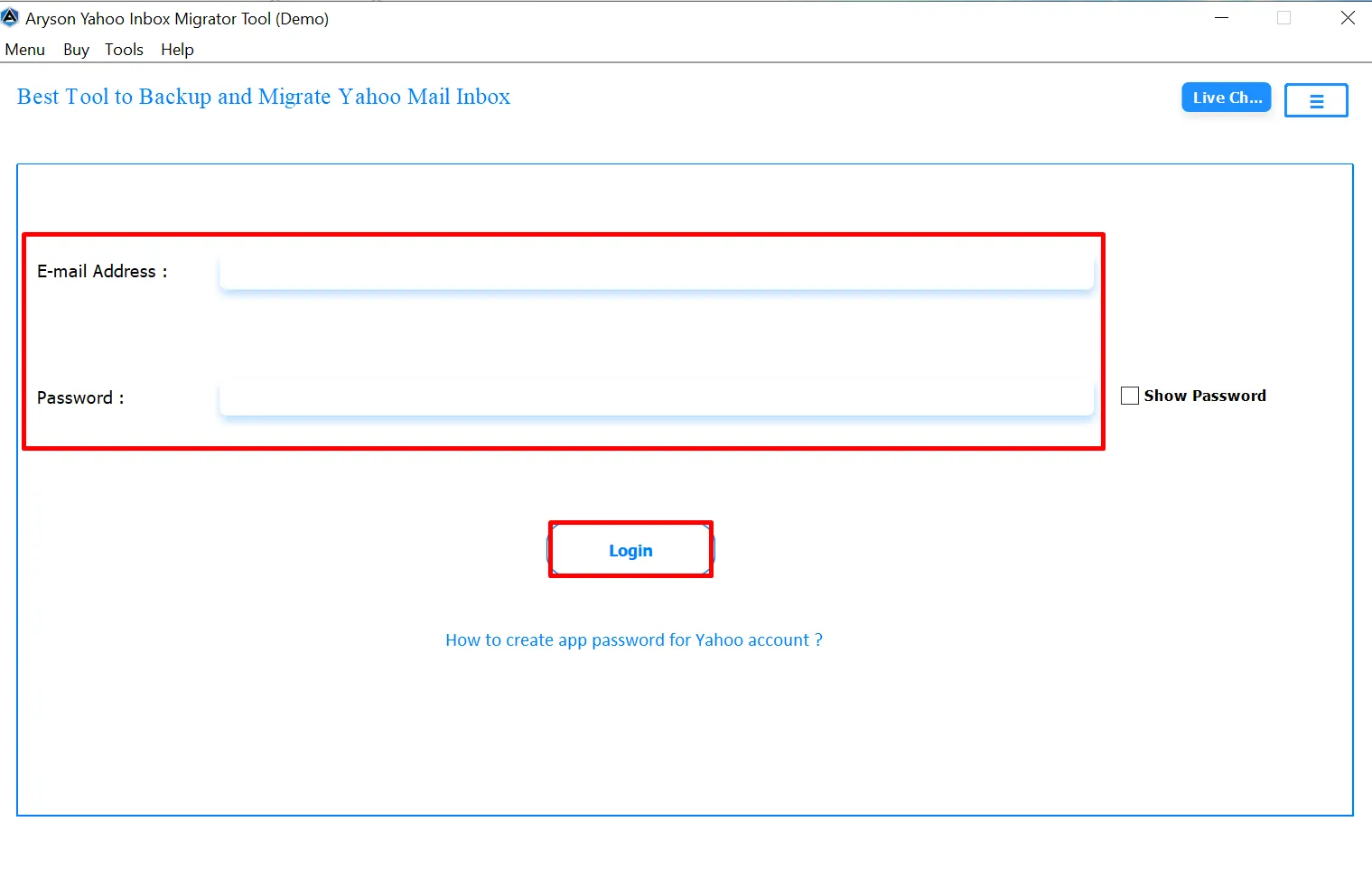
Step 4: App Password (if needed): If two-step verification is enabled, generate an app password and use it to log in.
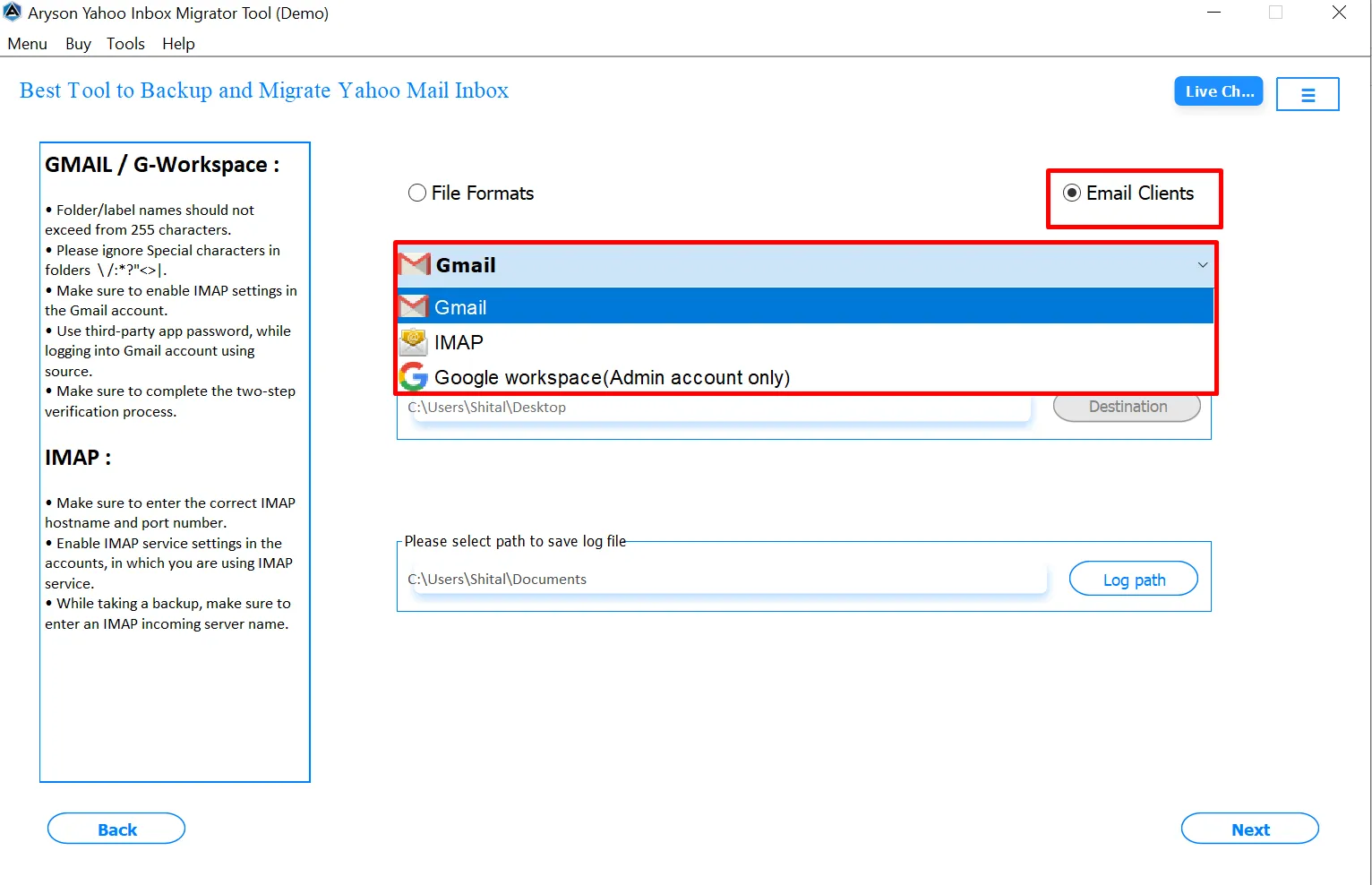
Step 5: Select the email client as Gmail, where you want to migrate your Yahoo Inbox data.
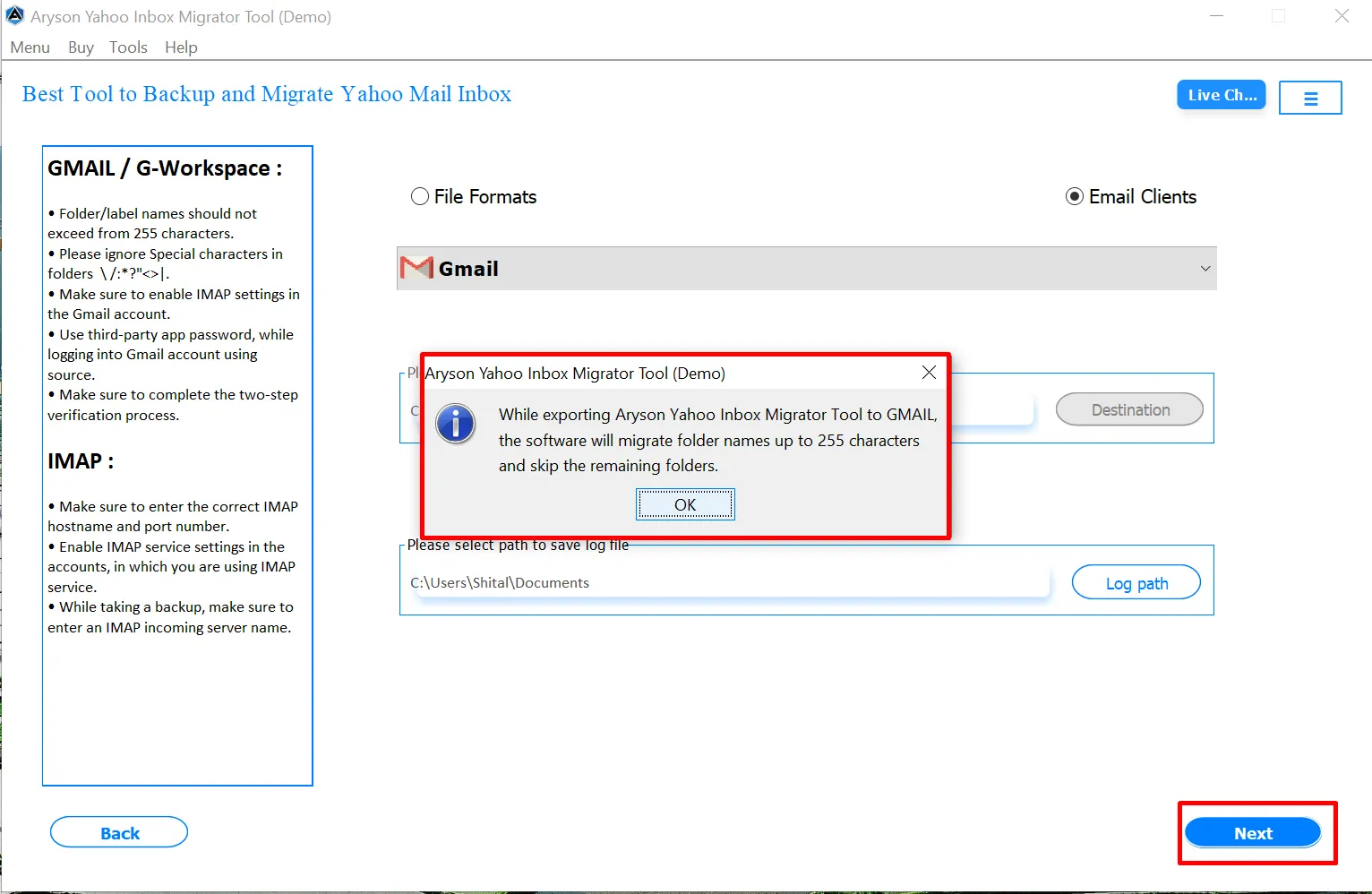
Step 6: An alert appears informing you that only folder names up to 255 characters will be migrated. Click OK to continue.
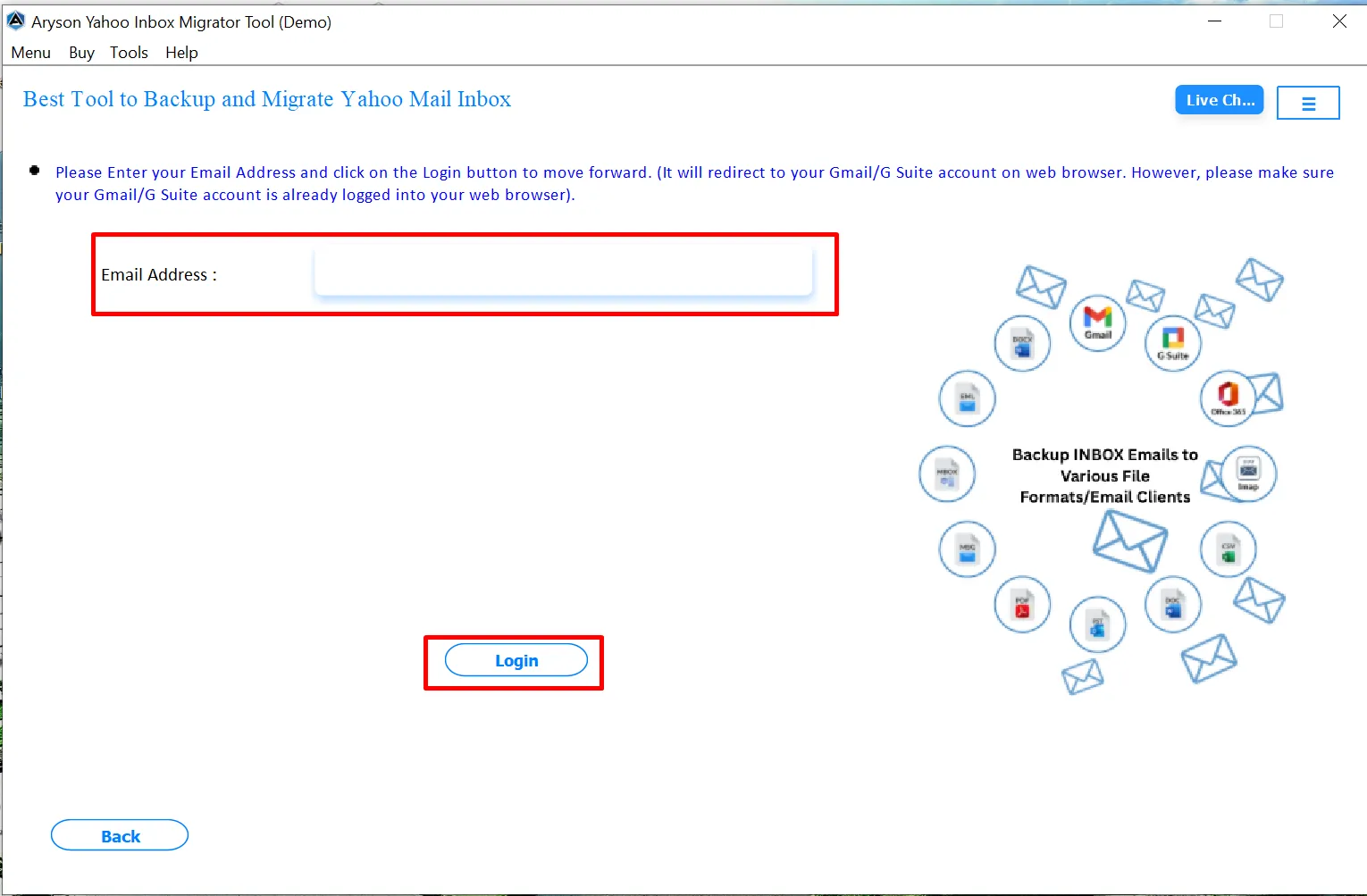
Step 7: Enter your destination email address and click Login. The tool redirects you to the browser for account authentication. Ensure you are already signed in to the correct account.
After successful authentication, a confirmation message appears. Close the browser window and return to the application.
Step 8: Enable Remove Duplicate Mail to avoid repeated emails. Select criteria such as Subject, Body, From, or To to identify duplicates during migration.
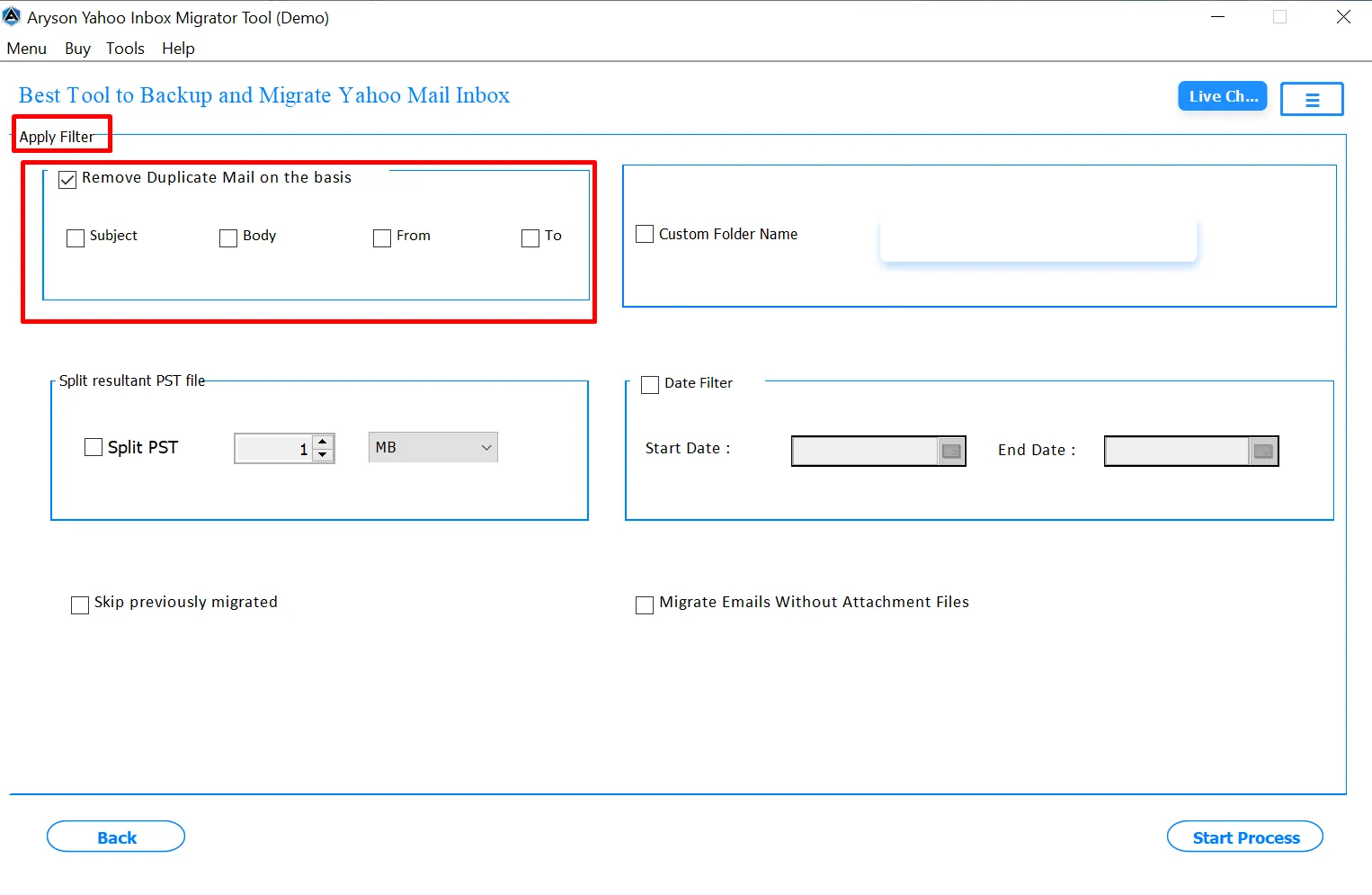
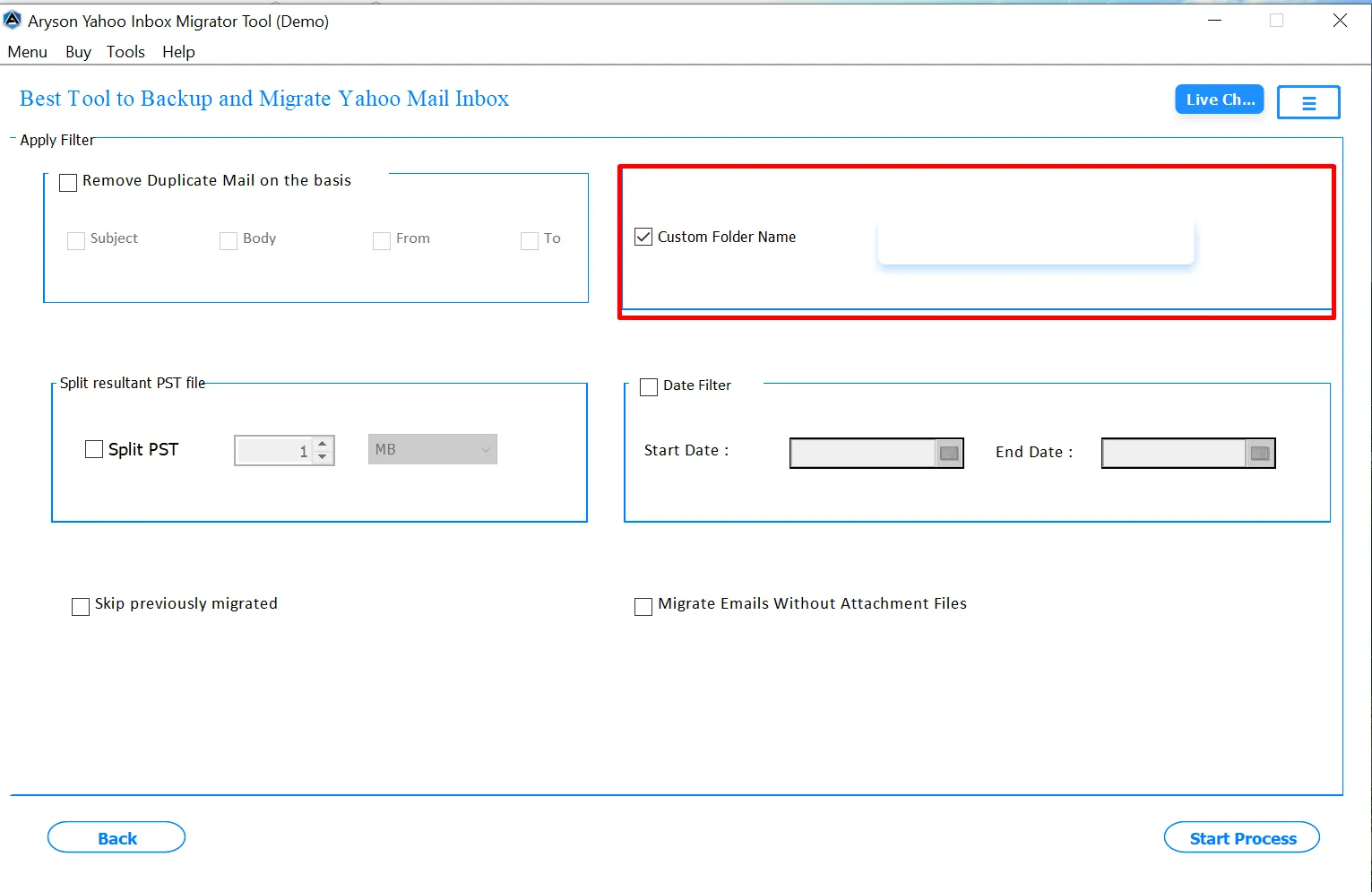
Step 9: You can define a personalized folder name to store migrated emails, helping organize data based on projects, users, or timelines.
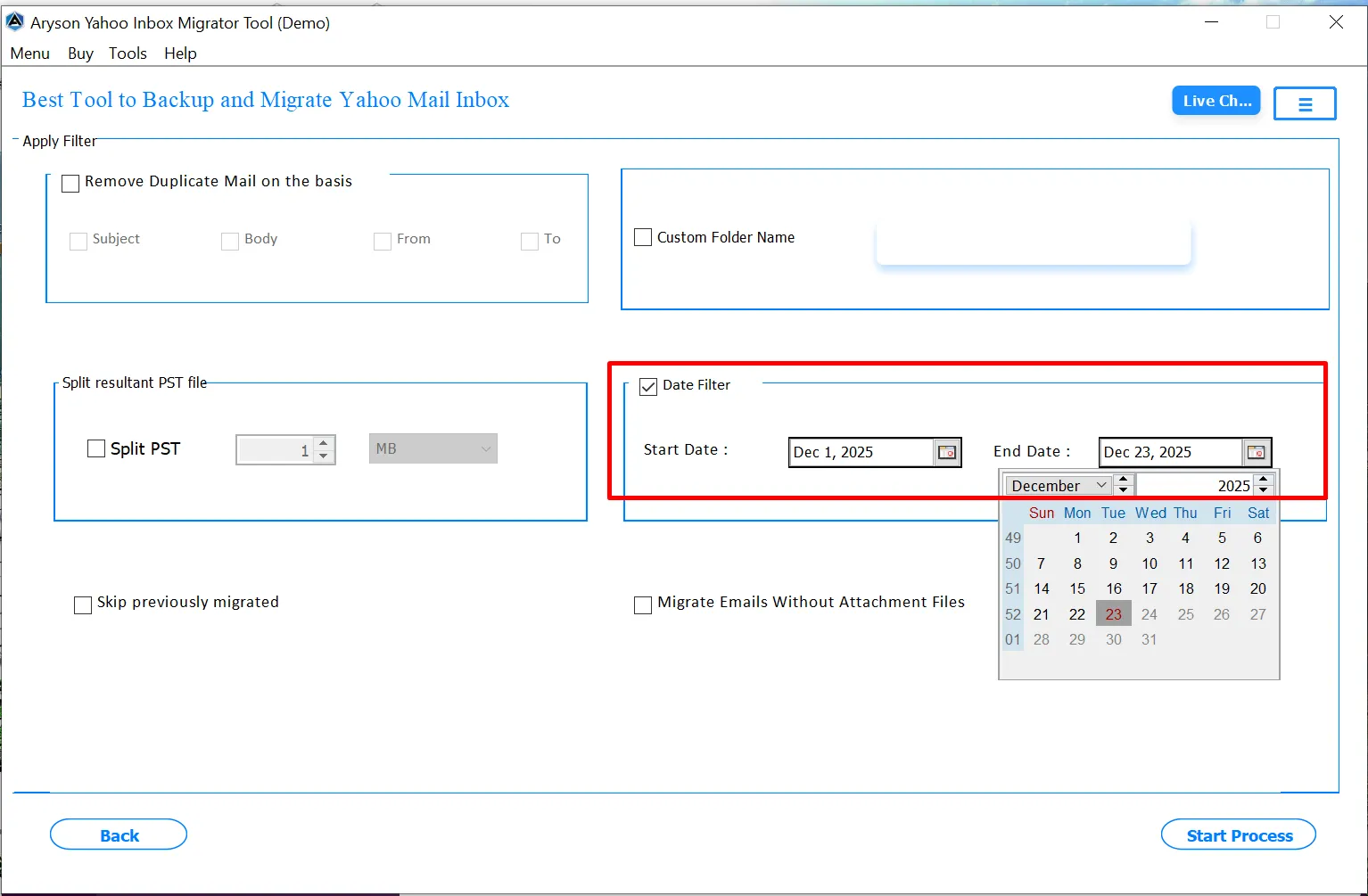
Step 10: Enable the Date Filter to migrate emails within a selected time range. Set the start and end dates to include only required emails.
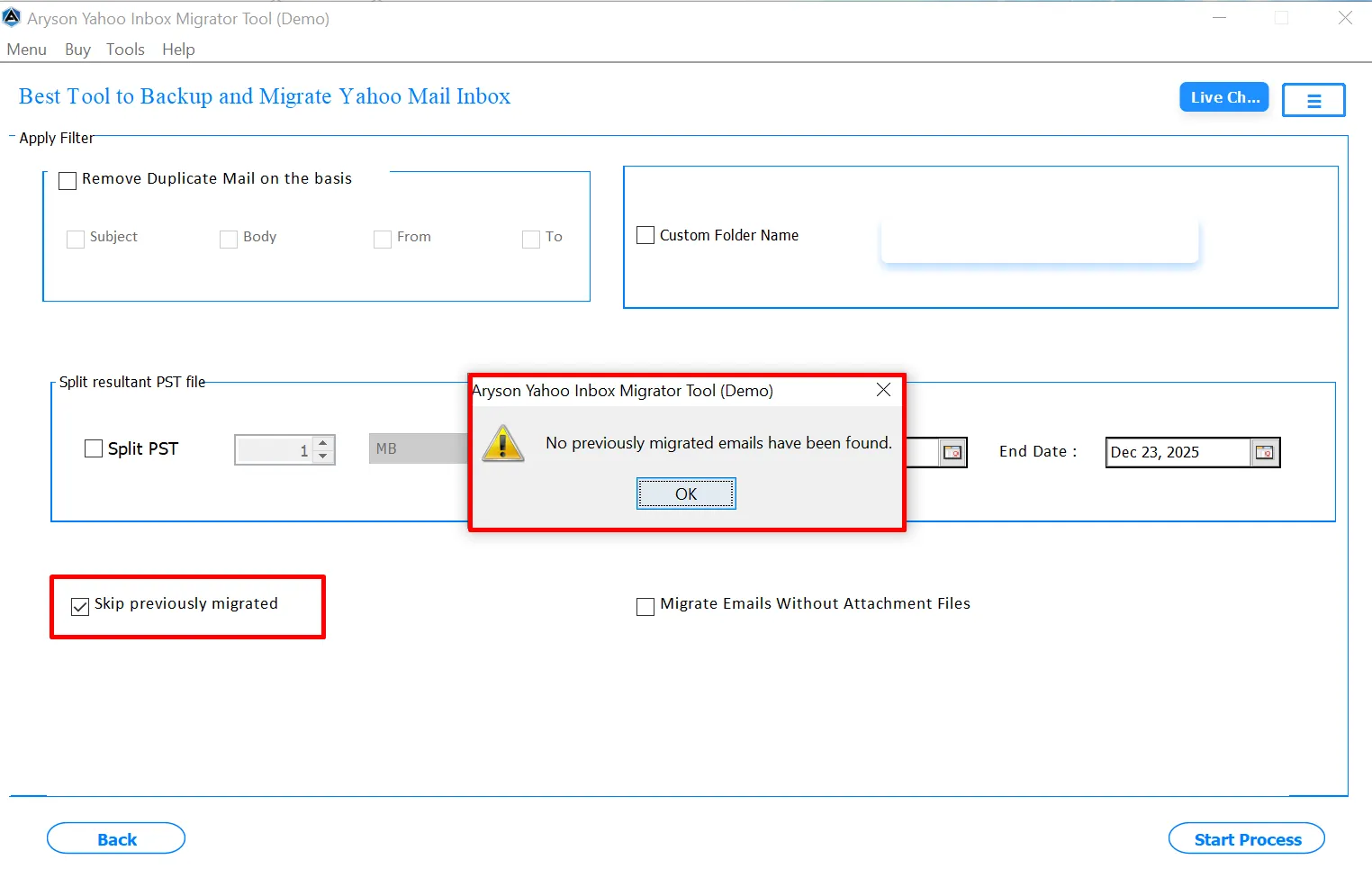
Step 11: Mark the Skip Previously Migrated Emails option to avoid re-migrating emails already transferred in earlier sessions, saving time and system resources.
Step 12: Choose the " Migrate Without Attachments option to migrate only email messages without attachments, which reduces migration time and storage usage.
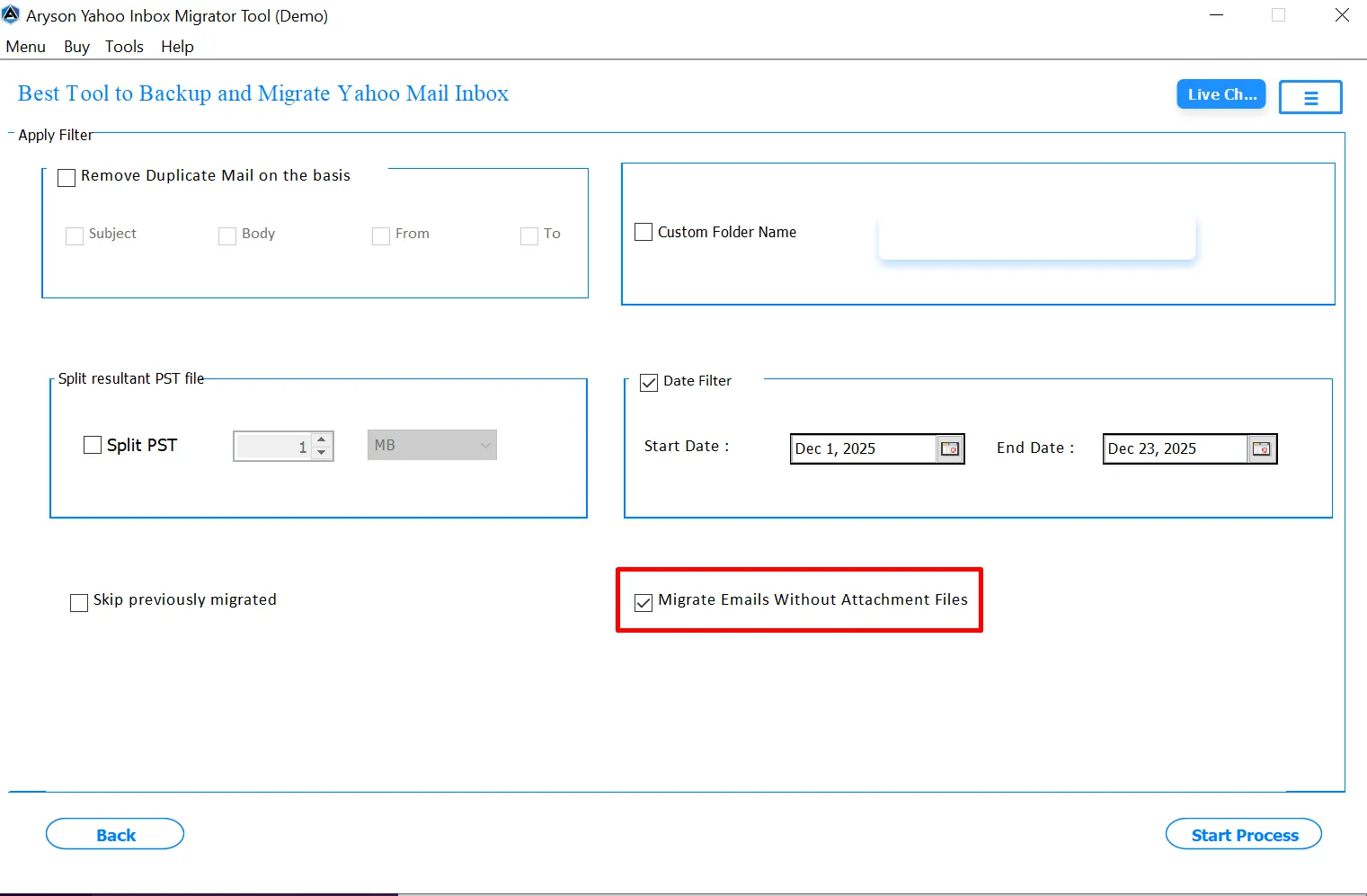
Step 13: After configuring all options, click Start Process. The tool begins migrating Yahoo Inbox emails to the selected email client.
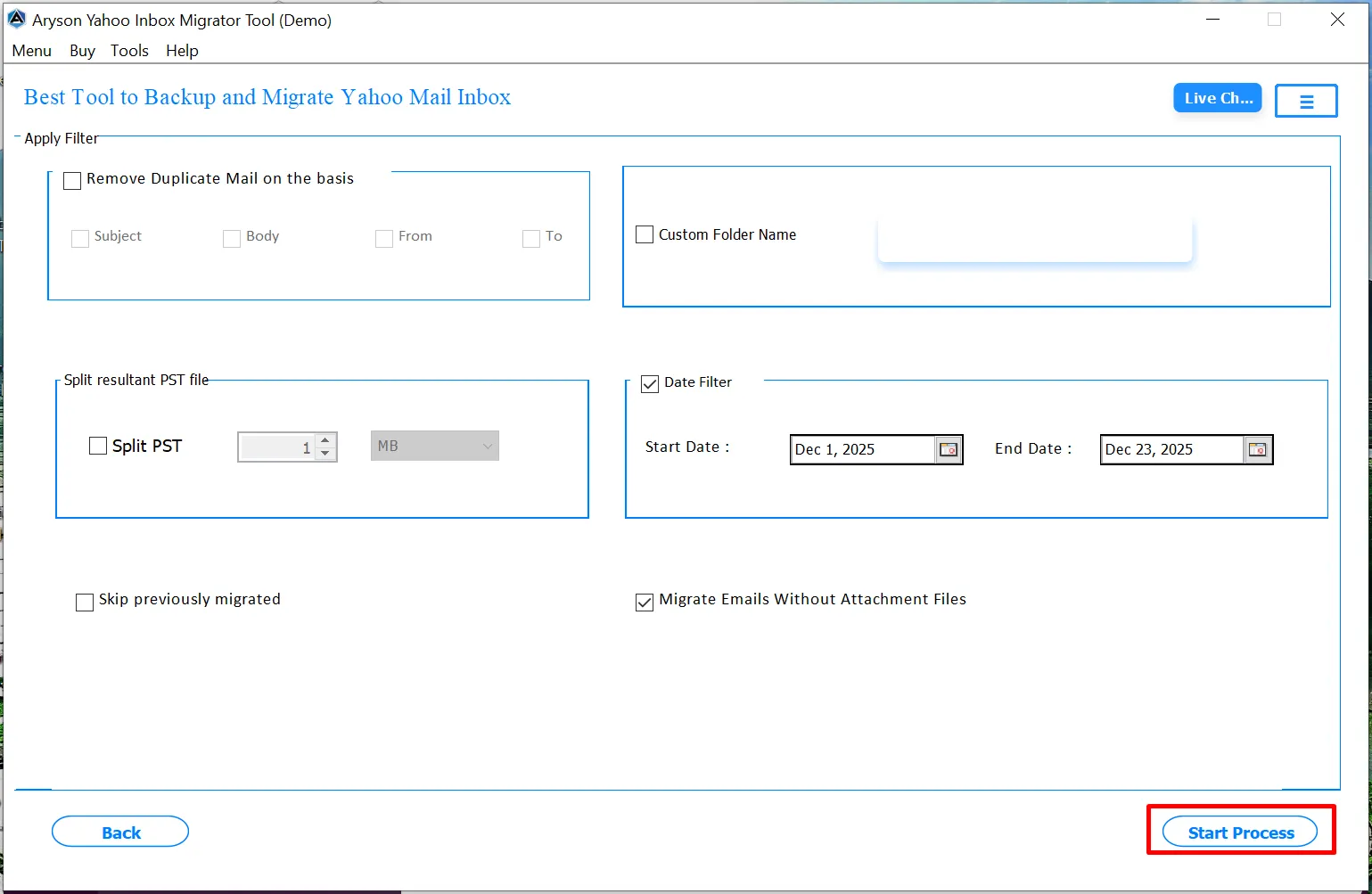
Step 14: A progress panel displays the live migration status. You can monitor the process and stop it if required.
Step 15: Click the View button to confirm successful migration. A summary report appears with source account, destination, start and end time, total emails migrated, skipped emails, and overall status.
Step 15: Also, you can utilize the Post-Migration Options
- Home Button: Start a new migration without closing the tool.
- Download Report: Save a detailed migration report, including destination, times, email counts, and status for documentation or records.
Activation Guide
Activate the Software
Installation & Uninstallation
Installation & Uninstallation of Software
User Interface
User Interface
After downloading the Aryson OST to PST Converter Tool, you will find the welcome screen as played below.