Complete Step-by-Step Guide for Aryson Mac Email Backup Wizard
Back up emails on macOS with the Aryson Mac Email Backup Wizard, a reliable solution to export mailbox data from multiple email clients into various file formats such as PST, MBOX, EML, EMLX, MSG, PDF, CSV, XLSX, HTML, MHTML, JSON, ICS, VCF, DOC, DOCX, and more. This Mac-based email backup tool also enables direct email migration to popular platforms, including Office 365 (Microsoft 365), Gmail, Yahoo Mail, Zoho Mail, Thunderbird, iCloud, Outlook.com, AOL Mail, Hotmail, Yandex Mail, Google Workspace, and IMAP servers. Designed for accuracy and efficiency, it ensures secure backup and seamless data transfer. For detailed instructions, refer to our detailed user guide.
- Table of Content
- Software Working Process
- Software Prerequisite
- Activation Guide
- Installation & Uninstallation
- User Interface
Software Working Process
Software Working Process
Step 1: Download and install the Aryson Mac Email Backup Wizard on your macOS system.
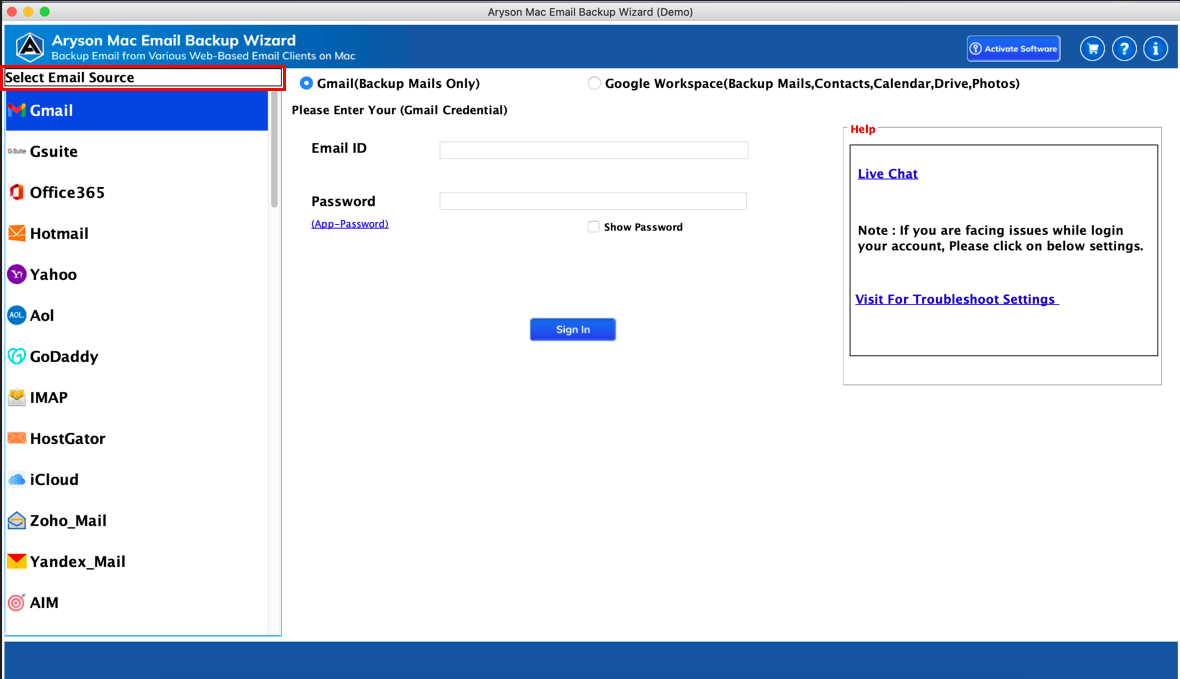
Step 2: Launch the tool and choose Gmail as the email source. Select Single Mode to back up one Gmail account.
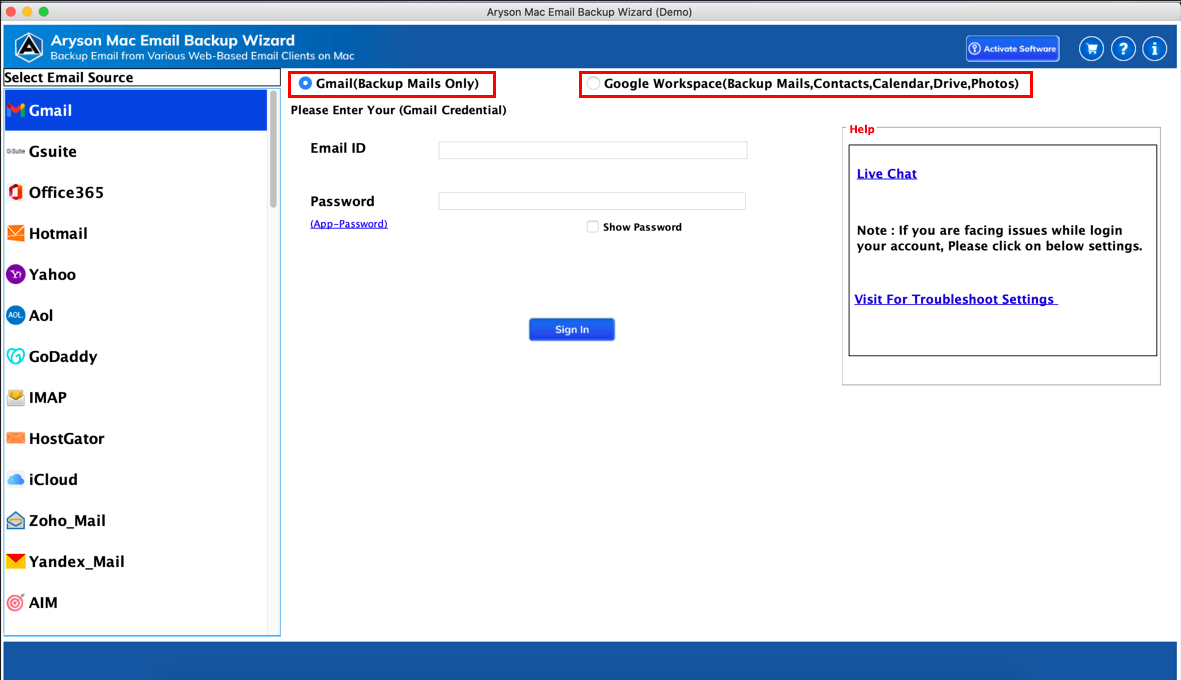
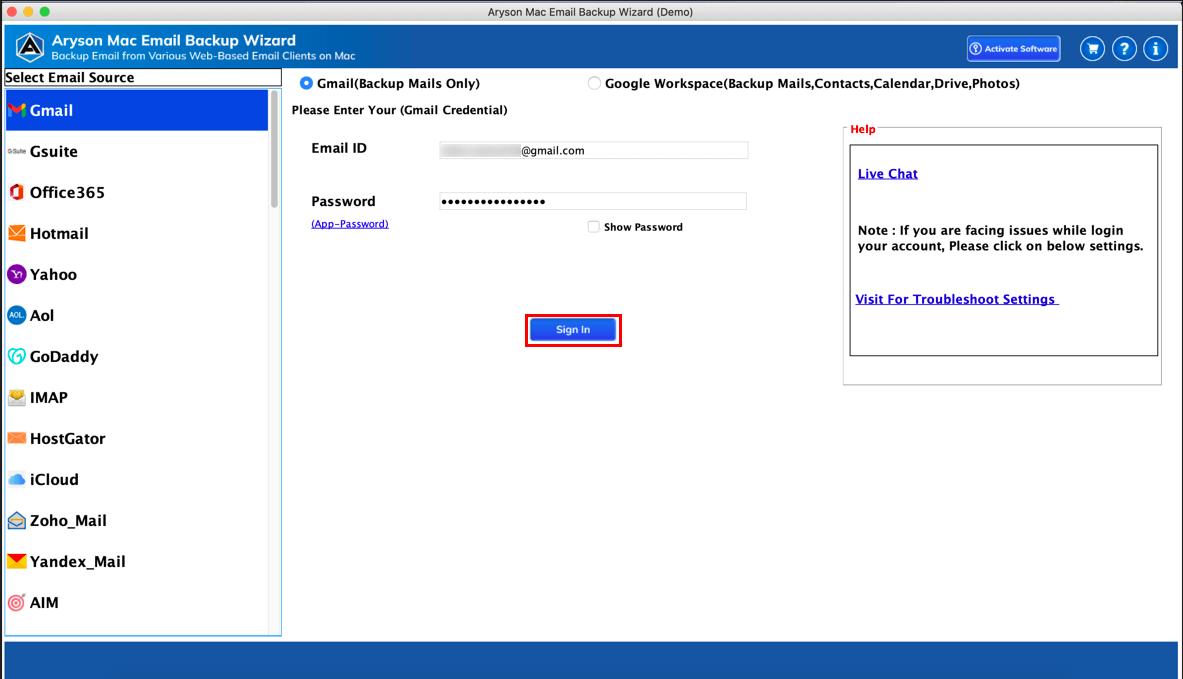
Step 3: Enter your Gmail email address along with the App Password,, then click Sign In.
Step 4: After successful login, the software automatically loads all mailbox folders. The panel displays:
- Folder No – Serial number of each folder
- Folder Name – Name and path (Inbox, Sent, etc.)
- Total Count – Number of emails in each folder
- Checkbox – Option to select or deselect folders for backup
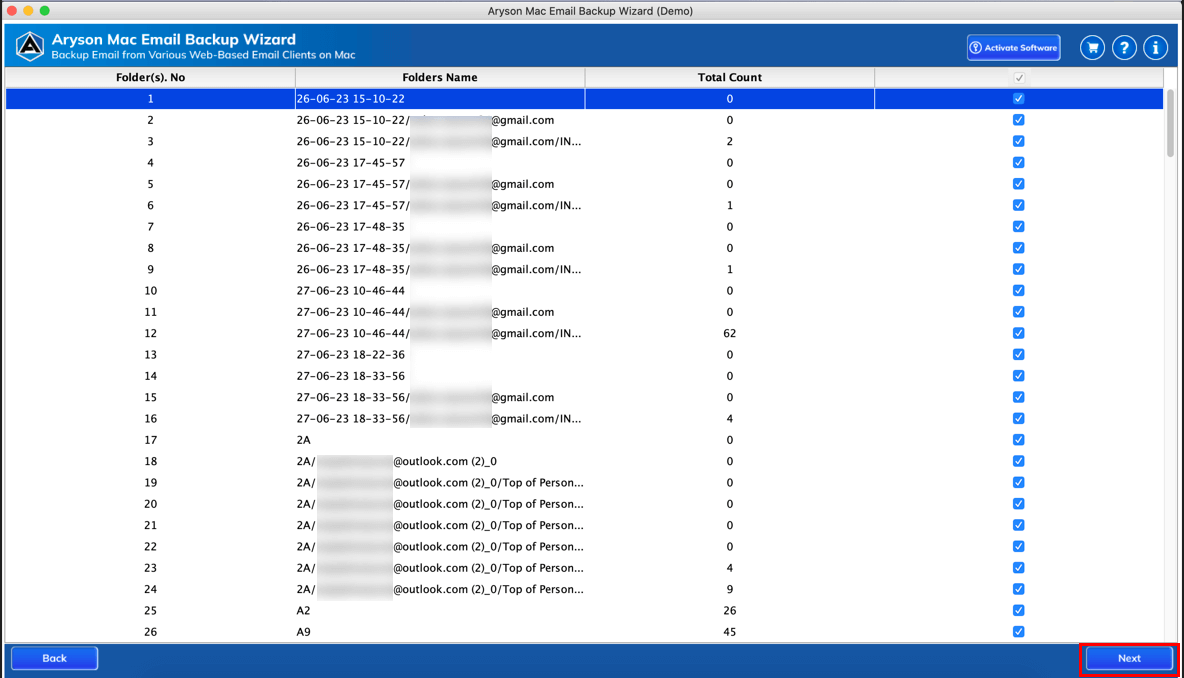
Step 5: Choose the required folders you want to export and click Next.
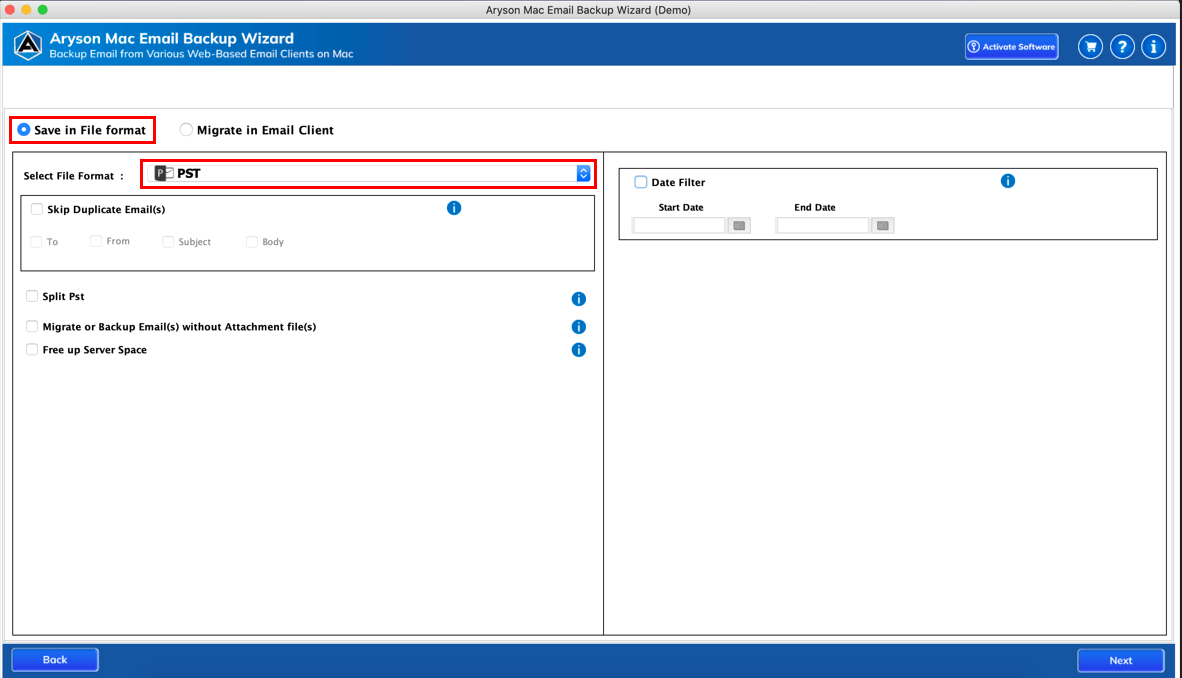
Step 6: Select PST as the output file format from the list of saving options.
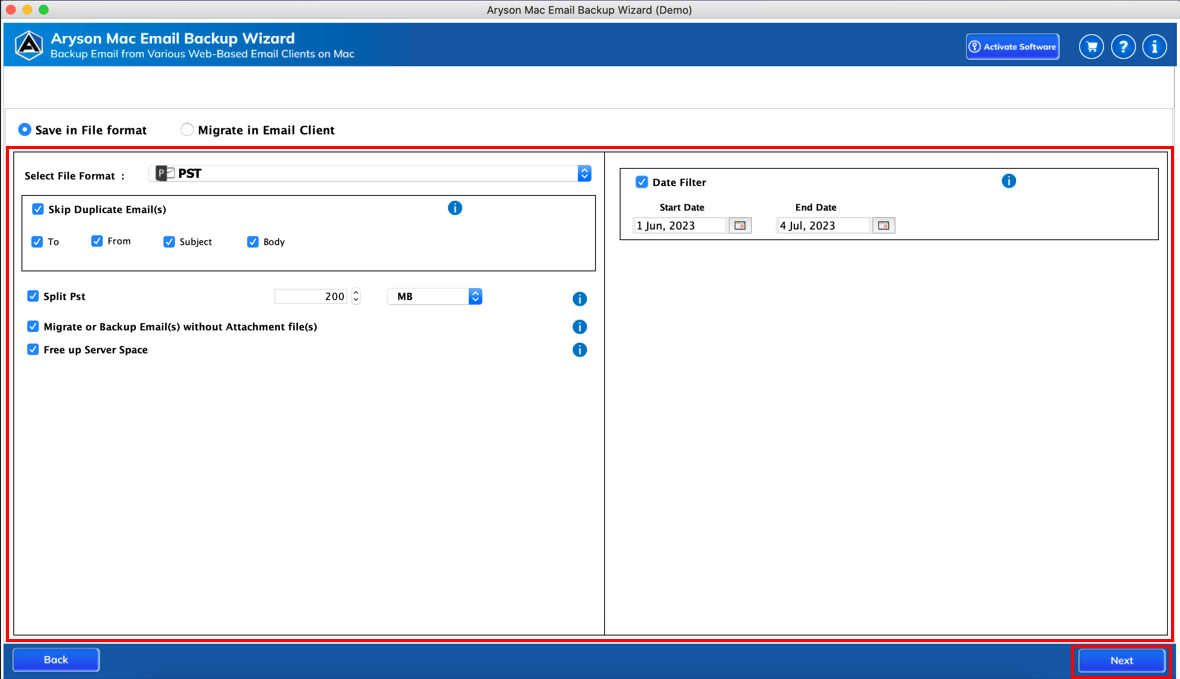
Step 7: Apply backup settings as needed:
- Skip Duplicate Email(s): Prevents saving or migrating duplicate emails based on selected criteria (To, From, Subject, Body).
- Split PST: Divides the output PST file into smaller parts based on the specified size (in MB).
- Migrate or Backup Email(s) without Attachment file(s): Excludes attachments and backs up only email content.
- Free up Server Space: Deletes emails from the server after successful backup to free storage.
- Incremental Backup: Backs up only new or modified emails since the last backup to save time and space.
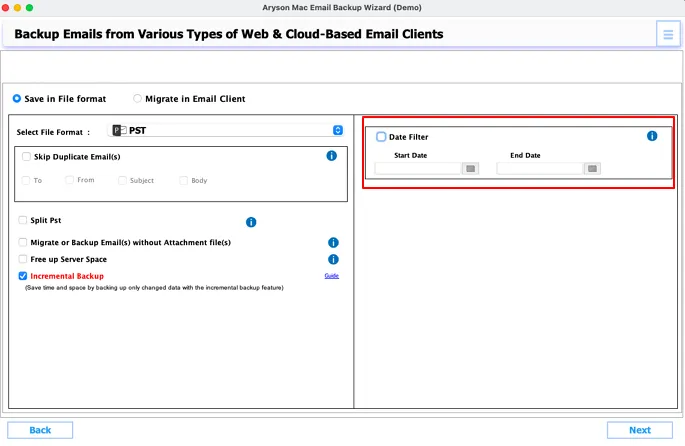
Step 8: Use additional filters for selective email backup:
- Date Filter: Export emails within a specific date range
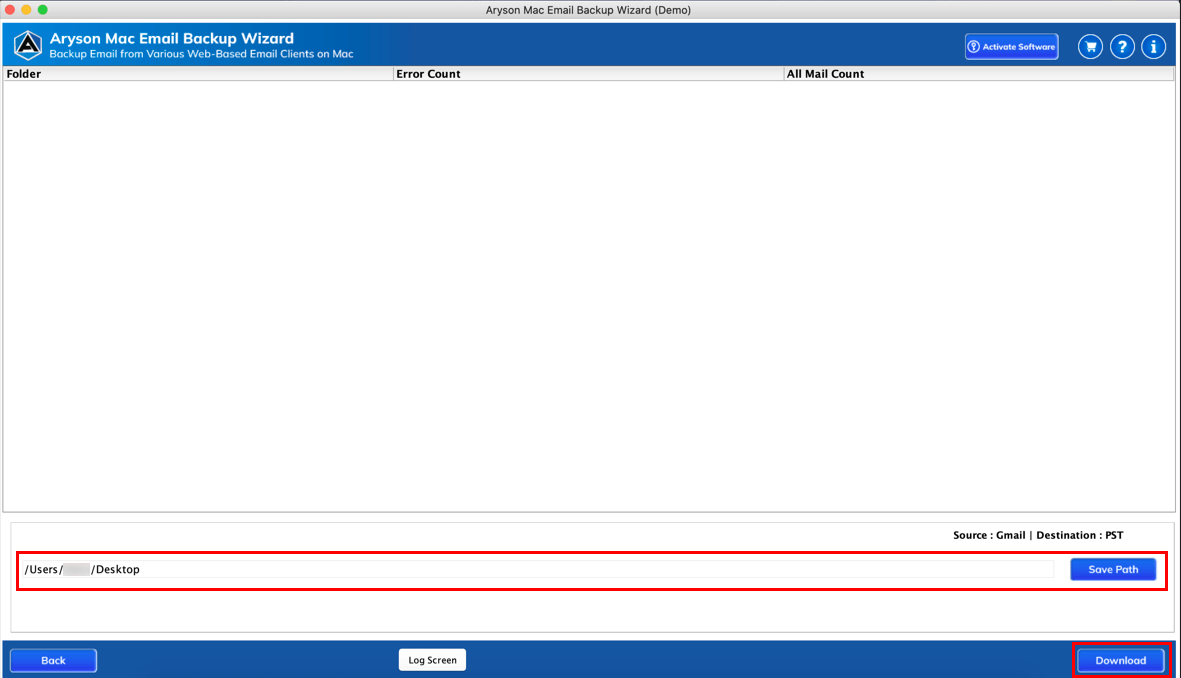
Step 9: Save Path – Choose the destination location where the PST files will be saved.
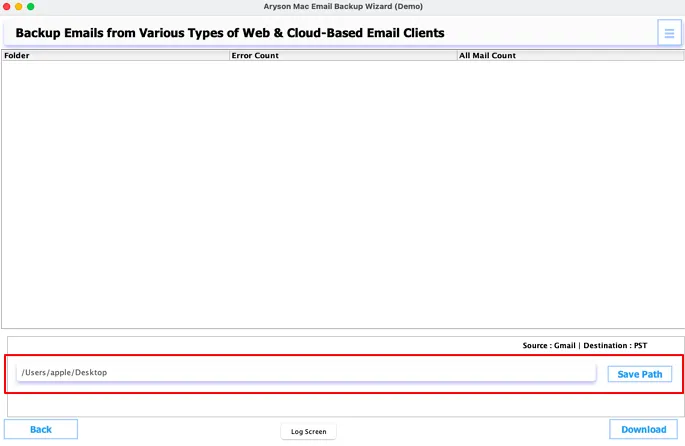
Step 10: The software begins converting Gmail emails to PDF and displays the progress with folder name, email count, and error status.
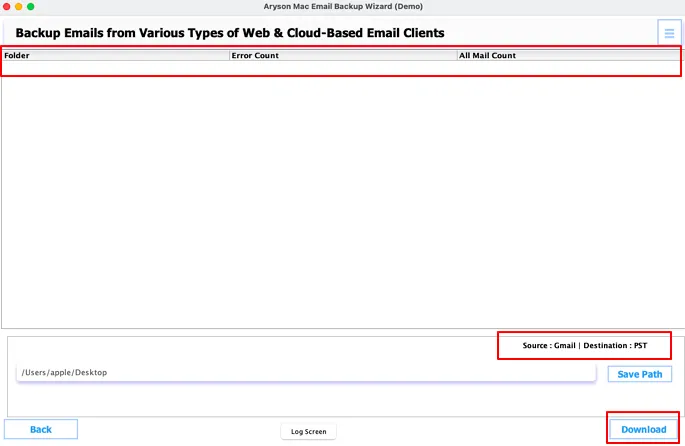
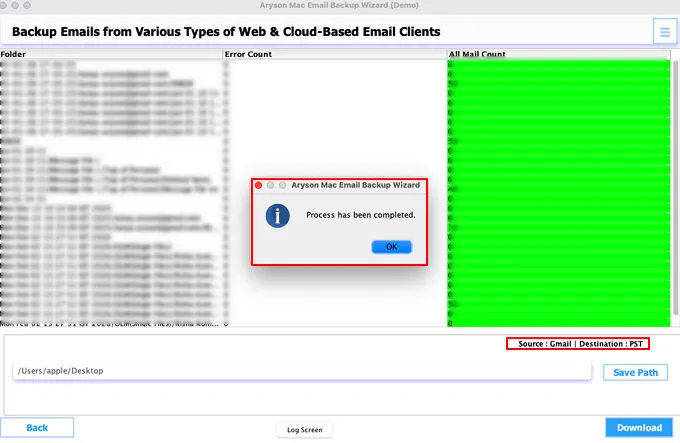
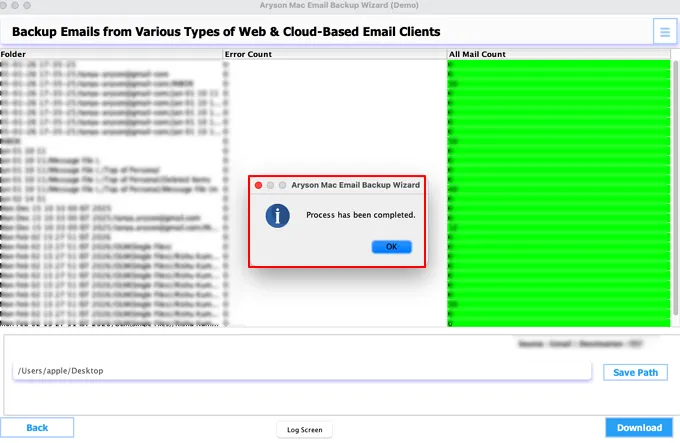
Step 11: After completion, a summary report appears with details such as source (Gmail), destination (PST), total processed emails, status, and save location. A confirmation message ensures a successful backup.
Step 1: Download and install the Aryson Mac Email Backup Wizard on your macOS system.
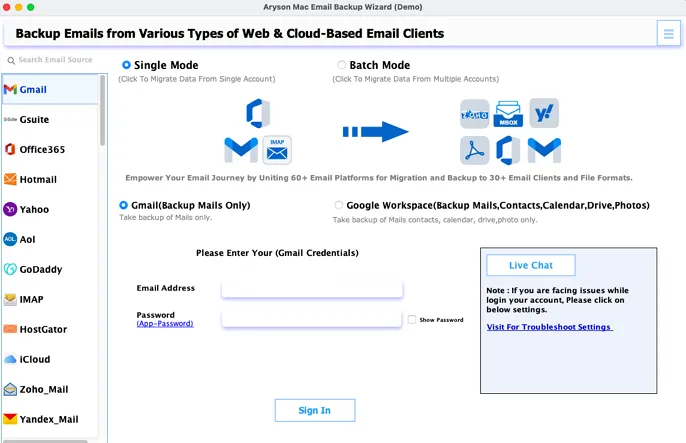
Step 2: Open the tool, select Gmail as the source, and choose Single Mode to back up one account.
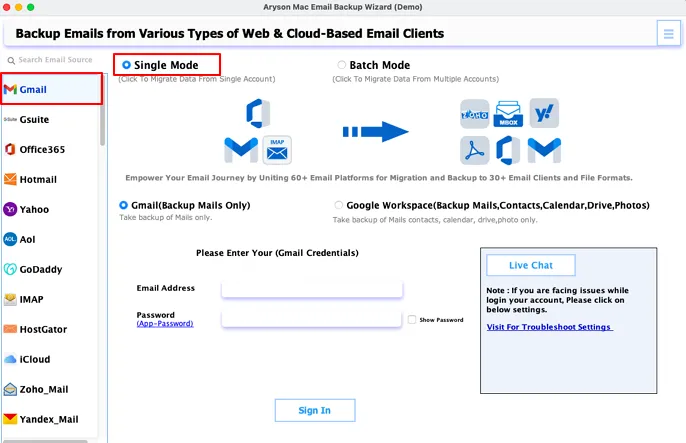
Step 3: Enter your Gmail ID and App Password, then click Sign In.
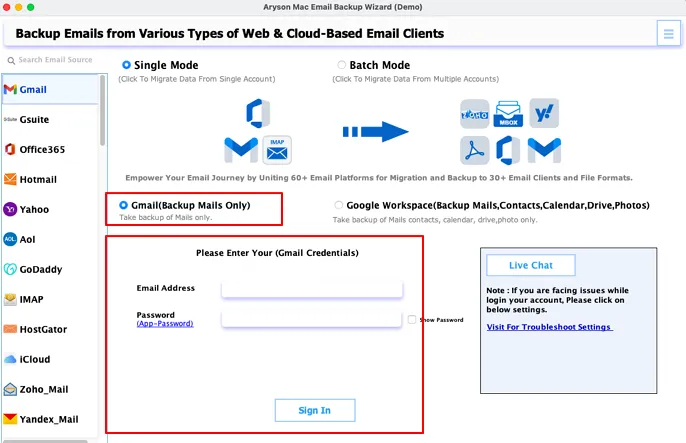
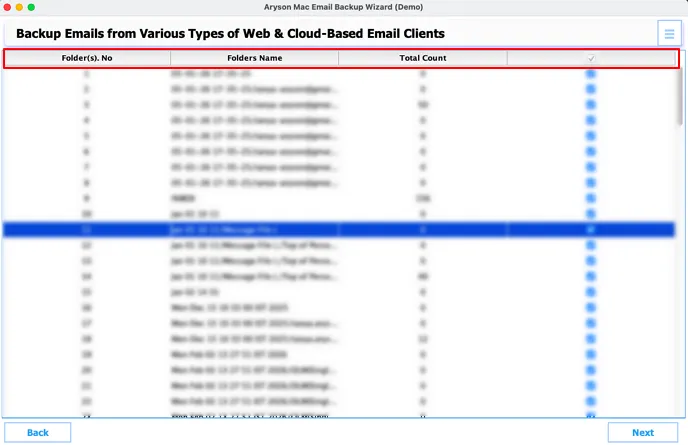
Step 4: After successful login, the software fetches and loads all mailbox folders. The folder listing table displays:
- Folder No – Shows the serial number of each folder.
- Folder Name – Displays the name and path of the mailbox folder (Inbox, Sent, etc.).
- Total Count – Shows the number of emails in each folder.
- Selection Checkbox – Allows you to select or deselect folders for backup.
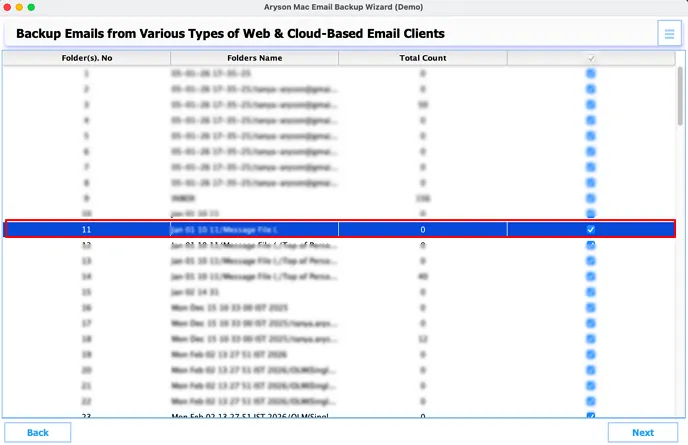
Step 5: Select the required folders you want to back up and click Next.
Step 6: In this step, you have to choose PDF as the output file format.
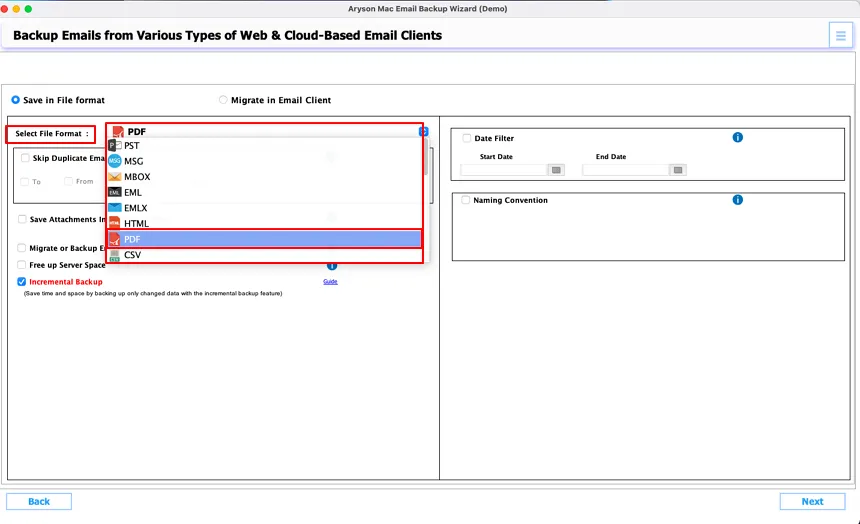
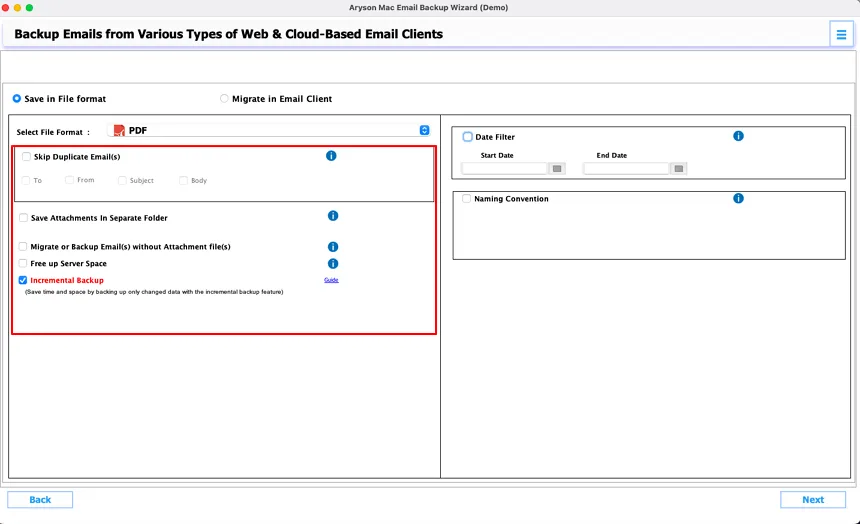
Step 7: Apply filters as needed:
- Skip Duplicate Email(s): Prevents saving or migrating duplicate emails based on selected criteria (To, From, Subject, Body).
- Save Attachments in Separate Folder: Stores attachments separately.
- Migrate or Backup Email(s) without Attachment File(s): Excludes attachments and backs up only email content.
- Free up Server Space: Deletes emails from the server after successful backup to free up storage.
- Incremental Backup: Backs up only new or modified emails since the last backup to save time and space.
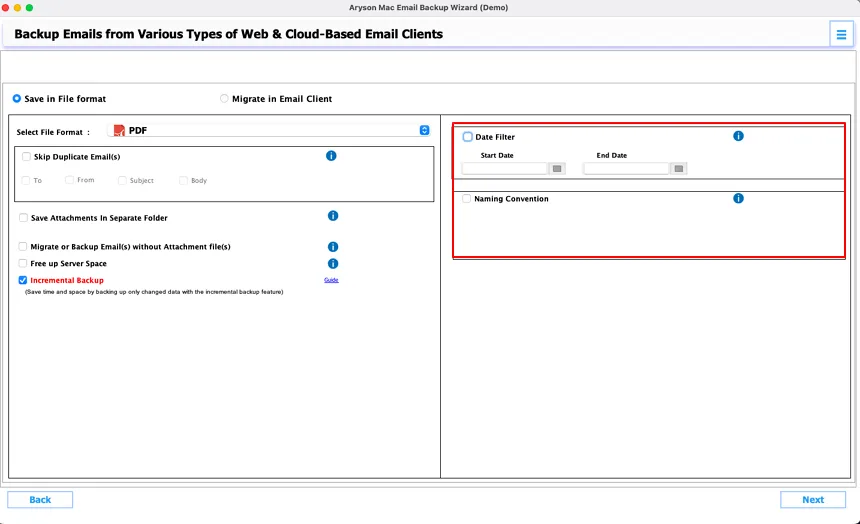
Step 8: Use advanced options for selective backup:
- Date Filter – Set a specific date range for emails.
- Naming Convention – Customize the output file naming pattern.
Step 9: Save Path – Choose the destination location where the PDF files will be saved.
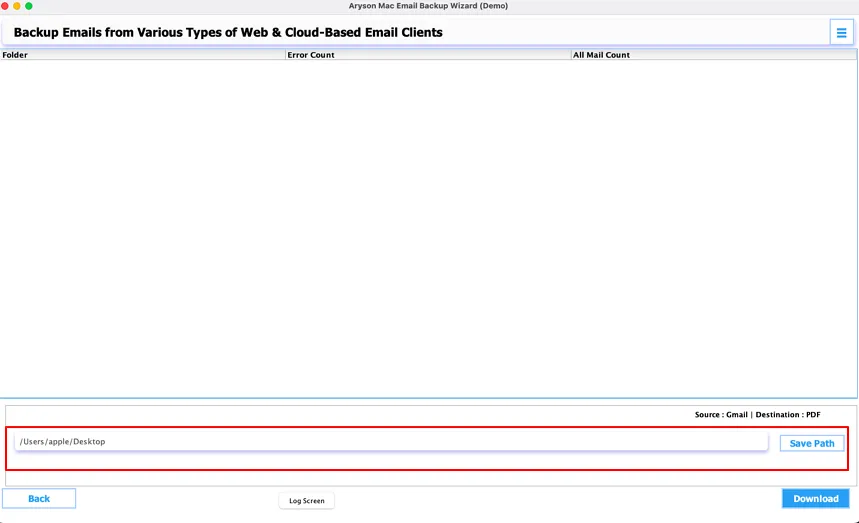
Step 10: The software begins converting Gmail emails to PDF and displays the progress with folder name, email count, and error status.
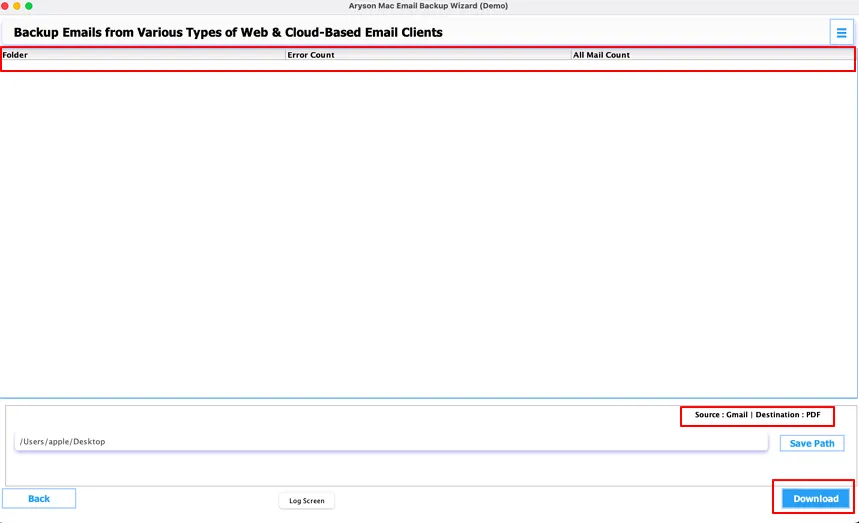
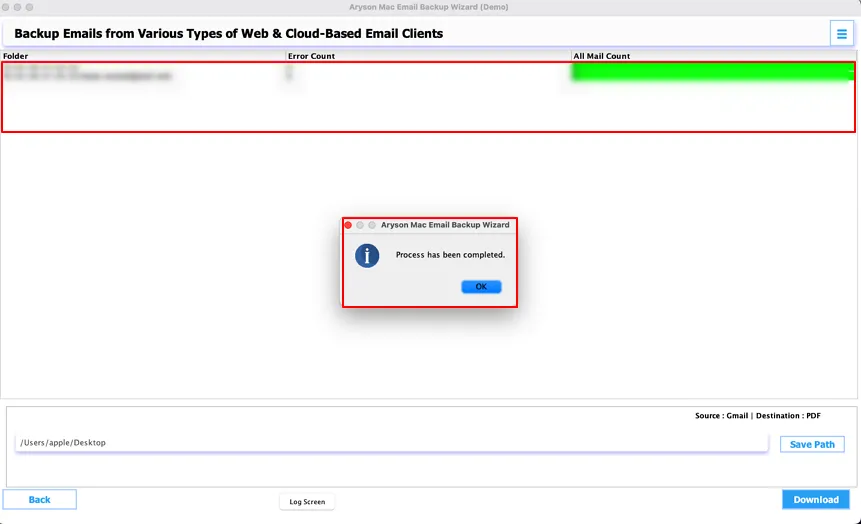
Step 11: After completion, a summary report shows source (Gmail), destination (PDF), processed emails, status, and save location. A confirmation message indicates that the process has been completed successfully.
Step 1: Download and install the Aryson Mac Email Backup Wizard on your macOS system.
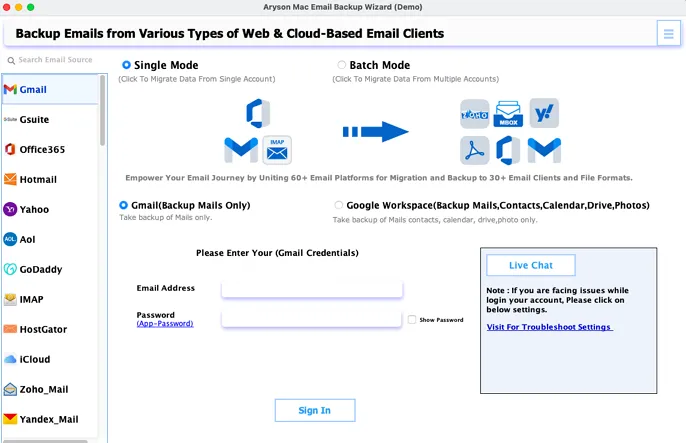
Step 2: Launch the tool and select Gmail as the email source. Choose Single Mode to migrate a single Gmail account.
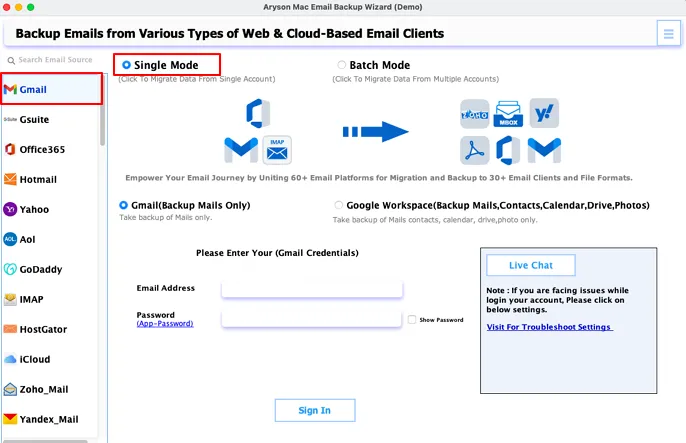
Step 3: Enter your Gmail email address and App Password, then press Sign In.
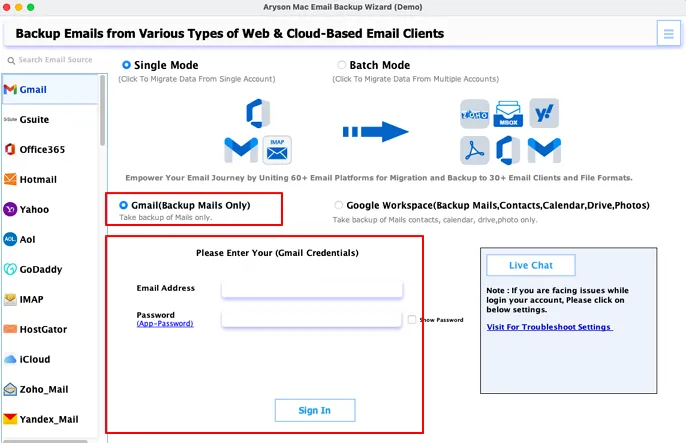
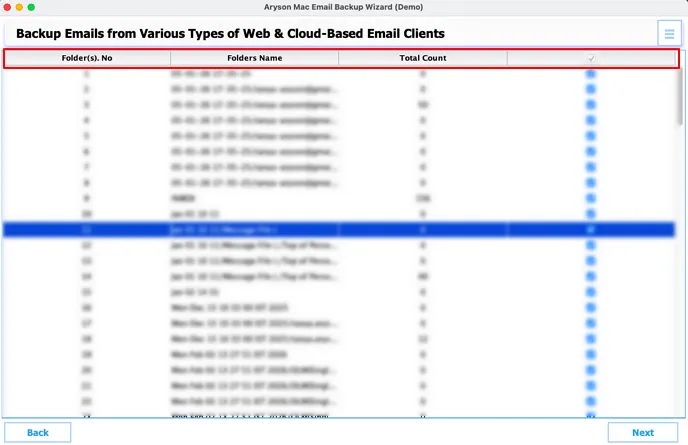
Step 4: After successful login, the software fetches and loads all mailbox folders. The folder listing table displays:
- Folder No: Shows the serial number of each folder.
- Folder Name: Displays the name and path of the mailbox folder (Inbox, Sent, etc.).
- Total Count: Shows the number of emails in each folder.
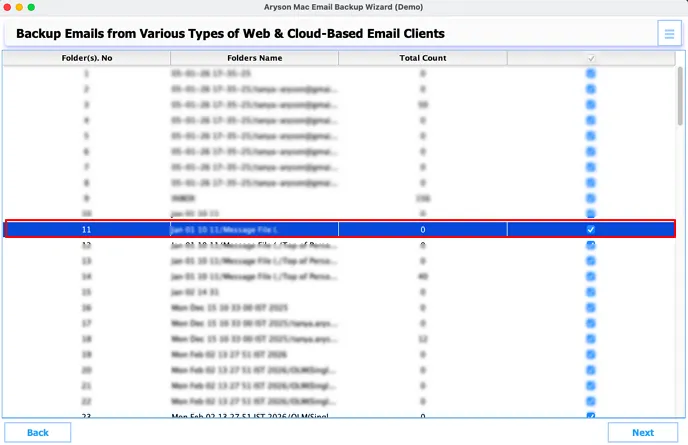
- Selection Checkbox: Allows you to select or deselect folders for backup.
Step 5: Choose Office 365 as the destination email client.
Step 6: Enter your Office 365 account credentials and authenticate the login.
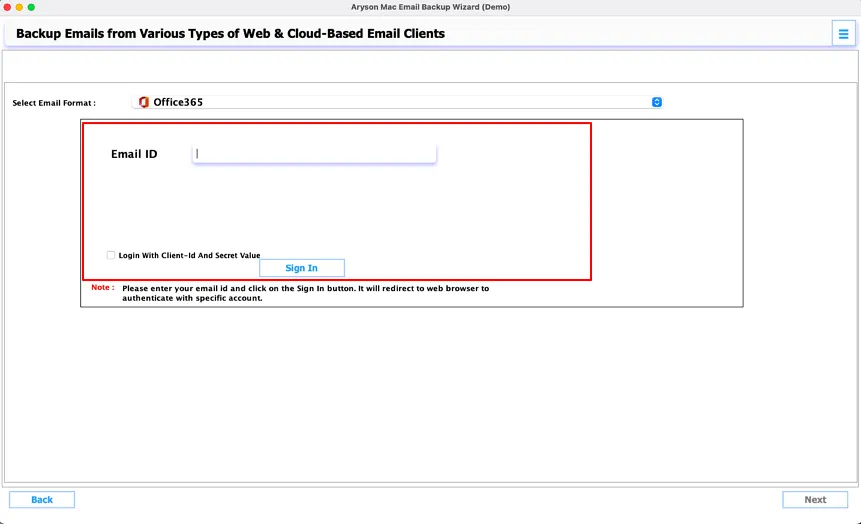
Step 7: It will redirect you to the verification, and after authentication, you can return to the application.
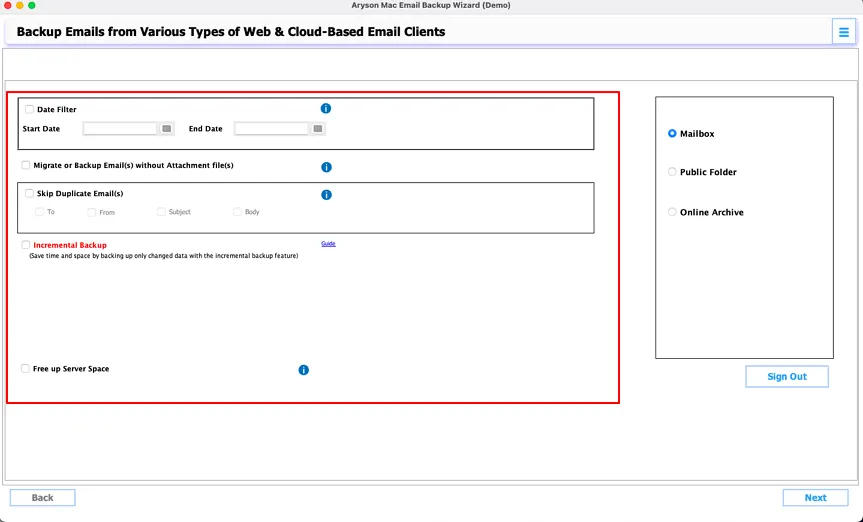
Step 8: Apply filters as needed:
- Date Filter: Allows you to select and back up emails within a specific date range.
- Migrate or Backup Email(s) without Attachment file(s): Excludes attachments and backs up only email content.
- Skip Duplicate Email(s): Prevents saving or migrating duplicate emails based on selected criteria (To, From, Subject, Body).
- Incremental Backup: Backs up only new or modified emails since the last backup to save time and space.
- Free up Server Space: Deletes emails from the server after successful backup to free up storage.
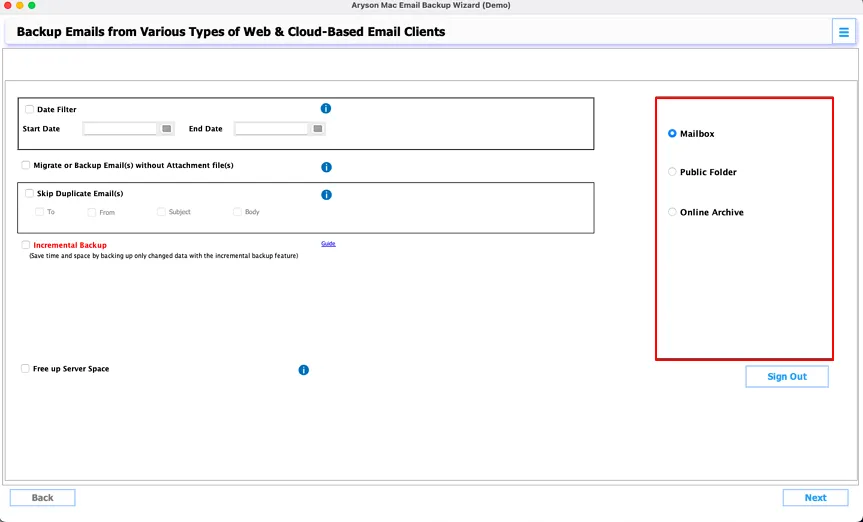
Step 9: This area allows users to define what type of email data source they want to back up or migrate.
- Choosing Mailbox: This helps to back up active emails.
- Choosing Online Archive: It backs up older stored emails.
- Choosing Public Folder: Pick this to back up shared organizational data.
- Click Next to start the backup process.
Step 10: The software begins converting Gmail emails to Office 365 and displays the progress with folder name, email count, and error status.
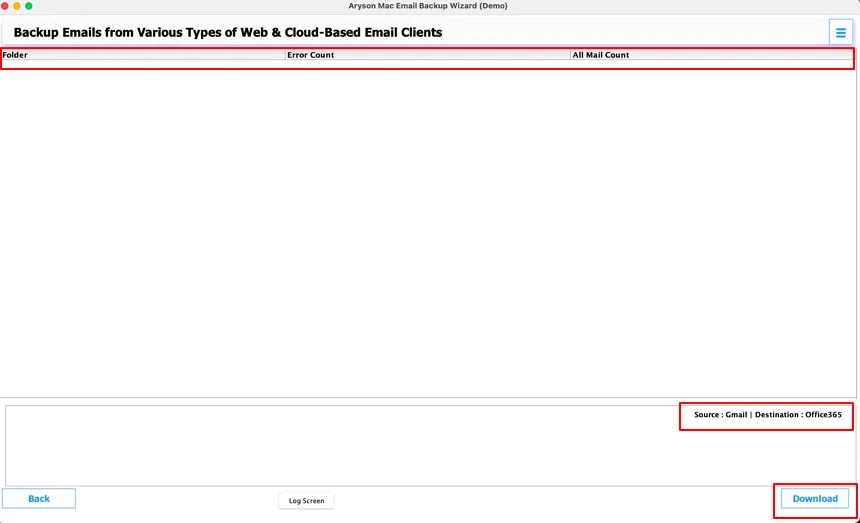
Step 11: After completion, a summary report shows source (Gmail), destination (Office 365), processed emails, status, and save location. A confirmation message indicates that the process has been completed successfully.
Software Working Video
Software Prerequisite
- Internet connection is required.
- 8 GB RAM is recommended.
- Most email clients will require IMAP settings and third-party app passwords.
The software supports 90+ email clients and backup email in various types of files format and email clients. Let’s see some of the most popular email clients' backup & migration process using Aryson Mac Email Backup Wizard.
Activation Guide
Activate the Software
Installation & Uninstallation
Installation & Uninstallation of Software
User Interface
User Interface
After downloading the Aryson Mac Email Backup Wizard, you will find the welcome screen as played below.