Software Guide - Aryson Linux vCard (VCF) Duplicate Remover
-
Table of Content
- Software Working Process
- Activation Guide
- Installation & Uninstallation
- User Interface
Software Working Process
Software Working Process
Step 1: Download, Install, and Run the Aryson Linux VCF Duplicate Remover Tool.
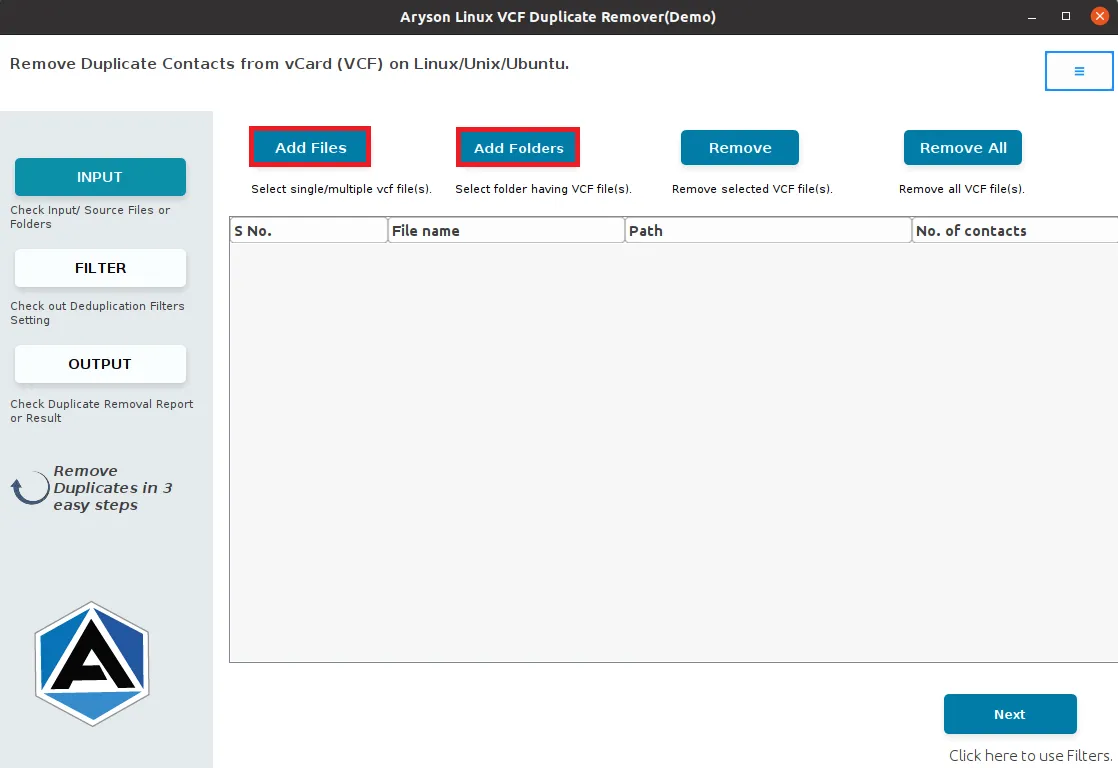
Step 2: Select Add File or Add Folder button to browse the vCard (VCF) file you need.
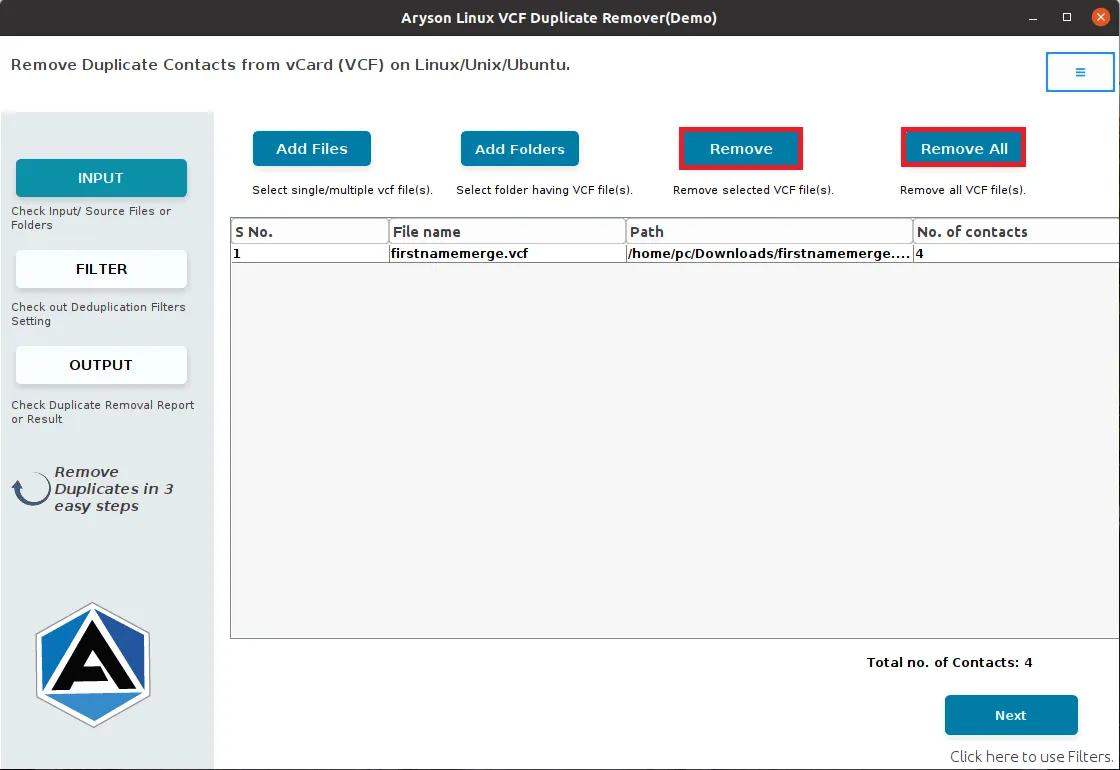
Step 3: After adding files if you want to remove any files then click on the Remove or Remove All button.
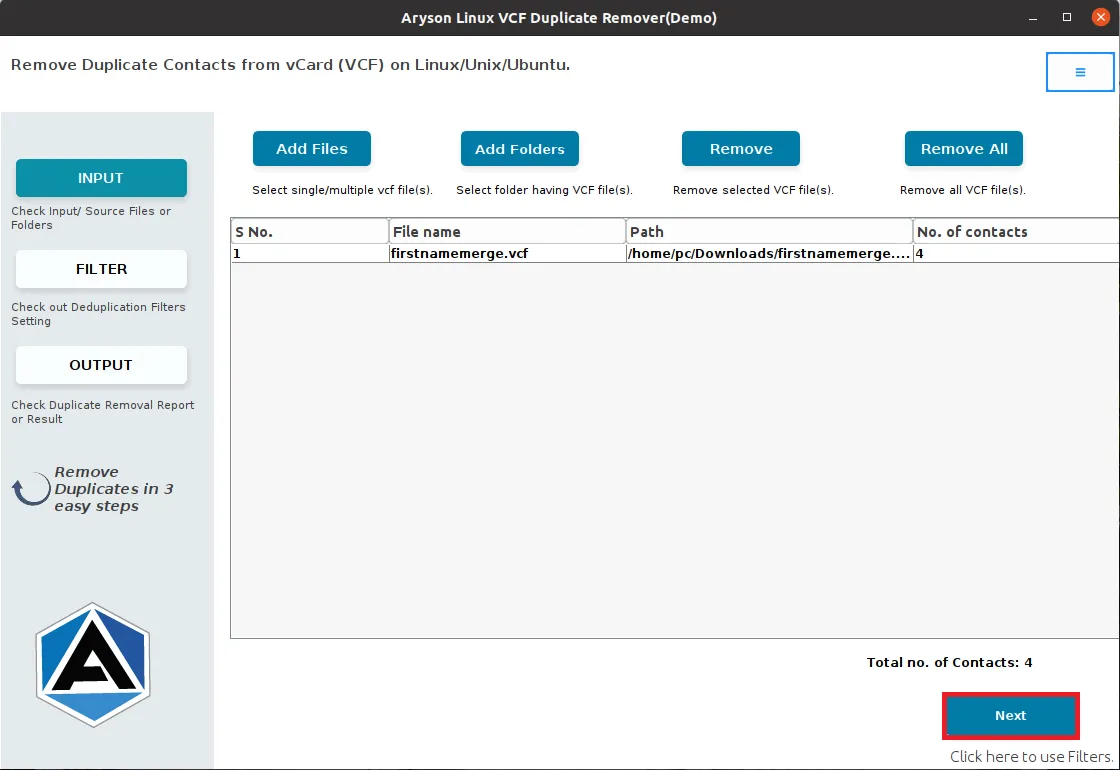
Step 4: After selecting files click on the Next button to move forward.
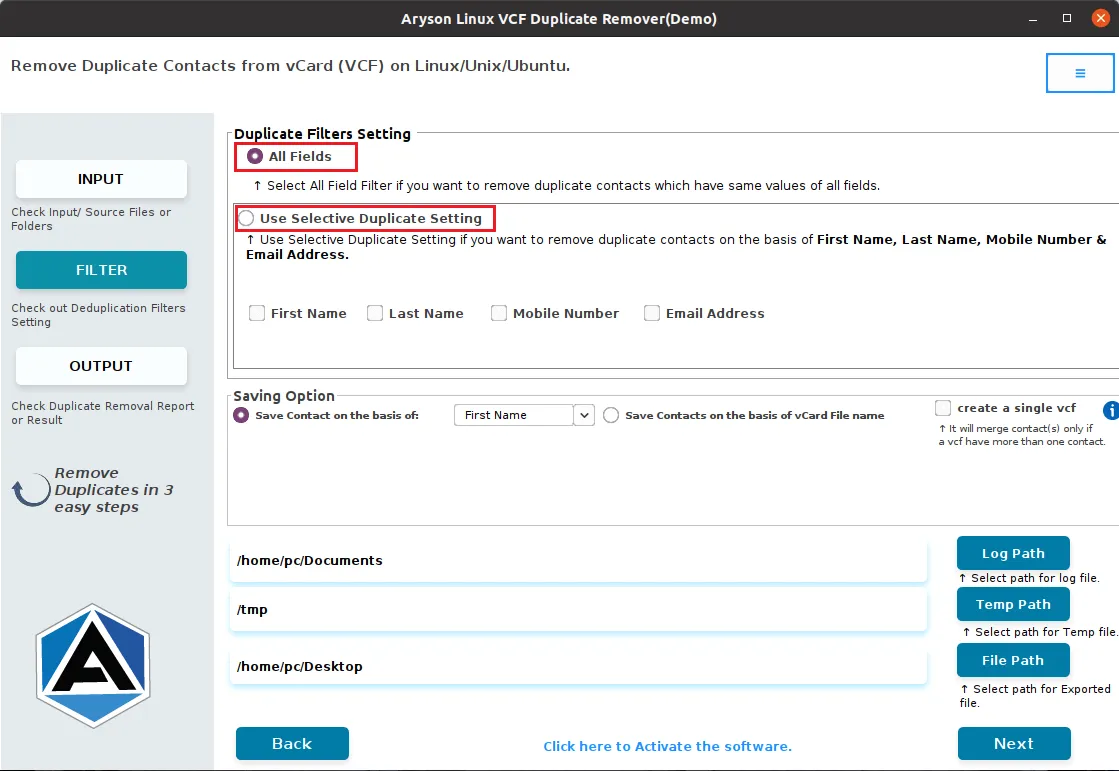
Step 5: Now you are in the second stage, here select Duplicate Filter setting: All Fields or Use Selective Duplicate Setting.
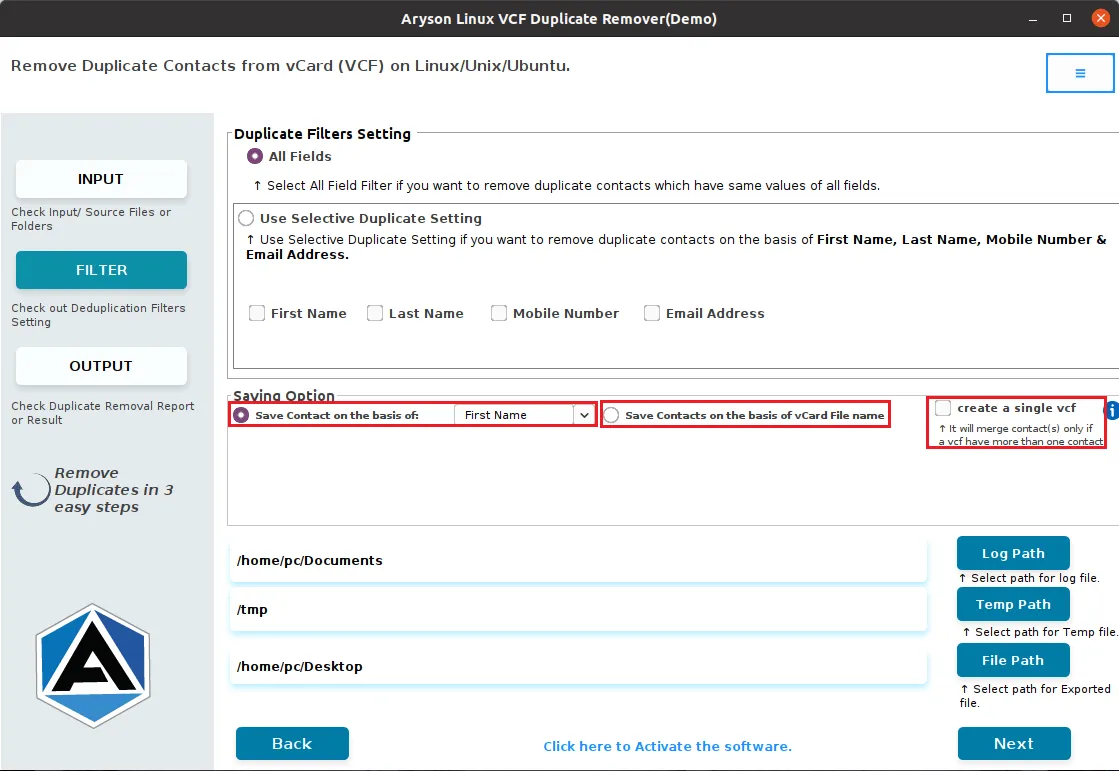
Step 6: Choose the Saving Option:
- Save Contacts on the Basis of First Name, Last Name, Email Address, and Phone Number.
- Save Contacts on the basis of the vCard File name.
- Check the Create a Single VCF File to merge multiple contacts into a single file.
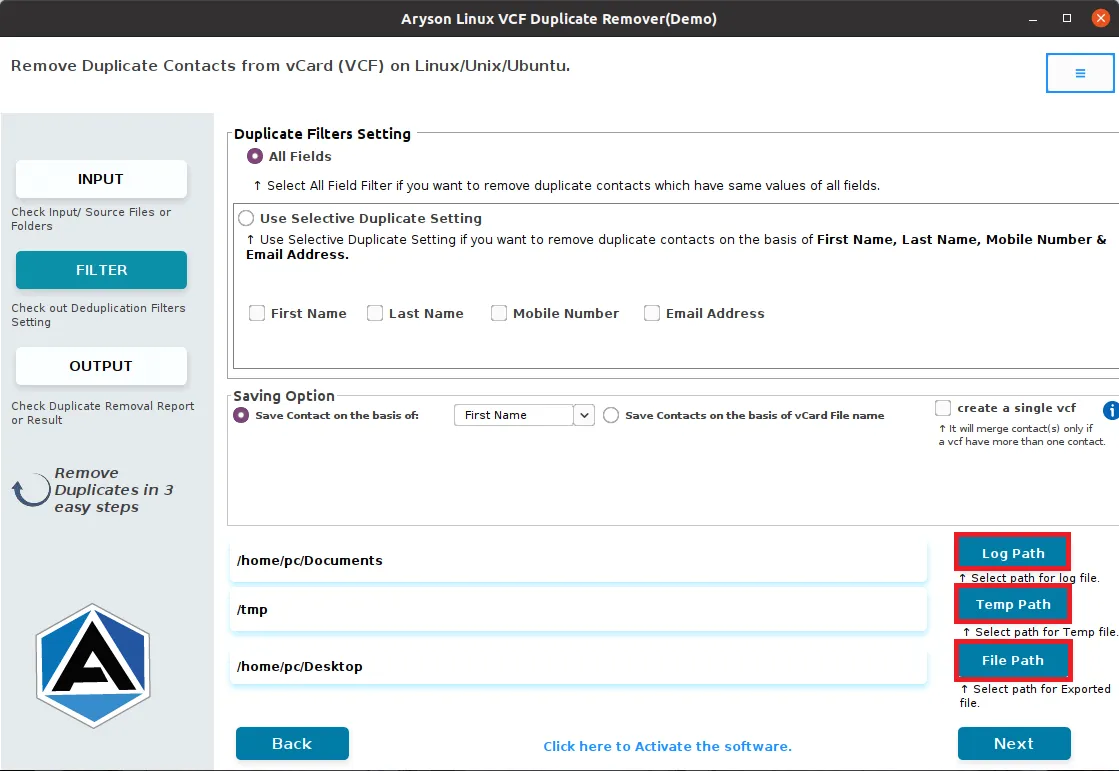
Step 7: Define the Log Path and Temp Path, and click on the File Path to set the destination to save the resultant file.
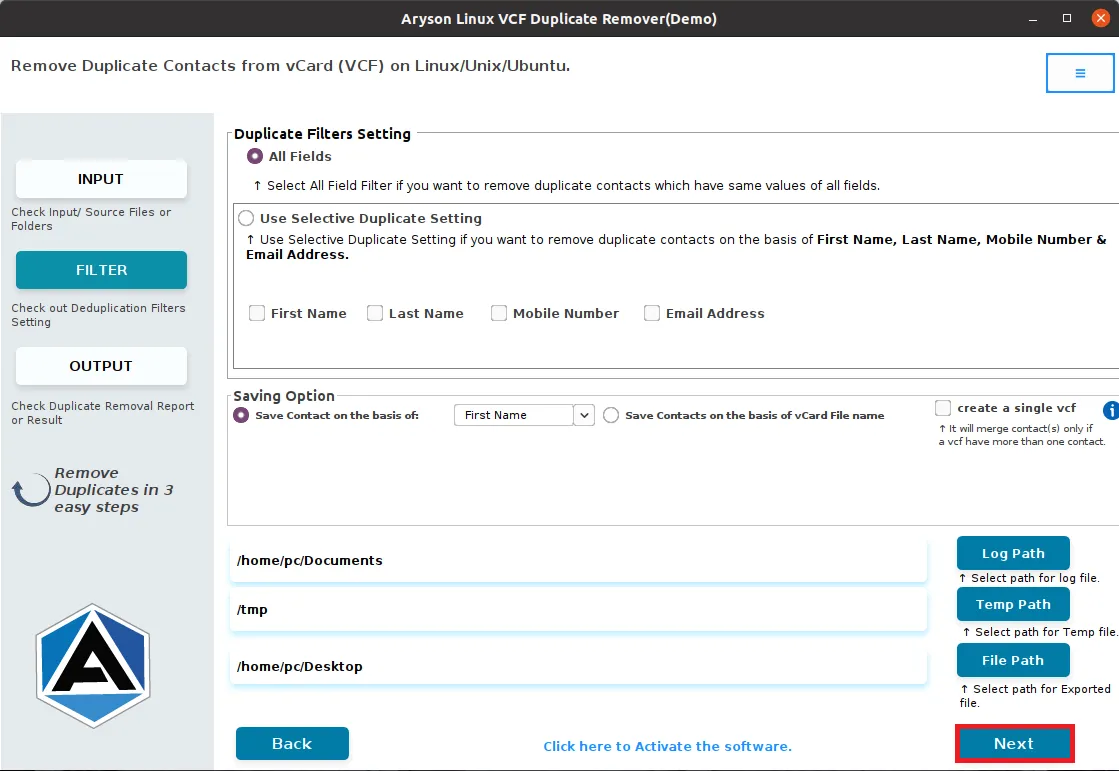
Step 8: Click on the Next button to start the process to remove duplicate contacts.
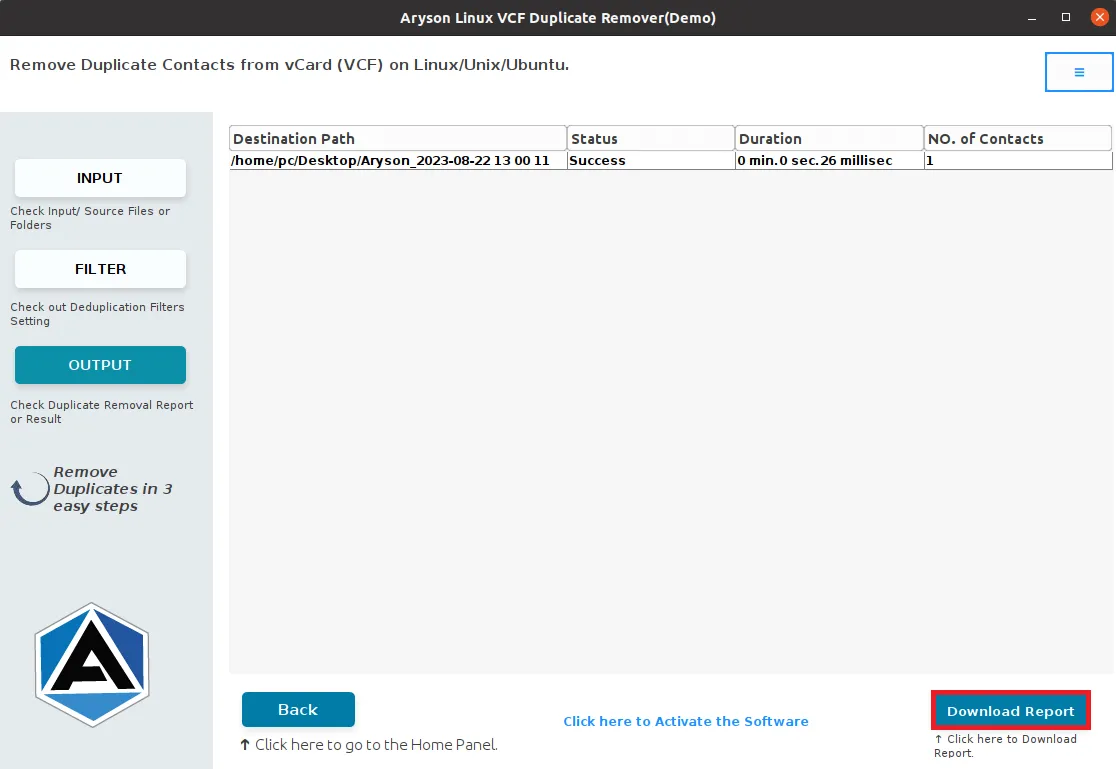
Step 9: Lastly, go to the Download Report button to analyze the process.
Activation Guide
Activate the Software
Installation & Uninstallation
Installation & Uninstallation of Software
User Interface
User Interface
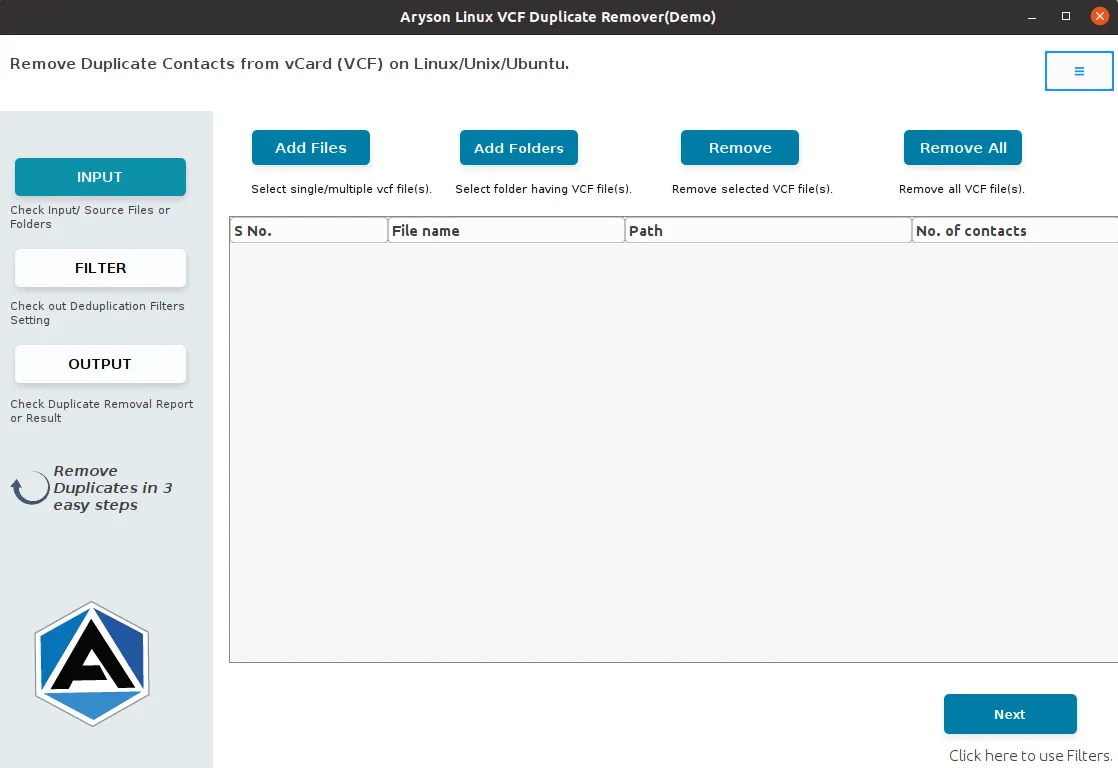
After downloading the Aryson Linux VCF Duplicate Remover Tool, you will find the welcome screen as played below.