Comprehensive User Manual for Aryson JSON Converter
Easily convert JSON-based chat files into PDF, DOCX, PNG, JPG, HTML, and other readable formats on Windows systems. The software securely preserves conversation flow, sender details, timestamps, emojis, and attachments without data loss. For complete assistance, users can also refer to the Functional & Technical Documentation (FTD) or contact Aryson support.
-
Table of Content
- Software Working Process
- Activation Guide
- Installation & Uninstallation
- User Interface
Software Working Process
Software Working Process
Follow the Steps to Transform JSON files to PDF
Step 1: Download and launch the Aryson JSON Chat Converter on Your System.
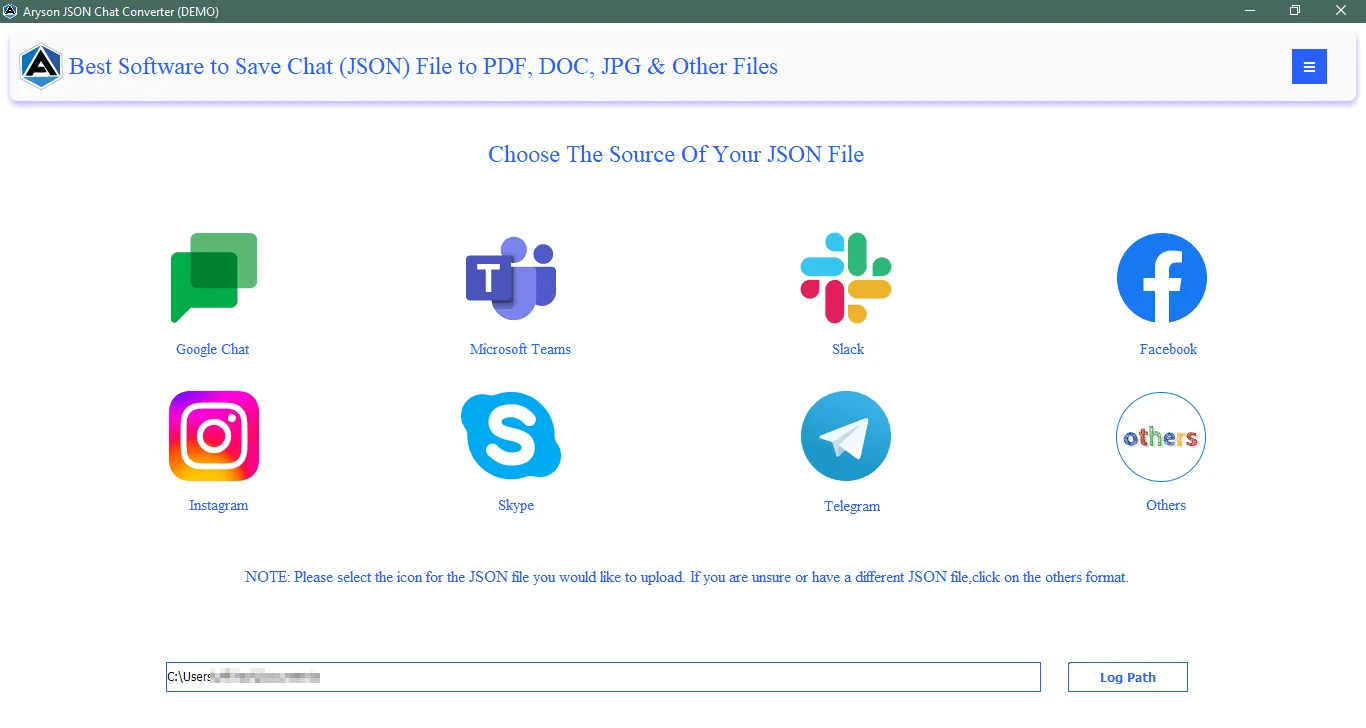
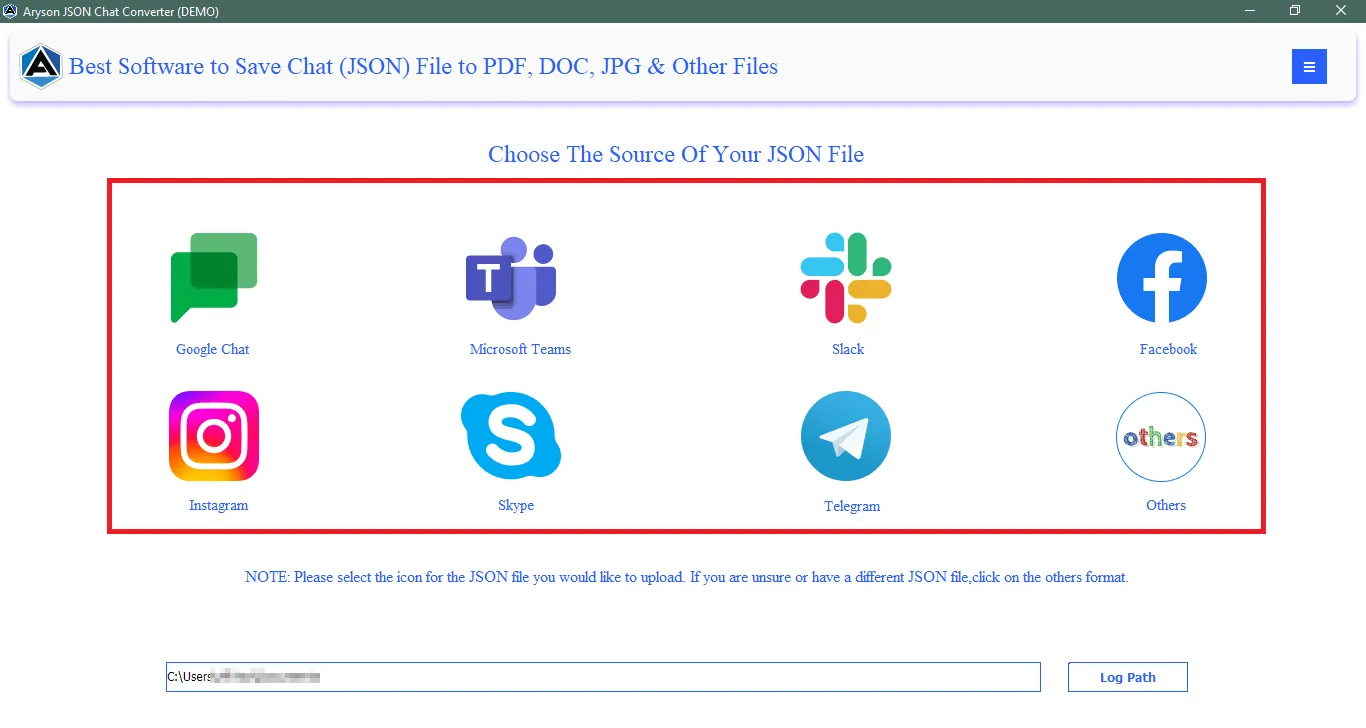
Step 2: Choose how you want to load JSON chat data into the software.
- Add Files: Add one or multiple JSON chat files from your system.
- Add Folder: Load an entire folder containing multiple JSON chat files for bulk conversion.
- Remove: Remove selected JSON file(s) from the list.
- Remove All: Clear all loaded JSON files at once.
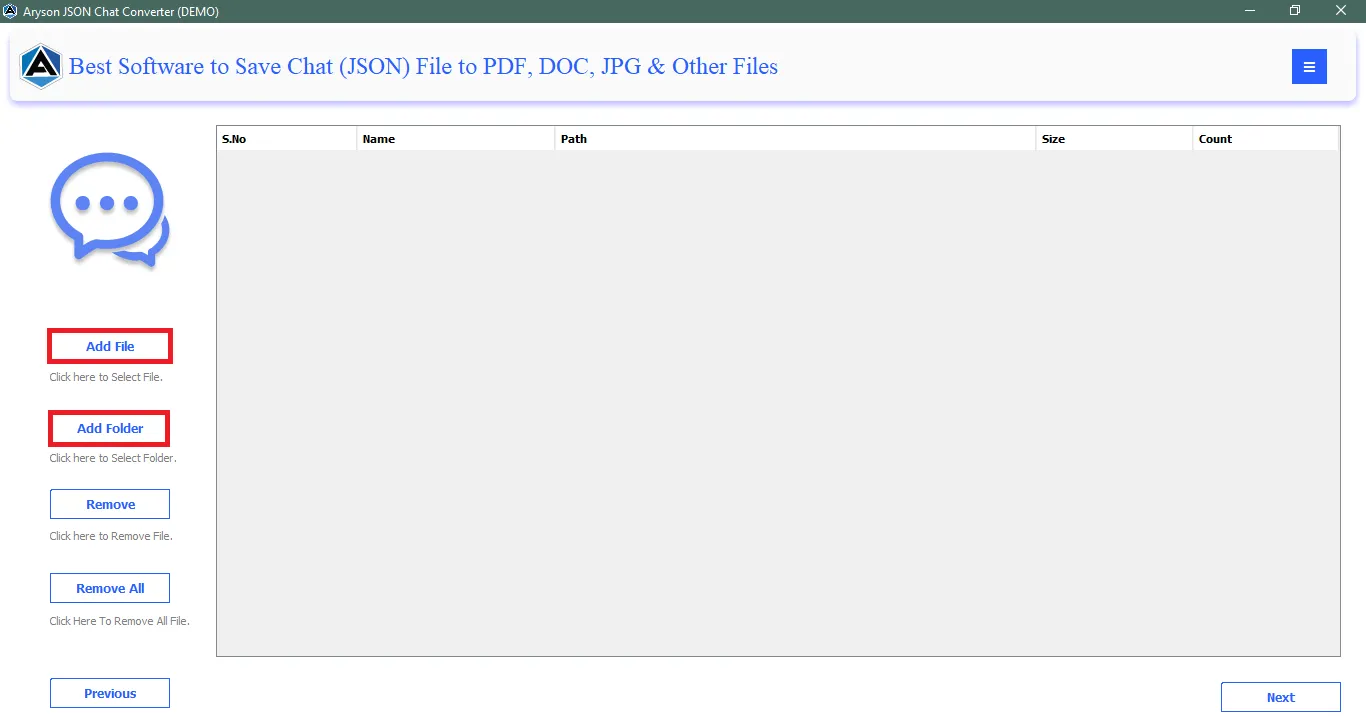
Step 3: Browse your system, select the required JSON chat file(s) or folder, and click Open to load them into the software.
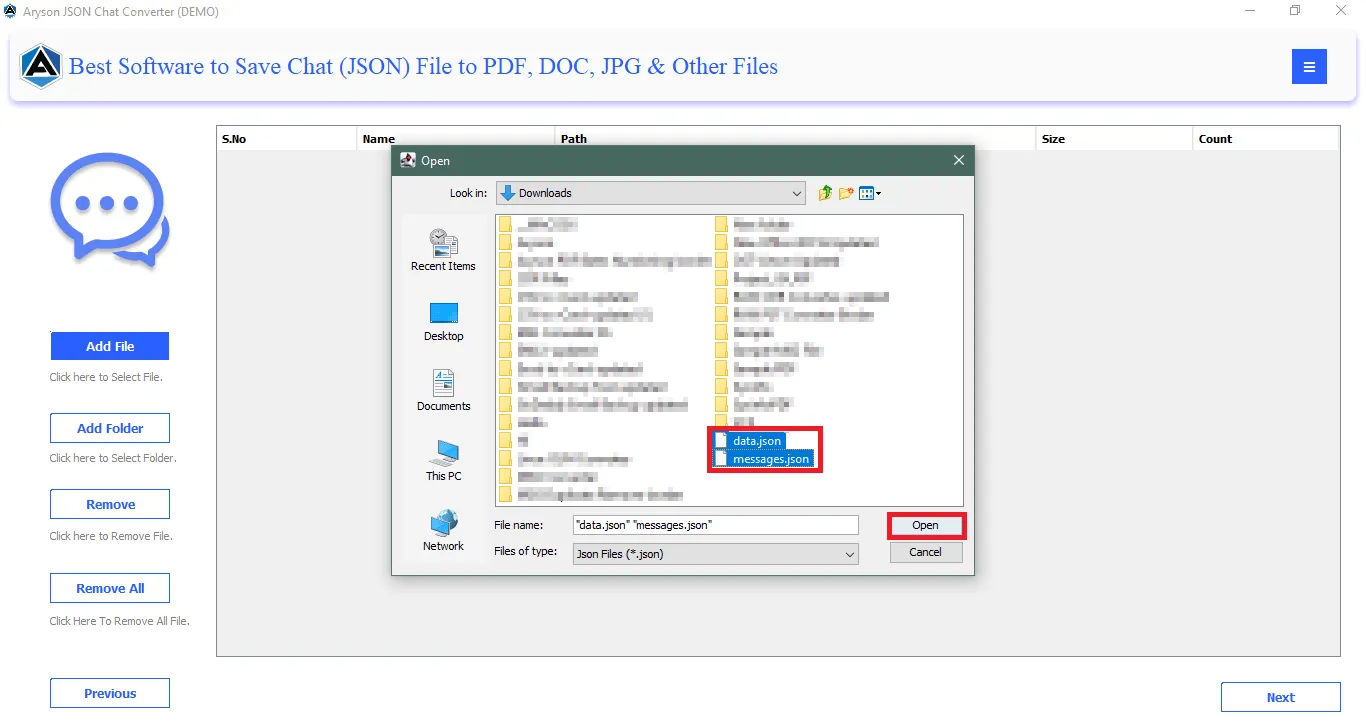
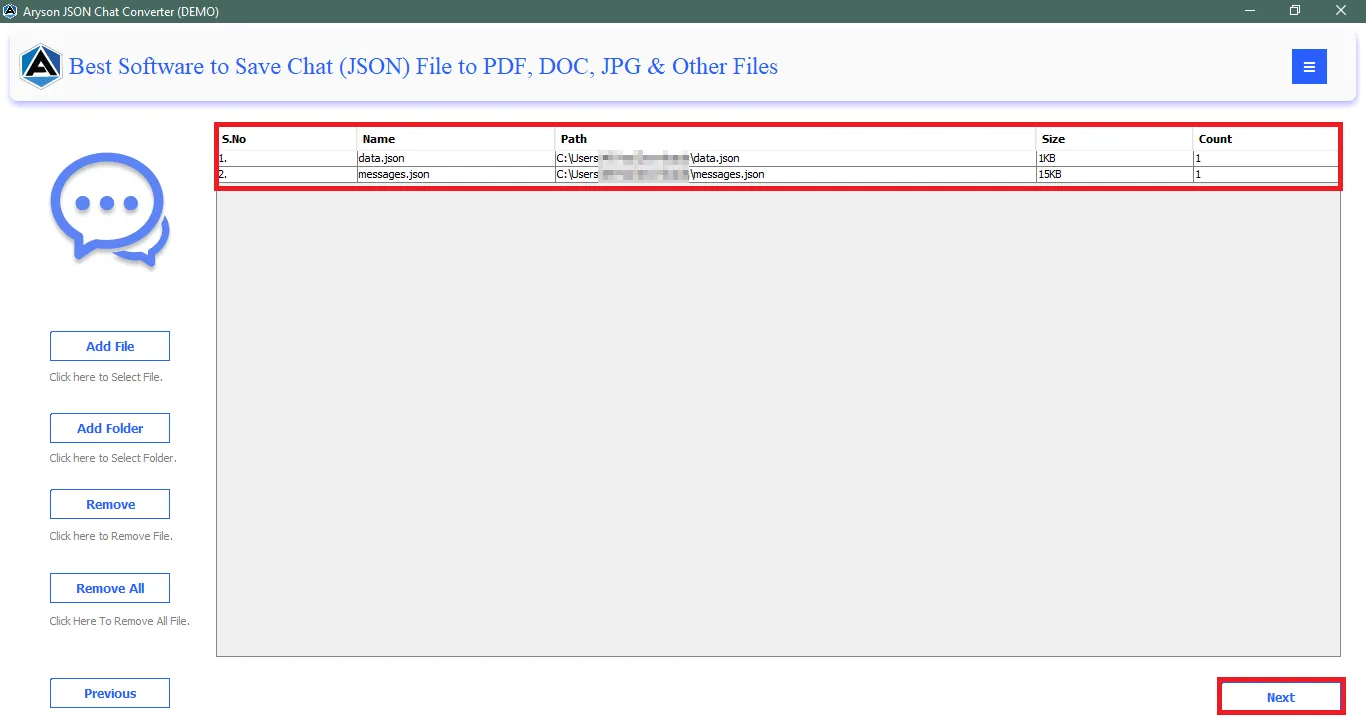
Step 4:Verify JSON Files, which displays all loaded JSON files with detailed information:
- S. No.: Displays the serial number assigned to each listed file or folder.
- File/Directory Name: Shows the name of the selected JSON chat file or directory.
- File Path: Indicates the exact location of the file or folder on the system.
- File Size: Displays the size of the JSON chat file for reference.
- Next: Click to proceed after selecting the required files or folder.
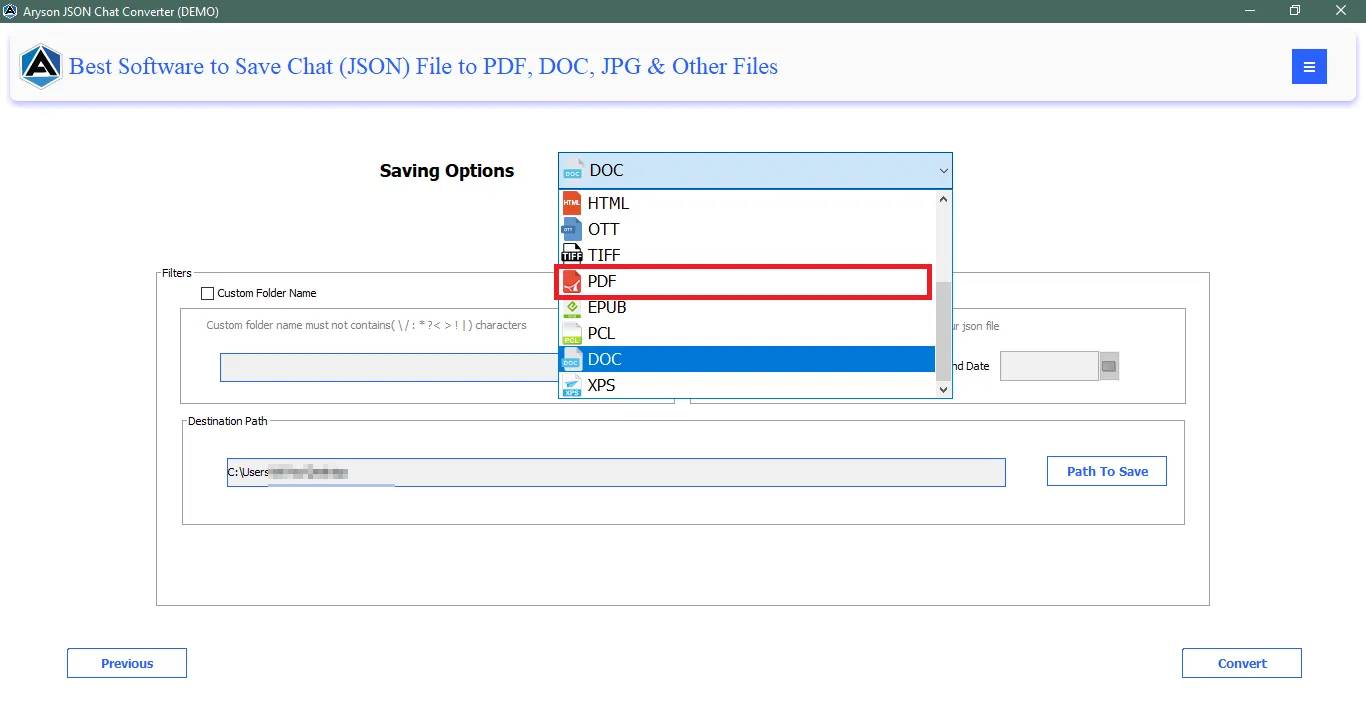
Step 5: Click on the Select File Format dropdown menu & choose PDF as the output format.
Step 6: Configure the following options before starting the conversion:
- Content Text View: Converts JSON chats into an easy-to-read text format while preserving conversation flow and details.
- Table View: Displays chat messages in a structured table layout for better clarity and documentation.
- Plain Text View: Saves chat conversations in a simple, clean text format without table formatting.
Step 7: Destination Path: Specifies the location where the converted PDF files will be saved.
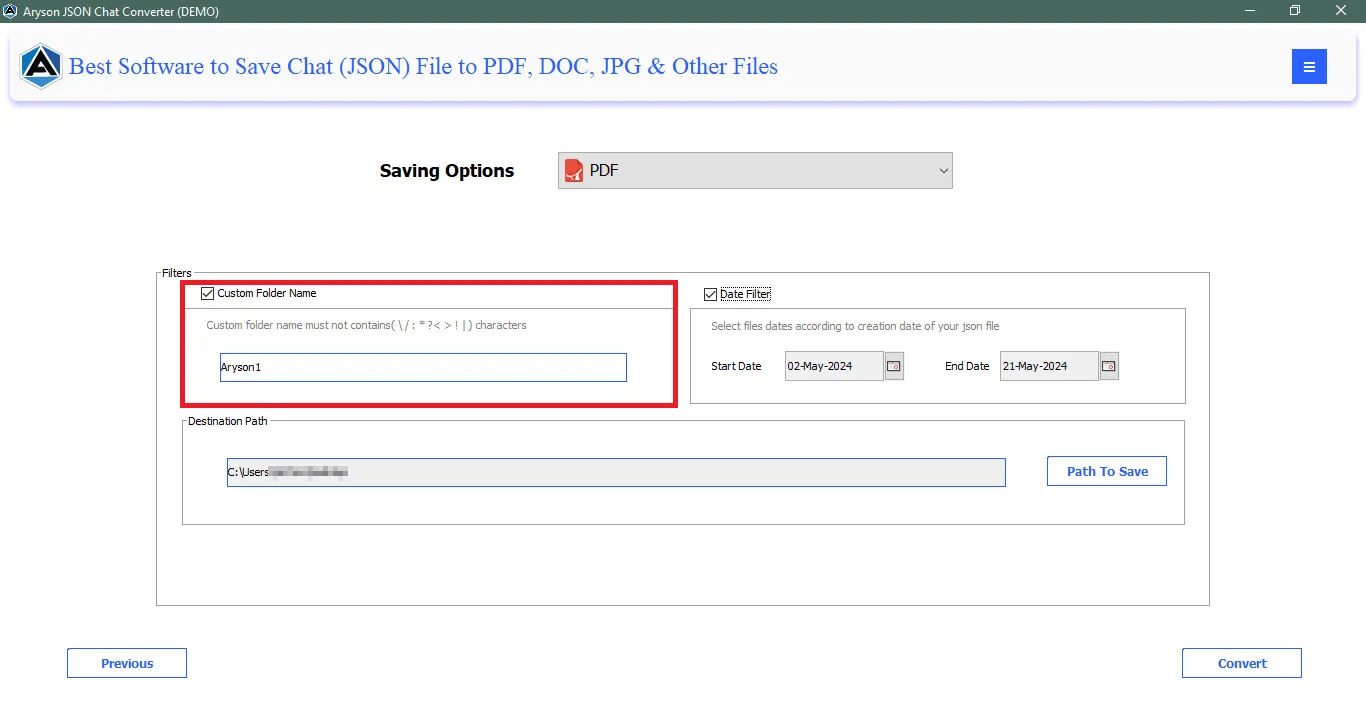
Step 8: Custom Folder: Creates a user-defined folder to store all converted PDF files separately.
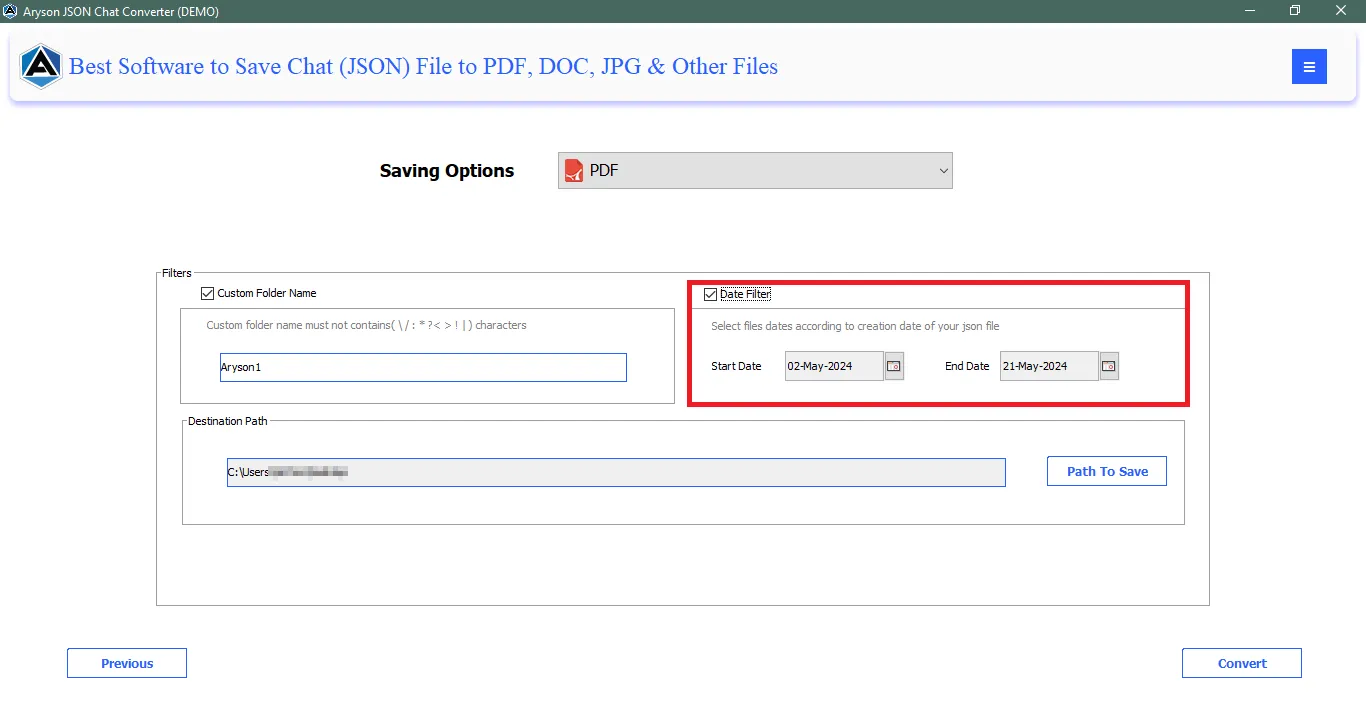
Step 9: Log Path: Defines the folder where detailed conversion logs are stored for tracking and troubleshooting.
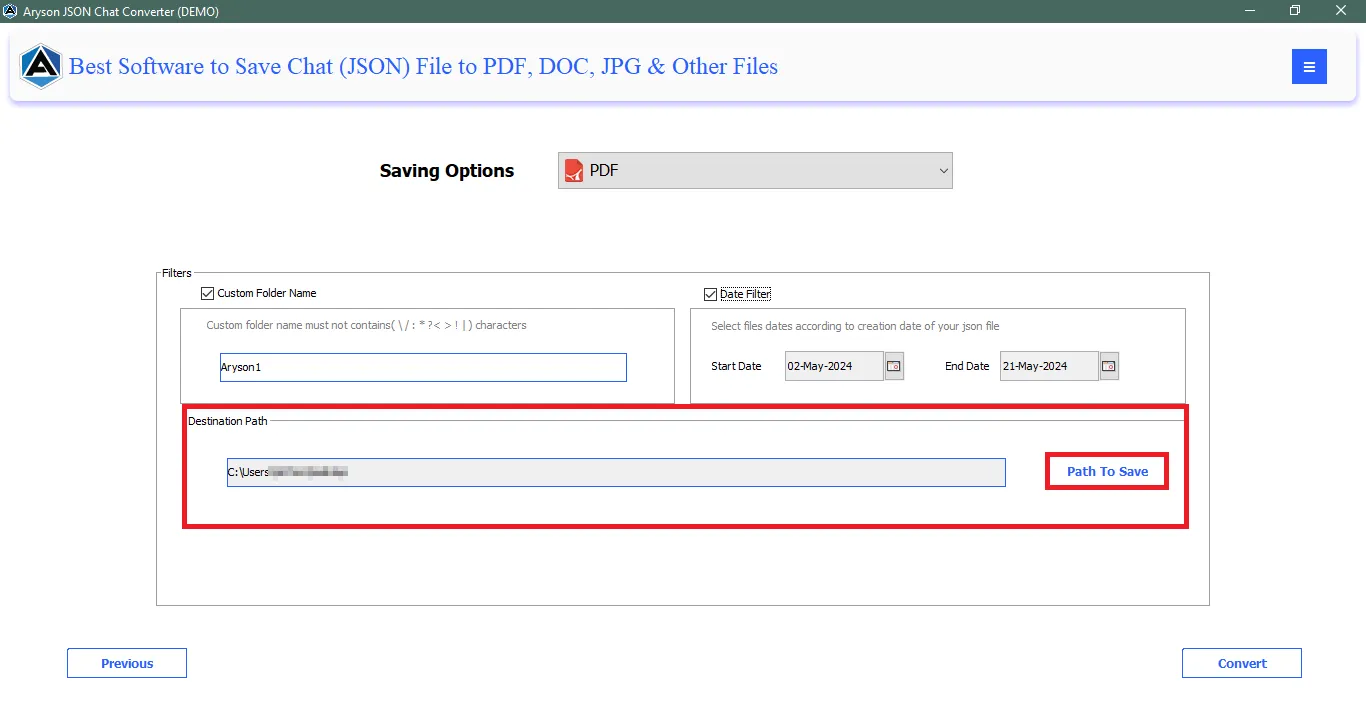
Step 10: Click the Convert button to begin the JSON to PDF conversion process.
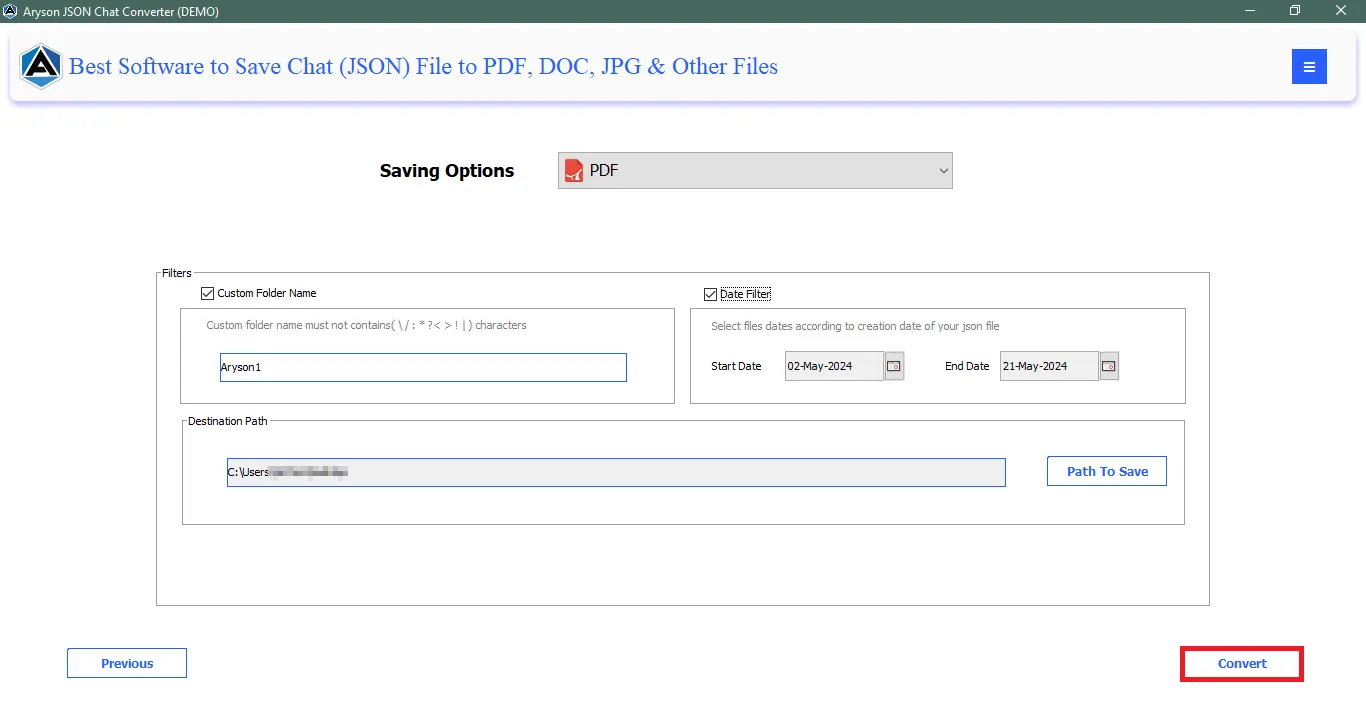
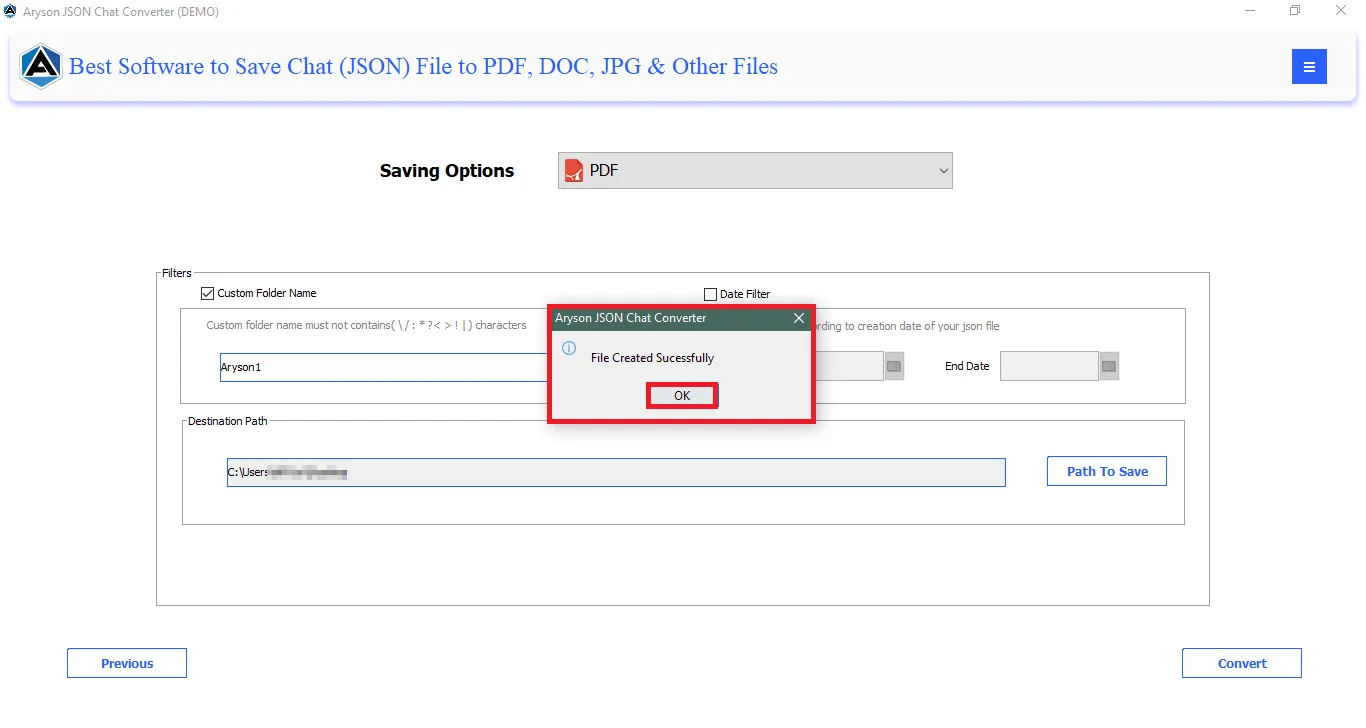
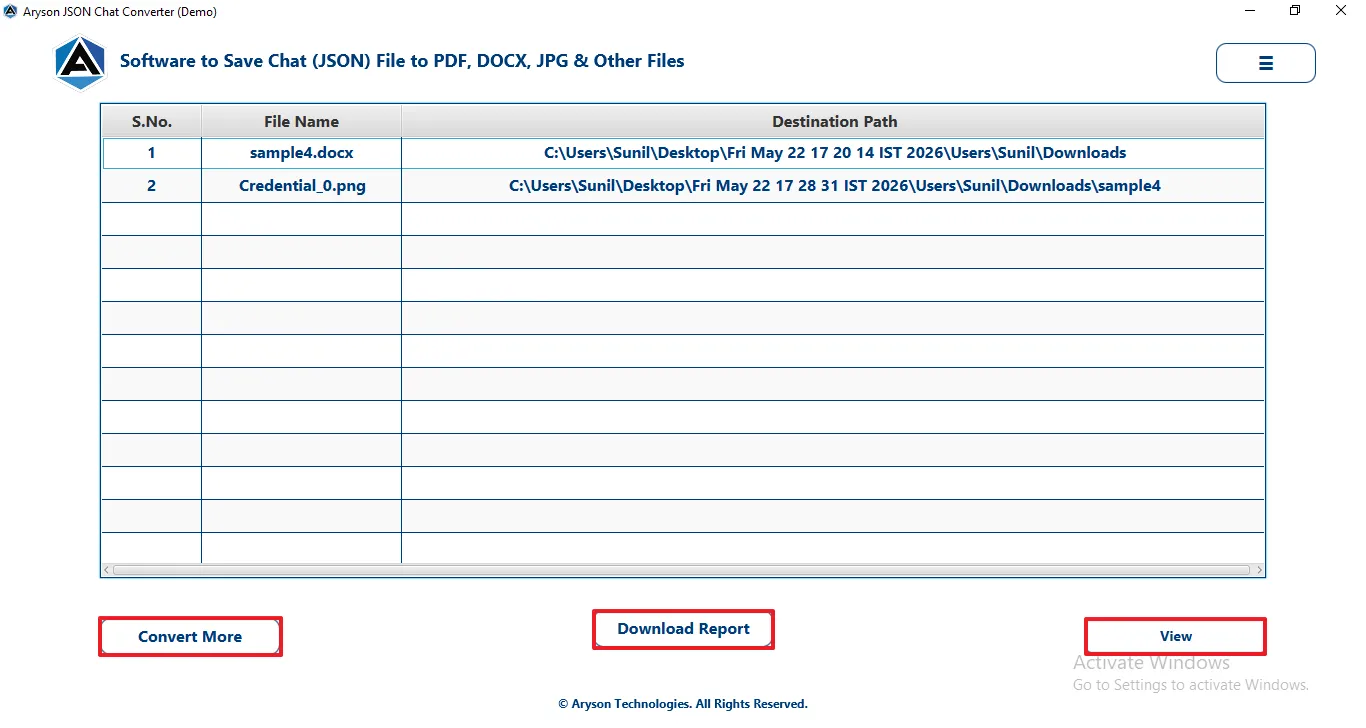
Step 11: After the conversion process is completed, users are provided with the following options:
- Convert More: Allows you to start a new conversion process immediately without restarting the software, making it easy to convert additional JSON chat files or folders.
- Download Report: Enables you to save a detailed conversion log report containing file names, status, destination path, and conversion time for future reference or verification.
- View: Allows users to instantly open and preview the converted chat file at the selected destination path.
Follow the Steps to Transform JSON files to DOC file format
Step 1: Download and launch the Aryson JSON Chat Converter on Your System.
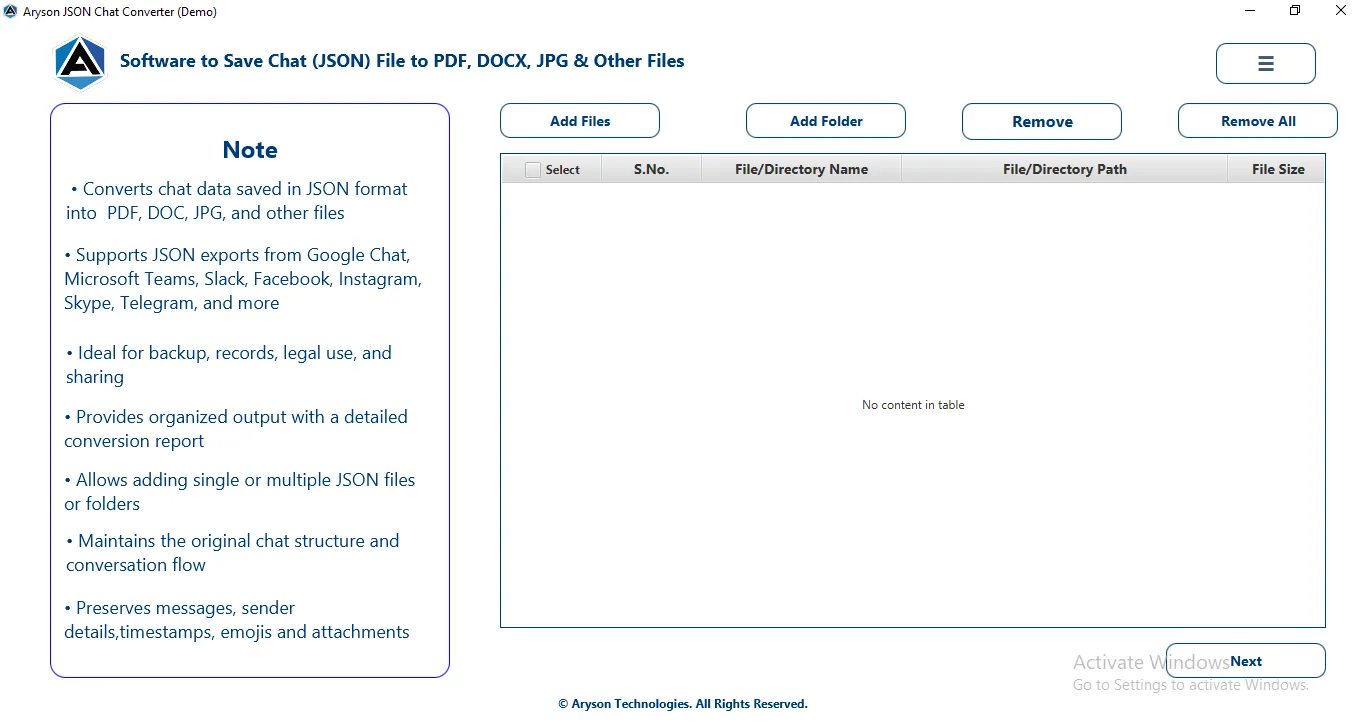
Step 2:Choose how you want to load JSON chat data into the software.
- Add Files: Add one or multiple JSON chat files from your system.
- Add Folder: Load an entire folder containing multiple JSON chat files for bulk conversion.
- Remove: Remove selected JSON file(s) from the list.
- Remove All: Clear all loaded JSON files at once.
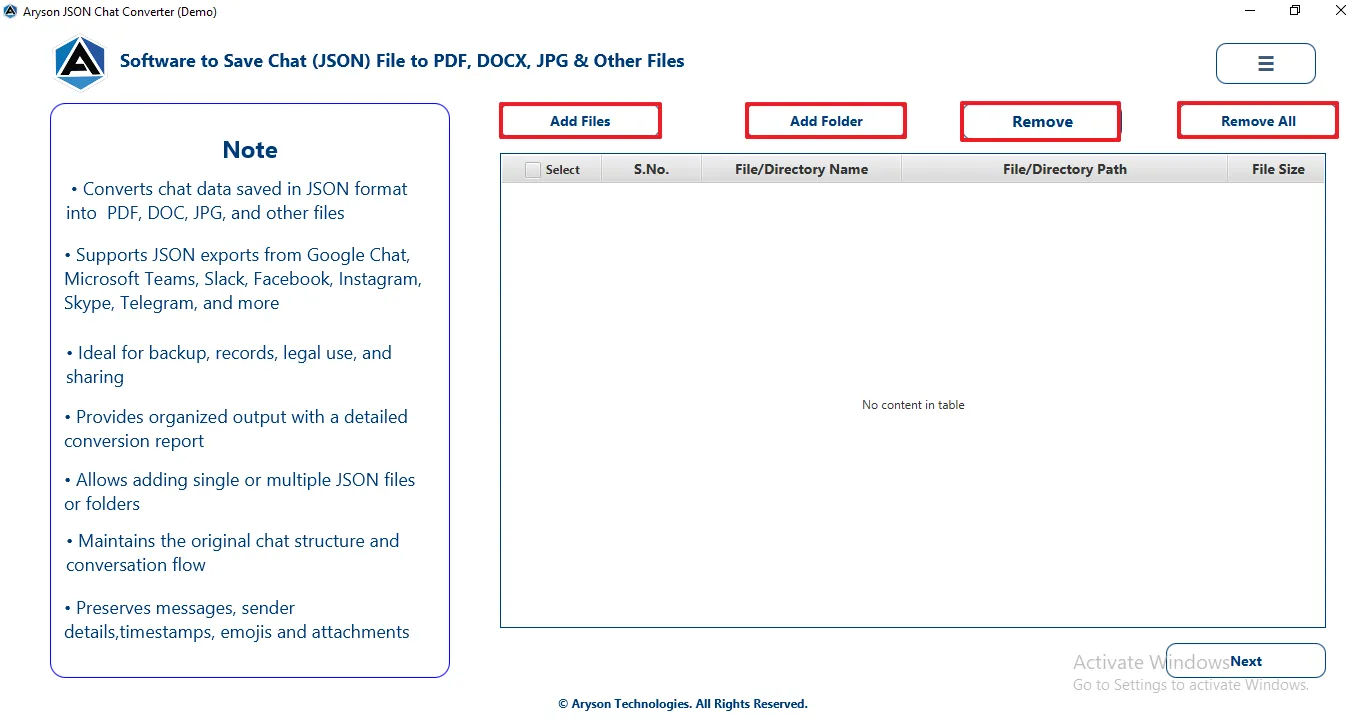
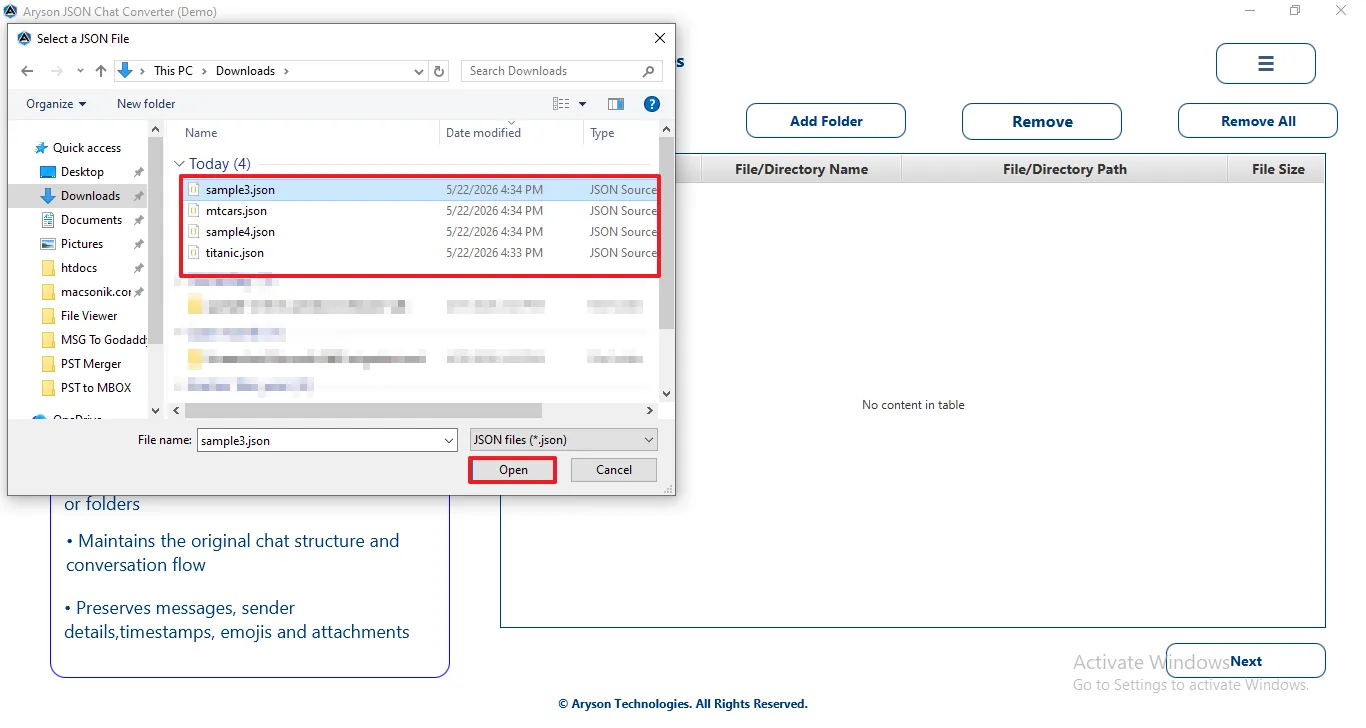
Step 3: Browse your system, select the required JSON chat file(s) or folder, and click Open to load them into the software.
Next: Click to proceed after selecting the required files or folder.
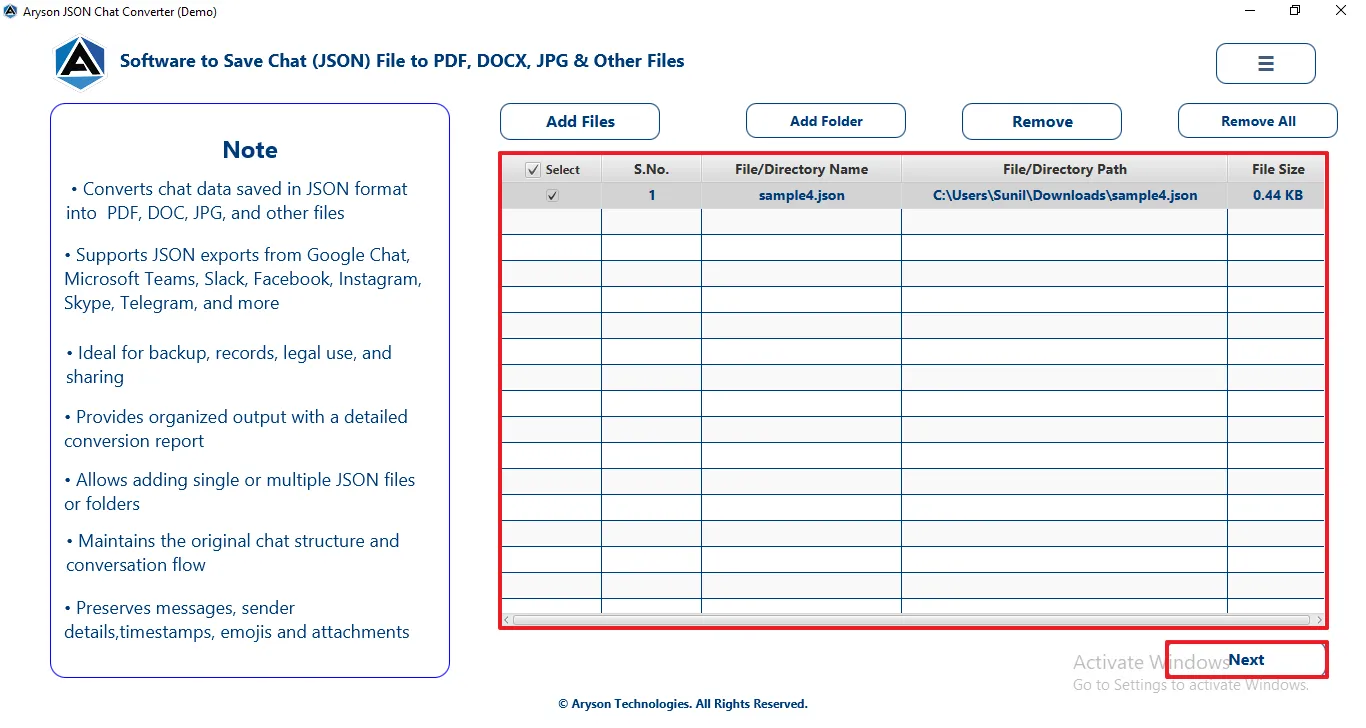
Step 4: Verify JSON Files, which displays all loaded JSON files with detailed information:
- S. No.: Displays the serial number assigned to each listed file or folder.
- File/Directory Name: Shows the name of the selected JSON chat file or directory.
- File Path: Indicates the exact location of the file or folder on the system.
- File Size: Displays the size of the JSON chat file for reference.
- Next: Click to proceed after selecting the required files or folder.
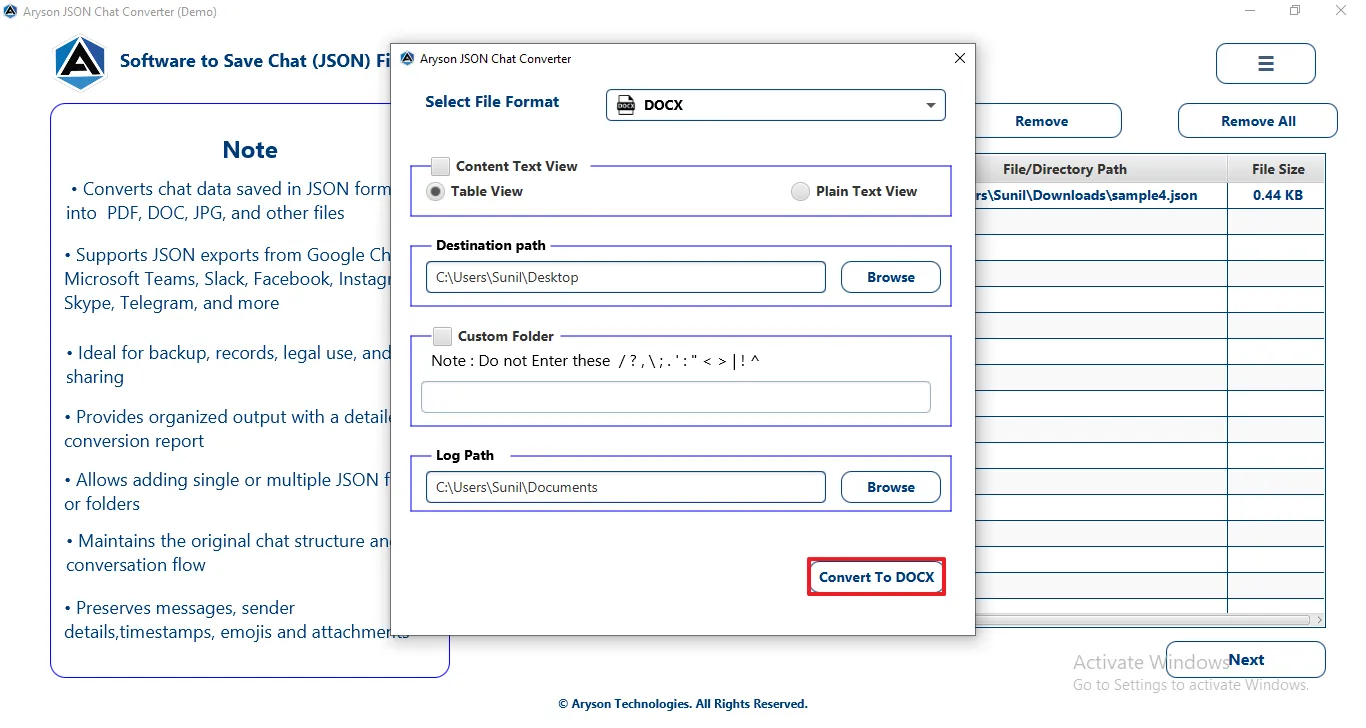
Step 5: Click on the Select File Format dropdown menu & choose DOCX as the output format.
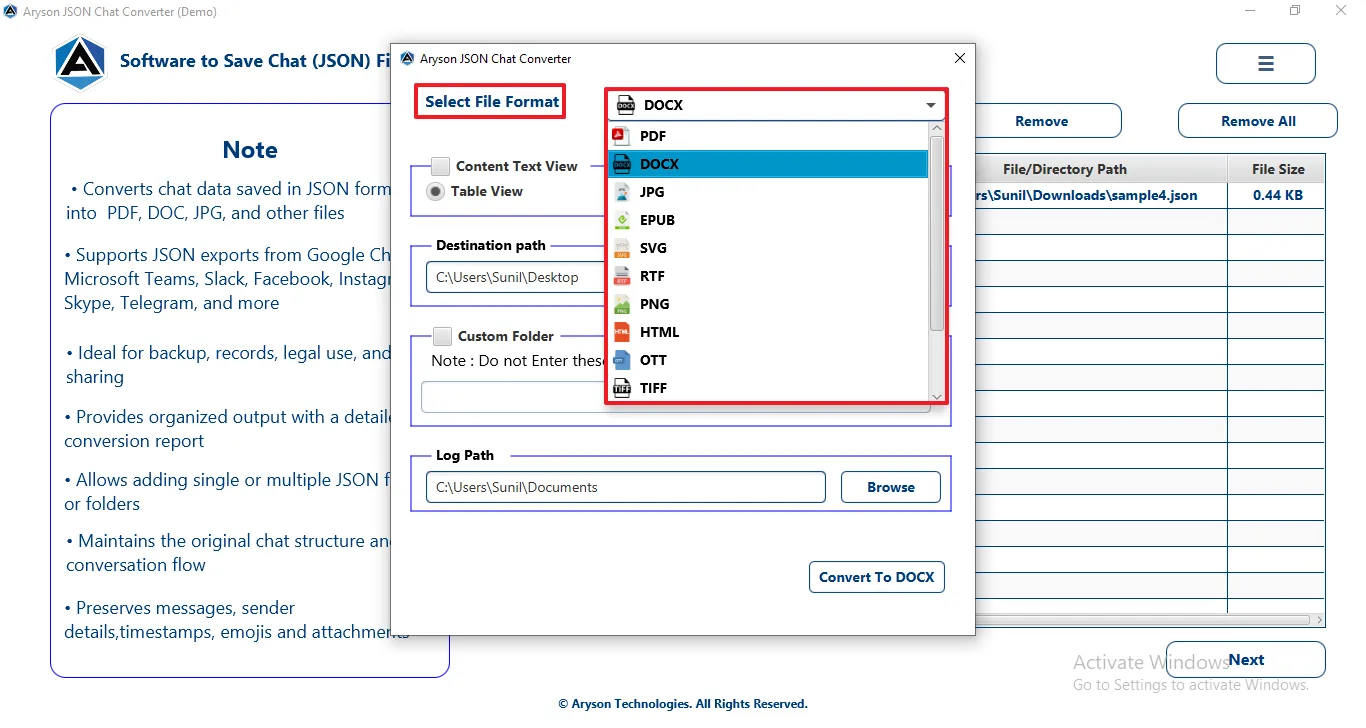
Step 6: Configure the following options before starting the conversion:
- Content Text View: Converts JSON chats into an easy-to-read text format while preserving conversation flow and details.
- Table View: Displays chat messages in a structured table layout for better clarity and documentation.
- Plain Text View: Saves chat conversations in a simple, clean text format without table formatting.
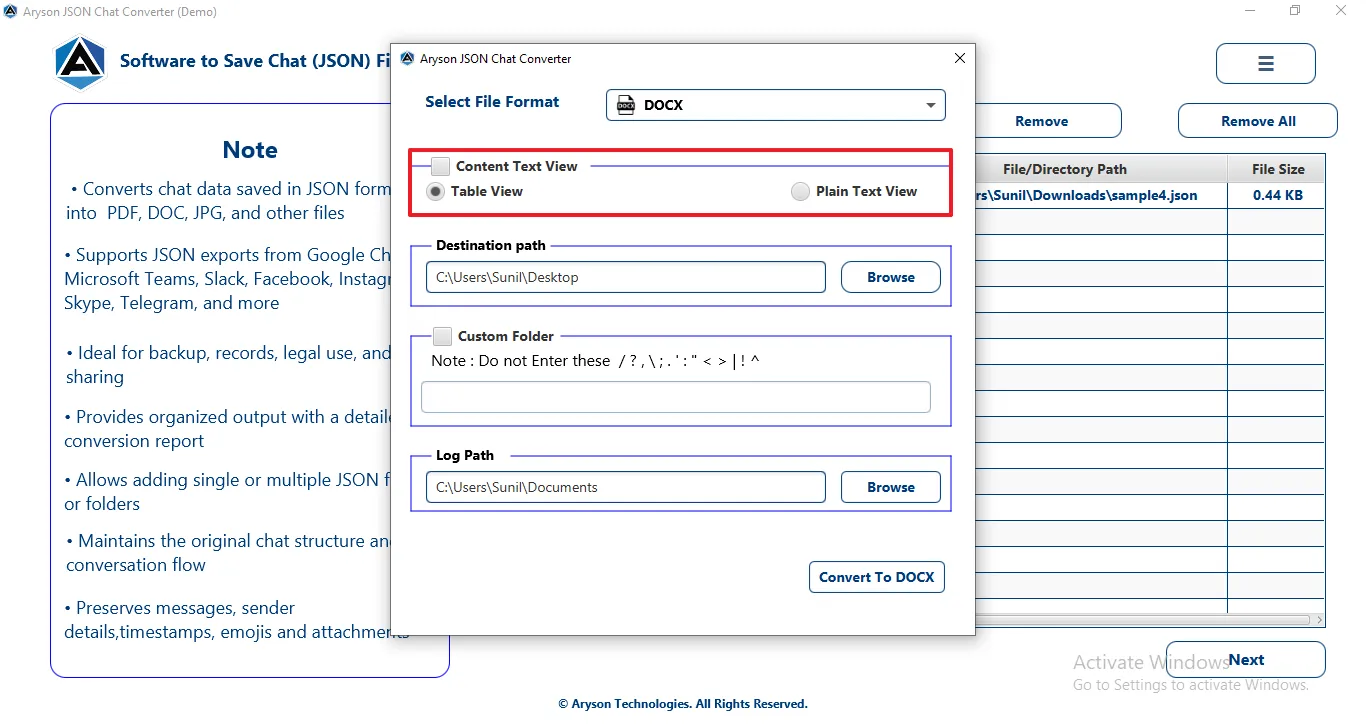
Step 7: Destination Path: Specifies the location where the converted DOCX files will be saved.
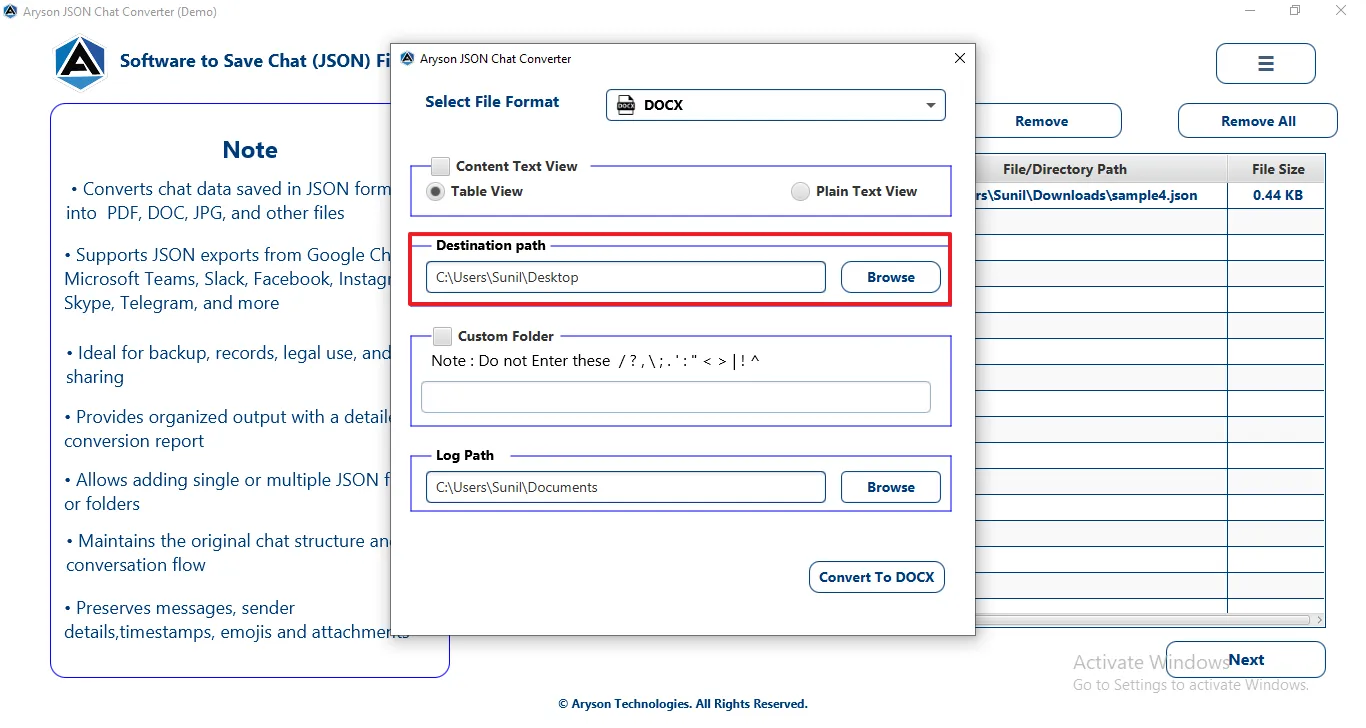
Step 8: Custom Folder: Creates a user-defined folder to store all converted DOCX files separately.
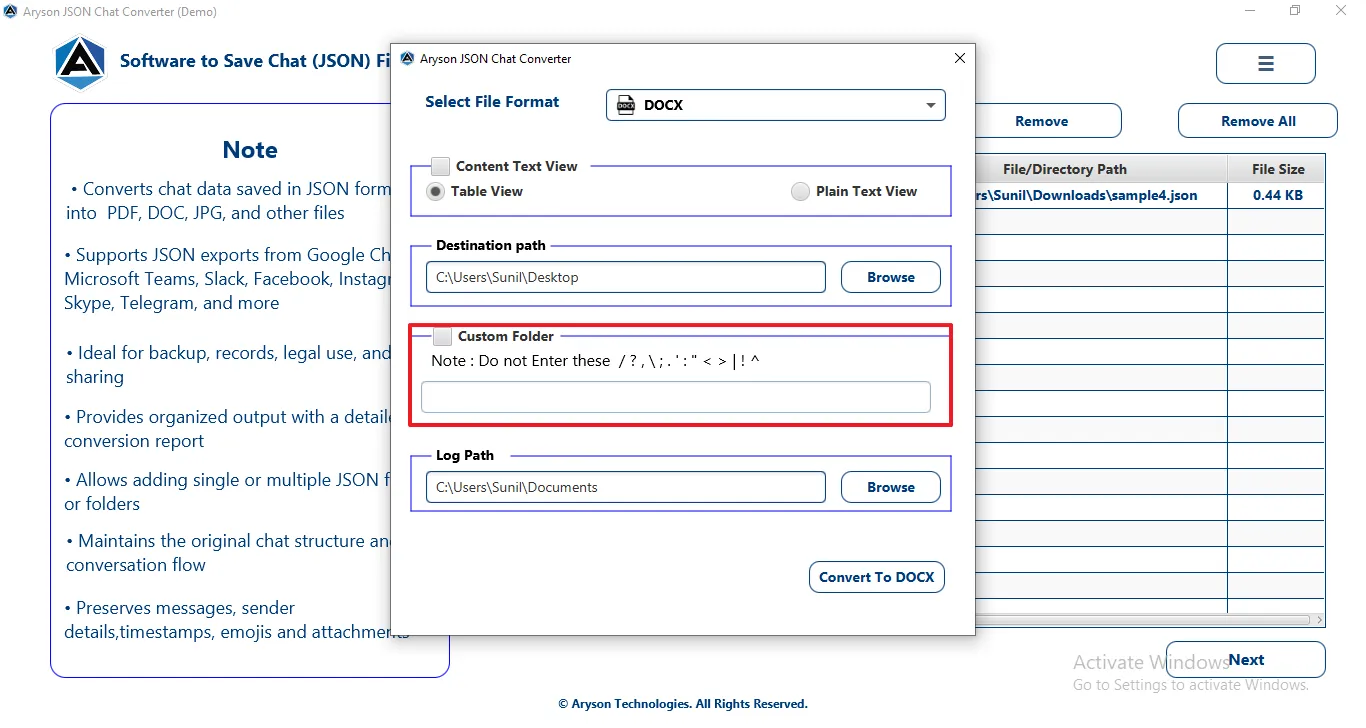
Step 9: Log Path: Defines the folder where detailed conversion logs are stored for tracking and troubleshooting.
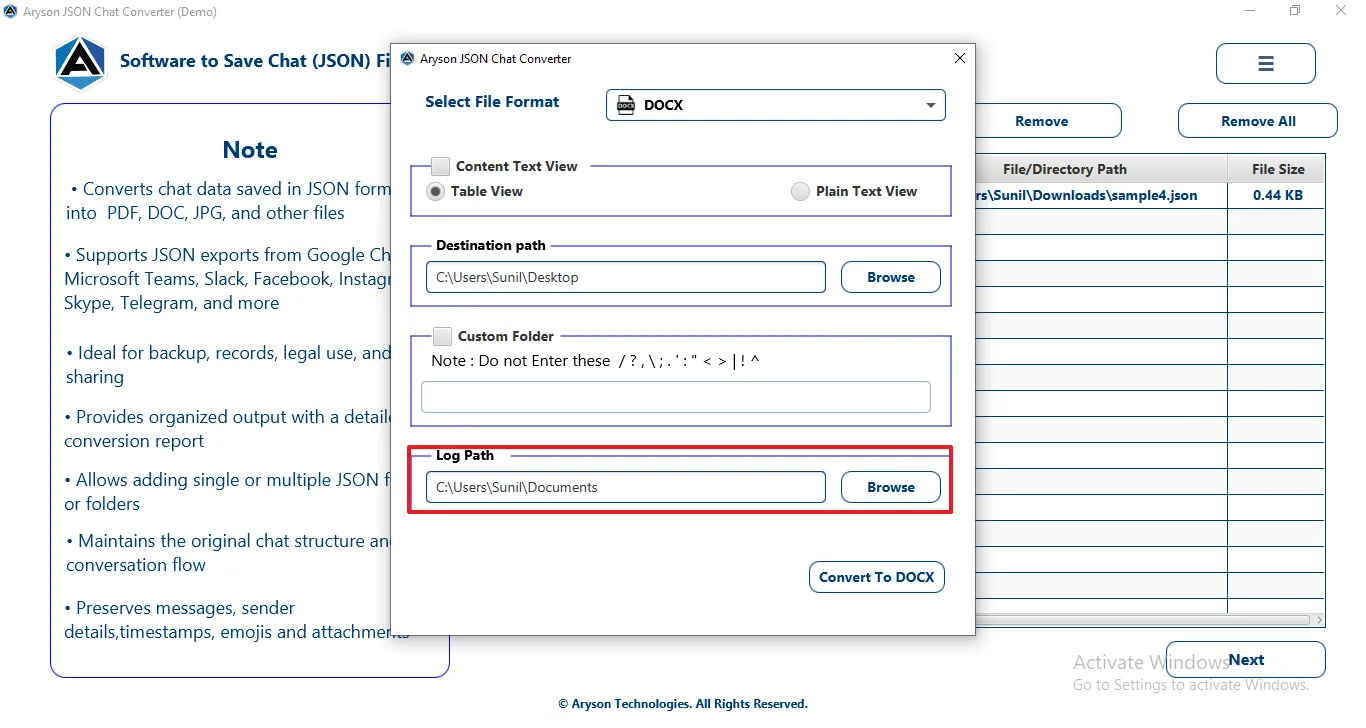
Step 10: Click the Convert button to begin the JSON to DOCX conversion process.
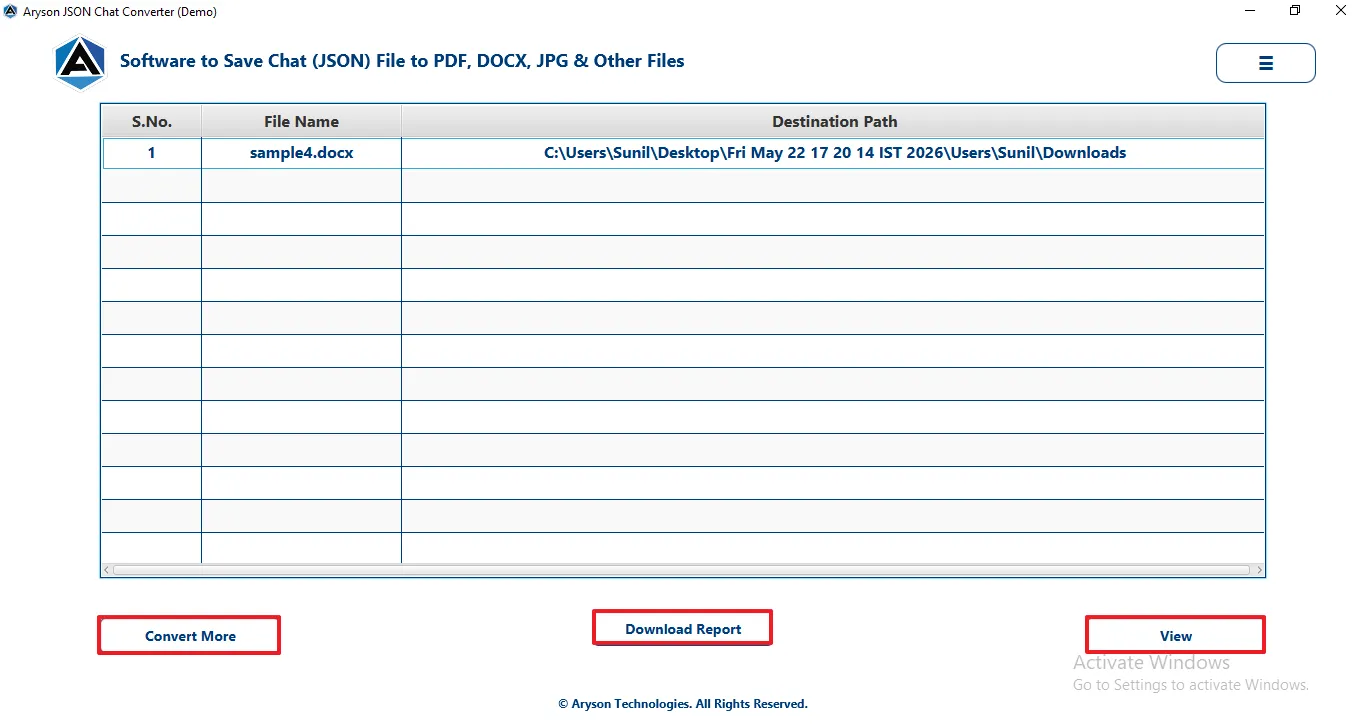
Step 11: After the conversion process is completed, users are provided with the following options:
- Convert More: Allows you to start a new conversion process immediately without restarting the software, making it easy to convert additional JSON chat files or folders.
- Download Report: Enables you to save a detailed conversion log report containing file names, status, destination path, and conversion time for future reference or verification.
- View: Allows users to instantly open and preview the converted chat file at the selected destination path.
Follow the Steps to Transform JSON files to PNG
Step 1: Download and launch the Aryson JSON Chat Converter on Your System.
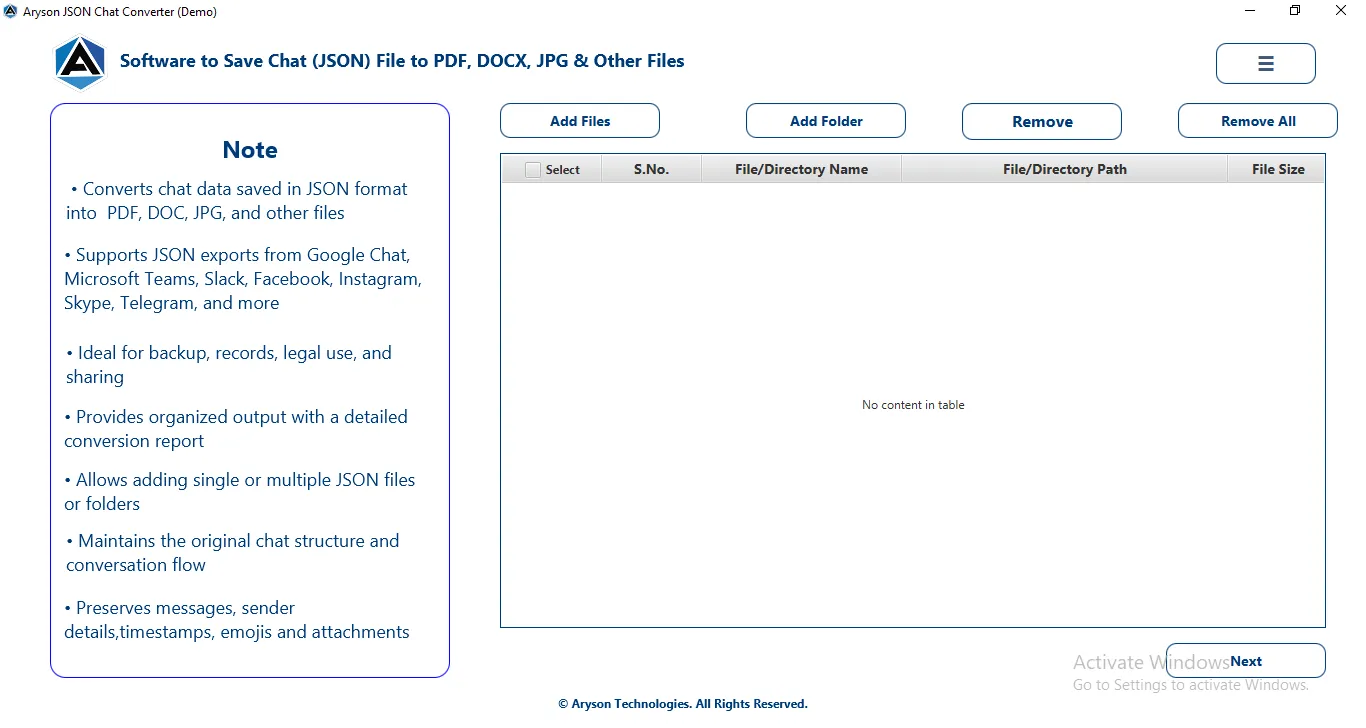
Step 2: Choose how you want to load JSON chat data into the software.
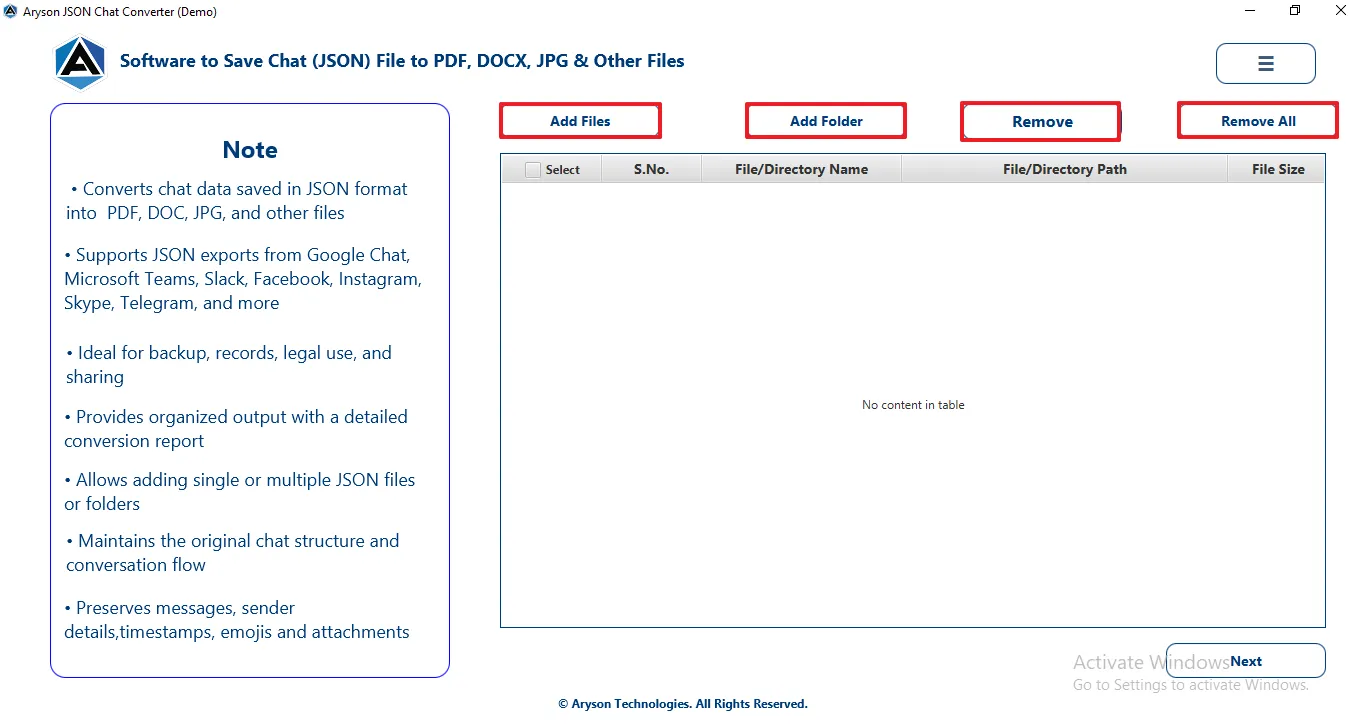
- Add Files: Add one or multiple JSON chat files from your system.
- Add Folder: Load an entire folder containing multiple JSON chat files for bulk conversion.
- Remove: Remove selected JSON file(s) from the list.
- Remove All: Clear all loaded JSON files at once.
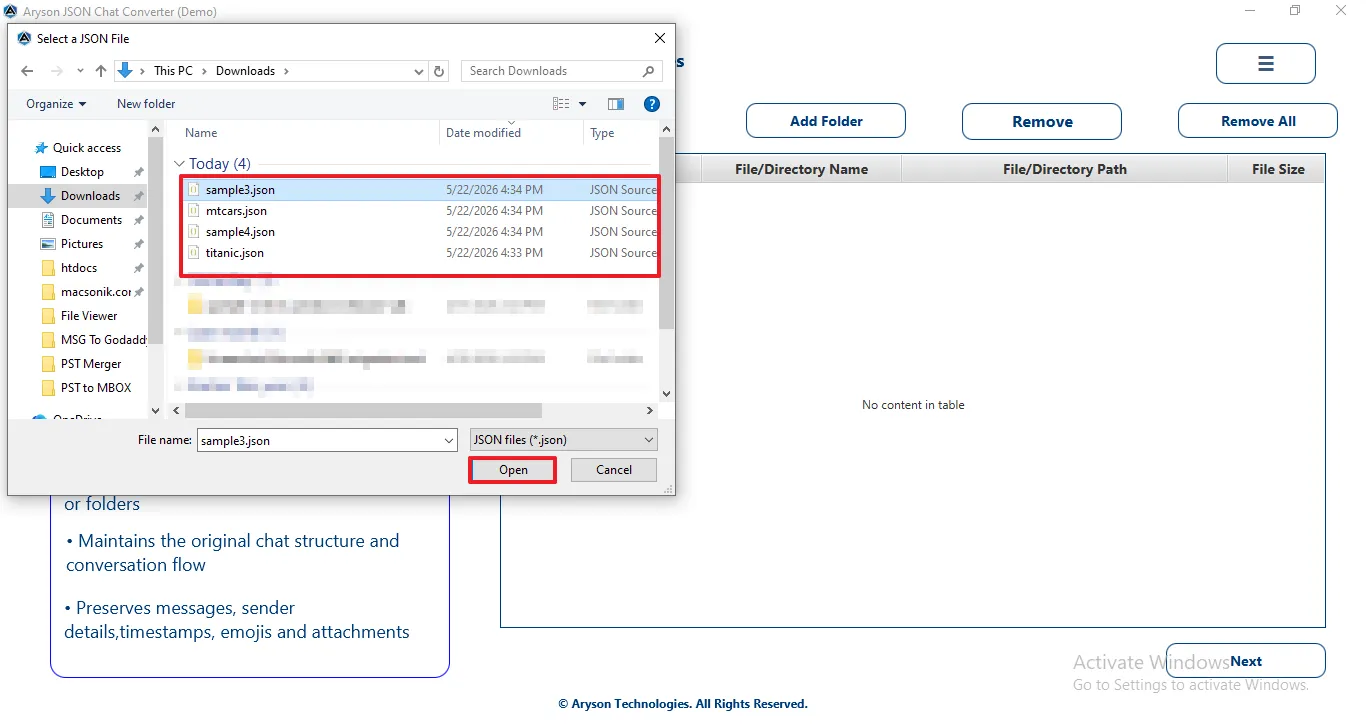
Step 3: Browse your system, select the required JSON chat file(s) or folder, and click Open to load them into the software.
Next: Click to proceed after selecting the required files or folder.
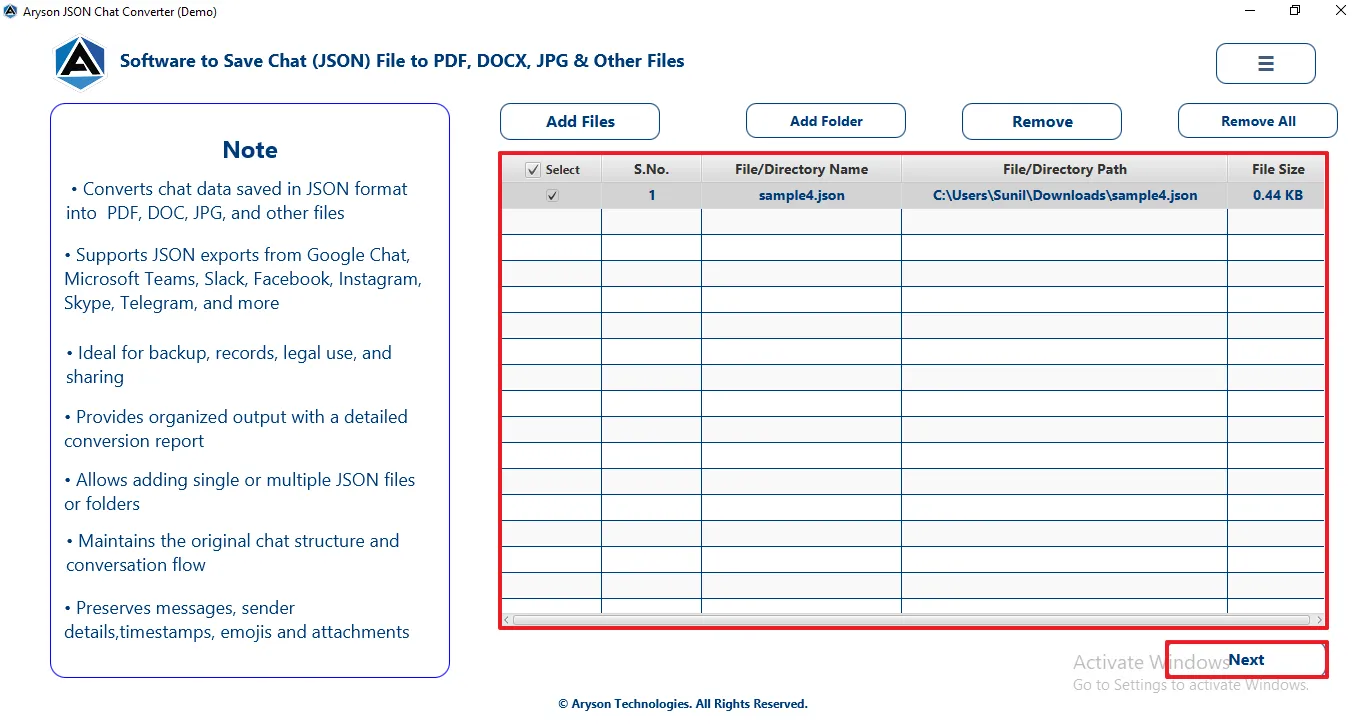
Step 4: Verify JSON Files, which displays all loaded JSON files with detailed information:
- S. No.: Displays the serial number assigned to each listed file or folder.
- File/Directory Name: Shows the name of the selected JSON chat file or directory.
- File Path: Indicates the exact location of the file or folder on the system.
- File Size: Displays the size of the JSON chat file for reference.
- Next: Click to proceed after selecting the required files or folder.
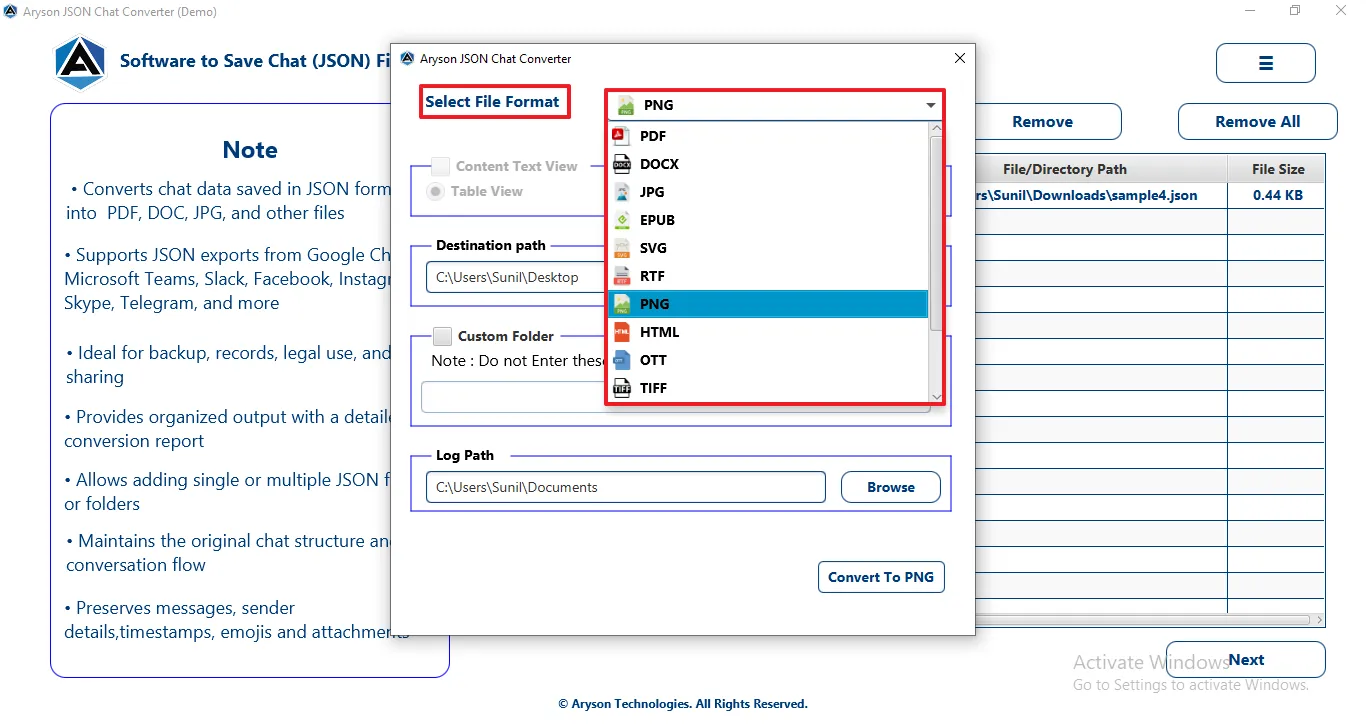
Step 5: Click on the Select File Format dropdown menu & choose PNG as the output format.
Step 6: Configure the following options before starting the conversion:
- Content Text View: Converts JSON chats into an easy-to-read text format while preserving conversation flow and details.
- Table View: Displays chat messages in a structured table layout for better clarity and documentation.
- Plain Text View: Saves chat conversations in a simple, clean text format without table formatting.
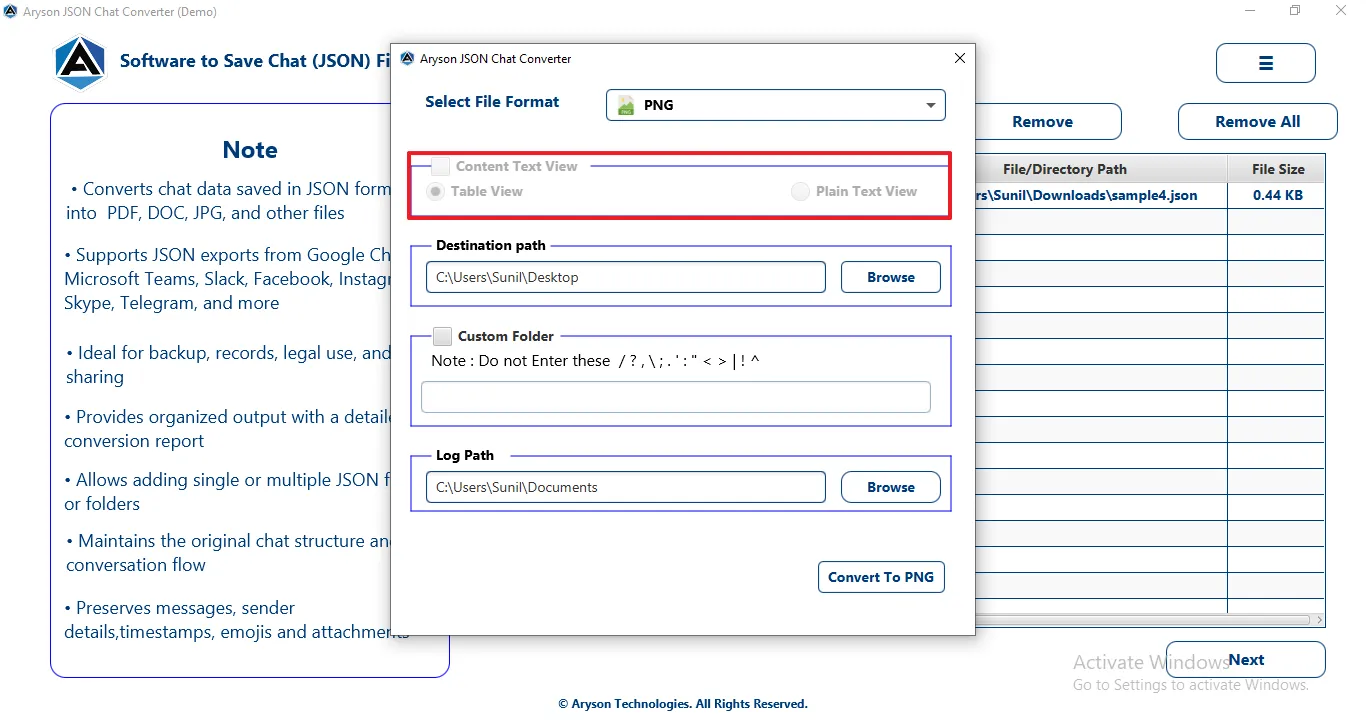
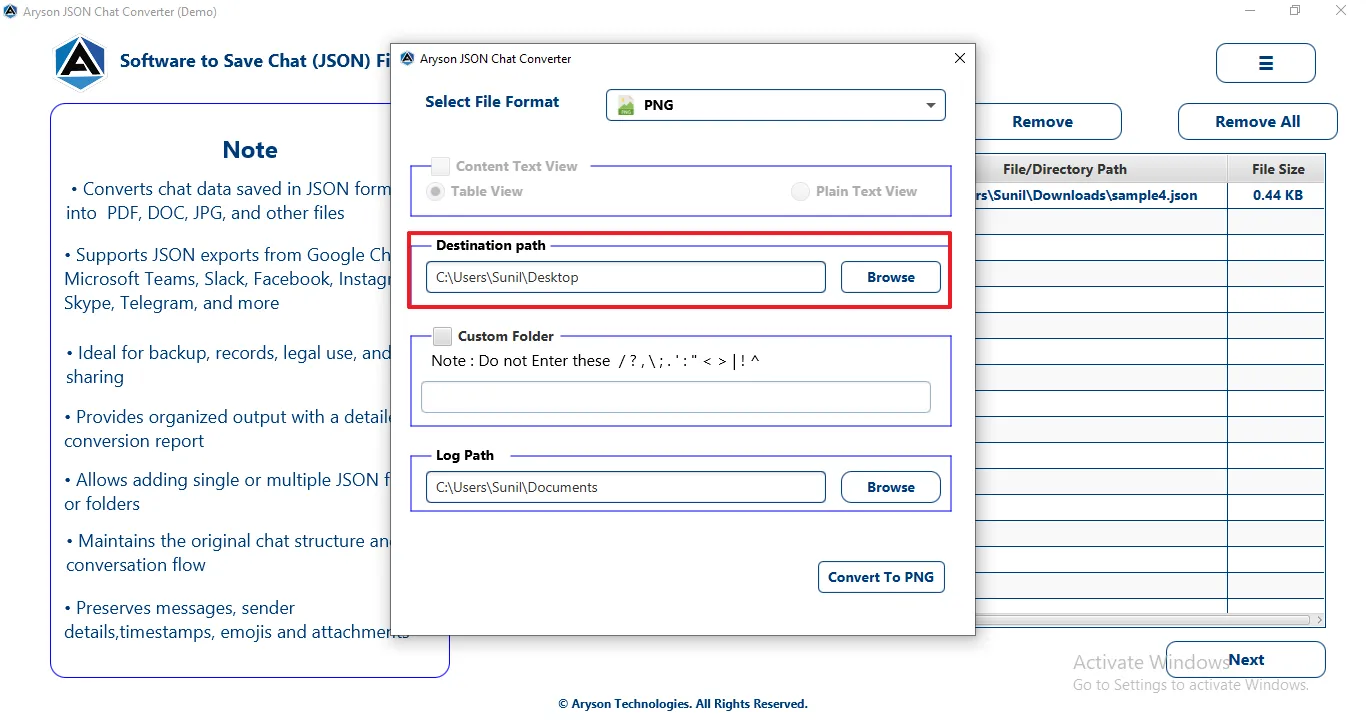
Step 7:Destination Path: Specifies the location where the converted PNG files will be saved.
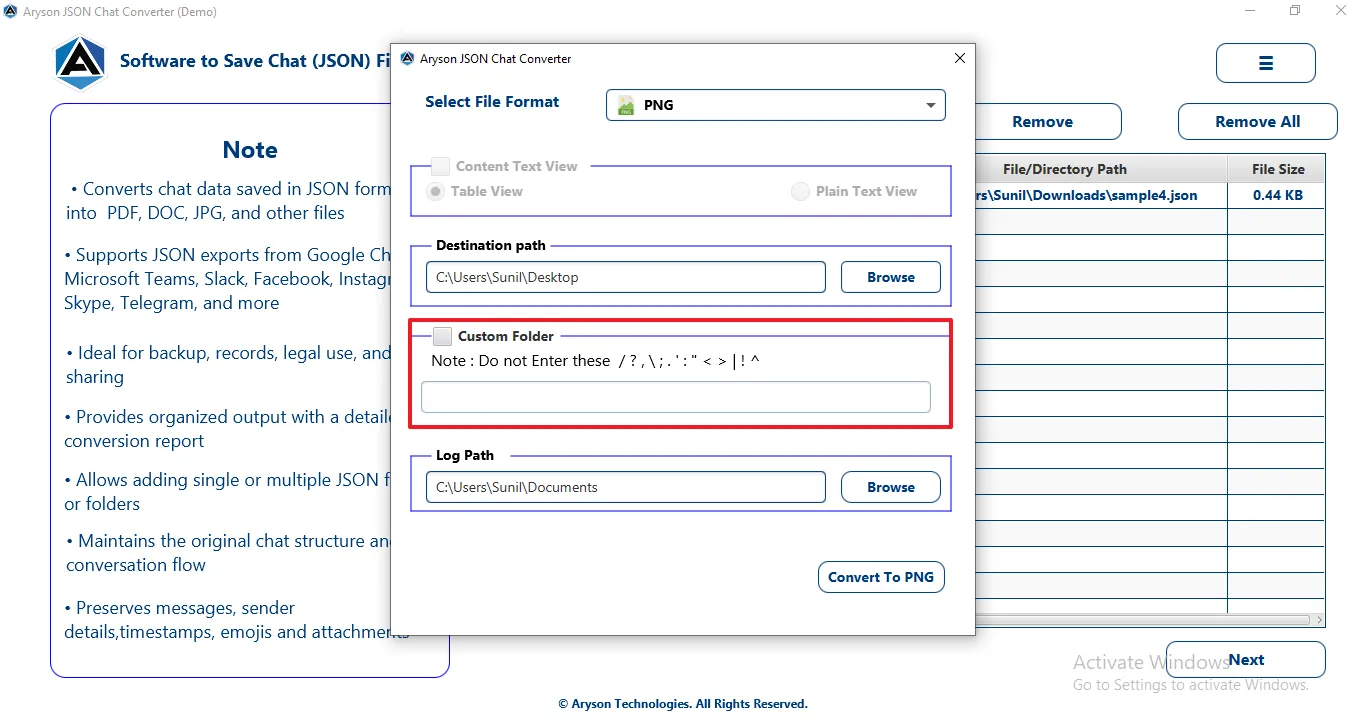
Step 8: Custom Folder: Creates a user-defined folder to store all converted PNG files separately.
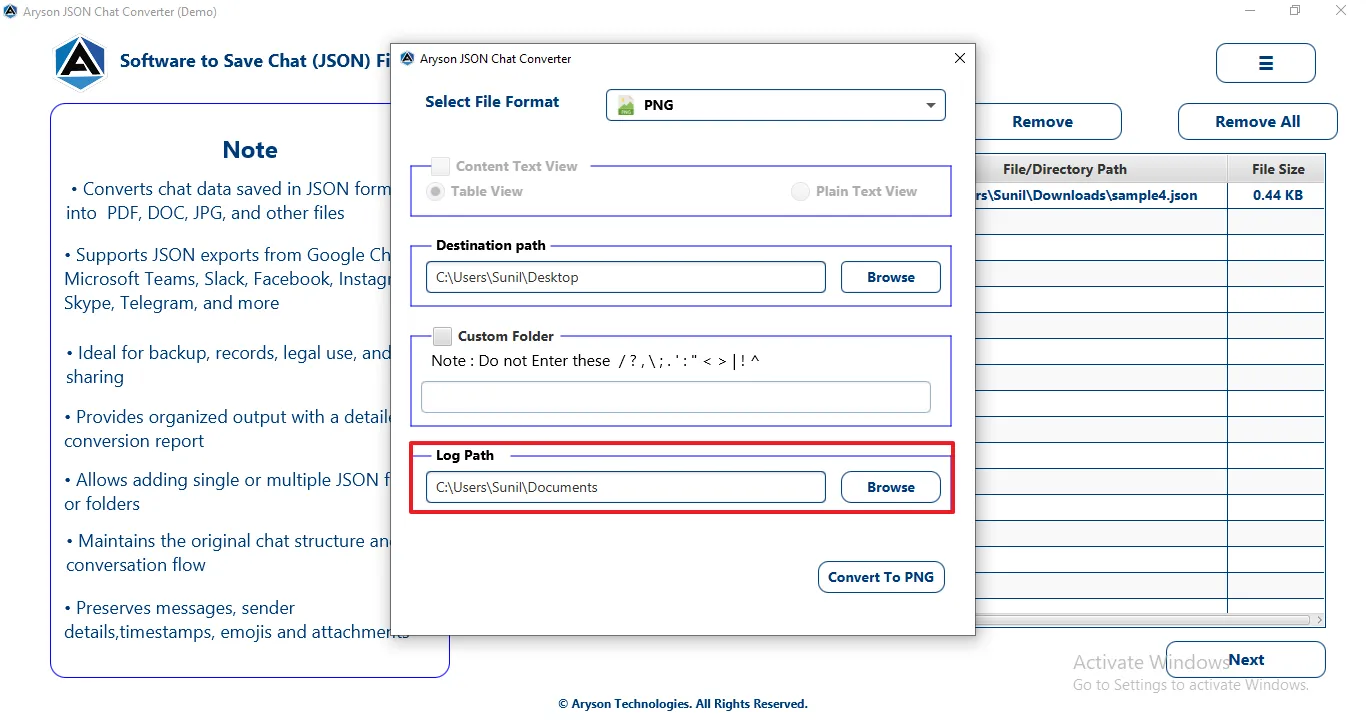
Step 9: Log Path: Defines the folder where detailed conversion logs are stored for tracking and troubleshooting.
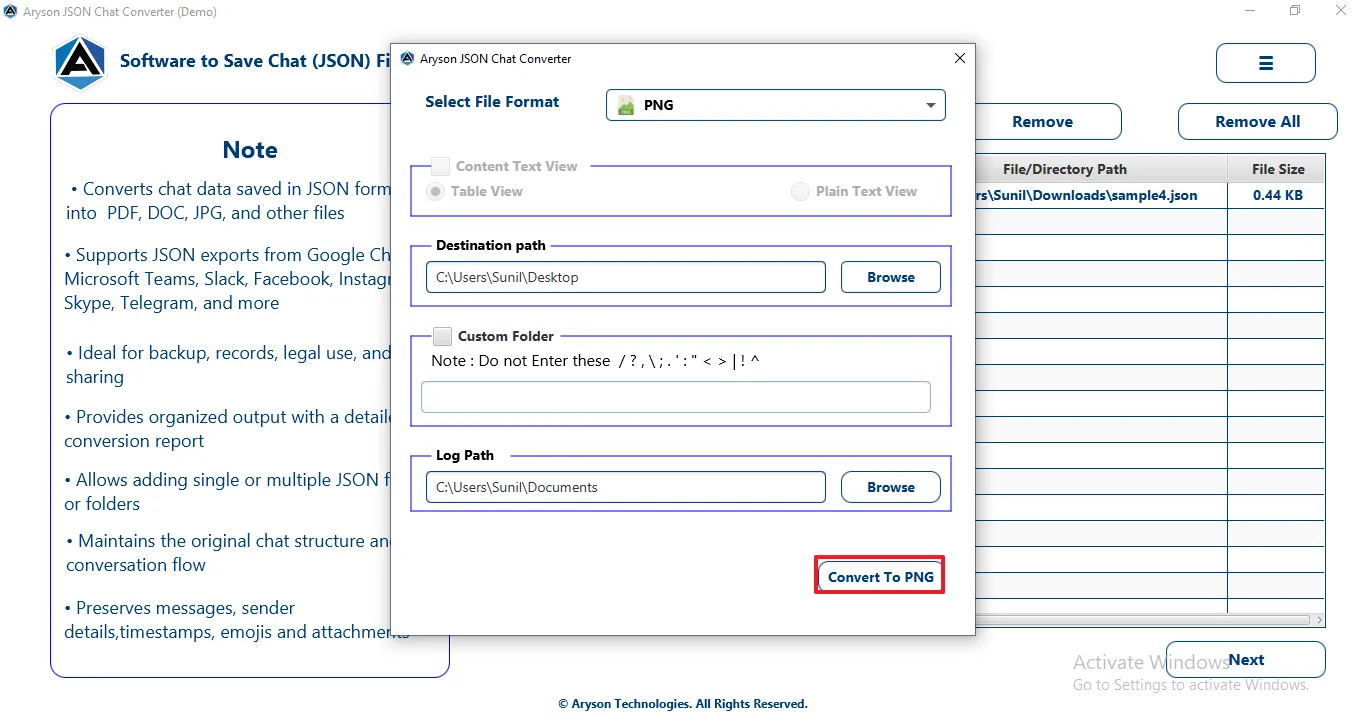
Step 10: Click the Convert button to begin the JSON to DOCX conversion process.
Step 11: After the conversion process is completed, users are provided with the following options:
- Convert More: Allows you to start a new conversion process immediately without restarting the software, making it easy to convert additional JSON chat files or folders.
- Download Report: Enables you to save a detailed conversion log report containing file names, status, destination path, and conversion time for future reference or verification.
- View: Allows users to instantly open and preview the converted chat file at the selected destination path.
Activation Guide
Activate the Software
Installation & Uninstallation
Installation & Uninstallation of Software
User Interface
User Interface
After downloading the Aryson JSON Chat Converter Tool, you will find the welcome screen as played below.