-

Written By Rohan Wiese
-
Updated on April 11th, 2026
How to Transfer BT Internet Emails to Gmail: Easy Migrate Tutorial
Are you planning to switch your email service from BT Internet to Gmail? Many of you are switching to Gmail for its robust features and enhanced security. In addition to that, it also provides flawless integration with other Google services. If you’re one of them, you’re in the right place. In this complete blog, we’ll guide you through how to transfer BT Internet emails to Gmail in the most efficient way possible. This guide covers both free and automated methods, like Aryson IMAP Backup Tool to help you make a smooth transition.
Why do we Need to Migrate BT Mail to Gmail?
The decision to switch from BT Internet Mail to Gmail can be made for a various of reasons. Let’s go through the most common ones:
- As an alternative to BT Internet, Gmail offers generous free space that can be easily expanded.
- Apart from that, the user chooses Gmail because its spam filters are advanced and more reliable.
- If you are using Gmail, it syncs completely across all devices, including Android, iPhone, and tablets.
- It’s simpler to access Drive, Calendar, Documents, Meet, and more once you’re on Gmail.
- As compared to conventional email clients, Gmail offers a far better labeling system and search function.
Top Methods to Transfer BT Internet Emails to Gmail
There are two reliable ways you can use to move your BT Internet emails to a Gmail account. Every technique meets the needs of a different user. One is integrated into Gmail and is totally free, while the other is quicker and better suited for large-scale migrations. To make the process of moving BT emails to Gmail easier, let’s navigate through both options.
Method 1: Import BT Emails into Gmail Using POP3 Manually
Here, we will use Gmail to fetch your BT Internet emails using the POP3 protocol. Keep in mind that it is better with a smaller volume of emails. For this, you should have a
- Limited number of emails.
- You prefer using Gmail’s settings.
- You don’t need to migrate attachments or folder structures in bulk.
Steps to Forward BTinternet emails to Gmail
- Firstly, log in to your Gmail account.
- After that, click the gear icon and go to “See all settings.”
- Select the “Accounts and Import” tab.
- Under “Check mail from other accounts,” click “Add a mail account.”
- Enter your BT Internet email address and proceed.
- Choose Import emails from my other account (POP3) >>Next.
- After that, enter your BT email account password.
- In the POP Server field, type mail.btinternet.com.
- Set the Port to 995 and enable the SSL connection checkbox.
- Choose your import preferences, such as labeling incoming messages or leaving a copy on the server.
- Click Add Account to finish the setup.


Issues You Might Encounter with the Manual Process
- In the manual process, the folder structure is not preserved.
- For large mailboxes, the manual forwarding process can take time.
- Along with that, your attachments may not be imported correctly.
- Only emails are transferred, not contacts or calendars.
- There are no filters for date, sender, or subject.
- You don’t get progress updates or error messages.
- Emails may get duplicated if the settings are incorrect.
- The process can’t be paused or scheduled at a time.
Method 2: Quick and Simple Solution to Transfer BT Internet Emails to Gmail
You can use the Aryson IMAP Backup Tool to make the process of moving BT Internet emails to Gmail easier. With little effort, this software can move emails from any IMAP-compatible email account, including BT Mail, to Gmail. Moreover, it preserves the original folder structure, email formatting, and attachments during the transfer. Additionally, it provides sophisticated features like multiple export formats, date-range filters, and duplicate email removal. It also has an easy-to-use interface. Therefore, you can follow a few easy steps to complete the secure login process.
Follow the Steps to Transfer BT Internet Emails to Gmail:
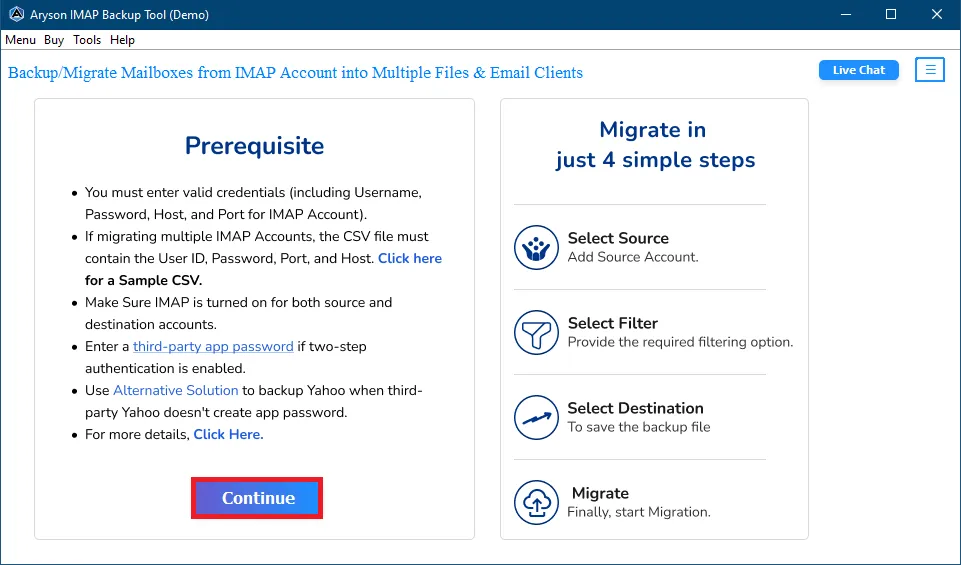
- First of all, install the Aryson IMAP Backup Tool on your existing system.
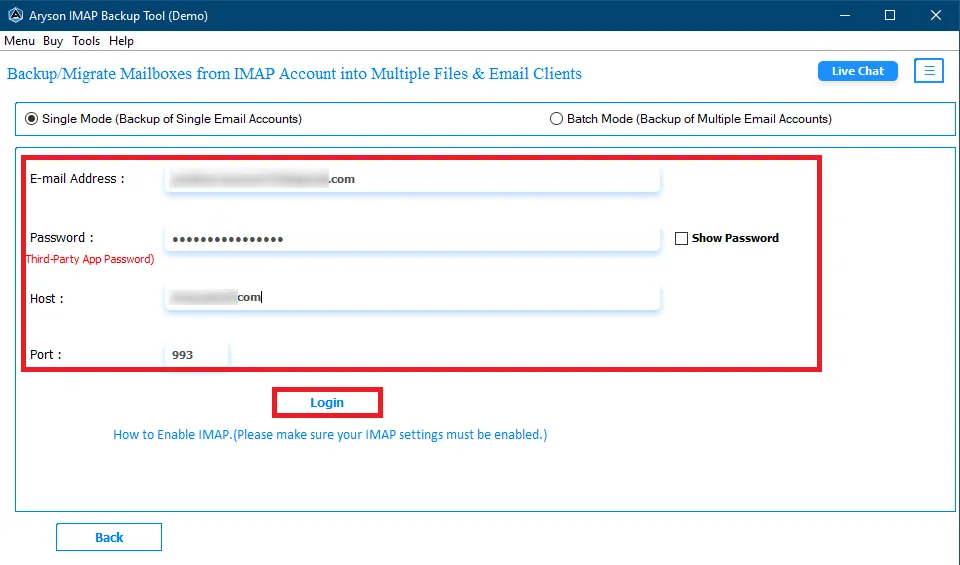
- Enter your BT Internet email address and app password in the required fields.
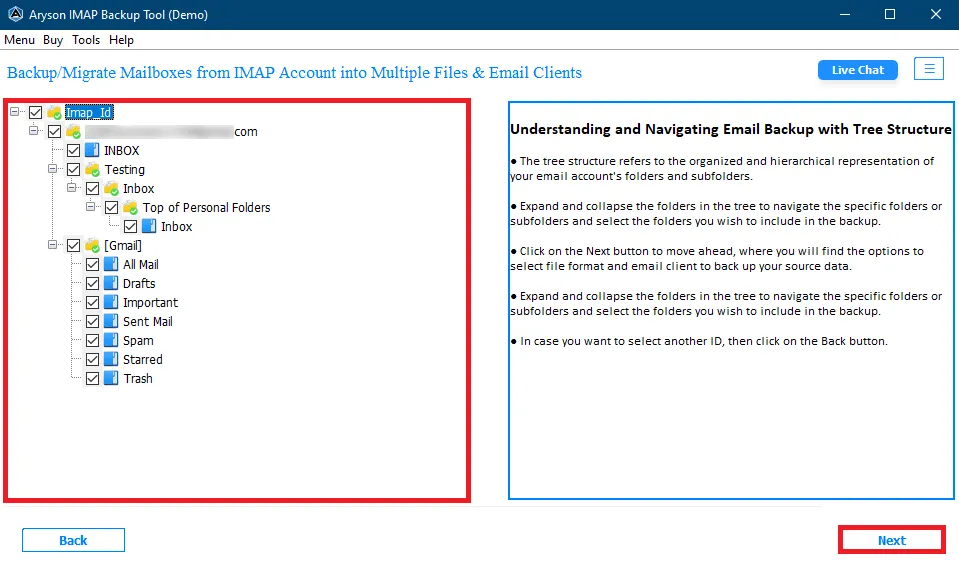
- From your entire mailbox folder structure, select the folders you wish to migrate.
- From the list of email clients, select Gmail to transfer BT Internet Emails to Gmail.
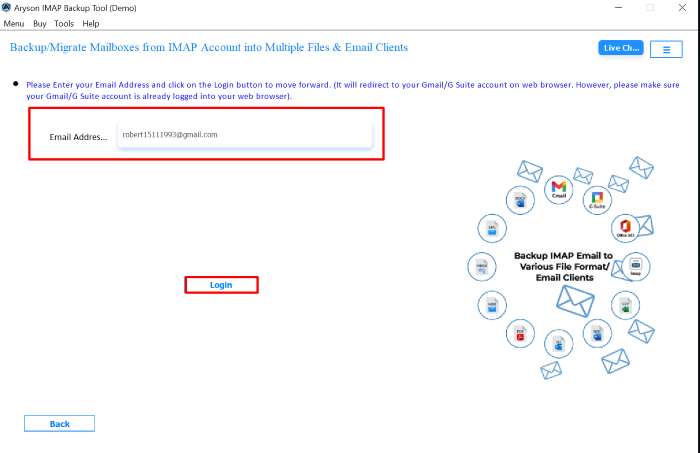
- Enter your Gmail address and app password and click the Sign In button.
- Use filters from/to email addresses, or subject keywords to transfer only what you need.
- Lastly, click Next to import BTinternet email into Gmail account.

Also Read: If you want to transfer SquirrelMail Emails to Gmail, go through this complete guide.
Conclusion
Both approaches work well to transfer BT Internet Emails to Gmail. But the right one depends on your needs. If you have only a few emails and don’t mind doing it manually, the first method will be enough. But if you’re transferring thousands of messages, attachments, and folders, the second option is highly recommended.
Frequently Asked Questions (FAQs)
Q1. Is it possible to transfer all of my old BT Internet emails to Gmail?
Ans: Yes, you can use Gmail’s POP3 feature or manually move all of your BT Internet emails to Gmail. Alternatively, you can easily complete the task by using the Aryson IMAP Backup Tool.
Q2. Is it possible to keep my folder structure during the transfer?
Ans: The manual method does not preserve folder structure. In constraint, automated tool can migrate emails along with folders intact.
Q3. When transferring BT emails to Gmail, are attachments also moved?
Ans: Yes, you can transfer BT emails to Gmail with the help of the automated solution.
Q4. Does transferring BT emails require any technical expertise?
Ans: The manual approach necessitates a basic understanding of Gmail settings. On the other hand, Aryson IMAP Backup Tool has a user-friendly interfaces that make it simple for all users to use.
About The Author:

Rohan Wiese is a Technical Writer at Aryson Technologies. He is an expert Email Forensic, Cloud Computing, and a passionate nerd with over 10 years of experience in technical content writing. He writes about Cloud Migration, Database Recovery, Email Backup, Windows, Mac, and Tech.
Related Post



