-

Written By Rohan Wiese
-
Updated on March 20th, 2026
How to Recover a Corrupt SQL Server Database (MDF File) in 2026
If you are a DBA(Database Administrator), you must have encountered the SQL Server errors 823, 824, or 825. Your MDF file is corrupt, you have to accomplish the Administrative Tasks, and this situation leads to downtime in the business.
MDF (Master Database File) is the primary database file in MS SQL Server. Each SQL Server database contains at least one MDF file. This primary data file contains the SQL database schema and all the data, including indexes, views, tables, triggers, stored procedures, & other critical components. Therefore, this file is essential for data storage in the MS SQL Server environment. When the MDF file gets corrupted, the entire SQL database becomes unavailable.
This article is written to help such Database Administrators by providing them with the exact commands & steps of the free & automated methods to recover corrupt SQL Server database. Along with that, we will understand the need to use the Aryson SQL Database Recovery Software to quickly recover the corrupted databases. Download Now Purchase Now
What Causes SQL Server MDF File Corruption?
Before you run a single repair command, you must know the reason why this error appeared in the first place. Listed below are the five most common causes of MDF file corruption.
- Sudden system shutdowns often cause query interruption, which eventually leads to data loss or corruption in the MDF file.
- Faulty hardware, including the defects in disk controllers, device drivers, or storage components.
- Moreover, corruption in the storage media where MDF files are stored can directly damage the primary database file and make it completely inaccessible.
- If the SQL database is actively in use & a network failure occurs in between, it leads to corruption in the MDF file.
- If the file header of the MDF file is corrupted due to any internal or external factor, it results in corruption spreading across the entire MDF file.
Now, from the above causes, determine the reason why you are facing the MDF file corruption. Refer to the upcoming methods for MDF file recovery SQL Server & choose the most suitable approach as per your situation.
Pre-Recovery Checklist For a Secure Recovery
Before you move on to execute any repair command on your corrupted MDF file, it is essential to follow a structured pre-recovery checklist. In case you skip these steps, certain situations, such as permanent data loss, failed recovery attempts, or further damage to the SQL Server database, may take place.
Verify Backup & Database Accessibility
- First, cross-verify whether you can still access the database in any mode. If possible, take a full database backup or at least a tail-log backup. Now, even if you are able to partially access the database, it would be extremely beneficial when you need to restore data later. Make sure you always take a backup before recovery, so that you can always come back to the previous version, in case of any data loss.
- Next, review the SQL Server error logs & Windows Event Viewer logs. These logs often provide the user with detailed insights into the root cause of corruption, such as disk failures, I/O issues, or unexpected shutdowns. Once you identify the source, it will help you decide whether the issue is hardware-related or logical corruption within the database.
Check System Health & Prepare the Environment
It is also essential to audit the performance of the underlying storage system before you recover corrupt SQL Server database. Run disk integrity checks & make sure that there are no bad sectors or hardware failures. If there is any kind of instability in the storage layer, you must first fix this hardware issue & then repair the MDF files later on.
- Make sure that there is sufficient disk space available before running DBCC CHECKDB. This is because the repair process may require some additional space for internal operations, snapshots, or rebuilding indexes. Lack of space can interrupt the process & may worsen the situation.
- Additionally, set the database to EMERGENCY mode to gain read-only access. This allows you to extract critical data before performing any risky operations. You should also restrict user access by switching to SINGLE_USER mode during repair to prevent conflicts.
Following this checklist, IT professionals can safely recover corrupt SQL Server database & significantly increase the chances of successful MDF file repair without unnecessary data loss.
Now, let us proceed to the Manual and automated methods for SQL Server database recovery 2026. Follow the step-by-step tutorial in each section carefully.
Method 1: Use DBCC CHECKDB to Repair Corrupt MDF File
DBCC commands, or Database Console Commands in Transact-SQL, help to check the physical & logical consistency of a Microsoft SQL Server database & to fix existing issues. The DBCC CHECKDB command performs the functions of three commands – DBCC CHECKALLOC, DBCC CHECKCATALOG, and DBCC CHECKTABLE – thus, there is no need to run these commands sequentially.
This is the first free method every DBA should attempt when an MDF file is corrupted. The command runs in stages – integrity check first, then repair – and the repair mode you choose determines the risk to your data. Follow the exact steps below in sequence.
Step 1: Modify the Database Status to Emergency Mode
Before you run any integrity check, make sure to set the corrupted database to EMERGENCY mode. This gives you read-only administrator access to extract critical data before the recovery.
|
USE Master; GO ALTER DATABASE [YourDatabaseName] SET EMERGENCY; GO |
|
Note: Replace [YourDatabaseName] with the actual name of your corrupted database throughout all commands below. |
Step 2: Review the Database Integrity
Run the DBCC CHECKDB command to check the logical & physical integrity of the SQL database. It helps users to identify & resolve corruption-related and structural issues. The command thoroughly scans the database and runs integrity checks.
If any of these checks fail, it displays consistency errors, which indicate issues in the database, and also recommends an appropriate repair option.
Run the following command in the SSMS query window:
|
USE Master; GO DBCC CHECKDB ([YourDatabaseName]) WITH ALL_ERRORMSGS, NO_INFOMSGS; GO |
Check the output carefully. Error messages 823, 824, and 825 in SQL Server are critical consistency errors that need to be resolved as soon as possible, as they could lead to major corruption errors if they are not resolved. Make sure to note the level of recovery recommended by the output before proceeding further.
Step 3: Change the Database Mode to Single User Mode
Before you use the repair option, first put the database in SINGLE_USER mode & prevent other users from modifying the data when you recover corrupt SQL Server database.
|
USE Master; GO ALTER DATABASE [YourDatabaseName] SET SINGLE_USER WITH ROLLBACK IMMEDIATE; GO |
Step 4: Perform Safe Repair – REPAIR_REBUILD (No Data Loss)
REPAIR_REBUILD performs repairs such that there is no possibility left for data loss. This option includes quick repairs, such as repairing missing rows in non-clustered indexes, & more time-consuming repairs, such as rebuilding an index.
Firstly, run the commands given below.
|
USE Master; GO DBCC CHECKDB ([YourDatabaseName], REPAIR_REBUILD) WITH ALL_ERRORMSGS, NO_INFOMSGS; GO ALTER DATABASE [YourDatabaseName] SET MULTI_USER; GO |
After running this command, simply execute the DBCC CHECKDB again to verify whether the errors are completely resolved or not.
Step 5: Perform Hard Repair – REPAIR_ALLOW_DATA_LOSS
If the DBCC CHECKDB command recommends using the REPAIR_ALLOW_DATA_LOSS repair option, run it as shown below.
However, note that it may deallocate rows or pages when repairing the database, and deallocated data can sometimes become unrecoverable.
Only run this if the REPAIR_REBUILD command fails:
|
USE Master; GO ALTER DATABASE [YourDatabaseName] SET SINGLE_USER WITH ROLLBACK IMMEDIATE; GO DBCC CHECKDB ([YourDatabaseName], REPAIR_ALLOW_DATA_LOSS) WITH ALL_ERRORMSGS, NO_INFOMSGS; GO ALTER DATABASE [YourDatabaseName] SET MULTI_USER; GO |
|
Critical Warning: Run DBCC CHECKDB with REPAIR_ALLOW_DATA_LOSS as a last resort to repair the database, as it involves a real data loss risk. A better alternative is to use a professional SQL repair tool. |
At last, run DBCC CHECKDB for one final time to confirm whether all errors are fully resolved.
Method 2: Restore MDF File from Backup
If you have a clean backup of the database, simply use it to restore the required MDF files. This approach guarantees data integrity and eliminates the root cause.
This method is recommended to use when you have a recent, verified backup available & DBCC CHECKDB has either failed or recommended data-loss repair. This option is always preferable over REPAIR_ALLOW_DATA_LOSS when a valid backup exists.
Steps to Restore MDF File from Backup:
- Firstly, open SQL Server Management Studio (SSMS).
- After that, connect to your SQL Server instance.
- Verify the integrity of your backup file using the following command:
|
RESTORE VERIFYONLY FROM DISK = ‘C:\Backups\YourDatabase.bak’; GO |
- This command will help you cross-check whether the backup file is readable, its format is valid, the backup set is complete, & the CHECKSUM is present in it.
- Next, right-click on Databases in the Object Explorer >> select Restore Database.
- Under Source, select Device >> click Browse to locate your verified .bak backup file.
- Review all restore settings & destination paths >> click OK to begin the process.
- Once the restoration completes, run DBCC CHECKDB on the restored database to confirm zero errors.
When Free Methods Fail – Limitations of Manual Repair
The successful execution of the manual DBCC CHECKDB method depends heavily on the technical expertise of the DBA executing it. The manual approach does not offer real-time monitoring & alerts. Means the user might not get to know about the emerging issues or possible data threats during the repair process of MDF files.
The manual methods are not effective in fixing highly damaged MDF files, and if you are planning to repair multiple MDF files, the manual method may fail.
Scenarios where the Free Methods Fail:
- DBCC CHECKDB returns errors, but cannot repair them with any available repair option.
- REPAIR_ALLOW_DATA_LOSS wipes out critical tables or business-critical records you cannot afford to lose.
- Your backup is outdated, missing, or itself corrupted and fails the RESTORE VERIFYONLY check.
- You have multiple MDF files to repair simultaneously, making the manual process completely impractical and unacceptably time-consuming.
- The database has severe structural corruption affecting system tables, stored procedures, or indexes at a level DBCC cannot address.
This is precisely where Aryson SQL Database Recovery steps in and delivers where native tools cannot.
Best Solution to Recover Corrupt SQL Server Database
Aryson SQL Database Recovery Software is the most reliable SQL database recovery solution that is used to repair corrupted MDF and NDF files and restore SQL Server databases. Many organisations choose to rely on this software to recover a bulk of MDF files in one go. Moreover, the software can recover tables, views, indexes, triggers, and stored procedures with 100% data security & accuracy. Additionally, it offers advanced scanning modes: Standard, Advanced, and Deep scan, a built-in preview option, and flexible saving formats. Along with that, you can use the same software to fix common SQL Server database corruption issues. It eventually helps admins to restore inaccessible databases quickly, without any data loss.
Simplified Steps to Recover Corrupt SQL Server Database
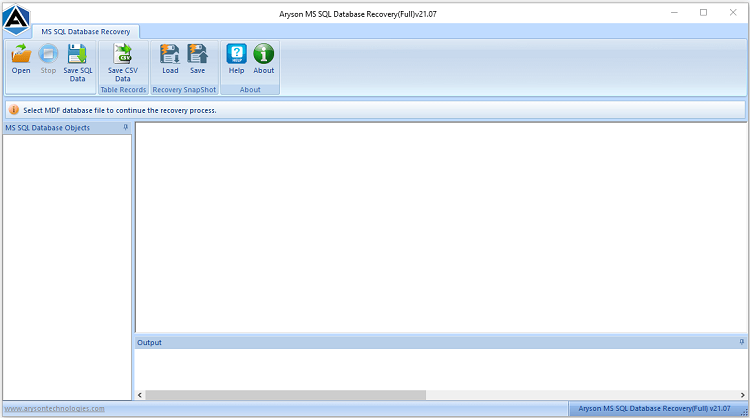
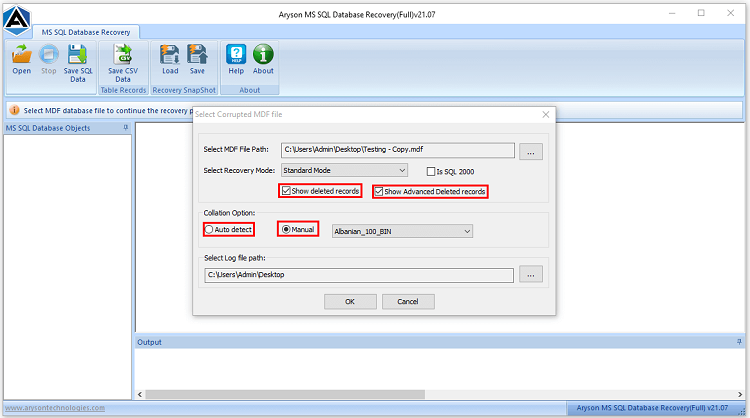
- Firstly, download & run the Aryson SQL Database Recovery Software on your system.
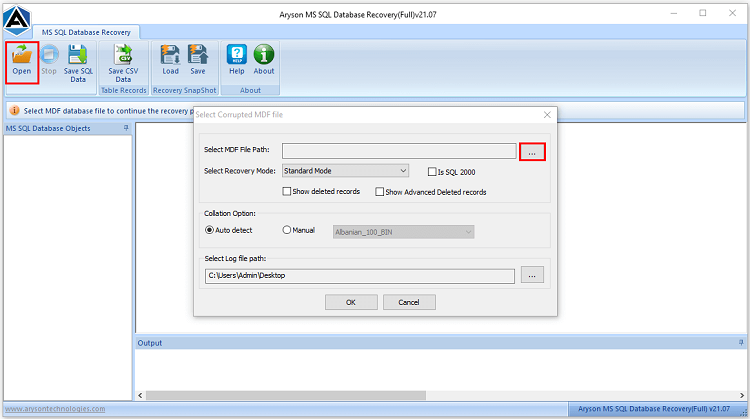
- After that, click Browse to find & select the corrupted MDF file from your system.
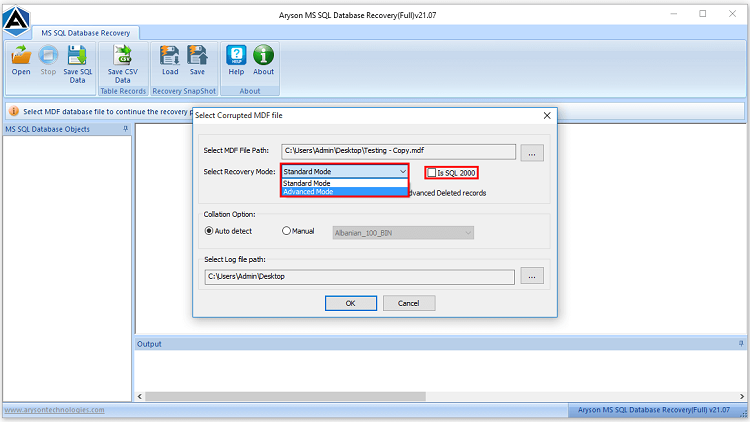
- Now, choose among the Quick Scan, Advanced Scan, or Deep Scan modes.
- Modify the required settings as per the requirement & click OK to begin the scanning.
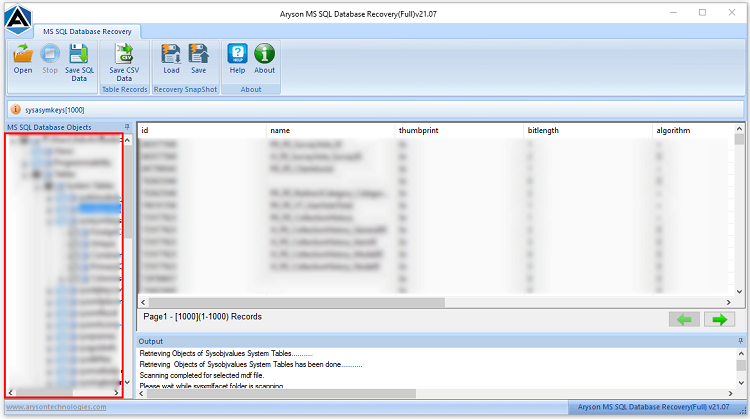
- Select the required MDF file objects & preview them after scanning.
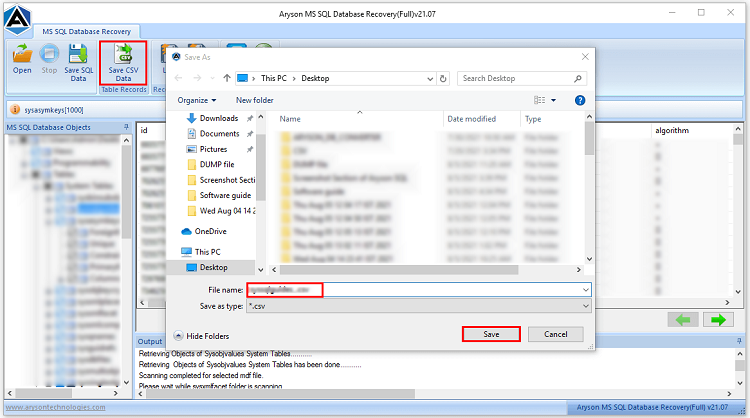
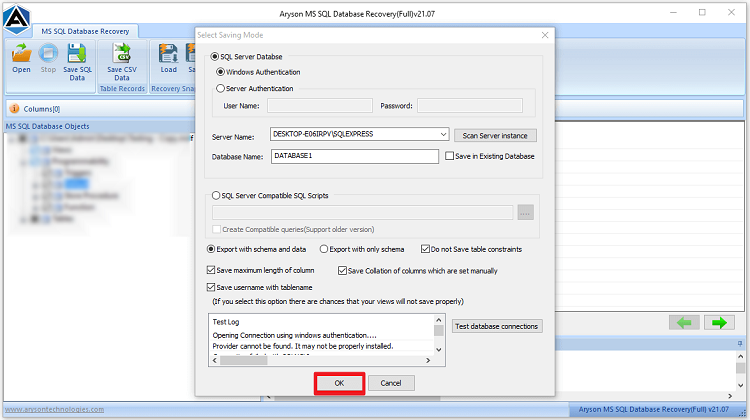
- Next, save the recovered data in SQL Server database, CSV, or script file format.
- At last, click OK & save the fully recovered database to your desired destination.
Key Capabilities that Put Aryson Ahead of Manual Repair
- It can recover severely corrupted MDF/NDF files that DBCC CHECKDB can’t fix.
- Moreover, it repairs tables, views, indexes, triggers, keys, & stored procedures.
- This software supports all SQL Server versions: 2008, 2012, 2014, 2016, 2019, & 2022.
- Furthermore, it can repair multiple files simultaneously in one session.
- This utility provides the user with a built-in object preview before saving the recovered data; verify data before committing to export.
- Also, it keeps the data intact when users recover a corrupt SQL Server database, and there is no data loss involved in the recovery process.
Conclusion
In this blog, we mainly discussed the causes, pre-migration checklist, and the most effective ways to recover a corrupt SQL Server database. While the manual methods were suitable for technical experts and Database administrators specifically, the automated software can be used by technical or non-technical users to achieve a secure and reliable recovery. Now, based on your role and requirements, pick any one of the three approaches and perform a successful recovery. Hope this write-up helped you. Reach out to the tech support team at Aryon for any software-related queries.
FAQs
Q1. What is a corrupt MDF file in SQL Server
Ans- An MDF file is the primary database file in SQL Server that stores all schema, tables, indexes, triggers, & stored procedures. Now, when this file gets corrupted due to hardware failure, sudden system shutdowns, or any disk error, the user becomes unable to access the entire SQL server database.
Q2. What is the best way to repair SQL Server database corruption?
Ans- Aryson SQL Database Recovery Software is the best way to repair SQL Server database corruption.
Q3. Can DBCC CHECKDB repair all types of MDF corruption?
Ans- No, the DBCC CHECKDB command can repair only the minor to moderate level of corruption using REPAIR_REBUILD or REPAIR_ALLOW_DATA_LOSS. However, to fix the severe corruption of MDF files, admins can use the Aryson SQL Recovery Software.
Q4. Will REPAIR_ALLOW_DATA_LOSS delete my data permanently?
Ans- Yes, it can. The REPAIR_ALLOW_DATA_LOSS command may deallocate rows or pages during the recovery. That deallocated data can sometimes become completely unrecoverable. Always try to REPAIR_REBUILD first & then use the Aryson SQL Recovery Software as a safer alternative before running REPAIR_ALLOW_DATA_LOSS.
Q5. Can I recover an MDF file without a backup in 2026?
Ans- Yes, in case there is no valid backup, you can use the Aryson SQL Database Recovery Software to scan & recover data directly from the corrupted MDF file. The software can efficiently recover all database objects without any requirement of any prior backup.
Q6. How long does MDF file recovery take with Aryson SQL Recovery?
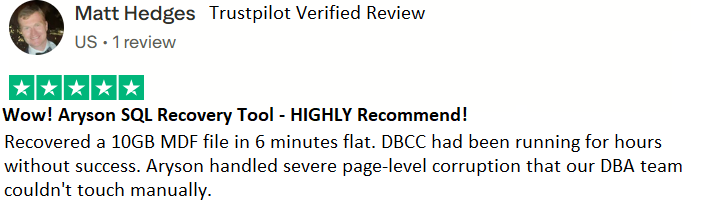
Ans- The time taken during the recovery process depends on the MDF file size & severity of corruption. Aryson SQL Recovery is optimized for speed, as it is verified by real users.
About The Author:

Rohan Wiese is a Technical Writer at Aryson Technologies. He is an expert Email Forensic, Cloud Computing, and a passionate nerd with over 10 years of experience in technical content writing. He writes about Cloud Migration, Database Recovery, Email Backup, Windows, Mac, and Tech.
Related Post



