-

Written By Rohan Wiese
-
Updated on June 26th, 2025
How to Password-Protect Your Outlook PST File Step-by-Step
Summary:-For Microsoft Outlook users, PST (Personal Storage Table) files are crucial for storing emails, contacts, and calendar data as a backup. Given that these files often contain sensitive personal and business information, securing them against unauthorized access is paramount. This guide will walk you through various methods to password-protect your Outlook PST file, from Outlook’s built-in options to advanced PST Password Tool, thereby significantly reducing the risk of data breaches and theft.
Why Password-Protect Your Outlook Email Data?
Adding password protection to your PST file creates an essential layer of security, ensuring that only authorized individuals can access your Outlook data. It is particularly vital if you share your computer or store confidential information within Outlook.
Here’s why securing your PST file with a password is essential:
- Prevents Unauthorized Access: Stops unapproved individuals from viewing your sensitive emails and attachments.
- Enhances Corporate Compliance: Helps organizations adhere to data security regulations.
- Reduces Risk of Data Misuse and Modification: Safeguards against intentional or accidental alteration or deletion of your valuable data.
How to Secure Your Outlook PST File with a Password
You can easily add a password to your PST file using Outlook’s built-in settings or by employing a specialized professional tool. Both methods help prevent unauthorized access to your Outlook data.
Manually Setting a Password for Your PST File in Outlook
Protecting your data with a password in Outlook is an excellent way to keep your private information safe. However, it’s crucial to remember your password. Forgetting it can lead to difficulties in accessing your file, potentially requiring a password recovery solution.
Follow these simple steps to apply a password to your Outlook PST file:
- Open Outlook.
- Go to File > Account Settings, and then click Account Settings again.
- In the Account Settings dialogue box, navigate to the Data Files tab.
- Select the Outlook Data File (.pst) for which you want to add a password.
- Click Settings… and then choose Change Password…
- In the Change Password dialogue box, leave the “Old password” field blank if you’re setting a password for the first time.
- Enter your New password and Verify your password.
- Click OK to apply the password.


How to Choose a Strong Password
Selecting a strong password is critical for securing your PST file. A weak password significantly increases the risk of unauthorized access to your emails and data.
Here are some practical suggestions for creating a robust Outlook PST password:
- Length: Your PST file password should be at least six characters long; however, longer is always better. Aim for 12-16 characters or more.
- Uniqueness: Avoid using personal information such as your name, username, birthdate, or common dictionary words.
- Complexity: A strong password includes a mix of the following:
- Lowercase letters (e.g., a, b, c)
- Uppercase letters (e.g., A, B, C)
- Numbers (e.g., 1, 2, 3)
- Special symbols (e.g., !, @, #, $, %, ^, &, *)
Using a combination of these elements makes your password significantly more challenging to guess or crack, thereby keeping your Outlook data secure.
Important Note: Outlook’s built-in password protection prevents access through Outlook but does not encrypt the entire PST file. If you forget the password, Microsoft cannot recover it for you. While Microsoft does not support manual recovery, third-party professional tools can often help regain access to lost data.
Best Method to Password-Protect Multiple PST Files
For users who need to manage passwords for multiple PST files or require a more robust solution, professional tools offer enhanced capabilities.
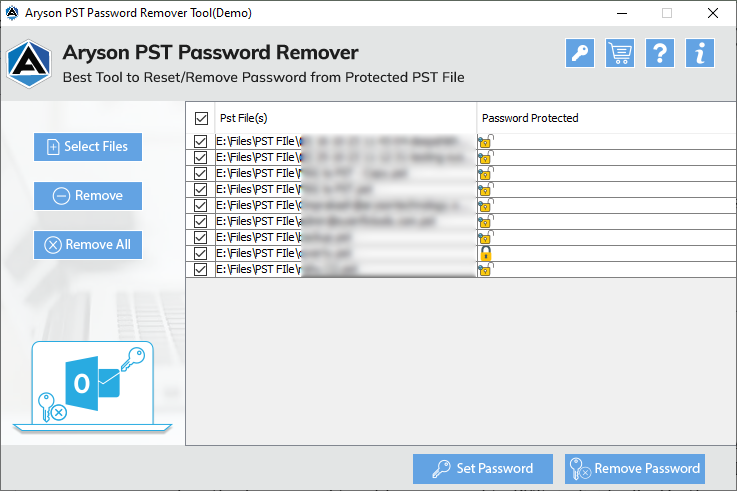
The Aryson PST Password Remover Tool is highlighted as a reliable software for both protecting and unprotecting PST files. Key features include:
- Bulk Processing: Allows you to add and password-protect multiple PST files simultaneously.
- Password Removal: It also facilitates removing passwords from already protected PST files.
- Compatibility: Supports applying passwords to both ANSI and UNICODE PST files and is compatible with all MS Outlook versions, including 2021, 2019, 2016, 2013, and earlier.
Follow these steps to protect your PST files using the Aryson PST Password Remover Software:
- Download and install the PST Password Remover Software on your system.
- Click the Select File button and choose the PST files you wish to secure.
- Once added to the wizard, review all files in the list.
- Click the Set Password button at the bottom of the interface.
- Enter the new password for the PST file(s) and confirm it. Click OK. (The password you enter will apply to all PST files in the list.)
- Finally, click Exit to complete the process.

Conclusion
Password protection for PST files is of high importance for securing your valuable Outlook data. While the manual method allows you to password-protect individual PST files, professional tools like the Aryson PST Password Remover Tool offer the convenience of protecting multiple PST files in bulk, providing a more efficient and comprehensive solution for data security.
Frequently Asked Questions:-
Q. How do I password-protect a PST file in Outlook?
Ans- To password-protect a PST file in Outlook, go to File > Account Settings > Data Files, select your PST file, click Settings > Change Password, and then set a new password. It helps prevent unauthorized access to your data through Outlook.
Q. Can I protect multiple PST files with one password?
Ans- Yes, while Outlook’s built-in feature applies to one file at a time, using professional tools like the Aryson PST Password Remover Tool allows you to apply the same password to multiple PST files simultaneously, saving time and ensuring consistent protection.
Q. What happens if I forget the password of a PST file?
Ans- If you forget your PST password, Outlook cannot recover it. However, you can use the Aryson PST Password Recovery Tool to reset the password and regain access to your Outlook data.
Q. Is Outlook PST file password protection secure enough?
Ans- Outlook’s built-in password protection limits access but does not encrypt your PST file. For stronger security, always use a complex password and consider professional tools for added protection or encryption features. Your password should include small letters, capital letters, numbers, and special symbols like @, #, or $.
About The Author:

Rohan Wiese is a Technical Writer at Aryson Technologies. He is an expert Email Forensic, Cloud Computing, and a passionate nerd with over 10 years of experience in technical content writing. He writes about Cloud Migration, Database Recovery, Email Backup, Windows, Mac, and Tech.
Related Post