-

Written By Rohan Wiese
-
Updated on July 10th, 2025
How to Import MSG Files (from Outlook) to Apple Mail? Best Solutions
Summary:- Are you looking for a simple way to import MSG to Apple Mail? Most Outlook users encounter the same compatibility issue on Mac platforms. With an increase in Mac users, it has become necessary to open MSG data files in Apple Mail. Users demand a safe and sound approach for smooth data migration. In this blog, we are offering simple, efficient steps to accomplish the conversion. We offer both manual steps and professional MSG Converter Software options. Follow this guide to convert MSG to Apple Mail smoothly and without hassle.
Why is Outlook MSG to Apple Mail Conversion Essential?
Not only do users want to back up their data, but they also want assurance. They want to personally ensure that their data is secure and usable without any inconvenience.
- If you’re confident that your emails, attachments, and data are preserved accurately.
- With Apple Mail, access and total control over mailbox data can be regained.
- By performing this conversion, you have the benefit of operating from a universally compatible file format.
- It offers uninterrupted access, meaning reduced downtime and increased focus on the task.
How to Import MSG to Apple Mail?
There are several verified and tested methods available, including the manual method and a professional converter tool. In the upcoming section, we will describe every method in detail.
Manual Method to Open MSG Files on Mac
Manually opening a MSG file in Apple Mail is impossible. Well, MSG is proprietary to Outlook and is not supported by Apple Mail. Still, users can follow a manual workaround to access MSG files in their preferred email client. However, if you do not have MSG saved on your local device, follow the steps below:
How to Extract MSG From Outlook?
- Start by opening MS Outlook (Classic) on their respective system.
- Next, go to the mailbox folder or label to access and choose the data.
- After selecting the data, simply drag and drop it on the desktop.
- This action saves your emails in MSG format.
Steps to Transfer MSG to Apple Mail Mac
- Open MSG files using the Microsoft Outlook application.
- Go to the File Menu and under the Info section, choose the Save As option.
- Next, provide the saving location and select the .txt or .html extension.
- Navigate to the saving location, select the data, and rename it to the .eml extension.
- Then, move the file from your Windows PC to your Mac.
- Once transferred, double-click it and select Apple Mail to open.
- Next, the MSG data is accessible in the Apple Mail application interface.
By completing all the described steps, you can import Outlook emails to Apple Mail.
Effortless Solution to Import MSG to Apple Mail
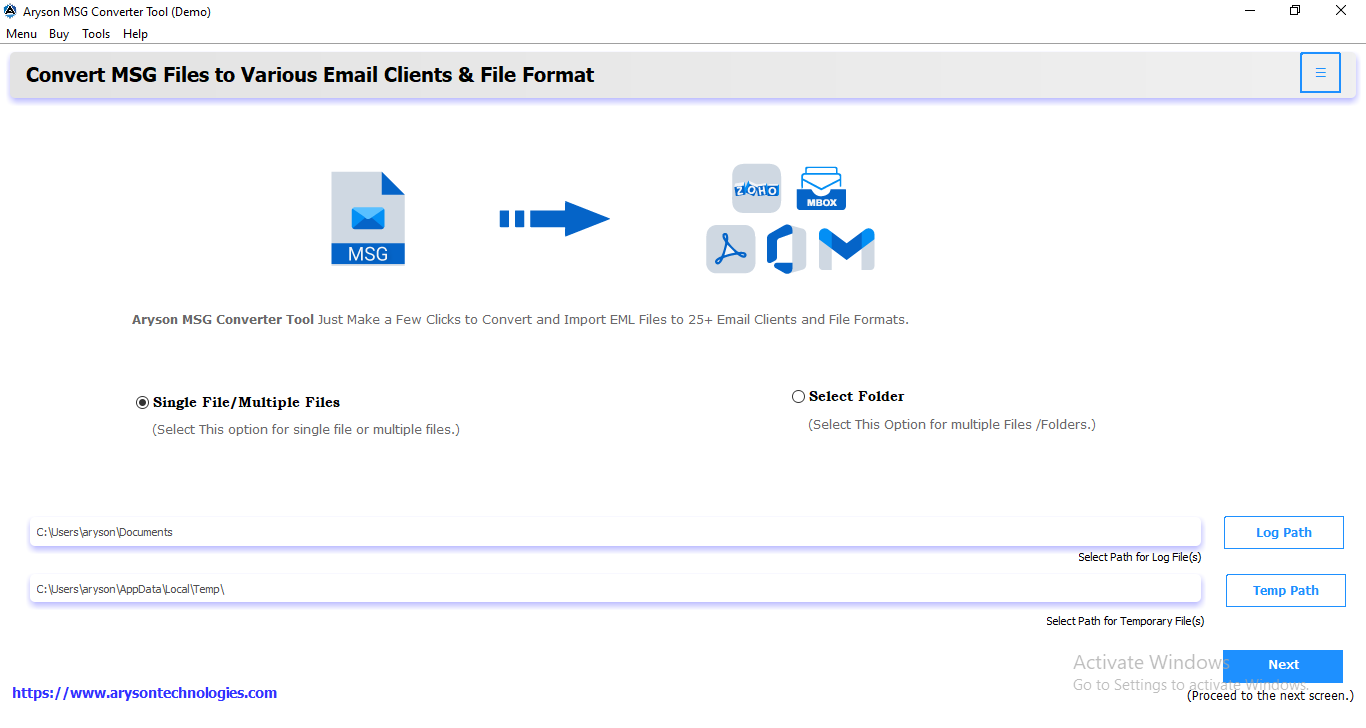
The Aryson MSG to MBOX Converter Tool facilitates an easy procedure for users. With just a few clicks, you can transform MSG to Apple Mail and retain all attachments, metadata, and folders. As Apple Mail supports MBOX files to import data, this tool facilitates quick conversion from MSG to MBOX. Further, one can easily import MBOX to Apple Mail.
The tool is easy to use for all kinds of users and provides seamless conversion, saving your time and effort. Moreover, the tool can also convert MSG data into PDF, PST, EMLX, HTML, and many more file formats.
Steps to Convert MSG to MBOX Apple Mail
- Start by opening the MSG Converter Tool on your machine.
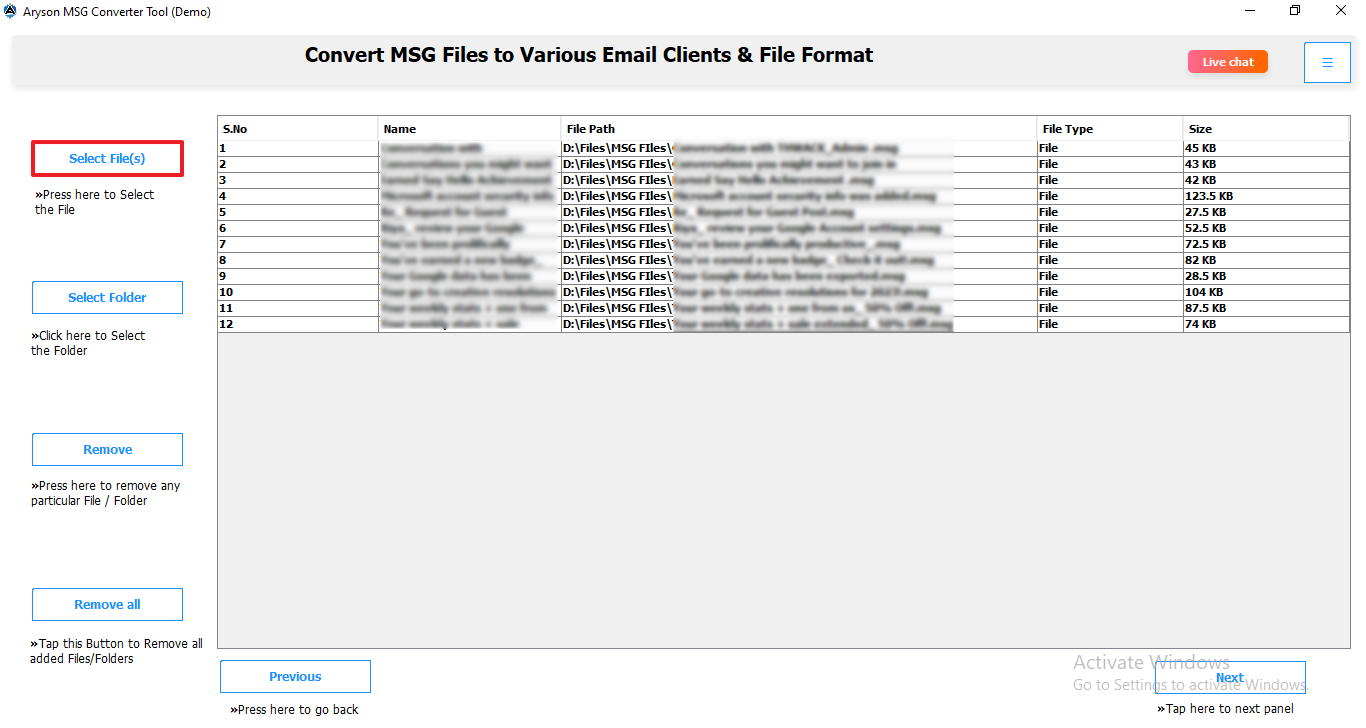
- Next, use the Select File or Select Folder option to add your MSG files.
- After that, preview the content/mailbox and choose the specific data.
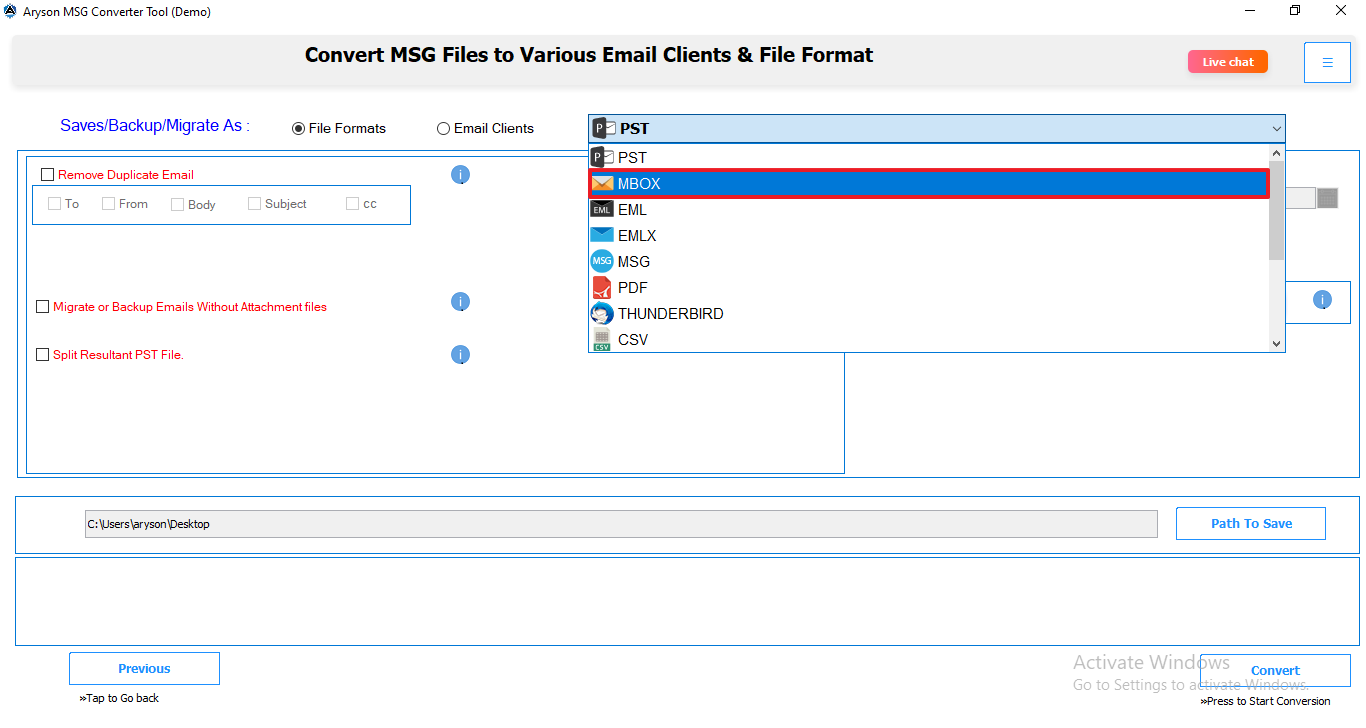
- Under the Save/Migrate/Backup As option, select the File Format option.
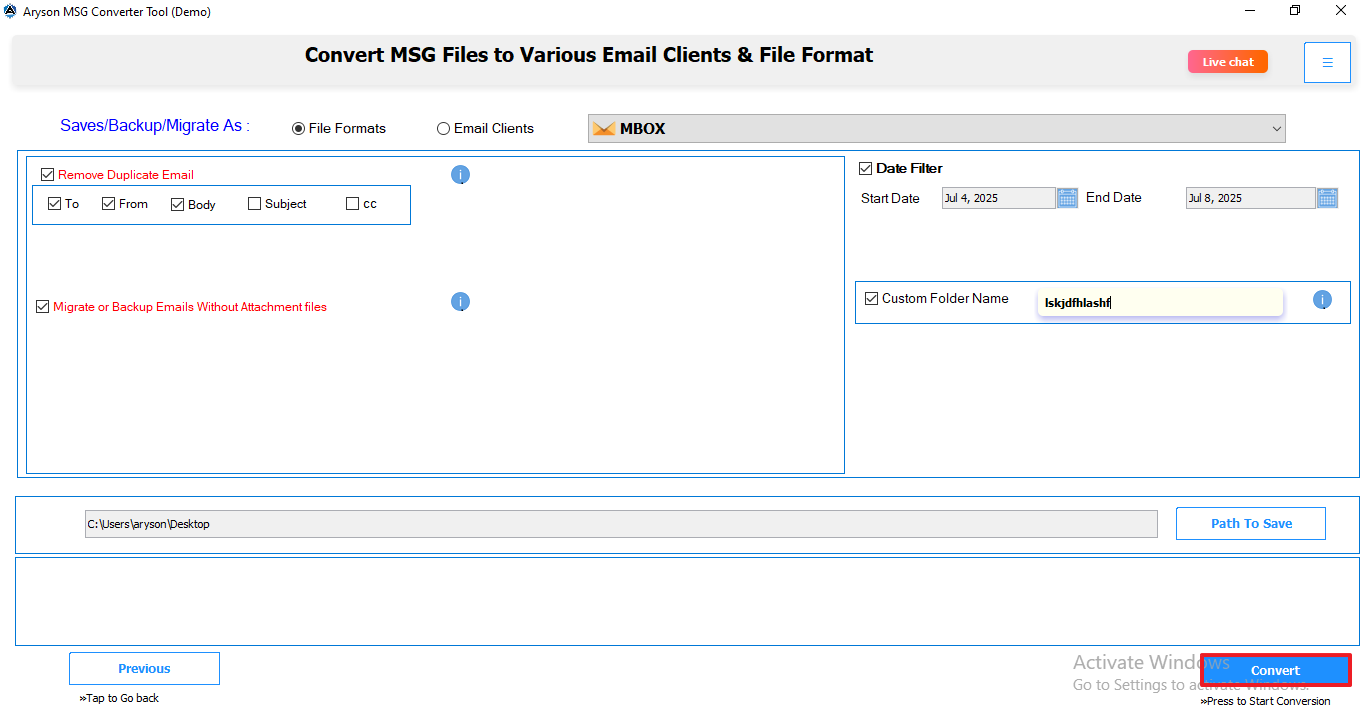
- Choose MBOX from the list of formats available and apply the relevant filters if needed.
- In the end, click on the Convert button to initiate MSG to MBOX Conversion.
Conclusion
Converting your data into new email clients is essential while ensuring data security and data privacy. To help with this, we’ve shared several effective methods to import MSG to Apple Mail. However, the manual method is cost-effective, but it comes with several limitations. To mitigate and eliminate these limitations, professionals recommend using the Aryson MSG Converter tool. The dedicated tool ensures a complete and easy migration with its advanced functionalities.
Frequently Asked Questions
Q: Why can’t I directly open MSG files in Apple Mail?
Ans: Apple Mail cannot open MSG files directly because it uses a different format and handles metadata differently. Moreover, it has a different metadata handling process that makes MSG files incompatible with Apple Mail. Due to these limitations, you can not directly open Windows Outlook MSG to Apple Mail.
Q: What is the free method to import MSG to Apple Mail?
Ans: This blog explains a free manual approach to carry out the conversion. However, it’s not the best option for MSG to Apple Mail batch import. However, if you have a small amount of data, you can also use the Aryson MSG Converter Tool. It offers you the option to convert limited data using the demo version, which is free. For the conversion of MSG on a large scale, purchase the premium tool.
About The Author:

Rohan Wiese is a Technical Writer at Aryson Technologies. He is an expert Email Forensic, Cloud Computing, and a passionate nerd with over 10 years of experience in technical content writing. He writes about Cloud Migration, Database Recovery, Email Backup, Windows, Mac, and Tech.
Related Post