-

Written By Rohan Wiese
-
Updated on September 16th, 2025
How to Import Multiple MSG Files into Microsoft 365 Easily
If you have several MSG files stored on your computer and want to access them in Microsoft 365, then continue with this write-up. Basically, MSG files are individual Outlook email messages, and handling them one by one is not practical when you have hundreds or even thousands of emails. To make things easier, this technical blog explains both manual and automated methods. By the end, you’ll know the best ways, including Aryson MSG Converter, to import multiple MSG files into Microsoft 365 quickly and without data loss.
Some Major Key Reasons to Import MSG files to Microsoft 365
If you still keep your emails as MSG files on your computer, you will face some major issues. You have limited access and storage issues with the MSG file. Hence, most of the users prefer Microsoft 365 for data safety:
- Microsoft 365 lets you open your emails anytime and on any device with internet.
- Second, it makes email management easier by keeping everything in one place.
- Also, it improves teamwork because you can share emails quickly with others.
- Next, Microsoft 365 keeps your data more secure with advanced protection features.
- Moreover, it gives you enough storage and backup options so your emails always stay safe.
- Along with that, it has strong search tools that help you find emails or attachments faster.
Well, we are not discussing much more about the reasons. In short, I can say that when you import MSG to Outlook 365, it will be a quite secure alternative. As an outcome, the user can share their data whenever they need to fetch them.
Top Solutions to Import MSG Files to Office 365
When it comes to methods to migrate MSG files to Microsoft 365, there are some of effective ways that you can follow to accomplish the task. You can either go with the manual method using Outlook or proceed with the Aryson MSG to Office 365 Migration Tool to migrate data safely.
Solution 01: Manual Solution to Import MSG to Outlook 365
If you already have Outlook installed and configured, you can use it to move MSG files into Office 365. This method is free but works best when you only have a few files to import.
- Open Microsoft Outlook on your computer.
- Go to the folder where your MSG files are saved.
- Drag and drop the MSG files into any folder inside Outlook.
- Now, add and configure your Office 365 account in Outlook.
- Once added, move the imported MSG emails from Outlook folders into your Office 365 mailbox.
Drawbacks Associated with the Manual Solutions
However, manual methods can be used to import MSG files into Microsoft 365. However, they have some limitations that can make the process slow and difficult. Here are the main drawbacks associated with the manual method:
- When you move emails one by one or through PST files, it takes a lot of time.
- Emails or attachments may get lost or damaged during the manual process.
- It creates PST files and imports them into Microsoft 365 with deep technical knowledge.
- Moreover, manual methods cannot handle a large number of MSG files efficiently.
- The original organization of folders may not stay the same in the output folder.
- Also, it might skip, duplicate, or replace in the wrong folder by accident.
Because of these issues, manual methods are not appropriate for large-scale migrations. That’s why most users prefer an automated MSG to the Microsoft 365 import tool, which is safe and easy to use.
Solution 02: Professional Solution to Import MSG files to Office 365 Directly
The Aryson MSG Converter is a top-notch solution to import MSG files into Office 365 efficiently. It enables direct migration of multiple MSG emails to Microsoft 365. Users do not have to worry about data preservation. It keeps all attachments, email properties, and folder structures as it was. This software easily handles a large set of MSG emails. Also, it provides various filter options to opne MSG file without Outlook and migrate into Microsoft 365. Individual with minor technical knowledge can also navigate to the software with ease. Additionally, it is compatible with all versions of Office 365 along with Windows OS. Go through the given steps to accomplish the import process within a few clicks.
Simplified Steps to Bulk Import MSG to Office 365
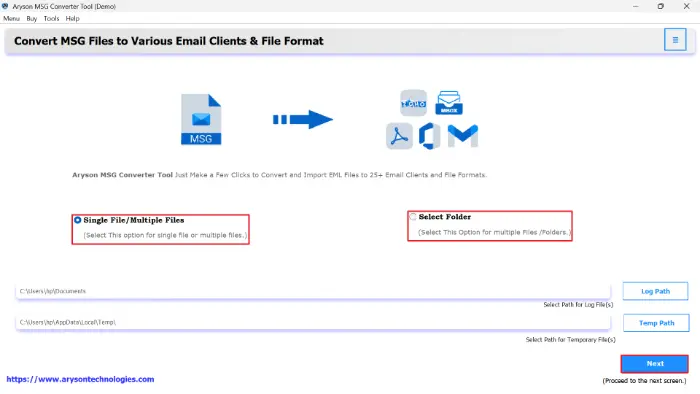
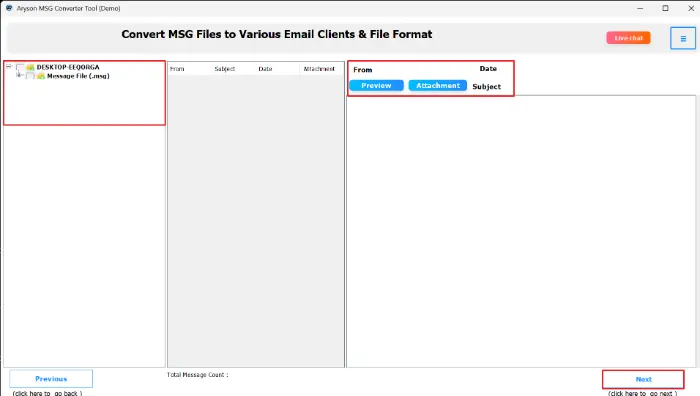
- Simply, open Aryson MSG Converter to access its user-friendly interface.
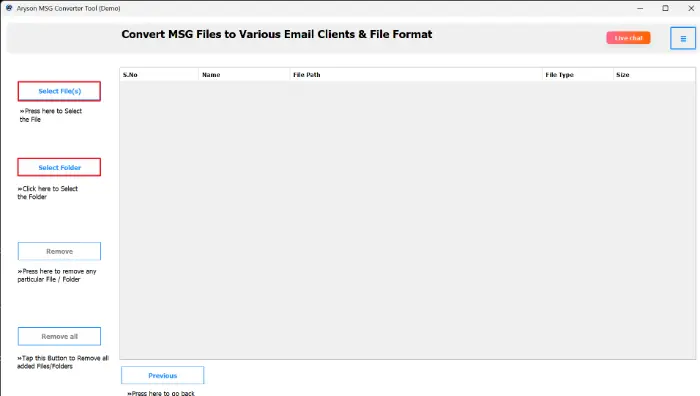
- Click Select Files to select individual MSG emails or click Select Folder.
- Check the emails and attachments before migration to ensure accuracy.
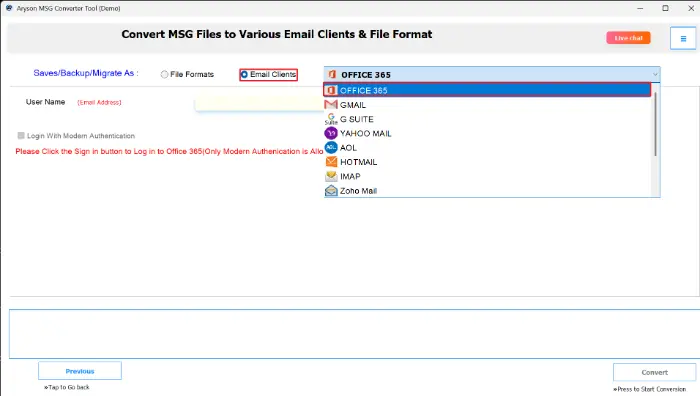
- Choose Office 365 / Microsoft 365 as the target location for migration.
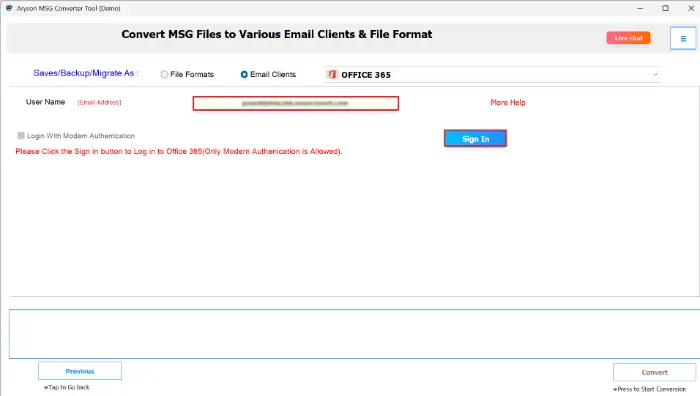
- Now, provide your Microsoft 365 login details securely for authentication.
- Use filters accordingly and click the Convert Button to import MSG files.
Important Note: If you want to keep the MSG file for documentation purposes, then you can directly convert MSG to PDF with this solution.
Conclusion
We explored the two most efficient ways to import MSG files to Office 365. Just keep in mind that Drag-and-drop or PST upload often takes too much time and may cause data loss or disrupt folder structures. In that case, data preservation is the main concern. So it is recommended to use the automated solution, which provides you with an accurate result and proper formatting. If you want to try the software first, then simply download the demo version of this utility and import MSG to Outlook 365 for free.
Frequently Asked Questions
Q1. Can I import MSG files to Office 365 without Outlook?
Ans: Yes, using Aryson MSG Converter, you can directly import MSG files into Office 365 even without Outlook.
Q2. Will attachments be preserved during migration?
Ans: Absolutely. The tool ensures all attachments, email properties, and metadata are preserved during the import process.
Q3. Can I import multiple MSG files at once?
Ans: Yes, Aryson MSG Converter supports bulk migration. So, you can import hundreds or thousands of MSG files in one go.
Q4. Is the original folder structure maintained after import?
Ans: Yes, the Aryson MSG Converter preserves the original folder hierarchy, so emails remain organized in Office 365.
Q5. Can I filter emails for selective migration?
Ans: Yes, you can filter emails by date, folder, or category to import only the specific emails you need. As a result, you will get only what you need.
About The Author:

Rohan Wiese is a Technical Writer at Aryson Technologies. He is an expert Email Forensic, Cloud Computing, and a passionate nerd with over 10 years of experience in technical content writing. He writes about Cloud Migration, Database Recovery, Email Backup, Windows, Mac, and Tech.
Related Post