-

Written By Rohan Wiese
-
Updated on March 18th, 2026
How to Find and Delete Duplicate Photos in OneDrive? Full Guides
OneDrive has become one of the most reliable cloud storage platforms among users. So, you can upload, sync, and access photos and files across devices with ease. With time, users often find that their OneDrive photo library is filled with duplicate images. In many cases, duplicate images show up due to multiple uploads, OneDrive sync problems, or device-to-cloud backups.
If duplicate photos occupy space in your OneDrive, you may want an easy way to find and delete duplicate photos in OneDrive. The process is not that difficult. Use the manual process or Aryson OneDrive Duplicate Remover to delete duplicates and free up storage space. Continue with this complete blog to keep your photo library well-organized.
Why You Should Remove Duplicate Photos from OneDrive
Before we go into the methods, it is important to know why it is necessary for users to delete duplicate photos:
- Duplicate photos take up extra space in OneDrive. Since free storage is only 5GB, too many copies can quickly fill it up and may even make you buy more storage.
- A photo library with many copies is hard to manage. So, it’s better to remove them so that it becomes easy to find and delete duplicate photos in OneDrive.
- When there are fewer files, your OneDrive account can sync and back up your photos at fast speed.
- As you know, Duplicate files often look the same and have similar names. As a result, it becomes difficult to know which one is the original.
If you delete the duplicate photos on regular basis, you can save space and get speed syncing process. Also, it can keep your OneDrive neat and organized.
Ways to Find and Delete Duplicate Photos in OneDrive
There are different methods you can use to remove duplicate photos from OneDrive. Some are manual, while others involve built-in features or special tools. Let’s look at the main options step by step.
Method to Find and Delete Duplicate Photos in OneDrive Manually
If someone does not want to depend on any software, then they can manually check and delete duplicate photos in OneDrive. This method is simple for the user with technical expertise. Also, you should have enough time, as it cannot delete files in bulk.
- Log in to OneDrive using your browser or the desktop app.
- Go to the folder where your photos are stored (for example, Pictures).
- Sort files by name, size, or date so that similar images appear next to each other.
- Now, you should look carefully at the photos and identify the duplicate photos.
- Select the duplicate files and click on the Delete option.
- Finally, check the Recycle Bin in OneDrive to delete OneDrive duplicate photos.
- As an outcome, it will permanently remove them and free up space.
Security Note: Deletion is not always the appropriate solution. So you should keep a backup of OneDrive to External Drive. This step will be helpful when you perform an unwanted deletion process.
Drawbacks Associated With the Manual Solution
The manual method can remove duplicate photos, but it has many downsides. For people with large photo collections, this option is often not practical. Here are the main drawbacks from which you should be aware of:
- Takes too long: When you check thousands of photos by hand, it is tiring and slow.
- Chances of mistakes: There is a chance that you might delete the original photo instead of the duplicate.
- Not very accurate: This method only works if file names or sizes match. So, it cannot find duplicate photos with different names.
- Hard to manage: If you have years of photo backups in OneDrive, doing it manually becomes almost impossible.
This is why it makes sense to look at other options that save time and reduce errors. Next, we will introduce you to the most used software, which will be helpful to delete duplicate photos in OneDrive.
Best Alternative: Direct Approach to Find and Delete Duplicate Photos in OneDrive
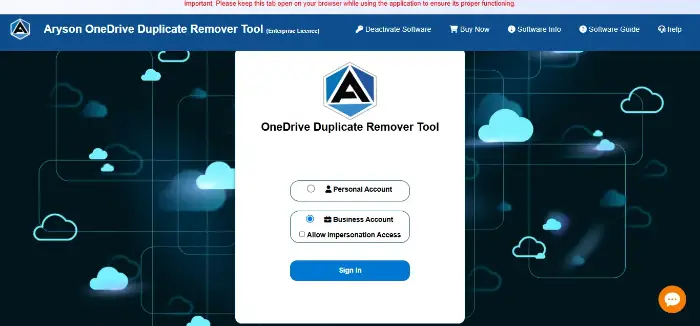
To reduce the user issues related to data privacy, we are here with the Aryson OneDrive Duplicate Remover. This software built trust among users with its incredible features. Download this software to easily scan OneDrive to find and delete duplicate files. You do not have to worry about the time, as it supports bulk processing at a time. If you have multiple admin accounts, then simply use the Assign impression feature of the software. To cross-verify the data before the deletion process, you will get the preview panel. So that any single data cannot be misplaced or deleted. Also, you will get the list of folders with duplicate files, so users can pick and clean only the ones they want. Just follow the given steps and get your OneDrive account with important files only.
Simple and Quick Steps to Find and Delete Duplicate Photos in OneDrive:-
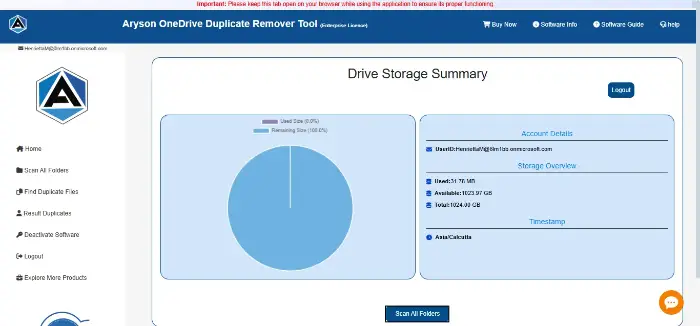
- Simply, download and open the Aryson OneDrive Duplicate Remover Tool on your PC.
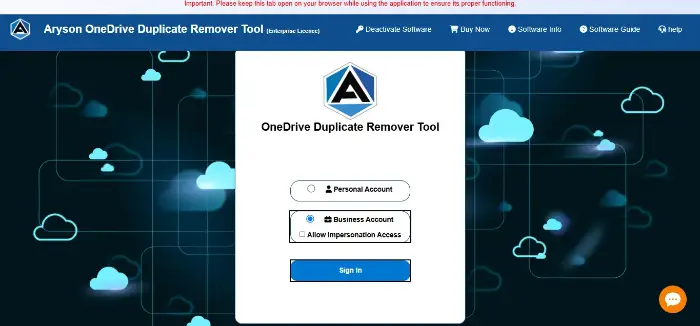
- Log in with your Personal account or Business account according to your preference.
- Now, you can scan the folders associated with your OneDrive account and move them.
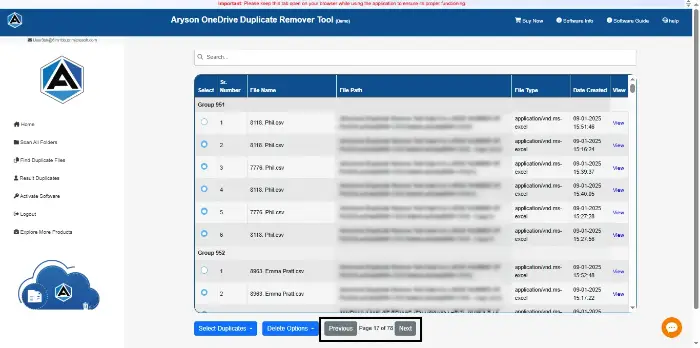
- After scanning, you can view them and check details like file name, size, date, and folder location.
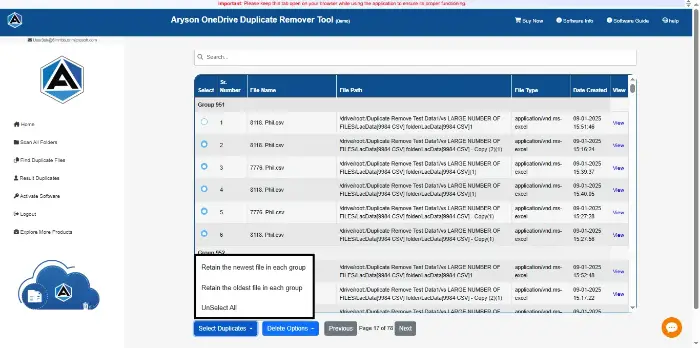
- Now, you can select the duplicate photos from your OneDrive account according to the given option.
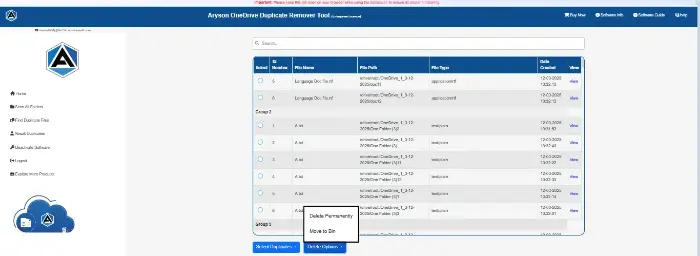
- Click on the Delete option to move them into the bin or delete them permanently from your OneDrive account.
Conclusion
Now, it’s up to you which way you prefer to find and delete duplicate Photos in OneDrive. OneDrive account is full of important data, so choose wisely. As a simple overview, we keep in mind that the manual procedure can be the cause of several things. Hence, many of you prefer the automated solution to remove duplicate photos from OneDrive. If you think that’s how it works, just download the demo version of the software. For more updates, you can frequently connect with us. So that we can guide you further and make your data management smooth.
Frequently Asked Questions
Q1. Can OneDrive automatically delete duplicate photos?
Ans: No, OneDrive does not have an inbuilt feature to detect or remove duplicates. You need to do it manually. For a direct solution, you can use the Aryson OneDrive Duplicate Remover.
Q2. What is the fastest way to remove duplicate photos in OneDrive?
Ans: The fastest method is to use Aryson OneDrive Duplicate Remover, which scans your account and deletes copies in bulk.
Q3. Why do duplicate photos appear in OneDrive?
Ans: They usually appear because of multiple uploads, syncing the same folder from different devices, or accidental re-uploads.
Q4. How much space can I save by removing duplicates?
Ans: It depends on the size of your photo library. Many users have reported saving several GBs of storage after removing duplicates.
About The Author:

Rohan Wiese is a Technical Writer at Aryson Technologies. He is an expert Email Forensic, Cloud Computing, and a passionate nerd with over 10 years of experience in technical content writing. He writes about Cloud Migration, Database Recovery, Email Backup, Windows, Mac, and Tech.
Related Post