-

Written By Rohan Wiese
-
Updated on June 26th, 2025
How to Extracting Specific Emails From OLM Files Easily
Summary:-Extracting specific emails from your mailbox can be straightforward when your email client is active. However, the process becomes more challenging when dealing with orphaned OLM files (Outlook for Mac Data Files) that are no longer connected to a live Outlook profile. This guide will walk you through various methods to extract emails from OLM files, focusing on how to retrieve the data you need selectively. We’ll cover both manual techniques and introduce the efficient Aryson OLM Email Extractor Tool for more comprehensive extraction.
Why Extract Particular Emails from Outlook for Mac (OLM Files)?
There are several compelling reasons to extract emails from an OLM file:
- Data Backup: Create a copy of important email correspondence and contacts to protect against data loss due to system failures or accidental deletions.
- Migration: When transitioning from Mac Outlook to another email client or platform, such as Microsoft Outlook for Windows, Thunderbird, or webmail services.
- Data Recovery: If your original Mac Outlook profile becomes inaccessible or corrupted, extracting emails from the OLM file helps recover valuable communication and contact information.
- Information Gathering: Collect specific email addresses for newsletters, marketing campaigns, or maintaining communication with team members.
Effective Methods to Selectively Extract Emails from OLM Files
This section provides top solutions for the selective extraction of emails from Outlook Mac OLM files. We’ll begin with free manual methods, followed by a discussion of professional software for bulk and more precise processing without data loss.
Method 1: Export Specific Emails from Outlook for Mac (Using Export Option)
This method requires Microsoft Outlook for Mac to be installed on your device, with the OLM file already imported into it.
- First, open Outlook for Mac on your Mac device.
- Then, navigate to File and choose Export.
- Now, select Choose Mail, then click Continue.
- At last, provide a saving location and hit Save.
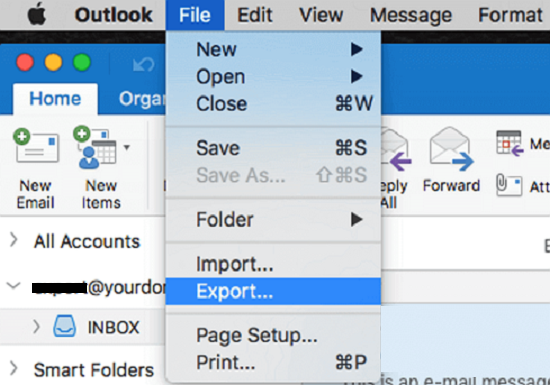
Note: By default, this process exports the entire Mac Outlook mailbox. To export specific emails, follow the steps below.
Steps to Export Specific Emails from OLM:
- Navigate to the Search Bar at the top right of the Outlook application.
- Apply the following filters:
- from: john@example.com
- subject: invoice
- Received: last week
- Then, select all the output results after applying the above filters.
- Now, go to File, then choose Export.
- Then, pick Selected Items to export only selected emails.
It allows you to extract precisely the data you need, saving time and storage space.
Method 2: Selective OLM Email Items Extraction Using Print/Copy
You can also save specific emails in a few different ways:
Save OLM Emails to a PDF File:
- Start by opening the specific email.
- Go to File, then choose Print,
- After that, click PDF and pick Save as PDF.
- Provide a Name for the file and specify a saving location.
Alternative: Use Copy and Paste Technique:
- Open the email that you want to extract.
- Then, select and copy the content of that email.
- Now, paste it into Notes, Word, or TextEdit to view and use the data.
Method 3: Extract Individual Emails from OLM File as .EML or.MBOX Files
Here are two ways to save OLM emails to .eml and .mbox formats:
Save Single Emails as .EML File:
- Start by launching Outlook for Mac on your Mac OS.
- Drag them to your desktop or a folder.
- They will save the email as a .eml file.
For converting multiple OLM files to EML, consider using an OLM to EML Converter software.
Convert a Folder of Emails into an .mbox File:
- First, create a new folder in Outlook for Mac.
- Then, transfer all desired emails to the folder.
- After that, navigate to File, then press the Export option.
- Then, pick Export Items in this Folder.
- It saves emails as .olm. After that, import the file into Apple Mail or Thunderbird.
- Then, Export from there as .mbox.
For quicker results and bulk conversion to MBOX, an OLM to MBOX Converter Tool is highly recommended.
Method 4: Utilizing Apple Mail for Selective OLM Email Extraction
If you need to use your OLM emails in Apple Mail, follow this procedure:
- First, convert OLM to MBOX, as mentioned in the earlier procedure.
- Then, launch Apple Mail on your Mac device.
- Navigate to File, then select Import Mailboxes.
- Then, pick Apple Mail or MBOX.
- Browse and import the MBOX file.
Once successfully imported into Apple Mail, you can:
- Search specific emails
- Export selected messages as .eml
- Forward or manage emails as per your needs.
Method 5: Forward Specific Emails from Outlook for Mac
This method is most suitable when you need to extract a limited number of emails from an OLM file.
- Find and open the Email in the Outlook for Mac application.
- Now, click on the Forward option.
- Then, send the emails to your other email, like Outlook on Windows or Gmail.
- Open it there and save it in your preferred format.
Limitations of Manual Methods:
While the manual methods listed above offer free ways to extract emails from OLM files, they come with certain limitations:
- Time-Consuming: Extracting emails one by one or in small batches can be very time-consuming, especially for a large number of emails.
- Lack of Bulk Options: Most manual methods do not allow you to select and export specific emails in bulk efficiently.
- Limited Data Extraction: You may not be able to precisely extract only email addresses or other essential data like attachments independently.
- Format Restrictions: Outlook for Mac’s export options are limited to .eml, .olm, and .mbox. It lacks direct support for other widely used formats like PST or PDF for bulk extraction.
- Risk of Errors: Manual processes increase the risk of formatting loss, data corruption, or human error during repeated steps.
- Active Outlook Requirement: Many manual methods require an active Outlook for Mac installation and the ability to import the OLM file, which might not be feasible for orphaned files.
Method 6: Extract Emails from the OLM File with an Automated Tool
For those who value thoroughness and security in their data extraction process, the Aryson OLM Converter Tool is an excellent choice. This professional software allows users to extract emails and save them in various formats, including PST, PDF, CSV, EML, MBOX, and more. Importantly, it ensures that no data is lost during the extraction process, providing a sense of security and peace of mind.
Benefits & Features of Aryson OLM Converter Tool:
- It can convert your OLM file into PST format to use it in Outlook for Windows.
- Moreover, it enables users to bulk extract emails without having to choose manually.
- The tool also allows you to pick and convert only specific folders from your OLM file.
- This tool supports the conversion of even oversized Mac Outlook OLM files.
Steps to Extract Specific Emails from OLM File Using Aryson OLM Converter:
- Open the Aryson OLM Converter Tool on your device.
- Press the Select File and locate the OLM file. Click Next.
- Choose the mailbox folder from the tree hierarchy.
- Preview the email data. Then press Next.
- Then, pick the saving format of your choice from the drop-down list.
- Here, specify the additional features of the software.
- To save extracted emails locally, specify the saving path.
- At last, hit the Convert tab to begin the OLM conversion.
Final Words
We hope this blog has provided you with valuable insights into extracting specific emails from OLM files. While various manual methods exist, they often come with significant limitations, especially when dealing with bulk extraction or orphaned files. The professional Aryson OLM Converter Tool offers a robust and efficient solution to overcome these challenges, providing precise extraction into multiple formats without data loss. You can even try the demo version of the software to convert up to 50 items per folder to assess its capabilities.
Frequently Asked Questions:-
Q1. How do I extract specific emails from an OLM file on Windows?
Ans: To extract specific emails from an OLM file on Windows, you will need to use a dedicated tool like the Aryson OLM Converter. Simply add your OLM file, preview the mailbox data, select the desired emails or folders, and export them to a compatible format like PST for Outlook on Windows. It ensures precise extraction without data loss.
Q2. Can I convert only selected emails from OLM to PST?
Ans: Yes, you can convert selected emails from an OLM file to PST format using professional OLM Conversion software like Aryson OLM Converter. These tools allow you to preview and choose specific emails or folders before initiating the conversion, enabling targeted data migration to Outlook PST.
Q3. Is there a free way to extract individual emails from an OLM file?
Ans: Yes, there are free manual ways to extract individual emails from an OLM file. If you have Outlook for Mac installed and the OLM file imported, you can manually export specific emails by using the search filters and then exporting selected items. Alternatively, you can open individual emails and save them as PDF files or copy-paste their content. However, these methods are not suitable for bulk extraction.
About The Author:

Rohan Wiese is a Technical Writer at Aryson Technologies. He is an expert Email Forensic, Cloud Computing, and a passionate nerd with over 10 years of experience in technical content writing. He writes about Cloud Migration, Database Recovery, Email Backup, Windows, Mac, and Tech.
Related Post



