-

Written By Rohan Wiese
-
Updated on July 4th, 2025
Export Outlook Calendar to ICS Using 2 Different Methods
Summary:- Sometimes we need to use our Outlook calendar on another device or with a different app like Google Calendar or Apple Calendar. Or maybe we just want to keep a backup of all our events. In these cases, saving the calendar as an ICS file is very helpful. ICS is a common file format that works with most calendar apps. So it’s easy to share or move your calendar. But the process isn’t always the same. Outlook has different steps depending on whether you’re using the Classic version, the New Outlook, or the Web version. That’s why many people prefer to fast and simple Aryson PST Converter Tool to export Outlook calendar to ICS.
Reasons to Save Outlook Calendar in ICS Format
Let’s take a moment to understand why users often prefer the ICS format for calendar exports.
- ICS files work with almost all calendar platforms Google Calendar, Apple Calendar, Thunderbird, and more.
- You can easily email the ICS file or upload it for others to view and add to their calendars.
- Once exported, you can view your calendar even without an internet connection.
- Saving your calendar in ICS format gives you a secure backup of important meetings and reminders.
- Also, you can open and import ICS files on desktops, tablets, and smartphones. There are no platform restrictions.
With these reasons in mind, let’s check out the best ways to save your Outlook calendar as an ICS file.
How to Export Outlook Calendar to ICS
Whether you’re looking for a quick solution or prefer to do it manually, there’s a method for everyone. We’ll start with the easiest automated approach and then move on to the manual steps based on your Outlook version.
Method 01: Best Automated Method to Save Outlook Calendar as ICS File
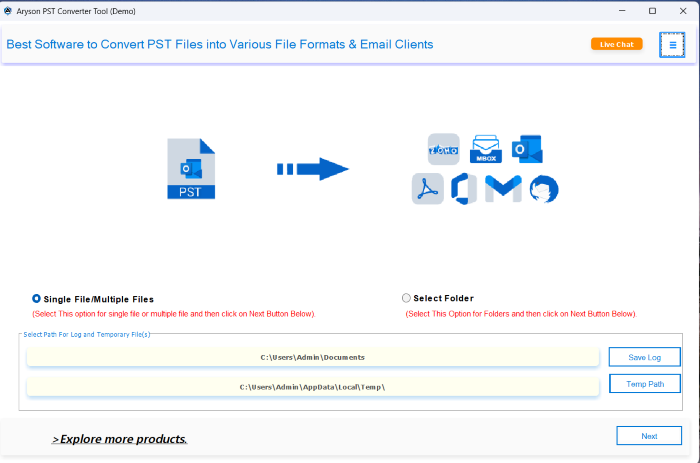
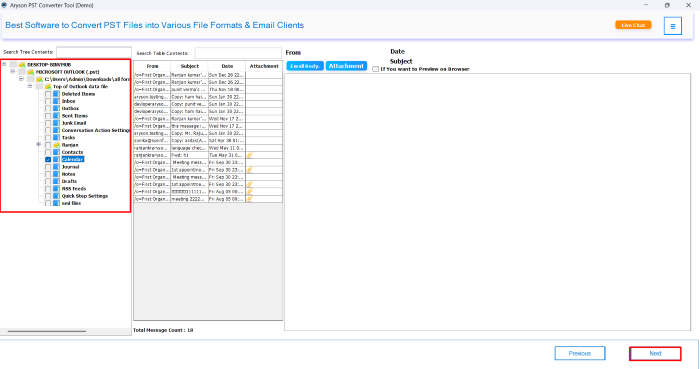
Aryson PST Converter Tool is a quick and effective solution to export your Outlook calendar to ICS format. It helps you extract calendar data directly from PST files without opening Outlook. You just need to add the PST file, select the calendar folder, choose ICS as the output format, and start the process. All your event details, like title, date, time, and location, are safely preserved. Additionally, it works with all Outlook versions and gives you a reliable way to move your calendar to apps like Google or Apple Calendar in just a few clicks.
Follow the Given Steps to Export Outlook Calendar to ICS Format:
- Download and install the Aryson Outlook PST Converter Tool on your system.
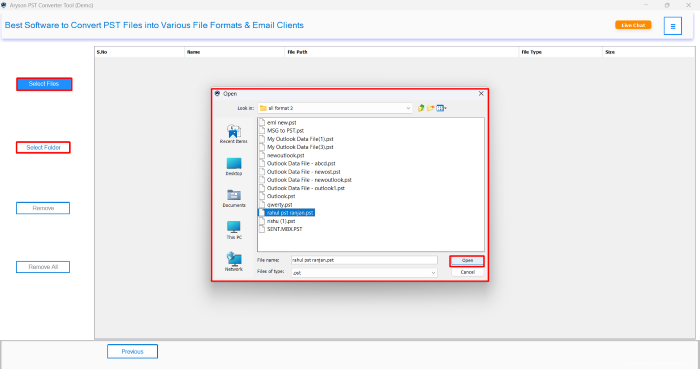
- Click on the Select File button to browse and click Open upload your PST file.
- Once the file is added, select the Calendar folder from the preview panel.
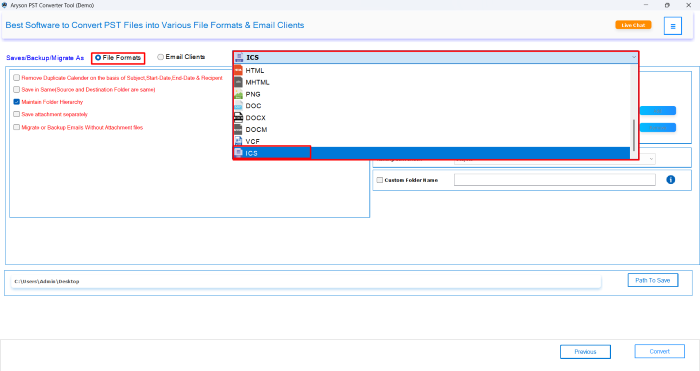
- Then, choose ICS as the export format from the list of available options.
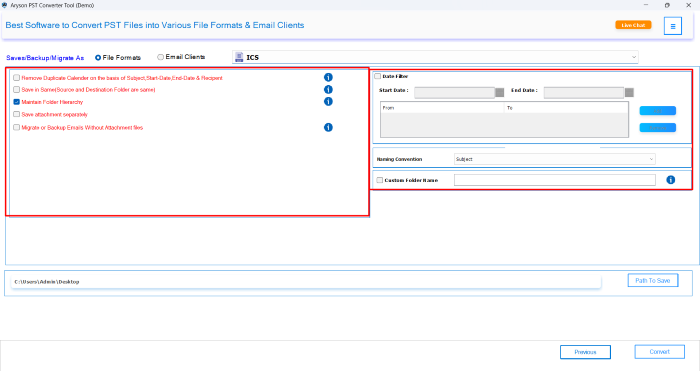
- From the advanced filters of this utility, pick according to your requirement.
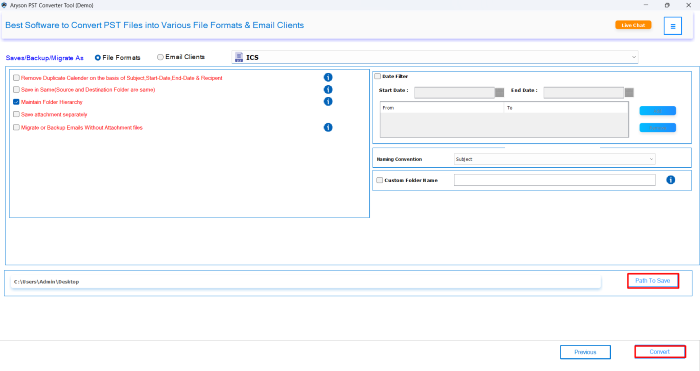
- Select the destination path and click the Convert button to begin the process.
Additional tips: With the help of the same utility, you can also export Outlook Contacts to vCard (VCF) within a few clicks.
Note: The automated method is faster and more convenient, but Outlook also provides built-in options for users who prefer to do it manually. Just keep in mind that the manual steps may vary depending on your Outlook version and could take more time and effort. Still, if you’re comfortable navigating Outlook settings, these methods can help you export your calendar without using any external tools. Let’s walk through them one by one.
Method 02: Export Outlook Calendar to ICS via MS Outlook
If you’re using the desktop version of MS Outlook, you can manually export your calendar as an ICS file using the built-in Save Calendar option. Here’s how to download calendar from Outlook:
- First, open Outlook and click on the Calendar tab.
- Next, go to File>> Save Calendar from the top menu.
- In the Save As window, choose where you want to save the file and give it a name.
- After that, click on More Options if you want to select a custom date range or include additional calendar details.
- Finally, click OK, and then hit Save to export Outlook calendar to ICS file.
Method 03: Export Calendar from Outlook on the Web (OWA)
If you’re using Outlook through a browser (Outlook.com or Outlook on the Web), you can export your calendar using the publish calendar option. This method allows you to generate an ICS link that you can either download or use to sync with other calendar apps.
- First, go to Outlook.com and sign in to your account.
- Next, click on the calendar icon from the sidebar to open the Calendar view.
- Then, click the gear icon in the top-right corner and select View all Outlook settings at the bottom.
- Under settings, go to Calendar >> Shared Calendars.
- Now, find the Publish a calendar section.
- Choose the calendar you want to export and select Can view all details under permissions.
- After that, click the Publish button.
- Finally, copy the ICS link and either download it or paste it into another calendar app.
- Now, you can export ICS from Outlook Web.
Tip: You can also use this ICS link to subscribe to the calendar on other platforms like Google Calendar or Apple Calendar.
Drawbacks Associated With the Manual Method
- If your PST file is damaged or inaccessible, Outlook won’t allow you to export anything.
- You must have Outlook properly installed and configured to perform the export manually.
- Moreover, manual methods don’t offer filters or selective export options.
- Along with that, you can’t export calendars from multiple PST files at once.
- Each step must be done carefully, especially if you’re exporting calendars frequently.
Because of these reasons, many users choose an automated solution that saves time, reduces effort, and ensures complete accuracy.
Conclusion
Exporting your Outlook calendar to an ICS file is an efficient way to share your events, move to another calendar app. Outlook does have manual ways to export Outlook calendar to ICS, but the steps can change depending on the version you use and may feel a bit tricky or slow. If you don’t want to deal with Outlook version differences or confusing manual steps, the easiest way to export your Outlook calendar to ICS format is by using the Aryson Outlook PST Converter Tool. In the end, you can choose the method that fits your needs and how much control or ease you’re looking for.
Frequently Asked Questions:-
Q1. Can I export my Outlook calendar without using Outlook?
Ans: Yes, you can use a professional tool like Aryson Outlook PST Converter to export calendar data directly from PST files without needing Outlook installed.
Q2. Where is the ICS export option in Outlook?
Ans: In Classic Outlook, go to File > Save Calendar to export it as an ICS file. In Outlook Web, you can publish the calendar under Calendar > Shared Calendars and use the ICS link.
Q3. Why should I use the ICS format to export my calendar?
Ans: ICS is a universal calendar format supported by most calendar applications like Google Calendar, Apple Calendar, and Thunderbird. It makes sharing and importing easy.
Q4. Does the New Outlook support calendar export to ICS?
Ans: New Outlook has limited export features. If you don’t see the option, you may need to switch back to Classic Outlook or use an automated tool.
Q5. How do I import the exported ICS file into Google Calendar?
Ans: Open Google Calendar > click the gear icon > Settings > Import & Export > choose the ICS file and import it into your desired calendar.
About The Author:

Rohan Wiese is a Technical Writer at Aryson Technologies. He is an expert Email Forensic, Cloud Computing, and a passionate nerd with over 10 years of experience in technical content writing. He writes about Cloud Migration, Database Recovery, Email Backup, Windows, Mac, and Tech.
Related Post