-

Written By Rohan Wiese
-
Updated on May 28th, 2026
Export Outlook Calendar to ICS Without Losing Any Events (2026)
Query: I want to move my calendar data from one Exchange Server account to another email account. Instructions for doing this are to export it to an .ics file. My only options in the import/export wizard are to “Export RSS Feeds to an OPML file” or “Export to a file”. Export to a file gives me two options: “Comma Separated Values” or “Outlook Data File (.pst). ” I’ve created the .pst file, but I can’t import it into the new calendar because I need an .ics file. What do I do?
Summary: Sometimes we need to use our Outlook calendar on another device or with a different app like Google Calendar or Apple Calendar. Or maybe we just need to keep a backup of all our events. In such cases, users prefer to export Outlook Calendar to ICS. ICS is a common file format that works with most calendar apps. But the process isn’t always the same. Outlook has different steps depending on whether you’re using the Classic version, the New Outlook, or the Web version. That’s why many people prefer to use the fast and simple Aryson PST Converter Tool to export Outlook calendars to ICS.
Overview of Outlook Calendar and ICS
- Outlook Calendar: A Microsoft app to schedule/manage meetings, send invites, and set reminders; it syncs across devices via Exchange/M365.
- ICS: It is a universal calendar file format (.ics) that is used to store event data (time, title, and location) and is importable into any calendar app (Outlook, Google, or Apple).
What Gets Migrated When You Convert Outlook Calendar to ICS
- Meeting titles and descriptions migrate completely intact.
- Even the start and end dates transfer without any changes.
- Time zone data travels along with every event.
- Reminders & alert timings are transferred over accurately.
- Recurring event patterns export with full recurrence rules.
- Also, the organizer’s names & attendee details remain fully preserved.
Reasons to Export Outlook Calendar to ICS
Let’s take a moment to understand why users often prefer the ICS format for calendar exports.
- ICS files work with almost all calendar platforms: Google Calendar, Apple Calendar, Thunderbird, and more.
- You can easily email the ICS file or upload it for others to view and add to their calendars.
- Once exported, you can view your calendar even without an internet connection.
- Saving your calendar in ICS format gives you a secure backup of important meetings and reminders.
- Also, you can open and import ICS files on desktops, tablets, and smartphones. There are no platform restrictions.
With these reasons in mind, let’s check out the best ways to save your Outlook calendar as an ICS file.
How to Export Outlook Calendar to ICS
In this section, you will find both manual and automated methods to export Outlook Calendars to ICS.
- Quickest Solution
- Using MS Outlook
- Use of Web (OWA)
We’ll start with the easiest automated approach and then move on to the manual steps based on your Outlook version.
Method 01: Best Method to Save Outlook Calendar as ICS File
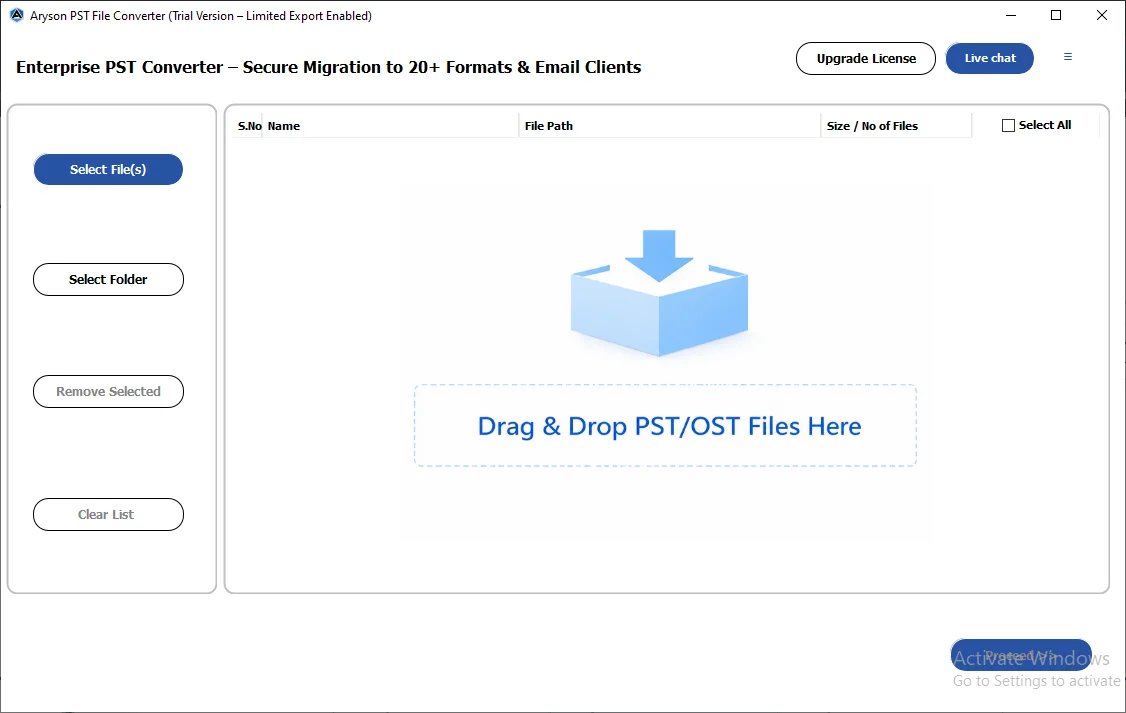
The Aryson PST Converter Tool is one of the most recommended approaches to quickly export your Outlook calendar to ICS format. It helps users to extract calendar data directly from PST files without opening Outlook. You just need to add the PST file, select the calendar folder, choose ICS as the output format, and start the process. All your event details, like title, date, time, and location, are kept intact. Even a complete beginner can use this software to transfer PST file to GoDaddy. Additionally, it works with all Outlook versions and gives you a reliable way to move your calendar to apps like Google or Apple Calendar in just a few clicks.
Follow the Given Steps to Export Outlook Calendar to ICS with Attachments:
- Download and install the Aryson Outlook PST Converter Tool on your system.
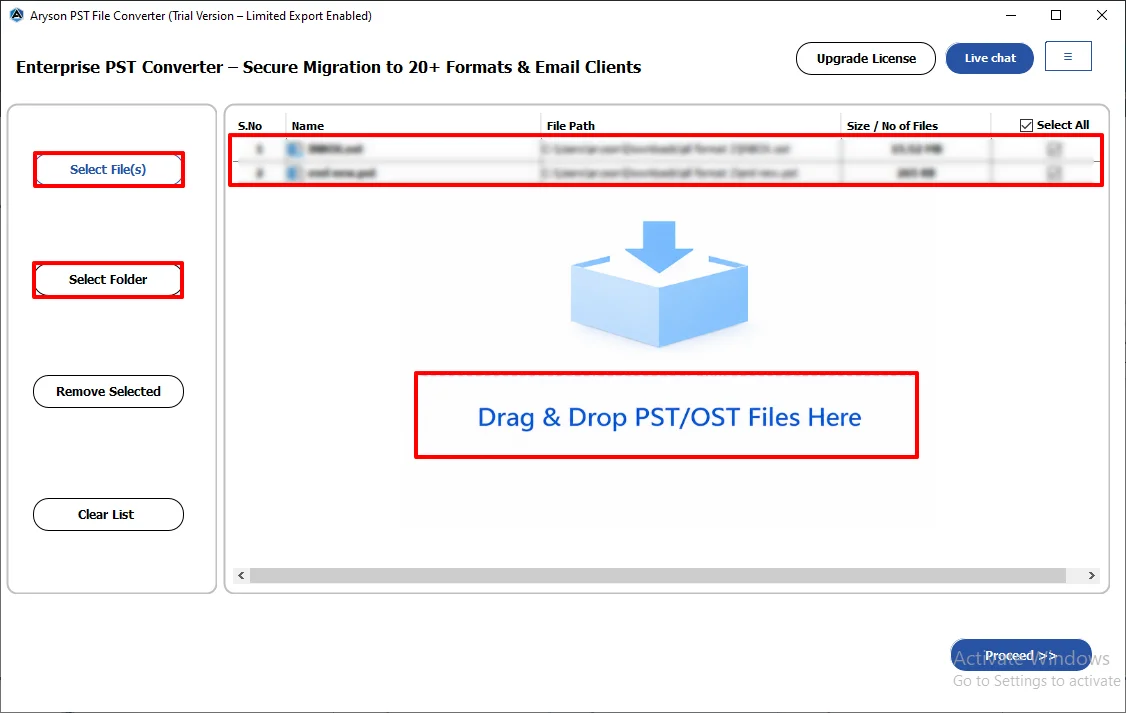
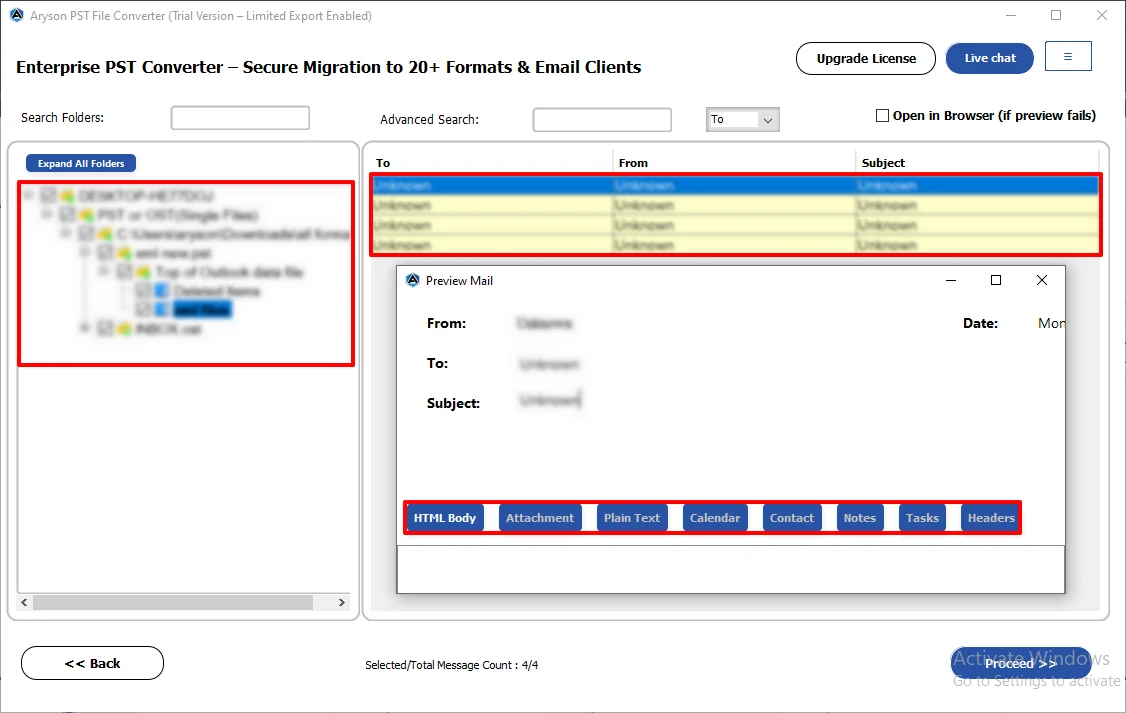
- Load the PST files via file selectors or drag and drop functionality.
- Select the Calendar folder >> double-click it >> Select Calendars >> preview it.
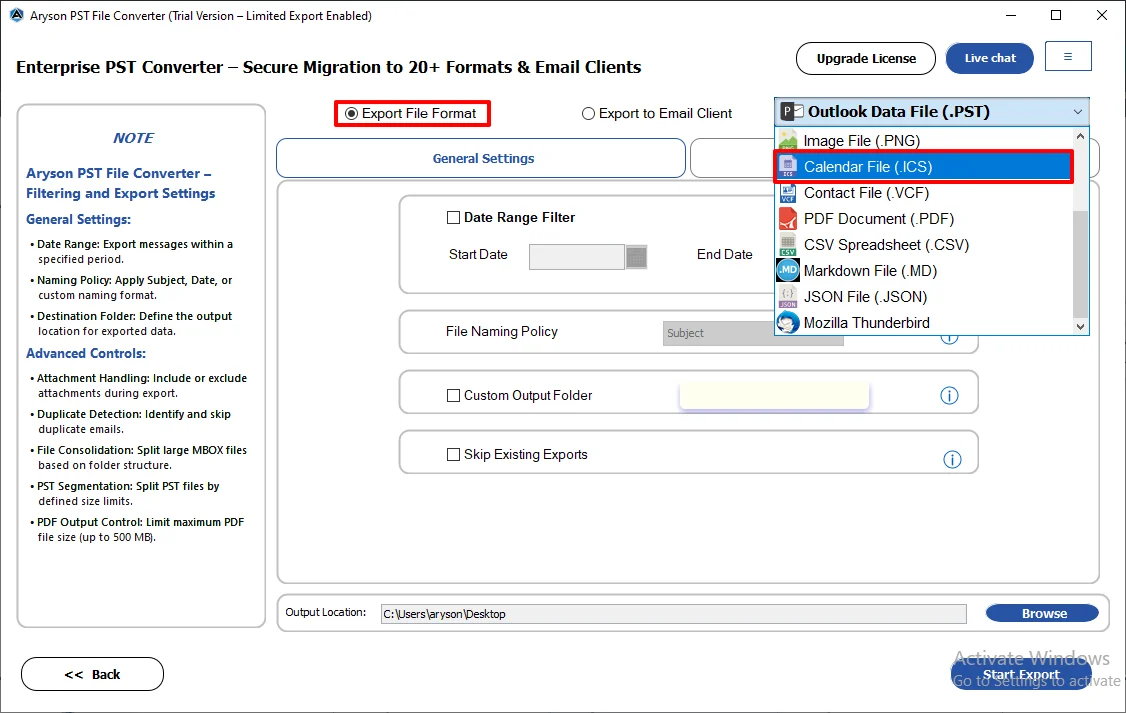
- Then, choose ICS as the export format from the list of available options.
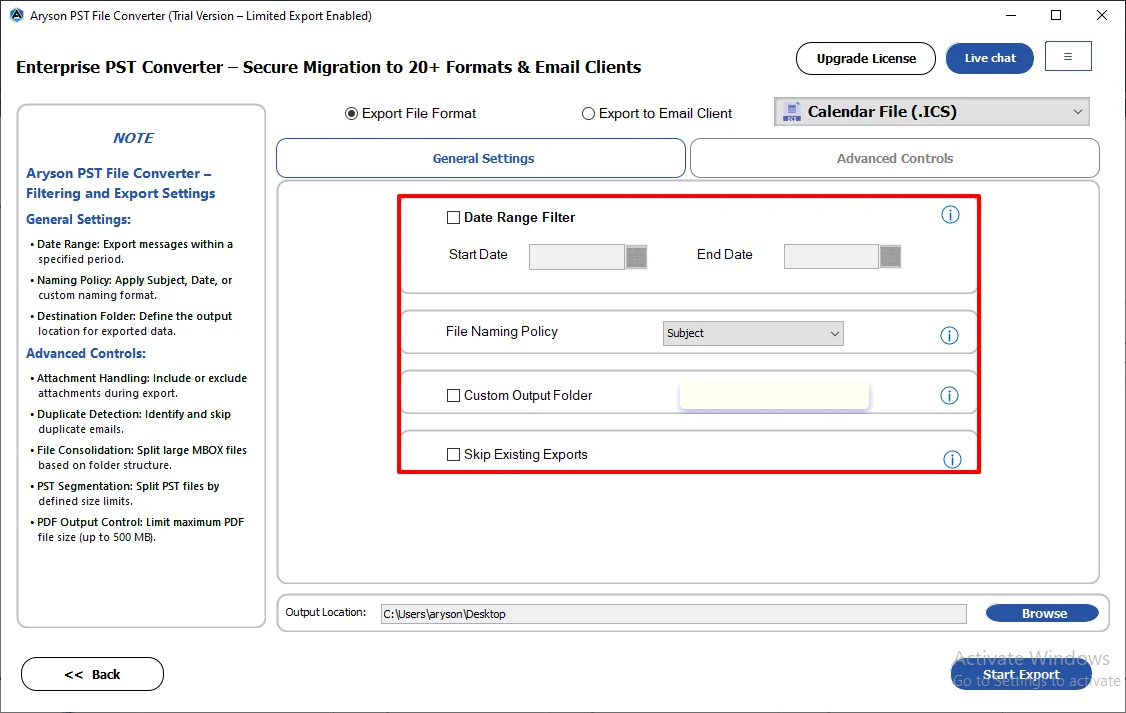
- From the advanced filters of this utility, pick according to your requirement.
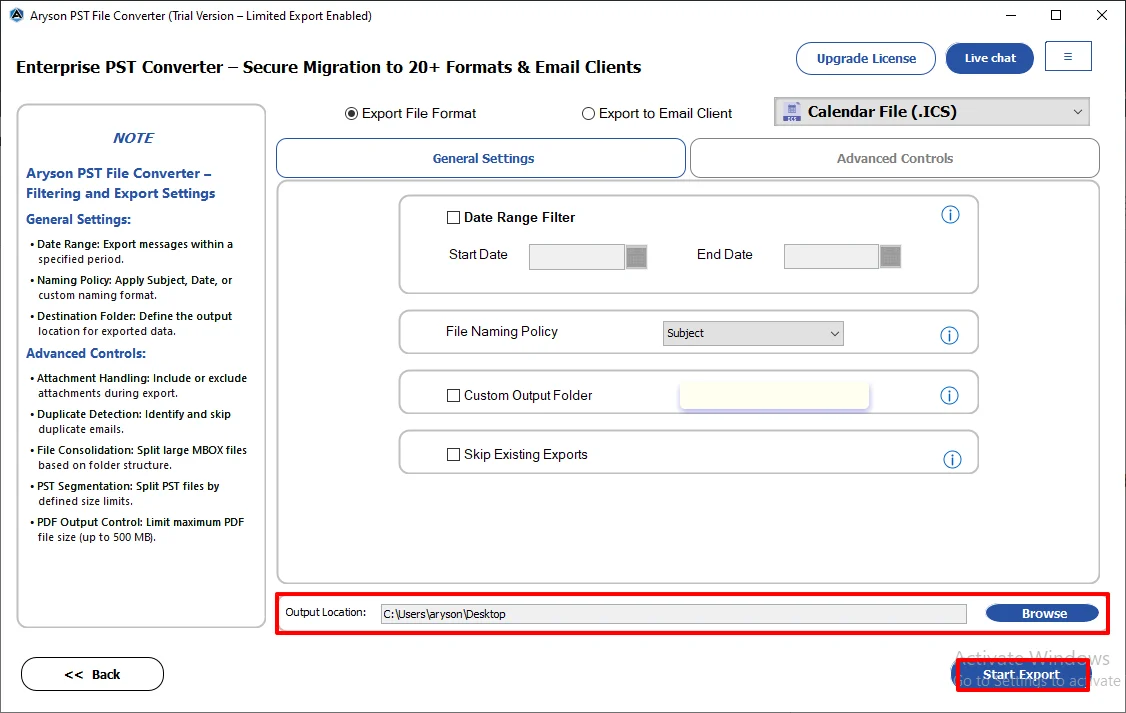
- Select the destination path and click the Start Export button to begin the process.
Additional tips: With the help of the same utility, you can also convert PST to MD within a few clicks.
Note: The automated method is faster and more convenient, but Outlook also provides built-in options for users who prefer to do it manually. Just keep in mind that the manual steps may vary depending on your Outlook version and could take more time and effort. Still, if you’re comfortable navigating Outlook settings, these methods can help you export your calendar without using any external tools. Let’s walk through them one by one.
Method 02: Export Outlook Calendar to ICS via MS Outlook
If you’re using the desktop version of MS Outlook, you can manually export your calendar as an ICS file using the built-in Save Calendar option. Here’s how to download a calendar from Outlook:
- First, open Outlook and click on the Calendar icon in the bottom navigation bar.
- Next, go to File>> Save Calendar from the top menu.
- In the Save As window, choose where you want to save the file and give it a name.
- Click More Options to select a custom date range and set the details level ( “ Full details to include event descriptions and notes).
- Finally, click OK, and then hit Save to export the Outlook calendar to an ICS file.
Method 03: Export Calendar from Outlook on the Web (OWA)
Use this method for Outlook.com (personal accounts). Work/school accounts may have this option disabled by the admin.
- First, go to Outlook.com and sign in to your account.
- Next, click on the calendar icon from the sidebar to open the calendar view.
- Then, click the gear icon (top-right) >> select View all Outlook settings at the bottom.
- Under settings, go to Calendar >> Shared calendars.
- Find the Publish a calendar section.
- Choose your calendar and select Can view all details under permissions.
- After that, click the Publish button.
- Finally, copy the ICS link. Use this link to subscribe (live sync) in Google Calendar or Apple Calendar, or paste it in a browser to download a static snapshot.
Tip: ICS link = live sync. Downloaded file = one-time snapshot. Choose based on need.
Drawbacks Associated With the Manual Method
- If your PST file is damaged or inaccessible, Outlook won’t allow you to export anything.
- You must have Outlook properly installed and configured to perform the export manually.
- Moreover, manual methods don’t offer filters or selective export options.
- You can’t export calendars from multiple PST files at once.
- Prone to human error, particularly when you’re exporting calendars frequently.
Many users prefer the above automated solution to save time, reduce effort, and ensure complete accuracy.
Conclusion
Exporting your Outlook calendar to an ICS file is an efficient way to share your events and move to another calendar app. Outlook does have manual ways to export Outlook calendar to ICS, but the steps can change depending on the version you use and may feel a bit slow. If you don’t want to deal with Outlook version differences or confusing manual steps, the easiest way to export your Outlook calendar to ICS format is by using the Aryson Outlook PST Converter Tool. In the end, you can choose the method that fits your needs and how much control or ease you’re looking for.
About The Author:

Rohan Wiese is a Technical Writer at Aryson Technologies. He is an expert Email Forensic, Cloud Computing, and a passionate nerd with over 10 years of experience in technical content writing. He writes about Cloud Migration, Database Recovery, Email Backup, Windows, Mac, and Tech.
Related Post