-

Written By Rohan Wiese
-
Updated on July 31st, 2025
How to Download All Data from OneDrive (Business & Personal)
As we are all aware, OneDrive is a popular cloud storage service. Many individuals and businesses use it to store and access files online. But sometimes, users are in need they want to download all their OneDrive data for offline use. Also, keep it as a backup, or switch to another platform. Although you can do this manually, it often takes time and may lead to incomplete downloads. To avoid these issues, the Aryson OneDrive Migration Tool provides a quick and reliable way to download all files from both personal and business accounts. In this blog, you will learn the best methods to download all data from OneDrive safely to your local system.
Understanding the Need to Download All Files from OneDrive
Here are some simple reasons why people want to download all their files from OneDrive:
- If anything goes wrong with your OneDrive, it is helpful to have a copy of your files saved on your computer.
- In case you’re moving to Google Drive, Dropbox, or any other cloud storage. All you need to do is download your files first.
- When you’re not connected to the internet, you can open your downloaded files on your system.
- If you plan to delete your Microsoft account or reset OneDrive, downloading the files first keeps them safe.
- Moreover, business admins may need to save files from old employees or back up data regularly for safety and compliance with rules.
- When your files are saved locally, you don’t have to depend on the cloud fully. As a result, you have your data with you.
Some Effective Methods to Download All Data from OneDrive
Alright, so if you’re ready to grab everything from your OneDrive, then proceed with the given methods. These approaches will help you back up OneDrive files to a PC and keep all things offline without any hassle.
Method 01: Manually Download Data from OneDrive Account
This method is super handy for light users. Just keep in mind that if you have too many files or large folders, the ZIP download might take a bit longer. Along with that, there’s a size limit too. So, for basic backups or one-time downloads, this is the easiest way to go.
- Open your preferred web browser (like Chrome or Edge) and head over to https://onedrive.live.com.
- Log in using your Microsoft personal account. It is the same one you use for Outlook, Xbox, or Skype.
- Once you’re inside your OneDrive, browse through your folders and pick the files or folders you want to download.
- After selecting the files, right-click and choose the Download option from the menu that appears.
- OneDrive will then zip everything into a single compressed file and download all data from OneDrive one by one separately.
Also read: Transfer Files from OneDrive to Google Drive.
Method 02: Another Way to Download OneDrive Business Data
It is another approach. It will only work if you’re a Global Admin or have the right permissions to access other users’ data. If you don’t see the “Get access to files” option, it likely means your role doesn’t allow it. So you may need to request access from a higher-level admin to download all documents from OneDrive:
- Open your browser and go to Microsoft 365 Admin Centre. Log in with your admin credentials.
- Once you’re in the dashboard, look at the left sidebar. Click on Users, then go to Active users.
- When you click on it, it will show a list of all user accounts under your organisation.
- Find and select the user whose OneDrive files you want to download. Click on their name to open their profile details.
- In the user’s profile panel, there’s a tab named OneDrive. Click on it.
- Now, you’ll see a link under “Get access to files.” Click that link, and it will take you directly to that user’s OneDrive in a new browser tab.
- Once you’re inside, press Ctrl + A to select all the files and folders, then right-click and hit Download.
- All you need to do is repeat these steps for each user whose OneDrive data you need to save.
Why the Manual Method Isn’t Always the Best Option
The manual method is okay if you want to download a few files. But when you have lots of data or need to manage files for other people, it can be a bit of a headache.
- OneDrive puts everything into a ZIP file before downloading, but there’s a limit. If your files are too big or too many, it might not work.
- You’ll need to repeat the same steps every time you want a new backup. There’s no way to schedule it or set it to run automatically.
- When you select files yourself, it’s possible to forget a folder or miss an important file without realising it.
- If you’re an admin trying to download data from multiple accounts, doing it manually for each one takes too much effort.
So, while the manual way works for small jobs, using a professional tool is much better for large or repeated tasks. It saves time and makes things easier.
Method 03: Use the OneDrive Migration Tool to download all data from OneDrive
Let’s be honest, manual steps are okay for a one-time thing or a small amount of data. But if you’ve got multiple user accounts or large files, using Aryson OneDrive Migration Tool can really save you time. Moreover, it allows you to log in using admin credentials and select user accounts in bulk. And even apply filters based on date, file type, or folder. Also, you can choose your preferred download format, whether it’s PST, PDF, or something else. Along with that, it helps avoid size limits and errors that often happen with browser-based downloads. So, if you’re looking for a hands-free way to handle OneDrive data, this utility is definitely worth considering.
Simple Steps to Download Multiple Files from OneDrive
- Install and open the Aryson OneDrive Migration Tool on your existing computer.
- Now, sign in with your Microsoft 365 admin credentials. It will access the users’ OneDrive data.
- Pick the OneDrive folder or files you want to download. Also, you can choose to export everything.
- Next, select the extension of the file and other additional features as well, and click Next.
- Lastly, choose to save OneDrive to your Local drive and enter a name to save it.


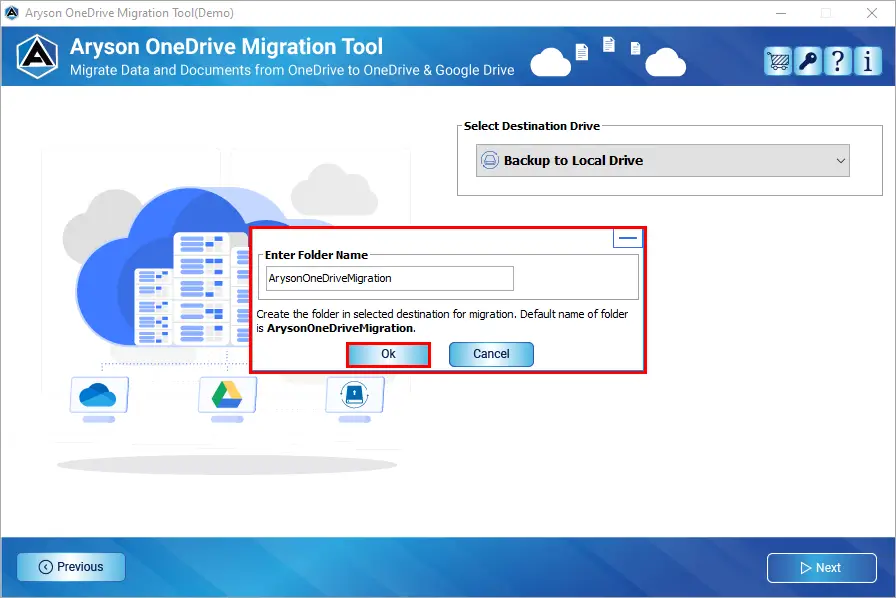
Note: Along with the local drive, it can also copy OneDrive Files to another OneDrive Account with ease.
Conclusion
As we’ve explored, there are several ways to download all data from OneDrive. If you’re a light user, the manual methods using the web or sync apps may work well. But for any user who deals with large volumes of files or manages business accounts, using an automated backup tool is the safe option. You get full accessibility with no file limit issues and guaranteed data safety.
Frequently Asked Questions (FAQs)
Q1: Can I download all OneDrive files at once?
Ans: Yes, you may use Ctrl + A to select everything and download it in ZIP format. Alternatively, you can use the recommended program for mass downloads.
Q2: How can I get data from someone else’s OneDrive (Business)?
Ans: If you are an administrator, navigate to the Microsoft 365 Admin Centre, access your OneDrive, and download and store OneDrive data on your hard drive.
Q3. Are there any size limitations while downloading from OneDrive manually?
Ans: Yes, ZIP downloads have size constraints (often 20 GB or less than 10,000 files).
Q4. What is the best technique to consistently back up OneDrive data?
Ans: The Aryson OneDrive Migration Tool allows you to schedule and filter backups.
Q5. Can OneDrive files be downloaded to an external drive?
Ans: Yes. You can either download the data and save it to an external drive or change the download destination manually.
About The Author:

Rohan Wiese is a Technical Writer at Aryson Technologies. He is an expert Email Forensic, Cloud Computing, and a passionate nerd with over 10 years of experience in technical content writing. He writes about Cloud Migration, Database Recovery, Email Backup, Windows, Mac, and Tech.
Related Post