-

Written By Rohan Wiese
-
Updated on March 25th, 2026
How to Backup Microsoft 365 Mailbox to PST Locally [2026 Guide]
If you manage Microsoft 365 for your organization, you already know that keeping your mailbox data safe isn’t something you can leave entirely to the cloud. Whether you’re preparing for a platform migration, responding to an audit, or simply want an offline archive of critical communications, exporting your Office 365 mailbox to a PST file is one of the most practical moves an IT admin can make in 2026.
This guide walks you through four proven methods to backup Office 365 mailbox to PST locally, including the use of the Aryson Microsoft 365 Backup Tool. But first, let’s address a critical misconception that too many organizations still hold.
User Query:
ITAdmin_Jake on Microsoft Community Asked: We recently had a ransomware attack on our organization & lost access to several employee mailboxes in Office 365. I always assumed Microsoft was responsible for backing up our cloud data, but apparently, that is not the case. Now we are trying to recover months of emails, contacts, and calendar data with no local backup in place.
Is there a reliable way to export all affected Office 365 mailboxes to PST locally so we never end up in this situation again?
The Shared Responsibility Model: Why Microsoft Doesn’t Back Up Your Data
One of the most important things every IT administrator needs to understand is Microsoft’s shared responsibility model. A widespread assumption exists that because Office 365 is a cloud service, Microsoft is responsible for protecting all the data within it. That assumption is wrong—it’s costly.
Under Microsoft’s shared responsibility model, Microsoft is accountable for the availability & infrastructure of the platform itself, uptime, physical data centers, and geo-redundant replication. However, the responsibility for your data, its protection, backup, and recovery, falls squarely on your organization.
Even Microsoft’s own service agreement recommends users regularly back up content & store it on their services. What’s more, Microsoft only offers limited, short-term data loss recovery and cannot protect your organization from data loss caused by accidental or malicious deletion, corruption, malware, ransomware, or sync errors.
Data protection best practices state that you must have a backup, stored independently from the source, that can easily be recovered within an agreeable recovery time objective (RTO).
This is precisely why exporting Office 365 mailboxes to PST and storing those files locally remains a cornerstone of enterprise data protection strategies.
IT Admins Clarification: This is to clarify for IT admins that the Aryson Office 365 Backup Tool discussed in this article will back up your data from Office 365 to your local machine or storage device. It does not store backups to OneDrive or any Microsoft-controlled storage. Your backup is stored wherever you want to save it—on your computer, external drive, or on-premises server.
Why Do IT Admins Backup Office 365 mailbox to PST?
Listed below are some of the most common reasons why organizations choose to export their mailbox data to PST format.
- Data protection: Teams might not get access to the critical data and communications due to unplanned service disruptions, account closures, or ransomware attacks. A locally stored PST serves as an independent safety net outside Microsoft’s ecosystem.
- Storage & performance management: Oversized mailboxes reduce performance. Therefore, users archive their older emails into PST files & keep the active mailboxes responsive.
- Legal & compliance requirements: Regulated industries require demonstrable, long-term records of communications. PST files provide a portable, audit-ready format for legal holds or eDiscovery requests.
- Migration and platform transitions: PST is a universally recognized format that makes it straightforward to move data across systems, whether you’re switching email platforms or onboarding new users.
- Preservation of an Inactive account: When employees leave an organization, their mailbox data doesn’t have to disappear. PST exports ensure that historical records from former team members remain accessible for as long as needed.
Best 4 Methods to Export Office 365 Emails to PST File
In this article, we will mainly focus on 4 most effective methods to export an Office 365 mailbox to PST.
- Using the eDiscovery Tool
- Export via MS Outlook
- Powershell Commands
- Advanced Software
Method 1: Backup Office 365 mailbox to PST using the eDiscovery Tool
Microsoft provides the users with a by-default approach to backing up Office 365 data. In this method, IT admins use the eDiscovery tool to securely migrate their O365 data. This method is ideal for and best suited for organizations that need to export specific mailboxes for legal or compliance purposes.
Prerequisites to perform before the actual export:
- Provide the admin access with eDiscovery Manager permissions assigned.
- Use the Windows 7 or later version of the operating system.
- Keep the Microsoft .NET Framework 4.5 or later installed.
- Make sure to have a compatible browser.
The steps to perform are as follows.
- To begin, sign in to an active O365 account.
- After that, go to Microsoft 365 Admin Center >> Security & Compliance >> Permissions.
- Now, scroll to eDiscovery Manager & confirm that the export role is assigned. If missing, click Edit Role Group and add it.
- Navigate to the More Resources option >> Microsoft Purview Compliance Portal.
- Select Content Search, then click on the New Search option.
- Specify a name & description and use the location option to target a specific mailbox.
- If required, use the date or keyword filters >> click Submit >> Done.
- Keep track of your search progress under the Search tab.
- After completion, go to Actions>> Export Results>> choose your export settings.
- Copy the Export Key that appears, as you will need it in the next step.
- The eDiscovery Export Tool will launch automatically. You just have to paste the export key & click Start to begin the PST download.
Method 2: Office 365 to PST Export via MS Outlook
If MS Outlook is already installed on the user’s system or an active account is already added, it is advised to use Outlook for the migration. Follow the steps below to proceed with this method.
Step 1: Add an Active Office 365 Account in Outlook
- First, open the MS Outlook application, go to File >> Add Account.
- Enter your valid O365 credentials to log in.
- Then, click “Next” and follow the prompts that appear.
- Once the sync is complete, you’ll see your mailbox folders in MS Outlook.
Step 2: Save Microsoft 365 Emails to PST Format
- Now, as the mailbox is loaded, go to File >> Open & Export >> Import/Export.
- After that, Select Export to a file option >> Next.
- Choose Outlook Data File (.pst) & click Next.
- Select the folders you want to include.
- Choose a specific location to save the files & click on the Finish button.
Method 3: PowerShell Commands for Advanced Users
There are numerous IT admins who prefer to use the command-line tools. Therefore, PowerShell works best for such users, as it allows them to easily export their data using a script of commands. In this method, we will use the Exchange Online PowerShell module alongside Microsoft’s eDiscovery Export Tool.
Simplified Tutorial to Backup Office 365 Mailbox to PST
- First, install & import the Exchange Online PowerShell module.
- After that, authenticate to Office 365 using valid admin credentials.
- Now, create a mailbox search that targets a desired account.
- Start the search to index the mailbox contents.
- Export the indexed results to PST format using the appropriate cmdlet.
- Retrieve the download link for the generated PST file.
- Download the file to your local or network storage.
- Sign out of your Exchange Online session when complete.
Limitations of Manual Methods
Before choosing a manual approach for your organization, it’s worth understanding where these methods fall short:
- Users must be familiar with the Microsoft 365 admin tools to perform these methods.
- Moreover, it may take them long hours to export large mailboxes.
- You cannot export multiple mailboxes at a time via these approaches.
- Furthermore, you cannot even monitor the export, which may result in partial exports.
- Also, the manual processes require manual effort every time a backup is required.
Method 4: Recommended Solution to Backup Office 365 Mailbox to PST
Enterprises that need a reliable, scalable & easy-to-use solution solely rely on the Aryson Office 365 Backup & Restore Tool. This software allows them to export multiple mailboxes all at once. Moreover, there are two different authentication methods, Modern Auth 2.0 and Impersonation, for both Single and bulk export modes. Additionally, it provides an advanced preview panel to cross-verify the data items selected before actually migrating them. Also, users can apply the advanced filters and use the features to decide the specificity of selection. Using the same utility, you can migrate emails from Office 365 to Gmail efficiently. Now, follow the steps to perform the migration.
Step-By-Step Tutorial to Back Up Office 365 Mailbox to PST
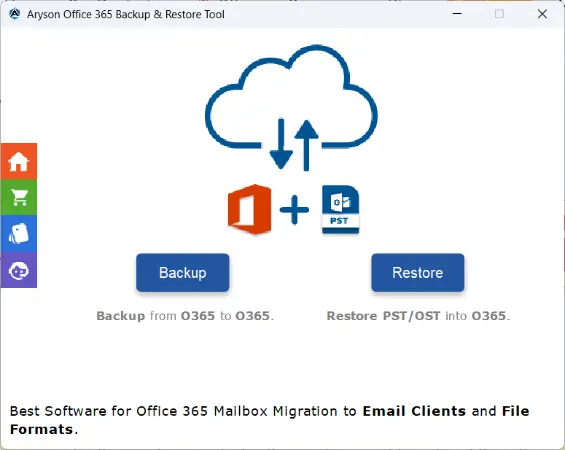
- Download & launch the Aryson Office 365 Backup & Restore Tool on your PC.
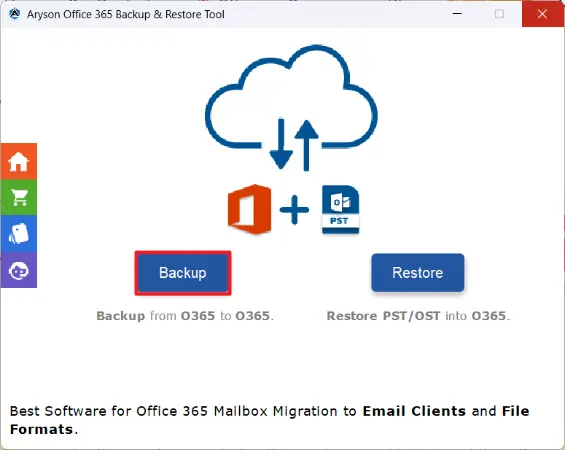
- Click on the Backup button on the main screen >> Continue.
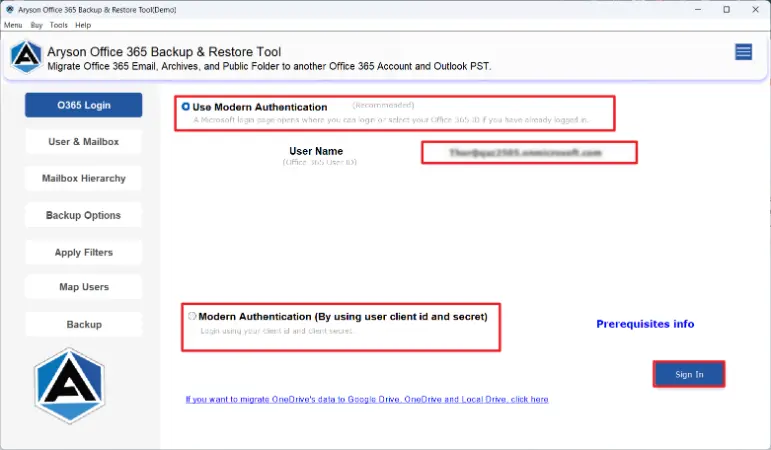
- Provide your valid O365 credentials & log in to them using the Sign-In option.
- Select the required mailbox—Public, Folder, or Online Archive >> Next.
- Preview the Files/Folders listed on the software panel & click Next.
- Select PST as the required file format from the dropdown list.
- Use the advanced filters & provide the destination path on your local device.
- At last, click on the Next button to begin the export process.
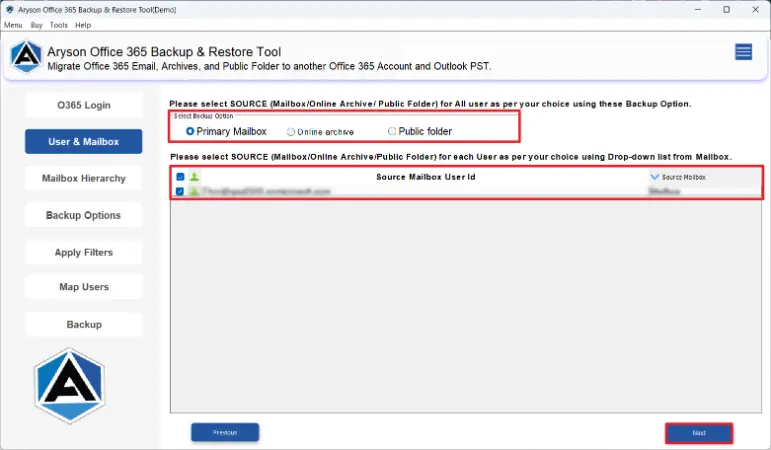
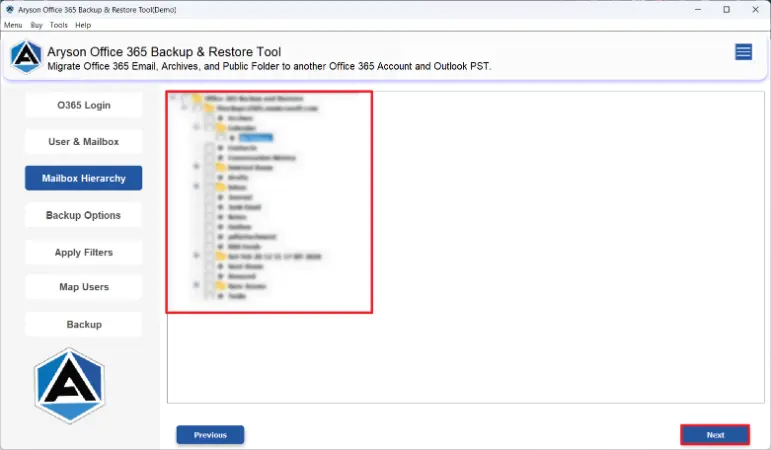
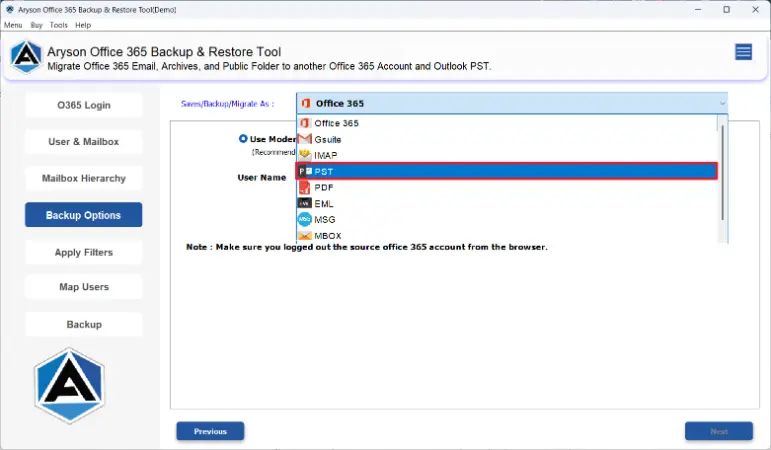
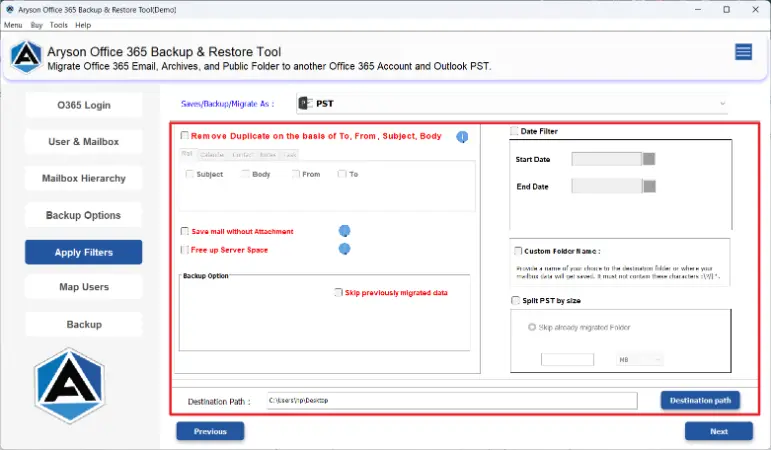
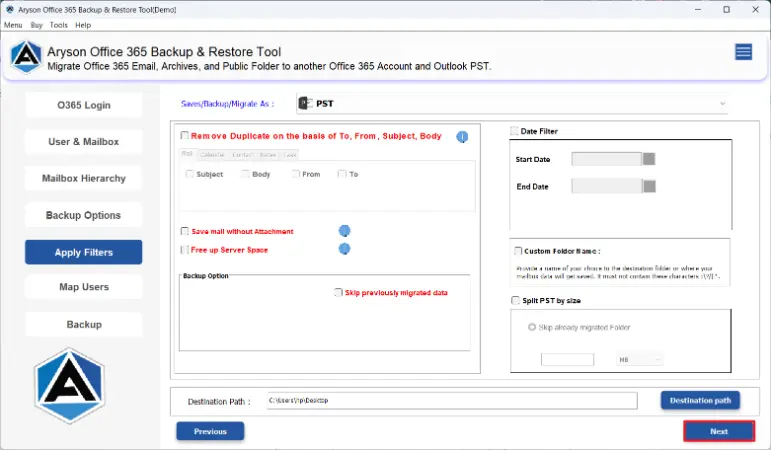
Exclusive Features of the Office 365 Backup Tool
- Backs up emails, contacts, calendars, tasks, journals, and folder data—all in one go.
- Supports Primary Mailbox, Online Archive, Shared Mailbox, and Public Folders.
- Exports to multiple formats: PST, MBOX, EML, MSG, PDF, CSV, and more.
- Supports full, incremental, and differential backups, helping organizations optimize storage usage and reduce backup time.
- Allows batch export of multiple mailboxes simultaneously using impersonation rights.
- Includes date-range filters for granular, targeted exports.
- Also, it can run smoothly on Windows, Mac, and Linux systems.
Thunderbird & OperaMail Note: If you plan to export Office 365 data directly to Mozilla Thunderbird or OperaMail, please be aware that Thunderbird and OperaMail must be installed on your system before running the export. This is a prerequisite specific to those destination clients. However, for PST export, no additional installations are required.
Final Thoughts
As we discussed above, understanding Microsoft’s shared responsibility model is the first step toward a genuinely protected Office 365 environment. Users’ Backup Office 365 Mailbox to PST ensures that the organization’s critical business communications, contacts, and calendar data are always within your reach, regardless of what happens in the cloud.
For smaller teams or one-off migrations, the manual methods covered above get the job done. But for IT admins managing multiple accounts, meeting compliance requirements, or simply wanting a repeatable and reliable backup process, the automated software is the ideal choice.
Frequently Asked Questions
Q1. Can I export my entire Office 365 mailbox to a single PST file?
Answer: Yes, Aryson’s solution is the best way to export Office 365 mailbox to PST. You can export your entire Office 365 mailbox to a single PST file in one go.
Q2. Do I need Outlook installed to export my mailbox to PST?
Answer: No, if you are using the eDiscovery tool or Aryson’s solution, you don’t need Outlook installed to export your mailbox to a PST.
Q3. Can I export specific emails or date ranges only?
Answer: Yes. The Aryson Office 365 Backup Tool includes date-range filters so you can export only the data you need, reducing file size and export time.
Q4. What should I do if the export process encounters errors?
Answer: Check that your internet connection is stable, that your admin account has the correct permissions, and that you have sufficient local storage. Contact our tech support team for personalized assistance.
Q5. Is the backup stored in OneDrive or Microsoft’s cloud?
Answer: No. The Aryson Office 365 Backup Tool exports your data directly to your local computer, external drive, or on-premises storage. Your backup is entirely outside Microsoft’s cloud environment.
About The Author:

Rohan Wiese is a Technical Writer at Aryson Technologies. He is an expert Email Forensic, Cloud Computing, and a passionate nerd with over 10 years of experience in technical content writing. He writes about Cloud Migration, Database Recovery, Email Backup, Windows, Mac, and Tech.
Related Post