-

Written By Rohan Wiese
-
Updated on March 25th, 2026
Fix MS SQL ‘Suspect Mode’ & Error 824 Without Data Loss (2026 DBA Guide)
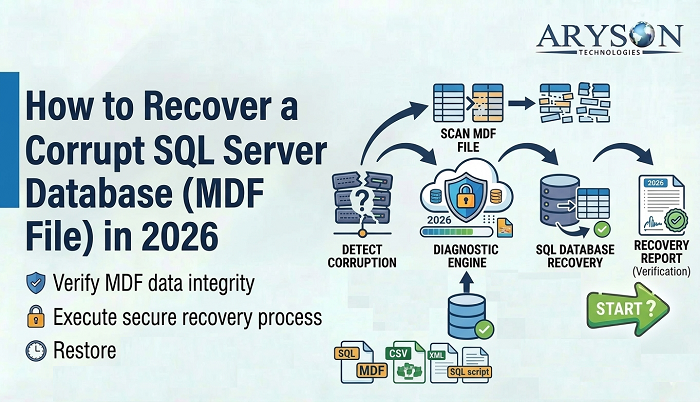
Database administrators often experience the two most critical SQL Server issues – the Suspect Mode state & Error 824 – especially after an unexpected shutdown, disk failures, or log file corruption. In Suspect Mode, the database becomes completely inaccessible to the users. On the other hand, Error 824 is a logical I/O consistency error that often accompanies this state. If these issues are not resolved, they might lead to severe data loss & downtime. In this article, you will explore the root causes, common symptoms, & step-by-step manual methods to fix MS SQL Suspect Mode and Error 824. Along with that, you’ll learn how to use the Aryson SQL Database Recovery Tool to repair corrupted MDF files safely and efficiently. Download Now Purchase Now
User Query:
“My SQL Server database suddenly went into suspect mode after a restart. I’m worried about losing data—what’s the safest way to fix it without causing any damage?”
— Microsoft Learn user: DBAdmin_John
“I’m getting Error 824 in SQL Server and it looks like a corruption issue. Is there any way to repair it without restoring from backup? I don’t have a recent backup available.”
— Microsoft Learn user: SQLHelpNeeded
“I ran into SQL Error 824 and now some tables are inaccessible. Has anyone fixed this kind of corruption without deleting or losing important data?”
— Reddit user: u/throwawayDBA
Symptoms of SQL Server Suspect Mode and Error 824
Several warning signs indicate that your database has entered Suspect Mode or encountered Error 824. Some of the most common are listed below.
- The database displays a (Suspect) label in SQL Server Management Studio.
- Users receive the message: “SQL Server detected a logical consistency-based I/O error.”
- The database connection is dropped immediately after the error occurs.
- MDF and NDF files become completely inaccessible to the SQL engine.
- SQL Agent jobs, maintenance plans, and scheduled tasks stop executing.
- The error log records Msg 824, Level 24, State 2 as a fatal severity error.
- The database fails to come online after a SQL Server service restart.
What Causes SQL Server Suspect Mode and Error 824?
Understanding the root cause is the first step toward an effective fix. The following are the most common reasons behind these issues.
- Abrupt SQL Server shutdown interrupts active transactions, corrupting the transaction log.
- Damaged or faulty disk drives in the I/O path cause logical read/write failures.
- Corrupt MDF or LDF files prevent SQL Server from completing the database recovery phase.
- Insufficient disk space prevents SQL Server from writing pages correctly to storage.
- Failed Windows API calls (ReadFile, WriteFile) result in logical consistency check failures.
- Virus or malware attacks alter or delete critical database file structures.
- Moreover, bad sectors on the hard drive storage can trigger page-level corruption.
- Disabled PAGE_VERIFY CHECKSUM option leaves corrupted pages undetected until it’s too late.
How to Fix MS SQL Suspect Mode and Error 824?
The following section covers the most effective manual methods and an advanced automated solution to resolve these issues. Review each method carefully and apply the one most suitable to your situation.
- Restore the Database from a Clean Backup
- Use Emergency Mode with DBCC CHECKDB
- Use Aryson SQL Database Recovery Software
Fix 1: Restore the Database from an Available Backup
If you have a backup already, the safest and most recommended approach is to recover the database from that backup & recover it from Suspect Mode.
Steps to Restore the Database are as Follows
- First, open the SQL Server Management Studio (SSMS) & connect to the server instance.
- After that, expand the Databases folder in the Object Explorer.
- Then, right-click on the Suspect Database and select Tasks >> Restore >> Database.
- Under the Source section, choose Device & click the Browse (…) button.
- Next, select the latest .bak backup file >> click OK.
- Cross-verify the restore settings under the Options tab & click OK to begin.
- After completing the restore process, right-click on the database & select Refresh to confirm it is online.
Note: Always cross-check the integrity of the backup file before restoring it. This is because a corrupt backup will not resolve the issue.
Fix 2: Use Emergency Mode with DBCC CHECKDB
When no recent backup is available, you can use DBCC CHECKDB to recover the database from Suspect Mode. This method scans and repairs logical and physical inconsistencies, including those that cause Error 824.
Step 1: Identify Suspect Databases
Run the following query to confirm which databases are in Suspect Mode:
|
USE master; GO SELECT NAME, STATE_DESC FROM SYS.DATABASES WHERE STATE_DESC = ‘SUSPECT’; GO |
Step 2: Switch the Database to Emergency Mode
Turn off the suspect flag and grant read access by setting the database to EMERGENCY mode:
|
ALTER DATABASE YourDatabaseName SET EMERGENCY; GO |
Step 3: Run DBCC CHECKDB for Consistency Check
Execute the DBCC CHECKDB command to identify all logical and physical errors:
|
DBCC CHECKDB (YourDatabaseName); GO |
Review the output for any reported consistency or allocation errors before proceeding.
Step 4: Set Single User Mode and Repair
Set the database to single-user mode and run the repair command:
|
ALTER DATABASE YourDatabaseName SET SINGLE_USER WITH ROLLBACK IMMEDIATE; GO DBCC CHECKDB (YourDatabaseName, REPAIR_ALLOW_DATA_LOSS) WITH ALL_ERRORMSGS; GO |
Caution: The REPAIR_ALLOW_DATA_LOSS option may result in partial data loss. Always take a backup before this step, wherever possible.
Step 5: Restore to Multi-User Mode
After successful repair, bring the database back online for all users:
|
ALTER DATABASE YourDatabaseName SET MULTI_USER; GO |
Refresh the database server in SSMS and verify that the database is accessible.
Fix 3: Advanced Software to Fix SQL Suspect Mode and Error 824
Aryson SQL Database Recovery Software is one of the most reliable solutions that helps enterprises to repair their corrupt MDF & NDF files. This software can easily recover all database objects & resolves both Suspect Mode and Error 824 efficiently. Moreover, it provides the user with two different recovery modes: Standard and Advanced, for different levels of corruption. You can recover tables, views, triggers, defaults, programmability, & other SQL Server functions. In addition, the preview panel of the software allows the user to cross-verify the recovered database data, which leads to data integrity and fewer chances of mistakes. Using the same software, you can efficiently recover deleted table Data. Now, follow the steps below carefully to successfully fix the SQL Server Suspect Mode.
Steps to Fix SQL Server Suspect Mode and Error 824:
- Download & launch the Aryson SQL Database Recovery Software on your system.
- Click Browse to locate and select the corrupted MDF file.
- Choose the appropriate scan mode (Quick or Advanced) based on the corruption level.
- Adjust any additional recovery settings and click OK to start scanning.
- Preview the recovered database objects, including tables, views, and indexes.
- Select the required objects & choose your preferred export format (SQL Server, CSV, etc.).
- Click OK to save the fully recovered database to your desired destination.


Conclusion
In this guide, we discussed the key reasons why SQL Server databases enter Suspect Mode and generate Error 824. We also covered practical manual methods, including backup restoration, DBCC CHECKDB with Emergency Mode, and enabling PAGE_VERIFY CHECKSUM to address these critical issues. For severe MDF file corruption where manual methods fall short, the automated software offers a safe, automated path to full database recovery without data loss. If you need further assistance with the recovery process, contact the Aryson tech support team for personalized help.
FAQs
Q1. What does SQL Server Suspect Mode mean?
Ans: Suspect Mode indicates that SQL Server started the database recovery process but could not complete it, usually due to a corrupted transaction log or damaged MDF file.
Q2. What causes SQL Server Error 824?
Ans: Error 824 is a logical I/O consistency error caused by faulty disk drives, failed Windows API calls, corrupt database pages, or disabled PAGE_VERIFY CHECKSUM settings.
Q3. Can I fix SQL Suspect Mode without data loss?
Ans: Yes. The safest approach is to restore from a clean backup. Alternatively, the Aryson SQL Database Recovery Software can repair MDF files without data loss.
Q4. Is DBCC CHECKDB safe to run on a suspect database?
Ans: DBCC CHECKDB with REPAIR_REBUILD is safe. However, REPAIR_ALLOW_DATA_LOSS may delete inconsistent data pages, so always back up before running it.
Q5. How do I prevent SQL Server Error 824 in the future?
Ans: Enable PAGE_VERIFY CHECKSUM on all databases, run DBCC CHECKDB regularly as part of your maintenance schedule, monitor I/O health, and maintain a verified backup strategy.
About The Author:

Rohan Wiese is a Technical Writer at Aryson Technologies. He is an expert Email Forensic, Cloud Computing, and a passionate nerd with over 10 years of experience in technical content writing. He writes about Cloud Migration, Database Recovery, Email Backup, Windows, Mac, and Tech.
Related Post