-

Written By Harshita Sachdeva
-
Updated on June 30th, 2026
Find and Delete Duplicate Photos from OneDrive for 2026 User
Query: Our OneDrive holds an 80GB photo library, and manual scrolling freezes the browser whenever I try finding duplicates. How to find and delete duplicate photos from OneDrive without crashes or data loss?
Summary: OneDrive has become one of the most reliable cloud storage platforms among users. So, you can upload, sync, and access photos and files across devices with ease. With time, users often find that their OneDrive photo library is filled with duplicate images. In many cases, duplicate images show up due to multiple uploads, OneDrive sync problems, or device-to-cloud backups.
If duplicate photos occupy space in your OneDrive, you may want an easy way to find and delete duplicate photos in OneDrive. The process is not that difficult. Use the manual process or Aryson OneDrive Duplicate Remover to delete duplicates and free up storage space. Continue reading this blog to keep your photo library well-organized.
Why Find and Delete Duplicate Photos from OneDrive?
Before we navigate to the methods, it is important to know why users must delete duplicate photos:
- Duplicate photos take up extra space in OneDrive. Since free storage is only 5GB, too many copies can quickly fill it up and may even make you buy more storage.
- A photo library with many copies is difficult to manage. So, it’s better to remove them so that it becomes easy to find and delete duplicate photos in OneDrive.
- Removing the unnecessary OneDrive data helps in better file management and synchronization.
- As you know, duplicate files often look the same and have similar names. As a result, it becomes difficult to know which one is the original.
If you delete the duplicate photos on a regular basis, you can save space and speed up the syncing process. Also, it can keep your OneDrive organized.
Ways to Find and Remove Duplicate Photos in OneDrive
There are different methods you can use to remove duplicate photos from OneDrive. In this section, we will primarily focus on the manual approach and a professional alternative to it.
Method 1: Manually Find and Delete Duplicate Photos in OneDrive
In case the user does not want to depend on any software, they can manually check and delete duplicate photos in OneDrive. This method is suitable for users with significant technical knowledge. Also, you should have enough time, as it cannot delete files in bulk.
- Log in to OneDrive using your browser or the desktop app.
- Go to the folder where your photos are stored (for example, Pictures).
- Sort files by name, size, or date so that similar images appear next to each other.
- Now, you should look carefully at the photos and identify the duplicate photos.
- Select the duplicate files and click on the Delete option.
- Finally, check the Recycle Bin in OneDrive to delete duplicate OneDrive photos.
- As an outcome, it will permanently remove them and free up space.
Security Note: Deletion is not always the appropriate solution. So you should keep a backup of OneDrive to External Drive. This step will be helpful when you perform an unwanted deletion process.
Drawbacks Associated With the Manual Solution
The manual method can delete duplicate photos from OneDrive, but it has many downsides. For people with large photo collections, this option is often not practical. Here are the main drawbacks that you should be aware of:
- Takes too long: When you check thousands of photos by hand, it is tiring and slow.
- Chances of mistakes: There is a chance that you might delete the original photo instead of the duplicate.
- Not very accurate: This method only works if file names or sizes match. So, it cannot find duplicate photos with different names.
- Hard to manage: If you have years of photo backups in OneDrive, doing it manually becomes almost impossible.
This is why it makes sense to look at other options that save time and reduce errors. Next, we will introduce you to the most used software, which will be helpful for deleting duplicate photos in OneDrive.
Direct Approach to Find and Delete Duplicate Photos from OneDrive
IT admins and professionals prefer to use the Aryson OneDrive Duplicate Remover for better data privacy and security purposes. This software supports bulk processing, which eventually saves users time and manual effort. For individuals who have multiple admin accounts, the assign permission feature of the software is suitable. To cross-verify the data before the deletion process, you will get the preview panel. This makes sure that data integrity is maintained. Also, you will get the list of folders with duplicate files, so users can pick and clean only the ones they want. You can even use this software to find and remove duplicate from OneDrive on Mac Just follow the given steps and get your OneDrive account with important files only.
Quick Steps to Find and Delete Duplicate Photos from OneDrive Storage
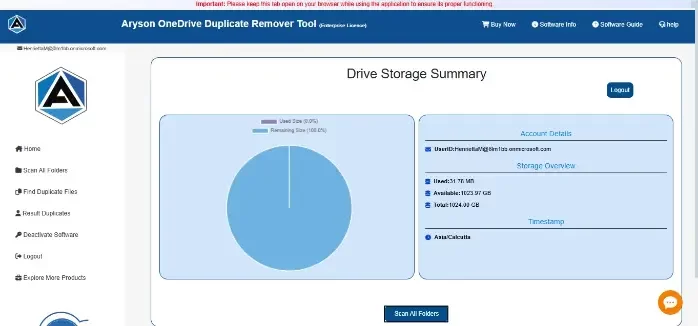
- Download & open the Aryson OneDrive Duplicate Remover Tool on your PC.
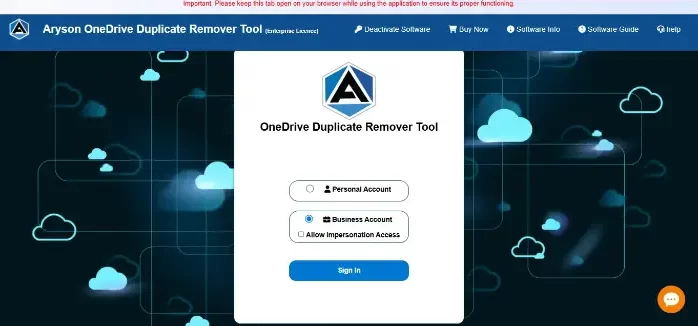
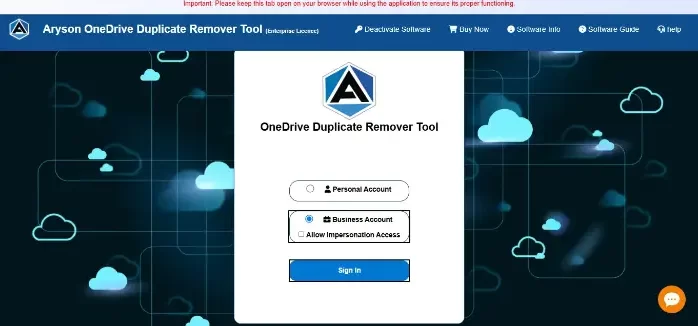
- Log in with your personal account or business account.
- Now, you can scan the folders associated with your OneDrive account >> move them.
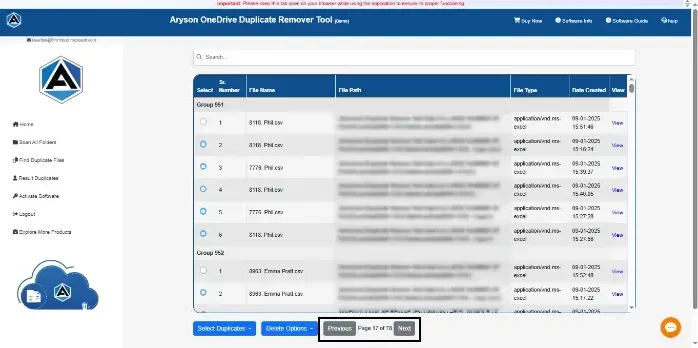
- After scanning, you can view them >> check details like file name, size, date, and folder location.
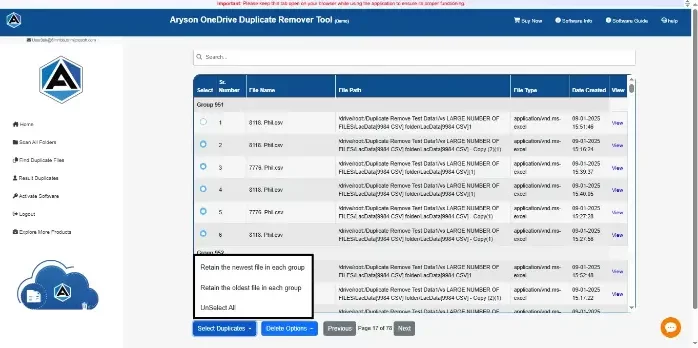
- Now, you can select the duplicate photos from your OneDrive account accordingly.
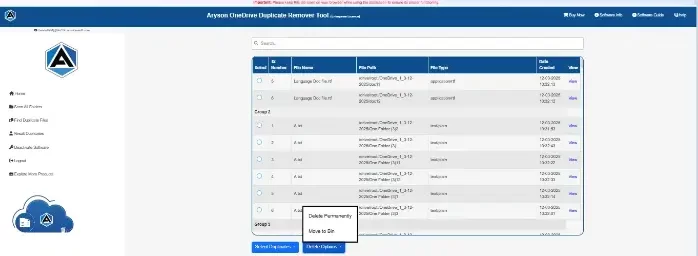
- Click on the Delete to move them into the bin or delete them permanently.
Noah’s Success Story
Noah, a content manager from California, needed to clean years of duplicate photos from her OneDrive business account. Initially, she tried manual sorting by file name, which kept missing renamed duplicates. Later, she used Aryson OneDrive Duplicate Remover, logged in with business credentials, and removed all duplicate photos. The software helped Noah to preview each file before deletion and even kept the folders intact after migration.
Conclusion
Now, it is up to the user to choose a method to find and delete duplicate photos from OneDrive. For enterprises, the manual method gets complicated and is merely possible to execute. Thus, they generally opt for the Aryson OneDrive Duplicate Remover Tool to effectively remove duplicates from the OneDrive account. Whereas, for individuals with a small amount of data, the manual method might work well. Choose between the two solutions as per your requirement and scale of work.
Frequently Asked Questions
Q.1 Do I need to download photos to my computer before scanning for duplicates?
Ans: No, downloading photos is not required before scanning. The Aryson OneDrive Duplicate Remover connects directly to your OneDrive account. It scans cloud-stored photos without creating local copies. This saves storage space and reduces processing time.
Q.2 How to remove duplicate photos from OneDrive?
Ans: You can remove duplicate photos using the Aryson OneDrive Duplicate Remover Tool. Log in to your OneDrive account securely. Scan the selected folders for duplicate items. Review the results and delete unwanted duplicate photos safely.
Q.3 Can I select and remove multiple duplicate photos at once?
Ans: Yes, the software supports bulk duplicate photo removal. It displays all detected duplicate files in one interface. You can select multiple photos together. This feature saves significant time and manual effort.
Q.4 Is it possible to remove duplicate photos from both personal and business OneDrive accounts?
Ans: Yes, the software supports both personal and business OneDrive accounts. Users can log in using appropriate credentials. It scans and identifies duplicate photos accurately. This flexibility helps individuals and organizations alike.
Q.5 Will the tool scan all folders where photos might be stored?
Ans: Yes, the software scans selected OneDrive folders thoroughly. It identifies duplicate photos across multiple locations. Users can choose specific folders if required. This provides better control over the cleanup process.
Q.6 Does the tool give any summary or preview before I delete photos?
Ans: Yes, the software provides a detailed preview before deletion. Users can verify file names and folder locations. It also displays file sizes and other details. This helps avoid accidental data removal.
Q.7 How does the tool identify which photos are duplicates?
Ans: The software compares multiple file attributes during scanning. It checks file properties and matching content parameters. Duplicate photos are grouped together for review. This improves accuracy during duplicate detection.
Q.8 Will my unique photos be affected when removing duplicates?
Ans: No, the software is designed to protect unique files. Users can preview duplicate results before deletion. This verification process reduces deletion risks. Your original photos remain safe and intact.
Q.9 Is there a free version to try before purchasing?
Ans: Yes, Aryson provides a trial version for evaluation. Users can explore the software interface and features. This helps assess functionality before purchasing. It allows informed decision-making without immediate investment.
Q.10 How does the tool ensure user data integrity when finding and deleting duplicate photos?
Ans: The software provides a preview before performing deletion. Users can verify duplicate files carefully. It processes only selected duplicate items. This approach helps maintain data integrity throughout the cleanup process.
Q.11 Is 24×7 chat support available if I have urgent data-integrity concerns?
Ans: Yes, Aryson offers technical assistance for customer queries. Users can contact the support team when needed. Experts help resolve software-related concerns promptly. This ensures a smoother and more reliable experience.
About The Author:

Harshita Sachdeva, a professional technical writer at Aryson Technologies, specialize in delivering clear, hands-on documentation for data management, migration, and recovery solutions. With a meticulous, reader-first approach, I break down complex technical processes into simple, actionable content - helping IT professionals and decision-makers tackle challenges efficiently.
Related Post