-

Written By Rohan Wiese
-
Updated on July 4th, 2025
Remove Attachments From Multiple Outlook Emails in Easy Steps
Summary:- Attachments are one of the primary reasons why Outlook mailboxes become oversized. They not only consume valuable storage but can also slow down Outlook’s performance. If you receive a lot of emails with attachments daily, managing mailbox size becomes a constant challenge. Deleting emails isn’t always an option because the message body may contain important information. So what’s the solution? This guide explores how to remove attachments from multiple Outlook emails without deleting the actual messages. We’ll cover manual, script-based, and automated PST Compress Tool to help you pick the best one based on your needs.
Significant Reasons to Remove Attachments from Outlook PST Files
Email attachments can occupy a substantial amount of space in Outlook. Over time, this not only slows down Outlook’s performance but also hits storage limits. Here are the key reasons why you should delete large attachments in Outlook:
- By removing large attachments, you can significantly decrease the size of your PST file.
- A light PST file helps Outlook run fast, speeds up email loading, and improves search responsiveness.
- Oversized PST files are more susceptible to corruption. Removing attachments helps keep your file within safe limits and prevents data loss.
- Additionally, it can troubleshoot and resolve slow Outlook performance issues caused by having a large PST file.
- If you’re using Exchange, Office 365, or IMAP, removing attachments ensures you don’t exceed your mailbox quota.
- When you reduce your Outlook PST size by removing attachments, it will protect your sensitive files from emails.
Methods to Remove Attachments from Multiple Outlook Emails
To help you fix Outlook mailbox issues more efficiently, here are some proven methods you can use to delete attachments from multiple Outlook messages at once. Further, we’ll introduce the available techniques to simplify the task.
Method 01: Best Automated Solution to Remove Attachments from Outlook Emails
The Aryson PST Compress Tool is an advanced utility that enables you to remove attachments from multiple Outlook emails with ease and automation. If you’re dealing with oversized PST files or want to declutter your mailbox, this tool offers innovative compression modes. These options allow you to remove, compress, or extract attachments without affecting the actual email content. It supports both ANSI and UNICODE PST files and works with all major Outlook versions, including 2019, 2016, and 2013. With features such as date-based filtering, batch processing, and the ability to run without Outlook installed, it can manage bulk Outlook data quickly and efficiently.
Steps to Remove Attachments from Outlook PST Mailbox in Bulk:
- Download and install the Aryson PST Compress Tool on your Windows system.
- Now, click Select File(s)/Folder to choose and upload PST files, then click Open.
- Next, see the list of selected PST data and pick the PST file with an attachment.
- Next, select a compression option (remove, extract, or compress attachments).
- Then, apply optional filters along with the Path to save the resultant Outlook PST file.
- Hit the Start Compress button to remove attachments from multiple Outlook emails.
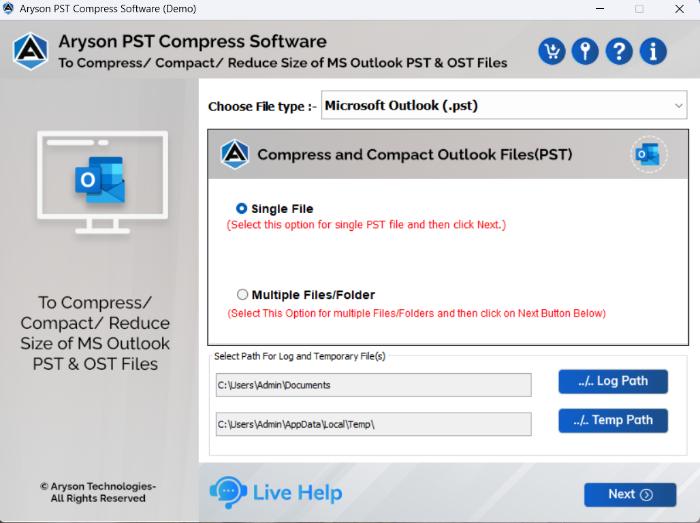
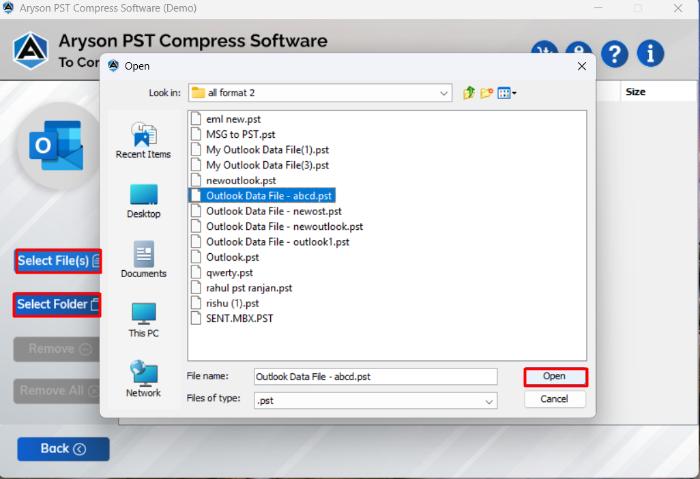
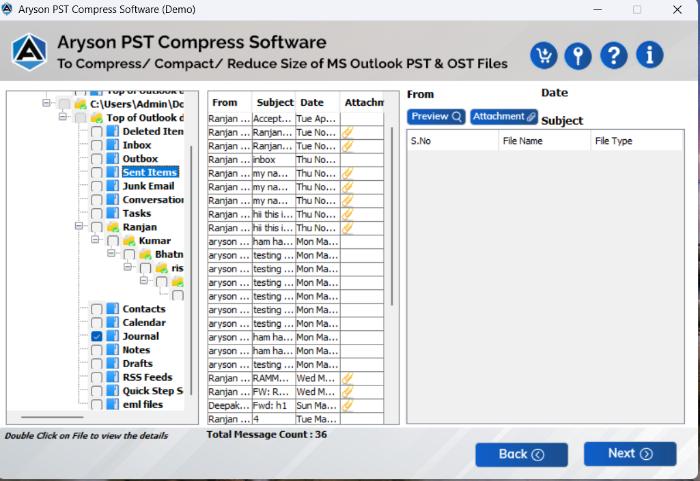
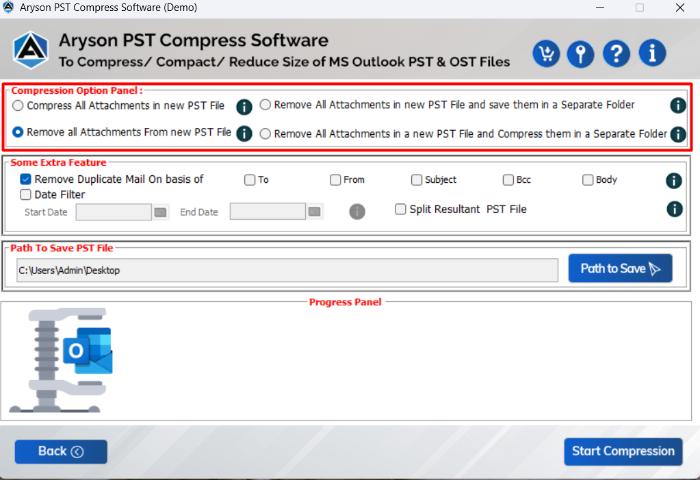
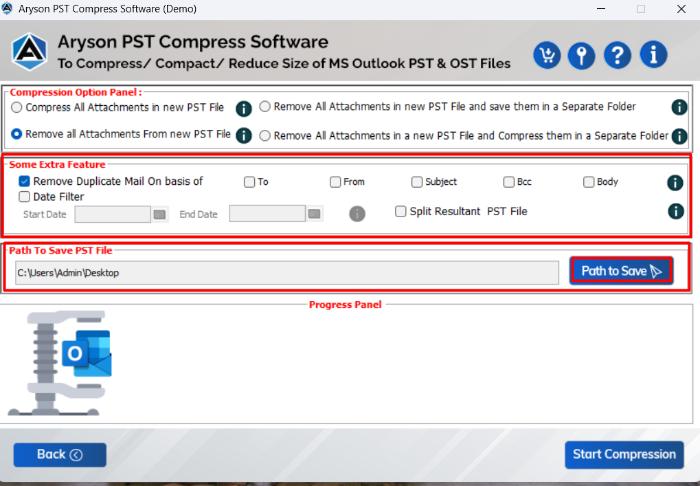

Once deleted, it will reduce the Outlook Mailbox size without deleting emails. Now, you’ll receive a detailed log/report of the actions taken.
Method 02: Manual Way to Remove Attachments from Outlook Emails
Outlook offers several built-in options. Although these methods are helpful for small-scale cleanups, they can be time-consuming when dealing with hundreds or thousands of emails. Below are two practical manual approaches you can try:
- First, open Outlook and ensure you’re signed in to the correct account.
- Next, go to your inbox or any other folder where the email is saved.
- Double-click to open the email that contains the attachment you want to remove.
- Right-click on the attachment and select the “Remove Attachment” option.
- Here, Outlook will prompt you to confirm the deletion. Click Yes to proceed.
- Finally, don’t forget to save the email after removing the attachment.
- You can do this by clicking File > Save, or simply pressing Ctrl + S.
Note: This method only removes the attachment from the selected email. If you have several emails with attachments, you’ll need to repeat the same steps for each one.
Method 03: Use VBA Script to Remove Large Attachments in Outlook
If you’re familiar with Outlook’s Developer tools and want a free way to automate attachment removal, using a VBA (Visual Basic for Applications) script is a helpful option. However, it does require basic scripting knowledge and access to the Outlook desktop app with macros enabled.
- First, launch Microsoft Outlook on your computer.
- Press Alt + F11 to open the Visual Basic for Applications (VBA) editor window.
- In the VBA editor, go to the top menu and click on Insert, then select Module.
- A new blank module will appear. Now, paste your VBA script:
- When the code is in Go, go to Insert > Module and paste the script. Press F5 to run the script to remove attachments from multiple Outlook emails.

Additional Tips: Always create a backup of your PST/OST file before running any scripts. So, you can recover your data if something goes wrong.
Method 04: Remove Outlook Attachments from Sent or Received Emails
Even after an email has been sent or received, Outlook still gives you the option to remove attachments manually. However, it’s essential to note that this method only works one email at a time, and Outlook does not support the manual bulk deletion of attachments.
Remove Attachments from the Email Header
In many cases, Outlook displays attachments in a line just below the subject line. It is commonly referred to as the email header section. Here’s how to remove them:
- First, open the specific email in a new window by double-clicking it.
- Next, locate the attachment area, which is typically positioned just below the subject line or recipient details.
- Then, right-click on the attachment you want to remove and select Remove Attachment from the menu.
- Finally, Outlook will prompt you to confirm and click Yes to delete it.
Remove Attachments from the Message Body
- To begin, double-click the email to open it in a new window.
- Then, go to the ribbon at the top and click on Move>>Actions>>Edit Message.
- Now, scroll through the email body and locate the embedded attachment.
- Finally, click on the attachment to select it and press the Delete key on your keyboard.
Drawbacks of Using the Manual Solution
Before choosing the manual method to remove attachments, it’s essential to understand its limitations.
- You have to remove attachments from one email at a time.
- Once deleted, attachments can’t be recovered easily.
- Some Outlook environments restrict script execution.
- One wrong edit in the script can wipe critical data.
- All attachments are deleted without confirmation.
If you’re dealing with thousands of emails, manually removing attachments can be a time-consuming and inefficient process.
Conclusion
Now, you know the easiest way to remove attachments from multiple Outlook emails using the Aryson PST Compress Tool. This tool is automated, easy to use, and allows for the removal of attachments in bulk with helpful filters. Also, we explained manual methods and a VBA script for those who are comfortable with technical options. However, these methods can be time-consuming and don’t support bulk removal. So, if you want a quick and safe way to clean up Outlook attachments, the automated tool is the best option.
Frequently Asked Questions:-
Q1. Can I remove attachments from multiple emails in Outlook at once?
Ans: No, Outlook does not provide a built-in option to remove attachments from multiple emails simultaneously. To do so, you can use the Aryson PST Compress Tool for bulk removal.
Q2. Will removing attachments delete the email message in Outlook?
Ans: No, removing an attachment only deletes the file that is attached. The email body, subject, sender details, and other metadata remain intact.
Q3. Do I need Outlook installed to use the attachment removal tools?
Ans: Some tools, like Aryson PST Compress Tool, work independently and do not require Outlook to be installed. However, always check tool requirements before starting.
Q4. Can I filter which attachments to remove (by date, size, or sender)?
Ans: Outlook’s manual method does not support filters. However, professional tools offer advanced filtering options that allow you to remove attachments based on date range, file size, sender, or subject.
About The Author:

Rohan Wiese is a Technical Writer at Aryson Technologies. He is an expert Email Forensic, Cloud Computing, and a passionate nerd with over 10 years of experience in technical content writing. He writes about Cloud Migration, Database Recovery, Email Backup, Windows, Mac, and Tech.
Related Post