-

Written By Rohan Wiese
-
Updated on June 23rd, 2025
Top 10 Common Mistakes to Fix or Avoid as a SharePoint 2010 Administrator
Summary: Microsoft SharePoint 2010, though powerful, can be complex. As an administrator, it’s easy to fall into common pitfalls that hinder performance and stability. Having worked with SharePoint 2010 extensively, I’ve observed numerous configuration errors. This blog post outlines the top 10 mistakes SharePoint 2010 administrators make and provides actionable solutions to fix them, ensuring a smoother and more efficient SharePoint environment.
Top 10 mistakes made by SharePoint 2010 administrators & Their Solution
Discover the top 10 common mistakes SharePoint 2010 administrators make, from resource allocation errors to configuration blunders. This guide provides actionable solutions to fix performance issues, enhance security, and optimize your SharePoint environment for stability and efficiency. Learn to troubleshoot and prevent critical errors.
Mistake 1: Insufficient RAM and Hard Disk Space
One of the most frequent issues I’ve encountered is SharePoint servers running with inadequate RAM or hard disk space. It often leads to sluggish performance, especially in virtualized environments where resources are overcommitted. When SharePoint runs out of RAM, it can degrade functionality, reduce web caching, and constantly recycle application pools, forcing ASP.NET code to recompile repeatedly and diminishing the user experience.
How to Fix:
To optimize performance, ensure your SharePoint 2010 servers meet the recommended hardware requirements. Microsoft suggests at least 8 GB of RAM and 80 GB of storage on the C: drive for SharePoint 2010. For networked servers, actively monitor RAM usage to maintain optimal performance. If your servers aren’t networked, use load-testing simulations to analyze performance under typical usage.
For the C: drive, Windows requires significant space. Consider adding a secondary drive for SharePoint installations, third-party applications, SharePoint logs, and Search index files. It offloads the C: drive, improving system health and overall speed.
Mistake 2: Improper Utilization of Virtualized Microsoft SQL Server
While virtualization offers flexibility, misconfigurations can severely impact SharePoint’s performance, particularly when virtualizing SQL Server. A standard error is overcommitting host resources (RAM, CPU, or drive space). Since all SharePoint data resides in the SQL Server, a slow SQL Server directly translates to a slow SharePoint environment.
How to Fix:
The most straightforward solution is to migrate your SQL Server to a physical machine, eliminating resource contention. Using SQL aliases simplifies this migration.
If a physical server isn’t an option, keep these points in mind for virtualized SQL Server:
- Avoid Thin Provisioning: Do not use thinly provisioned virtual drives. I/O performance is a significant bottleneck for virtualized SQL servers, and thin provisioning exacerbates it.
- Dedicated Spindles: Place SQL Server guest virtual drives on dedicated physical spindles on the host. It enhances I/O by preventing conflicts with other virtual machines.
- No RAM Overcommitment: Never allow the virtualization host to overcommit its RAM. It leads to memory paging, which significantly degrades system performance.
Mistake 3: Over-reliance on the Farm Configuration Wizard
When SharePoint 2010 was new, many administrators heavily relied on the Farm Configuration Wizard, often leading to undesirable configurations. While understanding has improved, some issues persist.
The wizard can create problematic web applications, such as a content web app at http://servername, and subsequently place the My Site host at http://servername/my on the same application. It also often provisions unnecessary services.
How to Fix:
To rectify issues caused by the Farm Configuration Wizard, follow these steps:
- Clean Up Web Applications: Create a new web application specifically for My Sites, using a fully qualified domain name (FQDN) like mysites.company.com. Set the My Site host at the root of this new web app. Use PowerShell to move existing My Sites (SPSite) to the correct content database and attach it to the latest web app. Update User Profile settings to point to the new My Site location.
- Review Service Applications: Uninstall any service applications you are not using. Stop their associated service instances. Suppose you notice service application databases with unique identifiers (GUIDs) at the end of their names. In that case, these are often indicators of wizard-created services that can be removed after careful assessment.
Mistake 4: Incorrect URL Entry for Content Web Applications
SharePoint doesn’t automatically update IIS host headers after a web application is created, especially when changes are made to make the site externally accessible. New administrators often assign short, internal URLs (e.g., http://portal) which don’t function externally. While Alternate Access Mappings (AAMs) can be used to add public URLs, they don’t update IIS host headers or existing links within workflows and alerts. This disconnect between SharePoint and IIS can cause web application failures.
How to Fix:
The fundamental issue is that SharePoint sets the host header only during initial web application creation. There’s no direct fix to modify it afterwards; you’ll need to recreate the web application. The good news is that your content won’t be lost, but custom settings and configurations will need to be reapplied.
- Document Settings: Note down all current web application settings.
- Detach Content Database: Detach the content database from the old web application.
- Backup web.config: Make a backup copy of the web.config file.
- Delete Old Web App: In Central Administration, delete the old web application, ensuring SharePoint cleans up all associated components.
- Recreate Web App: When recreating the web app, enter the correct FQDN in the Host Header field. Using port 80 is often convenient. Accept default security settings initially, then adjust them later.
- Rename Content Database: Give your content database a clear, distinct name to identify its associated web app easily.
- Reapply Customizations: Apply any custom changes from your backed-up web.config to the new one.
Mistake 5: Running All Web and Service Apps in a Single Application Pool
A common misconception is that all SharePoint web and service applications should run under the same application pool (W3WP.exe). It can lead to inefficient memory usage and performance issues. When all applications share a single pool, the same data is cached multiple times, especially after overnight application pool recycling, which slows down SharePoint performance in the mornings.
How to Fix:
- Separate Application Pools: Run all SharePoint web applications within one dedicated application pool and all service applications within another. It optimizes memory utilization.
- Dedicated Service Application Pool: Create a dedicated application pool for service applications, perhaps named “Default SharePoint Service App Pool.” Assign a unique, dedicated managed account (e.g., sp_serviceapps) as its identity.
- Configure in Central Administration: In Central Administration, modify the properties of your service applications to assign them to the new, dedicated application pool. If an option isn’t available, use PowerShell.
Mistake 6: Using a Single Account for Everything
Using a single account for all SharePoint operations is a significant security vulnerability. If this account’s credentials are compromised, an attacker gains complete control over your SharePoint environment, making it impossible to audit individual changes.
How to Fix:
The best practice is to create unique, dedicated accounts for different SharePoint services and processes.
- Managed Accounts: Add sp_webapps and sp_serviceapps accounts as managed accounts in SharePoint.
- Configure Service Accounts: In Central Administration (Security > Configure Service Accounts), change the accounts used by various processes to these newly created, dedicated accounts.
- User Profile Service: If you’re using the User Profile Service, ensure your new sp_userprofile account has the necessary permissions in Active Directory (AD). You may also need to recreate your AD connection for the User Profile Service.
Mistake 7: Leaving Default SharePoint Settings Unchanged
Many administrators overlook customizing SharePoint’s default settings, which can lead to performance degradation. For instance, the default database auto-growth setting of 1MB can cause frequent, small growth spurts, fragmenting SQL Server databases and slowing performance. Similarly, default recovery models for Config and Content databases, while not inherently bad, can contribute to fragmentation over time.
How to Fix:
- Database Auto-Growth: Adjust your database auto-growth settings to prevent frequent, small increments. I recommend setting auto-growth to 500 MB or 1 GB for better performance and reduced fragmentation.
- Review Recovery Models: Ensure your SQL Server recovery models are appropriate for your backup strategy and performance requirements.
Mistake 8: Not Enabling BLOB Caching
BLOB (Binary Large Object) caching is an incredibly effective and easy way to improve SharePoint performance significantly. It speeds up file delivery to users and reduces the load on your SQL Servers.
How to Fix:
Enabling BLOB caching is straightforward:
- Locate web.config: The web.config files for your web applications are typically located under C:\inetpub\wwwroot\wss\virtualdirectories by default.
- Enable Caching: Open the web.config file and locate the BLOB caching setting. Change “false” to “true.”
- Move Cache Location: For optimal performance, move the BLOB cache directory to a drive other than your C: drive.
Mistake 9: Not Utilizing a PDF IFilter
Given that many documents are stored in PDF format, installing a PDF IFilter on your SharePoint farms is crucial for effective search. Adobe provides a free PDF IFilter.
How to Fix:
Install the Adobe PDF IFilter only on SharePoint servers running the Search Index role. PowerShell can be used to streamline this installation process across multiple servers.
Mistake 10: Not Pointing SharePoint Servers to Themselves for Search
Failing to point the SharePoint server’s indexer at itself can negatively impact end-user performance. If not configured this way, the search service will perform a crawl action, and DNS will point to whichever web front-end it’s configured for. It forces the server to handle traffic twice, leading to slowdowns. Pointing the Search server to itself allows the web front-end to focus on user requests, improving overall responsiveness.
How to Fix:
- Edit Hosts File: On each SharePoint server, open the host file located at C:\windows\system32\drivers\etc\hosts.
- Add Loopback Entry: Add entries to point all relevant SharePoint URLs to 127.0.0.1 (the loopback address, meaning “this computer”). For example 127.0.0.1 your SharePoint portal.com127.0.0.1 mysites.yoursharepointportal.com
Hassle-Free Way to Recover SharePoint File Errors
Despite your best efforts, SharePoint 2010 administration mistakes can sometimes lead to database corruption. In such critical situations, the Aryson SharePoint Server Recovery Tool offers a reliable solution for recovering damaged MDF database files. This tool is designed with an advanced algorithm to extract all databases from corrupted files with ease. It allows you to preview recovered files before saving and offers dual recovery modes: Standard and Advanced. Download Now Purchase Now
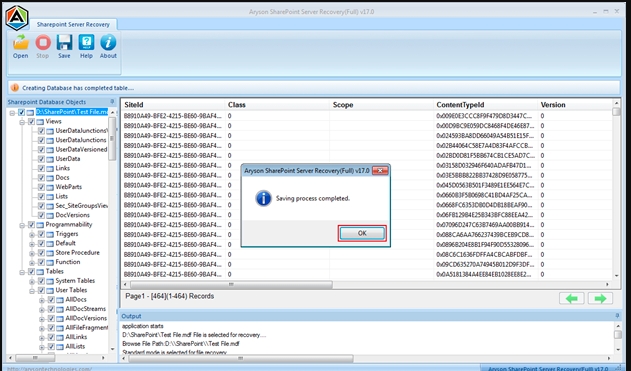
Steps to Recover Data Lost Due to SharePoint 2010 Administrator Mistakes:
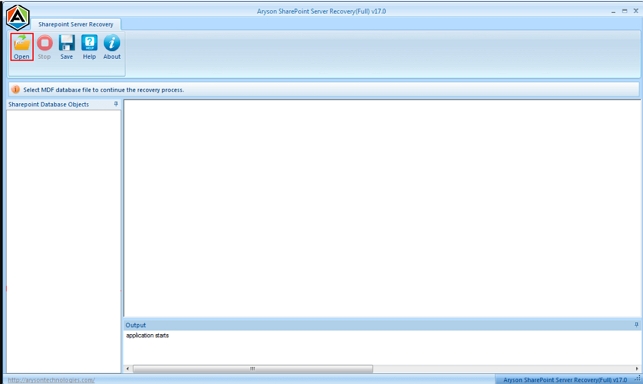
- Launch: Run the SharePoint Recovery Software as an administrator.
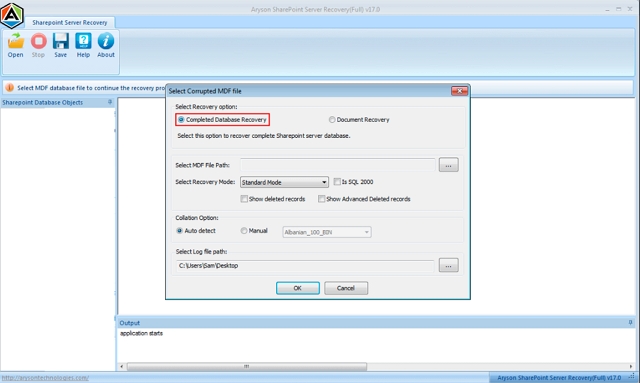
- Open File: Click “Open” and add the MDF SharePoint file.
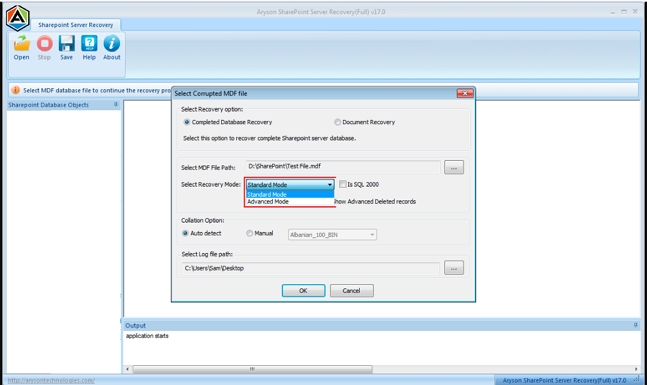
- Choose Mode: Select your desired Recovery Mode (Standard or Advanced) and click “Next.”
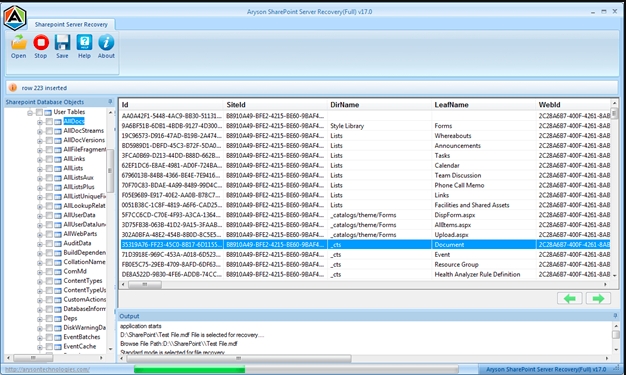
- Preview: Preview the recovered MDF file.
- Save: Click “Save” to complete the recovery process.
Conclusion
SharePoint administration requires vigilance. By understanding and actively avoiding these common SharePoint 2010 administrator mistakes, you can significantly improve the performance, security, and stability of your SharePoint environment. Armed with this information, you’re better equipped to prevent and resolve common SharePoint errors, and for database-level issues, professional recovery tools are always available.
Frequently Asked Questions (FAQs):-
Q1. What are common SharePoint 2010 administrator mistakes?
Ans: The most common SharePoint 2010 admin mistakes include:
✅ Not allocating sufficient RAM or disk space.
✅ Over-relying on the Farm Configuration Wizard.
✅ Overcommitting resources for virtualized SQL Server.
✅ Incorrectly configuring Alternate Access Mappings (AAMs).
✅ Running all services under a single account.
✅ Leaving default SharePoint and SQL settings unchanged.
✅ Failing to enable BLOB caching.
✅ Inadequate disaster recovery planning.
Q2. How can I improve SharePoint 2010 performance and avoid admin errors?
Ans: To boost SharePoint 2010 performance and avoid typical admin errors:
✅ Increase RAM to at least 8 GB and ensure sufficient disk space.
✅ Avoid using the default Farm Configuration Wizard for critical configurations.
✅ Use dedicated service accounts for web applications and services.
✅ Enable BLOB caching for faster file delivery.
✅ Configure SQL database settings (e.g., auto-growth) appropriately.
✅ Ensure proper DNS configuration by pointing SharePoint servers to themselves for search. You can also utilize tools like
✅ Aryson SharePoint Server Recovery to repair database-level issues efficiently.
About The Author:

Rohan Wiese is a Technical Writer at Aryson Technologies. He is an expert Email Forensic, Cloud Computing, and a passionate nerd with over 10 years of experience in technical content writing. He writes about Cloud Migration, Database Recovery, Email Backup, Windows, Mac, and Tech.
Related Post



