-

Written By Rohan Wiese
-
Updated on December 22nd, 2025
Microsoft OneDrive Stopped Working? Quick Solutions to Fix It
Have you ever opened OneDrive only to see it stuck between “Looking for Changes” and “Your Files are Synced,” but nothing actually happens? It can be quite irritating for the OneDrive user. “OneDrive stopped working” issue can stop your workflow when you’re trying to work on important files or manage large folders. Now, it becomes a common issue, and several users are dealing with it oin daily basis. Generally, it happens due to syncing glitches, outdated apps, or minor system conflicts. The best thing is that most of these problems can be fixed quickly. In this guide, we’ll walk you through effective solution to get OneDrive back on track. To stay synced without interruptions, keep a backup of OneDrive data using Aryson OneDrive Migration Tool.
Most Common Reasons Why OneDrive Stops Working
Understanding why OneDrive stops functioning is the first step to fixing it. Here are the most common causes:
- Network issues: OneDrive won’t open, slow or unstable internet can halt syncing.
- Outdated OneDrive app: Another reason can be that older versions may not function properly.
- Corrupted cache or files: Damaged data can prevent OneDrive from syncing.
- Windows update conflicts: Updates can sometimes disrupt OneDrive functionality.
- Sync errors due to storage limits: Low cloud or local storage can block OneDrive operations.
Asked Question on Microsot: Microsoft OneDrive Stopped Working: Stuck on “Looking for Changes” and Not Syncing Files.
Basic Checks to Perform Before Fix OneDrive Sync Problems
Instead of moving straight to advanced troubleshooting, begin with these easy checks, which usually address the issue.
- First, check whether your internet connection is stable.
- Next, confirm that you are signed in to the correct Microsoft account.
- Also, ensure that OneDrive storage is not full.
- Finally, restart your system to refresh background services.
If OneDrive still does not work, then move to the solutions below.
Quick Solutions to Fix Microsoft OneDrive Stopped Working
With the common causes in mind, the solutions below will guide you through the given methods to fix Microsoft OneDrive either manually or with the help of the automated solution. Proceed with the given steps to troubleshoot OneDrive sync errors:
Solution 01: Restart the OneDrive Application
- To begin with, locate the OneDrive cloud icon in the system tray.
- After that, right-click the icon and choose the Close OneDrive option.
- Next, open OneDrive again from the Start menu.
- In the end, check whether file syncing starts normally.
Solution 2: Reset OneDrive Settings to Fix OneDrive Issues
- Initially, press Windows + R to open the Run dialog box.
- Following this, paste %localappdata%\Microsoft\OneDrive\onedrive.exe /reset and press Enter.
- Meanwhile, wait for a few minutes until the reset completes.
- Eventually, launch OneDrive manually if it does not reopen.
Solution 03: Update the OneDrive Application
- At first, open OneDrive and access the settings section.
- Subsequently, check if a new update is available.
- Once confirmed, install the update and restart the system.
- Afterwards, verify whether OneDrive works properly.
Solution 04: Install Pending Windows Updates
- To start, open Settings and move to Windows Update.
- Thereafter, click on the Check for updates option.
- Once listed, install all available system updates.
- Finally, restart the system to apply the changes.
Solution 05: Clear OneDrive Cache Files
- At the beginning, press Windows + R and type %localappdata%\Microsoft\OneDrive\.
- Right after, open the Cache folder from the location.
- Then, remove all files stored inside the cache folder.
- As a result, restart OneDrive to fix the OneDrive sync not working issue.
Solution 06: Check Storage Availability
- In the first step, sign in to your OneDrive account online.
- Moving forward, review the available cloud storage space.
- Along with this, check free space on the local drive.
- Consequently, delete unnecessary files if storage is full.
Solution 07: Disable Antivirus or Firewall Temporarily
- At this stage, temporarily turn off antivirus or firewall protection.
- Soon after, restart the OneDrive application.
- If successful, confirm whether syncing resumes normally.
- Later on, add OneDrive to the security exception list.
Solution 08: Reinstall Microsoft OneDrive
- As a first step, press Windows + R, type appwiz.cpl, and press Enter.
- Next in line, uninstall Microsoft OneDrive from the program list.
- Shortly after, restart the system to clear residual files.
- Following that, install the latest version of OneDrive.
- Ultimately, sign in and allow all files to sync.
As a result, it will fix the Microsoft OneDrive not working error.
Backup and Secure OneDrive Data with OneDrive Migration Solution
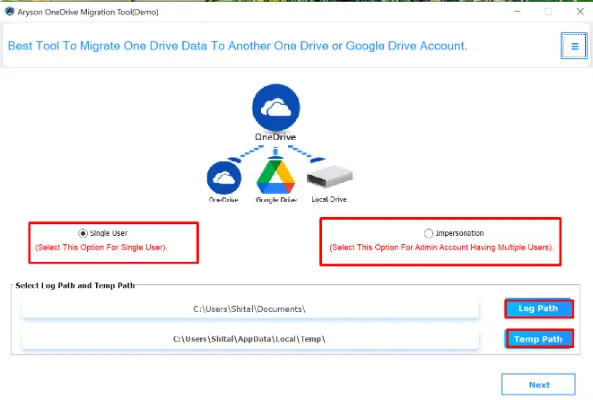
If Microsoft OneDrive keeps showing errors or stops working frequently, relying only on fixes may not be safe for your data. In such cases, Aryson OneDrive Migration Tool provides a reliable solution that helps you back up your complete OneDrive data to a local drive or any other secure storage location. In addition to migration, it also provides the option to back up OneDrive data directly to a local drive, which is useful for offline access and long-term data protection. Moreover, the tool supports all major file types, including documents, PDFs, images, audio, and videos, while keeping the original folder structure intact. For enterprise and admin users, the tool supports both single-user mode and impersonation mode. Hence, it is suitable for multi-user environments. It also enables users to migrate between OneDrive Business and OneDrive Personal accounts as needed.
Follow these Steps to Keep Backup of Your OneDrive Data
- To begin with, install and launch the Aryson OneDrive Migration Tool on your system.
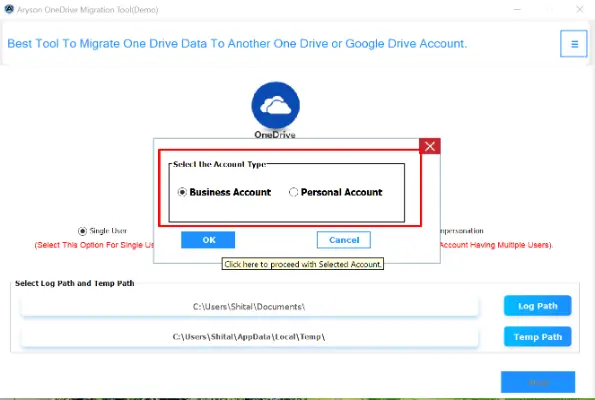
- From the Account type panel, choose your preferred account is Personal or Business.
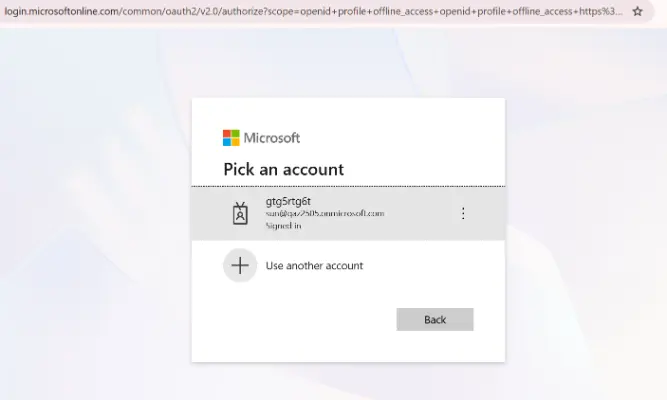
- After that, sign in using your existing OneDrive account or new account credentials.
- Next, you can select the OneDrive files and folders you want to back up.
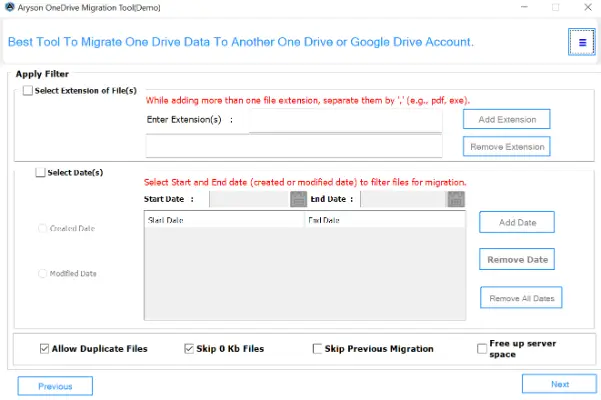
- According to the requirement for selective data management, apply filters.
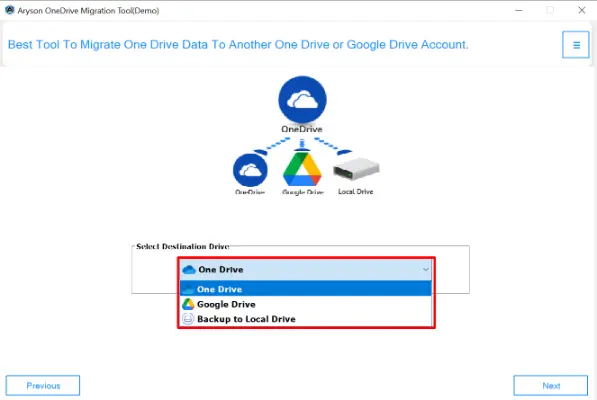
- Moving forward, choose a local drive or another drive as the destination.
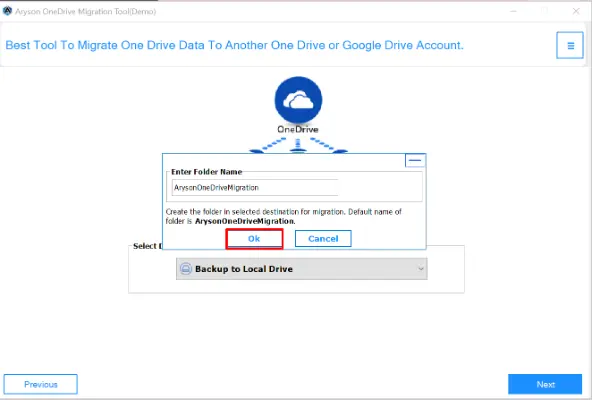
- Click Ok to start the backup process and keep your data protected from OneDrive issues.

Conclusion
This guide explained why OneDrive stopped working and how to fix it using simple, reliable solutions. Each method addresses a specific cause, from sync errors to app corruption. After following these steps, OneDrive should start functioning smoothly again. With the right approach, file access and syncing remain stable and stress-free. If you find any issues while using the automated solution, you can frequently connect to our tech support team for further assistance.
Frequently Asked Questions:
Q1. How do I fix OneDrive when it is not syncing files?
Ans: You can fix OneDrive syncing issues by restarting the app, resetting OneDrive settings, clearing cache files, updating the application, and checking available storage space.
Q2. Why is OneDrive stuck on “Processing changes”?
Ans: This usually happens due to large file uploads, unsupported file types, long file paths, or a slow internet connection.
Q3. Is it safe to back up OneDrive data to a local drive?
Ans: Yes, backing up OneDrive data to a local drive is safe and helps protect important files when OneDrive faces technical issues.
Q4. How do I protect my data if OneDrive keeps showing errors?
Ans: If OneDrive errors occur frequently, back up your data to a local or external drive with the Aryson OneDrive Migration Tool. It ensures your files remain secure and accessible.
About The Author:

Rohan Wiese is a Technical Writer at Aryson Technologies. He is an expert Email Forensic, Cloud Computing, and a passionate nerd with over 10 years of experience in technical content writing. He writes about Cloud Migration, Database Recovery, Email Backup, Windows, Mac, and Tech.
Related Post


