-

Written By Rohan Wiese
-
Updated on September 24th, 2025
Is OneDrive Storage Full? Top 3 Ways to Free Up Space Quickly
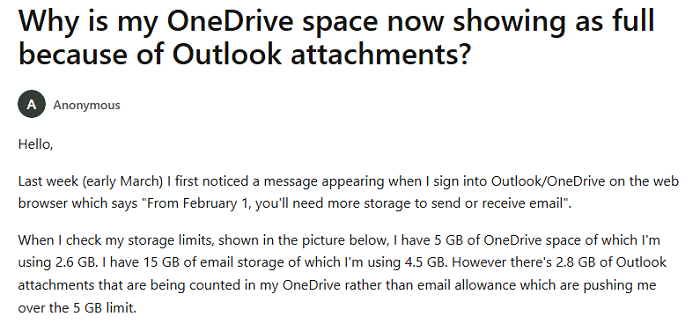
Have you ever gotten the message “OneDrive storage full” even though you have not uploaded so many files? Recently, we noticed that now Outlook attachments are counted toward their OneDrive storage. It simply means that if your email account has space, but large attachments can fill up your 5GB OneDrive limit. As a result, it stops you to send and receive emails. When you get this message “Your OneDrive is full,” it can be really annoy users when they need to save an important file. The best part is that you do not always have to fix OneDrive storage full issue with paid services. With the Aryson OneDrive Duplicate Remover Tool, you can just remove the identical and unnecessary emails and fix OneDrive storage full issue. Just proceed with the complete blog, you will get the best ways to clean up your OneDrive storage along with reliable backup solution.
With the growing need to save data, Cloud storage has become one of the essential part of our daily life. Among the available options, Microsoft OneDrive is one of the most popular platforms to store photos, videos, documents, and work files. However, you know that the free storage limit is only 5GB. It can fill up your OneDrive storage faster than you expect. If the storage is completely full, you would not be able to upload or sync new files in your OneDrive account. Next, we will explain why Outlook attachments are filling up your OneDrive storage and share the top 3 effective ways to free up space in OneDrive for better storage management.
Some of the Common Reasons Behind Full OneDrive Storage
Before we look at the solutions, let’s see why your OneDrive storage gets full so quickly. Here are some common reasons:
- Modern smartphones capture images and videos in high quality, which take up a lot of space.
- However, your Office files, PDFs, and system backups can easily consume storage.
- Uploading the same file more than once creates copies that waste space.
- Along with that, Files shared with you also count toward your storage limit.
- Microsoft gives only 5GB for free, which is not much for today’s file sizes.
If you do not clean your account often, your storage can fill up quickly, and syncing will stop. Next, we will check out the best ways to increase OneDrive storage for free.
Methods to Get Extra Storage in OneDrive
Now, you are aware with the simplified reasons behind the OneDrive storage full issue. It’s time to explore some of the effective ways to which provide the solution to the ” how to fix OneDrive storage full problem”. Navigate through the given solutions and pick what is understandable for you according to your preference:
Solution 01: First, utilize the OneDrive Troubleshooter
You know that Microsoft provides a dedicated troubleshooter that can automatically detect and fix common OneDrive issues. So, it can easily detect “full storage” error and fix it as well. Here are the steps given to free up space in OneDrive:
- Download the OneDrive Troubleshooter from Microsoft’s official website.
- After that, run this tool and follow the upcoming on-screen instructions.
- Now, let it scan and fix detected issues, then restart your PC.
Solution 02: Use OneDrive via a Web Browser Temporarily
- If the desktop app is not working, you can still access your files. Along with that, you can also upload or download content using the OneDrive website.
- First of all, open onedrive.live.com and sign in with your account.
- Use the Upload button to add files or select files/folders to download.
- Keep in mind that this is a temporary solution until the app issue is fixed.
Solution 03: Unlink and Relink Your OneDrive Account
If you see the “OneDrive is full” error even when there is space, the first step is to unlink your account from your PC. After that, you should reconnect it. Generally, it can resolve the temporary issues.
- Right-click the OneDrive icon in the taskbar and select Settings.
- Go to the Account tab and click Unlink this PC.
- Sign in again with your Microsoft account credentials and choose the location for your OneDrive folder.
- Reconnect your account to OneDrive.
Solution 04: Reset Your OneDrive Account
Sometimes, the issue comes from error along with your OneDrive account. Resetting the app can remove errors and restore proper functioning.
- Press Windows + R to open the Run dialog.
- Now, input the following command and tap on the Enter button.
- Command is: %localappdata%\Microsoft\OneDrive\onedrive.exe /reset
- Now, you should wait for the reset process of your OneDrive account. If it does not start automatically, then you should launch it from the Start menu.
Solution 05: Contact with OneDrive Tech Support
If none of the above fixes work, Microsoft’s support team can help you resolve persistent OneDrive issues.
- Sign in to your OneDrive account on the website.
- Click the question mark icon in the top right corner and choose Contact support.
- Fill in your issue in the pop-up box and submit your request. The support team will assist you promptly.
Solution 06: Reinstall OneDrive
Reinstalling the app can fix many OneDrive errors, including storage issues that don’t reflect actual usage. These steps are associated with your windows system only:
- Press Windows + I to open Settings, then go to Apps.
- Click Apps & features and search for OneDrive.
- Select Uninstall and confirm.
- Visit the OneDrive website to download and install the latest version.
Keep Your Important OneDrive Data Safe with a Secure Backup
When you have bulk of important documents, photos, or business files, then a secure backup is quite necessary. If you are confused about how to do it, then simply navigate to the Aryson OneDrive Backup Tool page and download All Data from OneDrive within a few clicks. So, you can transfer files between accounts and create local copies. Along with that, you can move data to other cloud platforms like Google Drive without any risk of data loss.
Best Ways to Clean Up OneDrive Data When your OneDrive Storage is Full
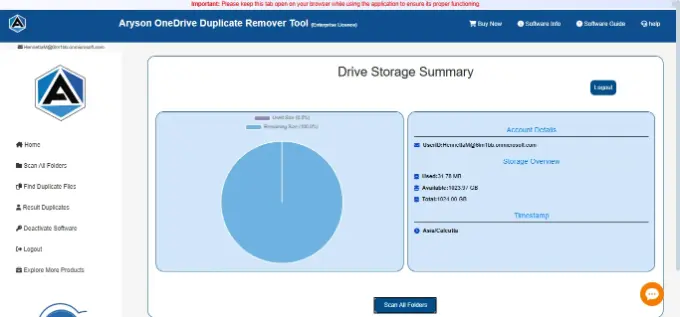
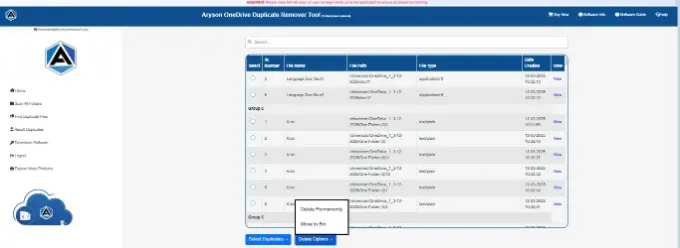
Sometimes, we share or store the same file again and again in the same OneDrive account by mistake. In that term, you should have the Aryson OneDrive Duplicate Remover to remove duplicate files in OneDrive and free up space. This utility is one of the recommended OneDrive running out of space solutions. It can scan and identify duplicate files on OneDrive to free up storage space. With this software, you can directly work on the cloud-stored files. So you do not need to download them manually. Moreover, it gives two options to handle duplicates: Delete Permanently or Move to Bin. Also, it provides the impersonation feature to work with multiple OneDrive accounts at a time. The user can reduce the confusion caused by multiple copies of the same file. Now, know how to delete duplicate OneDrive data and get more space in OneDrive:
Perform the Simple Steps to Increase OneDrive Storage
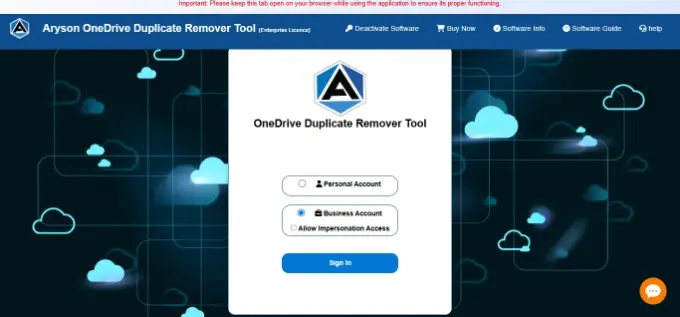
- Open the Aryson OneDrive Duplicate Remover on your Windows or Mac system.
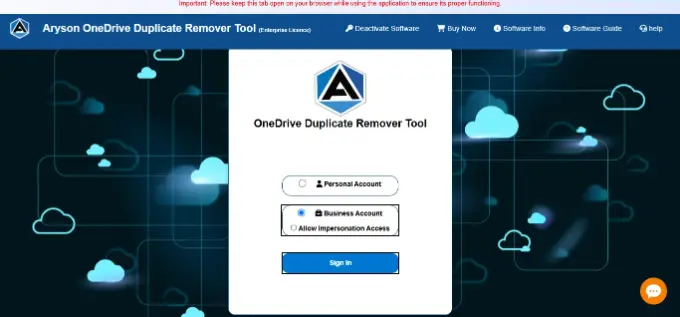
- Mark the option of Personal Account or Business Account and click on Sign In.
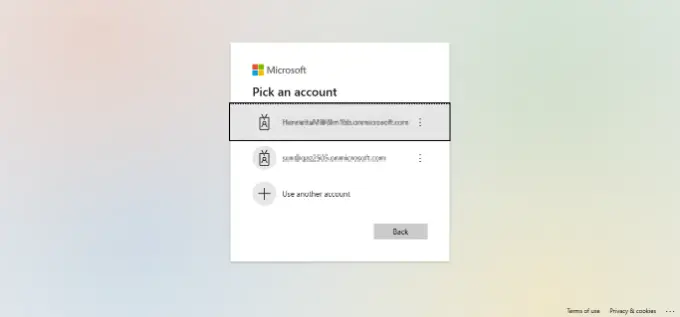
- Enter your credentials to connect either your personal or business OneDrive account.
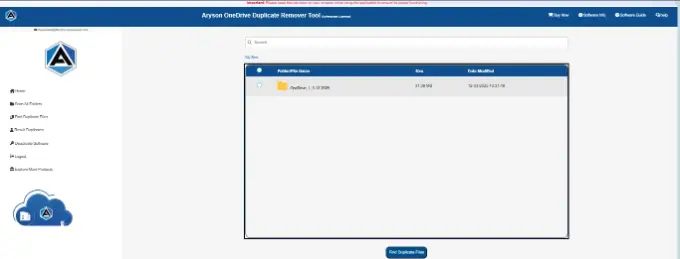
- Choose the folders you want to scan or select the entire OneDrive account>>Scan All Folders.
- Now, click on the Find Duplicate files to fetch the identical emails from your OneDrive data.
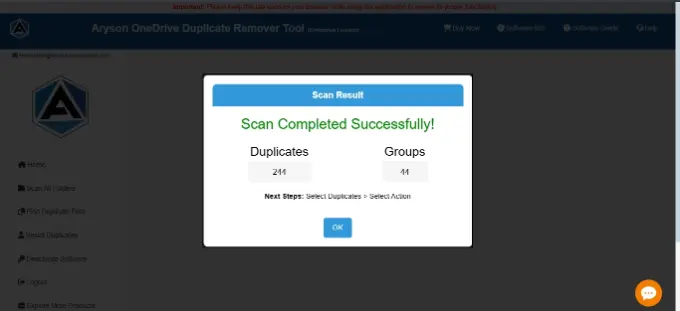
- Next, it will display all the duplicates, just select duplicate that you want to remove>>OK.
- At last, you can select from the duplicate option either to move them to the bin or to delete them permanently.
Conclusion
Users who got the “OneDrive storage full” error have the verified solution to fix OneDrive storage full issue. If your OneDrive storage is under control, it will help you to maintain a smooth management system. Remove unnecessary or duplicate files, use cloud-only storage options, and check your account often. These steps help you free up space, keep your storage organized, and ensure that your important files stay safe and easy to access.
Frequently Asked Questions:
Q1. Why is my OneDrive showing as full even though I haven’t uploaded many files?
Ans: Your OneDrive may be full due to exceeding your storage quota, shared folders consuming space, or expired bonus storage. You should check your storage usage in OneDrive settings, which can help identify the cause.
Q2. How can I free up space on OneDrive without deleting important files?
Ans: You can use the Files On-Demand feature to make files online-only. Right-click a file or folder and select “Free up space” to remove the local copy while keeping it accessible online.
Q3. What happens if I exceed my OneDrive storage quota?
Ans: If your storage is full, you won’t be able to upload, edit, or sync new files. Existing files remain but become read-only, and after a certain period, files may be deleted if the issue isn’t resolved.
Q4. Can I remove shared folders from my OneDrive to free up space?
Ans: Yes. Right-click a shared folder and select “Remove” to delete it from your account. This action does not delete the original folder but removes the shared link from your OneDrive.
Q5. How do I empty the Recycle Bin to free up space?
Ans: Sign in to OneDrive, go to the Recycle Bin, select the files you want to remove permanently, and click “Delete.” It can clear the storage occupied by deleted files.
About The Author:

Rohan Wiese is a Technical Writer at Aryson Technologies. He is an expert Email Forensic, Cloud Computing, and a passionate nerd with over 10 years of experience in technical content writing. He writes about Cloud Migration, Database Recovery, Email Backup, Windows, Mac, and Tech.
Related Post


