-

Written By Harshita Sachdeva
-
Approved By
Shivam Rathore -
Updated on June 26th, 2026
Instant Way to Export Yahoo Mail to PST File for Outlook
Fact-checked and reviewed in accordance with our
Editorial Policy
Summary: This blog is for users who want to export Yahoo Mail to PST File for Outlook. Here, we will discuss the best 02 methods,i.e., manual and professional solutions. Furthermore, we will also talk about the precise working of Aryson Yahoo Backup Tool, which allows the users to take the backup of Yahoo Mailbox into Outlook PST file formats. Users can also archive and save Yahoo Emails to Flash Drive or Computer directly.
A Concise Introduction to Yahoo Mail and PST File
Yahoo Mail is a web-based application that provides various features to users as it allows users to manage their email messages and attachments files. It supports protocol IMAP and which once can easily configure Yahoo accounts into Outlook as well as Thunderbird. However, Yahoo offered multiple benefits to the users, but due to Ads, a user sometimes claims that managing the mailbox using Yahoo Mail is not proficient.
On the other hand, PST files is an Outlook data file which can store your email messages, contacts, and calendar events locally on users’ systems. When someone wants to keep emails locally on their computer, they try to create a .pst file in Outlook. It allows users to access their Outlook data even when they are not connected to the internet.
That’s all about the Yahoo Mail and Outlook PST file. Now, we move to the section where we discuss the two effective ways to convert Yahoo Mail to PST files.
02 Best Methods to Export Yahoo Mail to PST File for Outlook
There will be the best 02 methods that help you to export Yahoo to PST files for Outlook. Although, the manual method is difficult to implement, and it requires more technical knowledge. So, we prefer to use tools that are easy to use. Let us discuss the manual method first.
Method 01:- Export Yahoo Mailbox to PST File Manually
Before implementing this method, you must turn off the two-factor authentication and an app password to log in without error. After that, follow the steps to export Yahoo Mail to PST File for Outlook.
- Open Outlook on your computer.
- Go to the File and select the Add Account option.
- Here, enter your Yahoo Mail email address and click Continue.
- Then enter your password and press the Continue button.
- Check the Option: Let me set up my account manually.
- Choose IMAP or POP according to your requirements.
- You need to enter the following details:-
- Incoming Mail(IMAP) Server
(i) Server-imap.mail.yahoo.com
(ii) Port– 993
(iii) Requires SSL-Yes
- Outgoing Mail(SMTP) Server
(i) Server – smtp.mail.yahoo.com
(ii) Port– 465 or 587
(iii) Requires SSL– Yes
(iv) Requires authentication– Yes
- Incoming Mail(IMAP) Server
- After entering all the above details and the generated password, you can log in to your account.
Finally, you have successfully gotten access to your Yahoo account in Outlook. But this method is not preferable as this method is time-consuming, lengthy, and requires much more technical knowledge. So, if you haven’t technical knowledge, then this method is difficult for you. But no need to worry; we have another method for you that doesn’t require much more technical knowledge and is easy to use.
Method 02:- Export Yahoo Mail to PST File Professionally
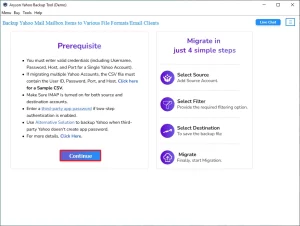
Aryson Yahoo Backup Tool is a trusted tool that provides the facility to export Yahoo Mail to a PST file for Outlook. Also, the UI and working of this tool are very simple so that every technical and non-technical user can easily download Yahoo Email to Hard Drive in a PST File.
Follow the Steps to Export Yahoo Mail to PST Format:
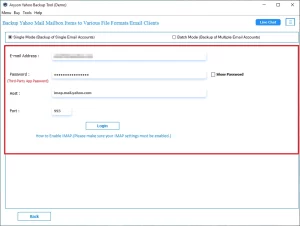
- Download, install, and launch the Aryson Yahoo Backup Tool on your computer.
- Sign in using your valid Yahoo Mail email address and password.
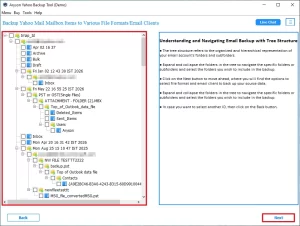
- After logging in, select the required emails or folders and click Next.
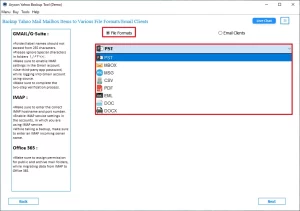
- Choose Outlook PST as the desired output format from the drop-down menu.
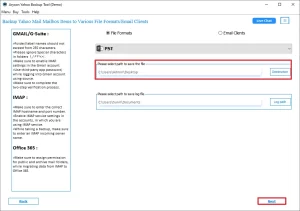
- Specify the destination path and click on the Next button to proceed further.
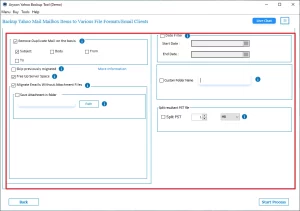
- Apply the required filters, such as date range or mailbox items.
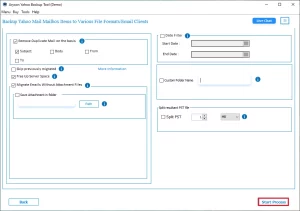
- Click Start Process to begin the Yahoo Mail to PST conversion process.
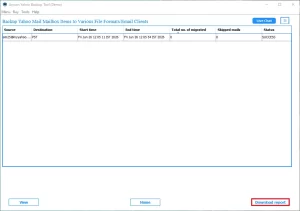
- Once the process is complete, download or save the backup process report for future reference.
Key Features of the Software:-
- Allows users to export bulk Yahoo emails into PST file formats.
- Enable to make the selection of multiple Yahoo folders at a time.
- Feature to migrate Yahoo Mail to Office 365, Zoho Mail, iCloud, and other cloud-based email clients.
- The software is helpful to take Yahoo Mail backup into PDF, EML, MSG, MBOX, and other formats.
- You can also transfer Yahoo Mail to Gmail account.
Conclusion
I hope this blog is helpful to you as in this blog we discussed the most asked query by users i.e. Instant ways to Export Yahoo Mail to PST file for Outlook. Here, we also discussed the 02 best methods i.e. manual and professional methods to Export emails from Yahoo Mail to PST files.
Frequently Asked Questions
Q. Which is the best software to export Yahoo Emails to PST?
Ans – Aryson Yahoo Backup Tool is an advanced solution that exports emails from Yahoo to PST file format without Outlook. It also saves Yahoo emails into PDF, MBOX, MSG, and other file formats on Windows & Mac.
Q. How to Export Yahoo Mail to PST without Outlook?
Ans – Use Aryson Yahoo Backup Software and export email from Yahoo Mail to PST without Outlook installation.
Follow the Steps to Export Yahoo Mail to PST Instantly:
1. Download & Runs Yahoo Backup Tool.
2. Enter your Yahoo Mail ID and App Password then Click on the Login button.
3. Select Yahoo Mail Folder Items and Click on the Next button.
4. Choose “Save as PST” from the drop-down list and Check the Mail Filter options.
5. Click on the Convert button and Export Yahoo Mail to PST file.
About The Author:

Harshita Sachdeva, a professional technical writer at Aryson Technologies, specialize in delivering clear, hands-on documentation for data management, migration, and recovery solutions. With a meticulous, reader-first approach, I break down complex technical processes into simple, actionable content - helping IT professionals and decision-makers tackle challenges efficiently.
Related Post