-

Written By Rohan Wiese
-
Updated on June 20th, 2025
How to Restore VHD to Physical Disk using DD Command on Windows
Summary: Are you looking to migrate your virtual data from a Virtual Hard Disk (VHD) back to a physical drive? Whether you’re recovering a crashed system or transitioning from a virtual environment, restoring a VHD to a physical disk can be technically demanding. However, with the proper guidance, it’s an achievable task. This article will introduce you to a reliable and efficient solution for restoring a VHD to a physical disk using the dd command on Windows. Additionally, we’ll explore professional Aryson VHD Recovery Software as a quick and hassle-free alternative. Download Now Purchase Now
What is a Virtual Hard Disk (VHD)?
VHD stands for Virtual Hard Disk. It’s a file format that emulates a traditional hard disk drive (HDD). A VHD typically contains everything found on a physical HDD, including a file system, disk partitions, and, ultimately, your files and folders. Essentially, it serves as the hard disk for a virtual machine, enabling multiple operating systems to run on a single host machine.
Advantages of VHDs:
VHDs offer several benefits:
- Standardized Deployment: IT organizations can deploy pre-built and standardized configurations on a single VHD, streamlining setup processes.
- Easy Reversion: Changes made to the content of a VHD file can often be easily undone, providing flexibility and a safety net.
Disadvantages of VHDs:
Despite their advantages, VHDs also have limitations:
- Sector Limit: They allow a maximum of 65535×16×255 sectors.
- Size Limitation: Dynamic or different VHDs have a size limitation of just under 2TB.
Why Restore a VHD to a Physical Disk?
Several scenarios might necessitate restoring a VHD to a physical disk using the dd command on Windows:
- Migration: You have a VHD file that you wish to migrate to a physical drive.
- Deployment Suitability: Your current configurations are not ideally suited for a virtual environment, and physical deployment is preferred.
- Vendor Support Issues: You are experiencing a lack of vendor support due to their ignorance of Hyper-V, making a physical migration a viable solution.
Methods to Convert VHD to Physical Disk on Windows
Converting a VHD to a physical disk on Windows can be a complex and often challenging endeavor, with no guaranteed success even with meticulous effort. A common workaround involves migration: installing the desired operating system on the new physical hardware and then migrating applications and settings.
If you are using Hyper-V Server and are converting a VM running a recent version of Windows, a more straightforward approach might be to install the operating system directly on the physical hardware. You can then mount the VHDX file within the new operating system and transfer files using standard tools like copy, xcopy, robocopy, or Windows Explorer.
Restore or Copy VHD to Physical Disk Using DD Command
To copy or restore a VHD (Virtual Hard Disk) file to a physical disk using the dd command in Linux (or WSL/macOS), follow these steps very carefully, as misuse can overwrite your entire physical drive. It is commonly done for disk imaging or restoring backups.
Steps to Restore VHD to Physical Disk with dd Command:
1. Attach VHD File (Optional on some systems)
If needed, mount or associate the .vhd file using tools like qemu-nbd or vdfuse.
2. Identify Source and Target Disks
- Run lsblk or fdisk -l to list all disks.
- Example:
- Source (VHD): /path/to/image.vhd
- Target Disk: /dev/sdX (like /dev/sdb)
3. Run dd Command
sudo dd if=/path/to/image.vhd of=/dev/sdX bs=4M status=progress
- if= = input file (your VHD)
- of= = output file (target physical disk)
- bs=4M = block size
- status=progress = shows progress
4. Wait for Completion. (This may take a while, depending on the size.)
5. Sync Data to Disk (Optional but Recommended).
Note: This process will erase all data on the target physical disk. Make sure you’ve selected the correct drive.
Read Also: How to Repair Corrupt VHD File Manually?
Automated Method to Restore VHD to Physical Disk
As discussed, manual virtual-to-physical conversion to restore a VHD to a physical disk is often tedious and prone to failure. Therefore, considering specialized VHD recovery software is highly recommended.
Such software can help create an image file of your Virtual Hard Disk. After making the image, you can then utilize the dd command on Windows to copy or restore your VHD file to the physical disk. While these solutions may incur a cost, the time and effort saved, along with the increased likelihood of success, often make them a worthwhile investment. They offer a reliable and efficient solution for virtual-to-physical conversion. Here’s a general outline of the steps when using VHD Recovery Software:
Simple Steps for VHD to Physical Disk Conversion on Windows:
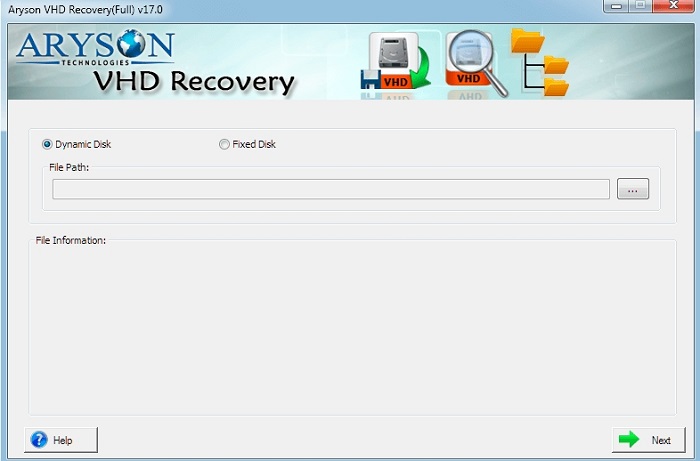
- First, install and launch the VHD Recovery software on your PC.
- Then, select the appropriate disk type: Dynamic Disk or Fixed Disk.
- Browse to choose your VHD file and view its information. Click “Next.”
- Now, select the desired scanning mode from “Standard” and “Advanced.”
- At this crucial stage, locate the option to “Save Disk Image” to successfully save an image file of your virtual hard disk data.
- Lastly, once you have the disk image, run the dd command to copy or restore the VHD image onto your physical disk.


Conclusion
To summarize, the process of restoring a VHD to a physical disk using the dd command on Windows can be a complex and technically demanding task. While manual methods are possible, they often involve significant technical risks and may not guarantee success. For these reasons, using a trusted solution like VHD Recovery Software is highly recommended. It simplifies the entire process and provides a more reliable and hassle-free way to handle VHD files, especially those that might be corrupted or inaccessible.
Frequently Asked Questions (FAQs):-
Q1. Can I use the DD command to restore a VHD to a physical disk on Windows?
Ans: Yes, the dd command can be used to restore a VHD to a physical disk on Windows. However, the VHD must be in a raw format, and the process requires careful preparation and execution to avoid data loss. It’s often part of a larger process, potentially involving specialized software to prepare the VHD for dd command usage.
Q2. Why would I need to restore a VHD to a physical disk?
Ans: Common reasons include migrating virtual data to a physical drive, recovering a crashed system, or when your current virtual configurations aren’t suited for a physical environment. It’s also necessary if you need to deploy configurations outside a virtual machine or if vendor support for your Hyper-V setup is limited.
Q6. What are some alternatives if I don’t want to use the dd command or specialized software for direct conversion?
Ans: A common workaround is a migration approach. You can install the desired operating system on the new physical hardware, then mount the VHD (or VHDX) in the new OS and transfer files using tools like copy, xcopy, robocopy, or Windows Explorer. This is particularly effective if you’re comfortable with a clean OS installation on the physical machine.
Q3. Is using specialized VHD recovery software necessary for this process?
Ans: While manual methods exist, they are often complex, tedious, and don’t guarantee success. Aryson VHD recovery software is highly recommended as it simplifies the process, helps create a suitable disk image, and provides a more reliable and hassle-free solution for converting VHDs to physical disks, especially if the VHD is corrupted.
About The Author:

Rohan Wiese is a Technical Writer at Aryson Technologies. He is an expert Email Forensic, Cloud Computing, and a passionate nerd with over 10 years of experience in technical content writing. He writes about Cloud Migration, Database Recovery, Email Backup, Windows, Mac, and Tech.
Related Post



