-

Written By Rohan Wiese
-
Updated on July 2nd, 2025
04 Different Method to Open VHD File in Windows 10, 8, 7 & 11
Summary: Learn to open VHD files in Windows 10, 8, and 7 with our comprehensive guide. A VHD (Virtual Hard Disk) acts as a virtual drive for backups or VMs. This blog presents four simple methods to access VHD files directly, bypassing the need for a virtual machine. For quick and reliable results, we also recommend advanced VHD Recovery Software. Discover easy solutions to view, extract, or manage your VHD file efficiently. Download Now Purchase Now
What is a VHD File?
A VHD (Virtual Hard Disk) file is essentially a digital replica of a physical hard drive. It functions just like a real hard drive, containing disk partitions and file systems. VHDs are most commonly used with Microsoft’s Hyper-V virtual machines, allowing them to store operating systems, applications, and data as if they were on a dedicated physical disk.
You may use .vhd or .vhdx extensions:
|
Format |
Description |
Introduced In |
|
.vhd |
Legacy virtual disk format (supports up to 2 TB) |
Windows Virtual PC |
|
.vhdx |
Advanced format (supports up to 64 TB, better data protection) |
Windows 8 & Hyper-V |
Difference Between VHD and VHDX:
- VHD is compatible with older systems (Windows 7).
- VHDX offers better performance, integrity, and is supported in Windows 8 and newer.
Why Do You Need to Open a Virtual Hard Disk (VHD) File in Windows?
There are several reasons for opening a VHD file without a virtual machine, such as:
- Access backup files from a virtual machine.
- Retrieve lost data from system images.
- When mounting old project files or disk images.
- Moreover, to repair corrupted VHD data.
- Open the VHD read-only in Windows to prevent modification.
How to Create a VHD File on Windows?
The Disk Management feature of Windows is used to create a VHD file for a Virtual machine. Then, you need to back up & restore your VHD file data. You can follow the procedures below to create a VHD file:
Step 01: Create a VHD File Using Disk Management
- Firstly, right-click on the My Computer icon and click on Manage.
- Then, click on the Disk Management Tab.
- Now, in the Action tab, choose the Create VHD option.
- After that, browse the VHD file and click OK.
- Lastly, you will see the created VHD file on your system.


Step 02: Use Backup and Restore
- Primarily, open the Control Panel and choose the Backup & Restore option.
- In the Create System Images, browse the location to save the VHD file.
- Further, select the drive that you want to back up and click Next.
- Finally, click Start Backup to complete the backup process.


Important Note: The above methods help you create a VHD file. Sometimes, VHD files become corrupt due to virus attacks, storage media failure, software malfunction, improper system shutdown, and many other factors. After corruption, you can’t access your VHD file anymore because you can lose your data. So, in the section below, you will find the solution to access VHD files.
4 Different Methods to Open VHD File in Windows
Discover four convenient ways to open a VHD file in Windows 10. These methods, including File Explorer, Disk Management, PowerShell, and a professional tool, are designed to make the process hassle-free and efficient. You can use the simple and effective methods to open a VHD file, such as:
Method 01: Mount VHD Windows 7, 8, & 10
- Firstly, open File Explorer and locate the .vhd or .vhdx file you want to open.
- Then, right-click on the file and select Mount from the context menu.
- The virtual hard disk will now appear as a new drive under This PC.
Method 02: Attach VHD Windows 8 Using Disk Management
- Right-click on the Start icon and select Disk Management.
- In the top menu, click on Action and choose Attach VHD.
- In the dialogue box, click Browse, then locate and select your .vhd or .vhdx file.
- Lastly, click OK to finish the procedure.
Method 03: Open a VHD File in Windows 10 Using Windows PowerShell
- Firstly, open Windows PowerShell and run the CHKDSK command.
- After that, run this command:

Method 04: Opening a VHD File When It’s Corrupt
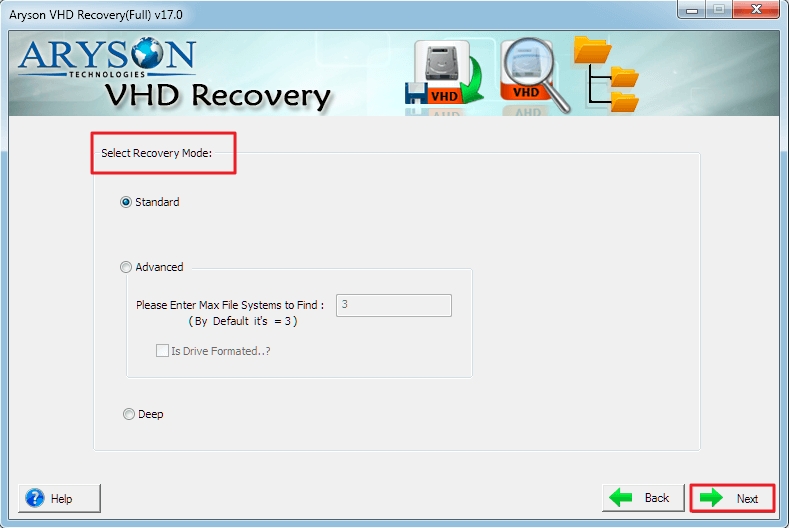
If your VHD file is corrupted and becomes inaccessible, you can use the VHD Recovery Software. This utility helps you recover your corrupted and inaccessible data from VHD files without data loss. With this tool, you can preview your recovered data before saving it. Moreover, it offers different recovery modes: Standard/Advanced/Deep for 100% accurate recovery.
Follow the Given Steps to Open a VHD File on Windows 7, 8, & 10:
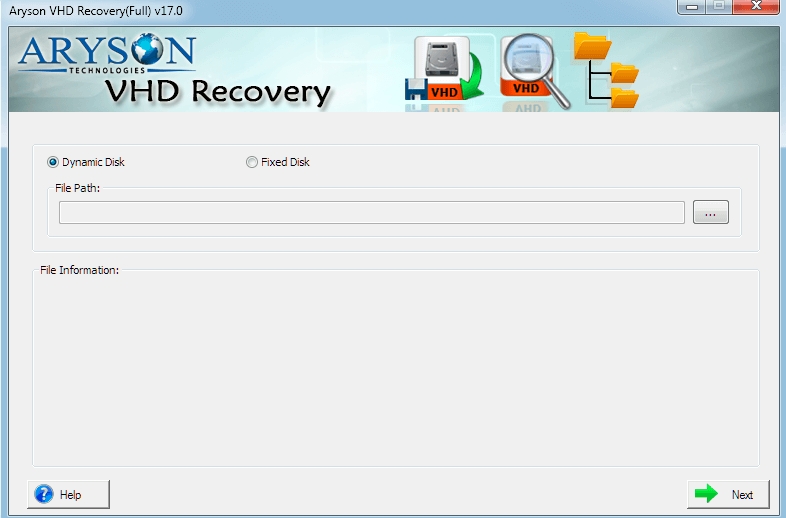
- Download & install the VHD Recovery Tool on your system.
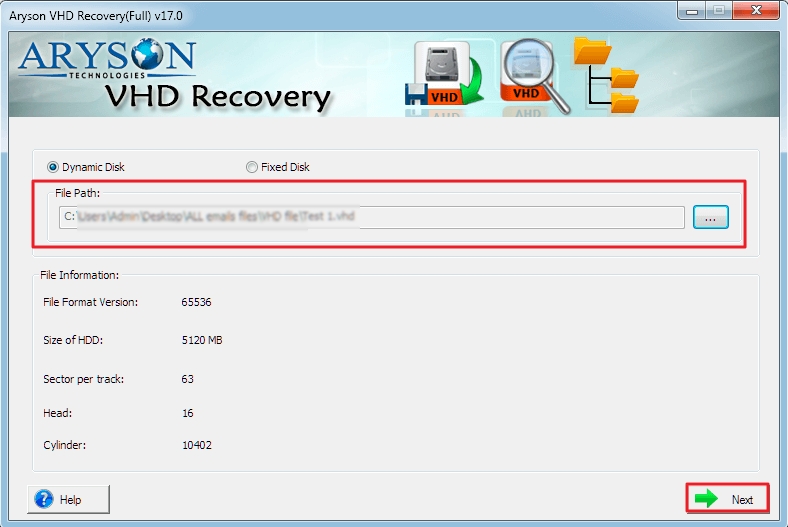
- Next, select the Disk type: Static and Dynamic.
- After that, browse the File path and click OK.
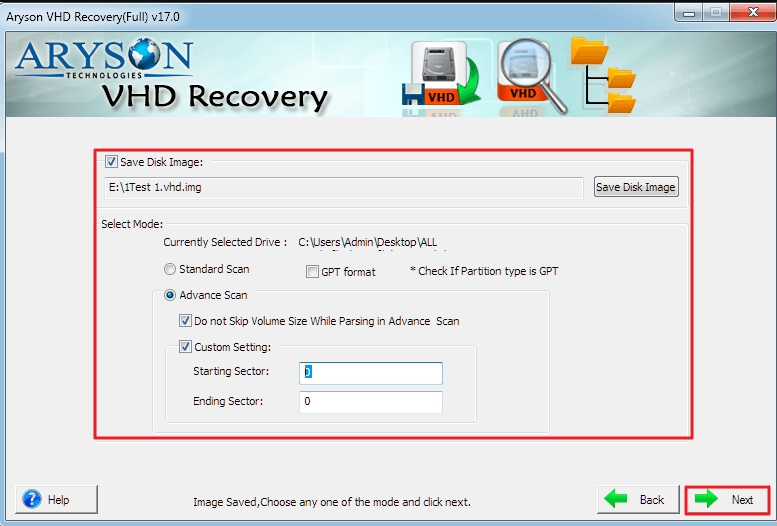
- Then, choose Scanning Modes and other options. Click Next.
- Further, select Recovery Modes from the given option.
- You can preview the recovered VHD file.
- Lastly, click Save to complete the opening of the VHD file.



Conclusion
In this technical blog post, we discussed four simple ways to open a VHD file in Windows 7, 8, & 10. You can use File Explorer, Disk Management, PowerShell, or a professional tool. If your VHD file is inaccessible due to corruption, you can directly use the expert’s recommended professional tool. It helps you to give a quick, precise, and 100% accurate result with no data loss or hassle.
Frequently Asked Questions (FAQs):-
Q1: How can I open a VHD file in Windows 10 without using virtualization software?
Ans: You can easily open a VHD file in Windows 10 using File Explorer’s Mount feature, Disk Management’s Attach VHD option, or PowerShell commands, no virtualization software needed.
Q2: Can I open a VHD file as read-only to avoid accidental changes?
Ans: Yes, both Windows Disk Management and PowerShell support mounting VHD files in read-only mode. This feature ensures the safety of your data by preventing accidental changes.
Q3: What is the difference between a VHD and a VHDX file, and which one should I use?
Ans: VHD is an older virtual disk format supporting up to 2 TB and compatible with Windows 7. VHDX is a newer format supporting larger sizes (up to 64 TB), better data protection, and is recommended for Windows 8 and later.
Q4: Is it possible to open a corrupted VHD file without losing data?
Ans: Yes, if your VHD file is corrupted, there’s hope. A specialized recovery tool like Aryson VHD Recovery Software can help restore your data safely without data loss.
About The Author:

Rohan Wiese is a Technical Writer at Aryson Technologies. He is an expert Email Forensic, Cloud Computing, and a passionate nerd with over 10 years of experience in technical content writing. He writes about Cloud Migration, Database Recovery, Email Backup, Windows, Mac, and Tech.
Related Post



