-

Written By Rohan Wiese
-
Updated on July 2nd, 2025
How to Migrate Yahoo Mail to Office 365 (Step-by-Step Guide)
Summary:- A growing number of users and businesses want to switch from Yahoo to Microsoft Office 365 due to its enterprise-grade features and superior data protection. With an integrated productivity suite, Microsoft 365 becomes the preferred choice over Yahoo Mail for both individuals and organizations. Although manual migration options are available, they can be slow and complex when handling years of stored emails. To avoid these complications, using the Aryson Yahoo Backup Tool is highly effective. This tool not only simplifies the migration process but also ensures the safety of your emails and attachments, providing a secure and efficient way to migrate Yahoo Mail to Office 365. This blog shows you the easiest way to use the Aryson Yahoo Backup Tool for your migration needs.
Understanding the need to Move Yahoo Mail to Microsoft 365
If you’ve used Yahoo Mail for years, you might ask why many people are moving to Microsoft 365. The reason is simple: it offers robust features, secure email options, and tools that streamline everyday work, giving you the confidence that you’re making the right choice.
Here, we will go through the major reasons behind this migration process:
- Microsoft 365 provides advanced protection like two-factor authentication, encryption, and spam filters to keep your emails safe.
- Moreover, it includes built-in apps like Outlook, Teams, Word, and Excel that help users stay organized and work efficiently.
- Also, Office 365 has fast syncing and reliable uptime, providing a level of security and peace of mind that Yahoo Mail often struggles to match.
- With Microsoft Teams and OneDrive, you can easily share files, schedule meetings, and collaborate with your team in real-time, empowering you to work more efficiently and effectively.
- Additionally, Office 365 works smoothly on mobile, desktop, and web. As a result, your emails and files are always within reach.
With all these advantages, it’s clear why many are choosing Microsoft 365 over Yahoo Mail. Now, let’s look at the different ways you can transfer Yahoo emails to Office 365.
How to Migrate Yahoo Mail to Office 365
To make the transition from Yahoo to Office 365 as smooth as possible, it’s important to understand the available methods. First, we’ll walk you through the manual approach using Outlook settings. This method involves setting up both accounts and then transferring the emails, which can be complex and time-consuming. Then, we’ll explore an automated process using a professional migration tool for a fast and reliable experience.
Method 01: Migrate Yahoo Mail to Office 365 Using Outlook
Individuals with technical expertise can migrate Yahoo Mail to Office 365 manually. However, it requires a few extra steps, like setting up both accounts and then transferring the emails.
Go through the given stages to import Yahoo Mail into Office 365:
Step 01: Add a Yahoo Account to Outlook
- First of all, log in to your Yahoo account with the correct credentials.
- After that, navigate to the Settings>>Account Security.
- Turn on the option Allow apps that use less secure sign-in.
- Next, click on the option that says “Generate and manage app password.”
- Now, type a name for the app and then hit the Generate button.
- You’ll now receive a unique app password for your Yahoo account.
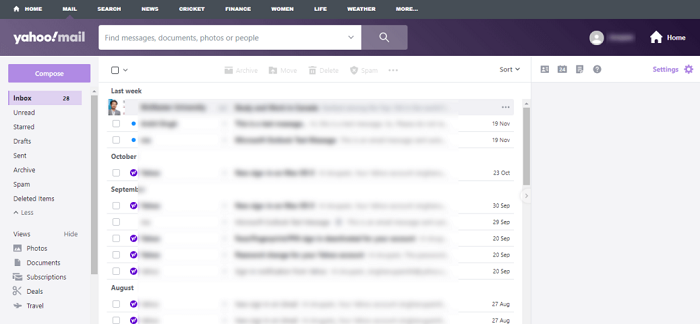


Important Note: Keep your App Password safe; it will be used for setup.
Step 02: Set Up a Yahoo Mail Account in Microsoft Outlook
- Now, open Outlook and navigate to File>>Info>>Add Account.
- Enter your Yahoo email address, click Advanced options, and check the box that says, “Let me set up my account manually.”
- After that, click on Connect to proceed.
- Select POP or IMAP, and enter your Yahoo email address and app password.
- For server details:
- Incoming mail server (POP): pop.mail.yahoo.com
- Outgoing mail server (SMTP): smtp.mail.yahoo.com


Step 03: Set Up Server and Port Settings
- Click on More Settings, then open the Outgoing Server tab.
- Check the box for “My outgoing server (SMTP) requires authentication”.
- Select the option “Use same settings as my incoming mail server.”
- Next, go to the Advanced tab:
- Set POP3 port to 995
- Set SMTP port to 465
- Choose SSL encryption for both Check “This server requires an encrypted connection.”
- Finally, click OK, then Next, and complete the setup. Restart Outlook to save the changes.
Step 4: Migrate Yahoo Mail to Office 365
- In Outlook, go to the Send/Receive tab and click Send/Receive All Folders.
- Your Yahoo emails will now start downloading to your local system.
- After syncing, your Yahoo emails will be saved as a PST file on your system.
- Now, configure your Office 365 account in Outlook.
- Then, import the PST file into the Microsoft 365 mailbox using one of these methods:
- Network Upload via Microsoft Azure AzCopy tool
- Drive Shipping (for large PST files)
These steps complete the manual migration process from Yahoo Mail to Office 365. However, this process is best suited for users with technical experience.
Challenges You May Face with Manual Migration
The manual method can convert Yahoo emails to Office 365 online. But it has several drawbacks that can affect the efficiency of the process:
- The entire process is time-consuming and not suitable for large email accounts.
- Also, there’s a risk of email loss or corruption if the steps aren’t followed correctly.
- Moreover, it requires technical knowledge to configure server settings and manage the PST file.
- Additionally, it doesn’t allow selective migration, like filtering by date, folder, or sender.
- Outlook sync errors or Yahoo limitations may cause incomplete or failed email transfers.
- If steps are missed or not followed correctly, you may face issues like missing data or file errors.
That’s why this process is best suited for users with technical experience. Hence, many users prefer a professional solution that’s easy and reliable. Now, let’s look at the automated method using a trusted tool.
Method 02: Automated Solution to Migrate Yahoo Mail to Office 365
To simplify the process and avoid data risks, many users prefer using the Aryson Yahoo Backup Tool. This software directly connects your Yahoo account and securely migrates emails to Office 365 with all attachments. It keeps your folder hierarchy intact, so your emails in Office 365 appear exactly as they were in Yahoo Mail. Also, you can choose specific folders or set filters (by date range or subject) to migrate only what you need. As a result, all your email details like To, From, CC, BCC, and attachments are preserved during migration. In addition, you don’t need any technical knowledge to use it. Everything is handled through a simple interface. So, you can migrate Yahoo Mail to Office 365 without any data loss or complicated steps.
Follow the Steps to Transfer Yahoo Mail to Office 365 Using Aryson Software:
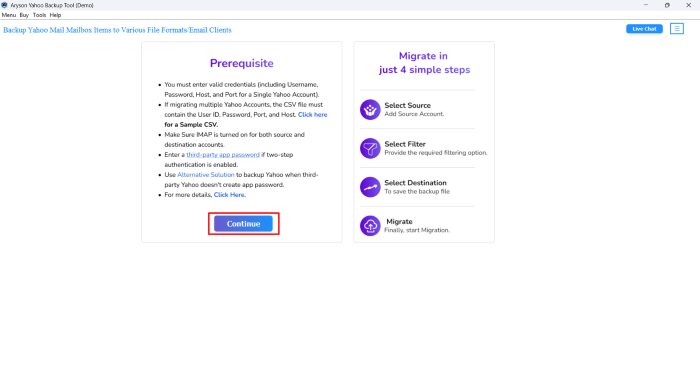
- Download the Aryson Yahoo Backup Tool and click Continue to proceed.
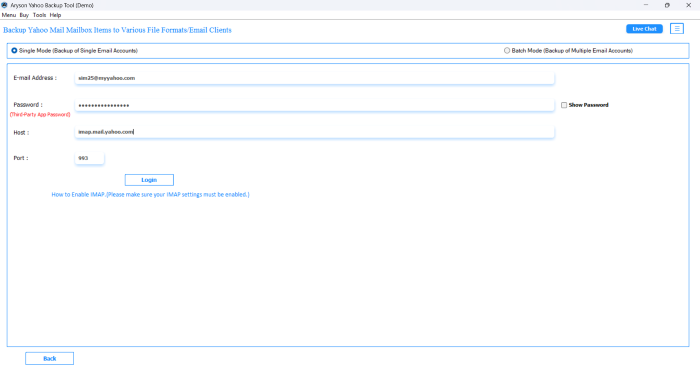
- Enter your Yahoo Mail ID and app password. Click the Log In button
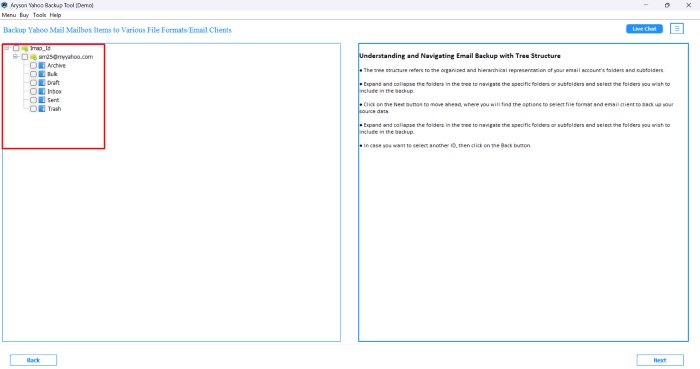
- Next, it will show your Yahoo mailbox associated with your Yahoo account.
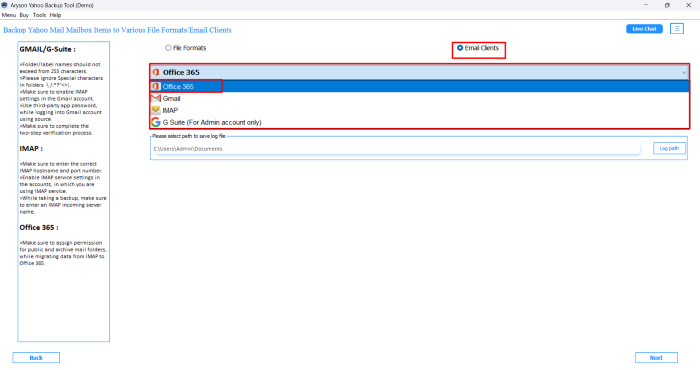
- From the Email Client dropdown, select Office 365 as your email provider.
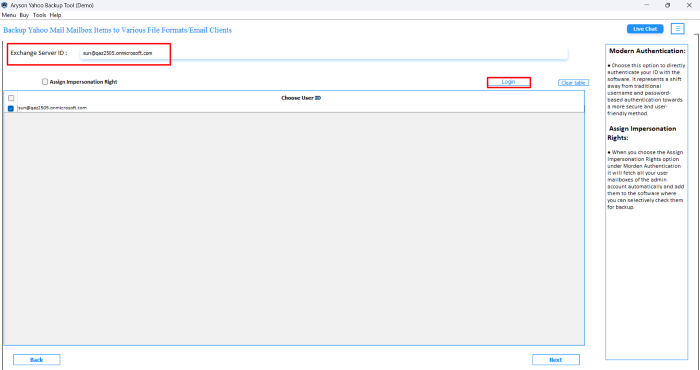
- After that, enter your Office 365 login email and password. Click Login.
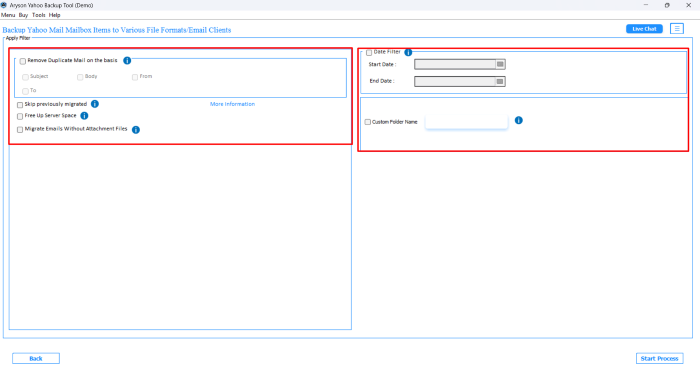
- Now, you can pick the additional features of the software accordingly.
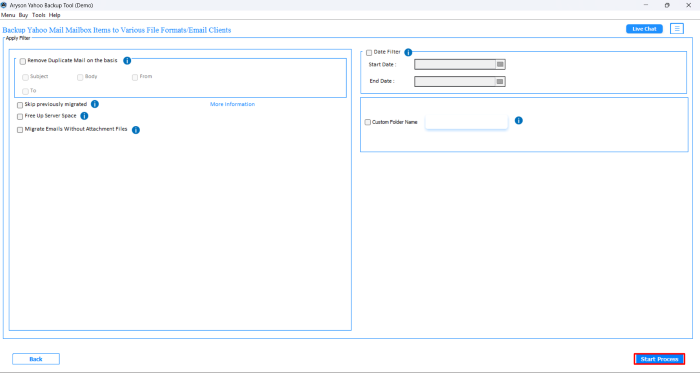
- Click the Start Process button to migrate Yahoo Mail to an Office 365 account.
When Should You Use This Dedicated Migration Tool?
Here are some situations where using an automated tool is the best choice:
- When handling a large volume of emails or multiple accounts.
- If you want to preserve folder structure and metadata.
- When you need selective or date-based migration.
- For non-technical users who want an easy and secure process.
- If your business requires scheduled or repeat migrations.
Conclusion
In this blog, we explored two different approaches to migrating Yahoo Mail to Office 365. The manual method can work for a small-scale migration process. When it comes to migrating bulk Yahoo emails into Office 365, users generally switch to the automated solution. It enables users to seamlessly migrate Yahoo emails to Office 365 and save valuable time. Even if you’re not tech-savvy, this software has a clean layout and guided steps that make the process very easy.
Frequently Asked Questions:-
Q1. Can I move Yahoo emails to Microsoft 365 without using Outlook?
Ans: Yes, you can. The Aryson Yahoo Backup Tool lets you transfer Yahoo emails directly to Microsoft 365 without needing to configure Outlook. It’s a fully independent solution.
Q2. Is there a free method to migrate Yahoo Mail to Office 365?
Ans: Manual methods like configuring accounts in Outlook are free but limited. For bulk or business-level migrations, Aryson Yahoo Backup Tool offers a free demo version that allows you to migrate Yahoo Mail to Office 365 for free.
Q3. Will my email folders and structure be preserved?
Ans: Yes, this utility maintains the original folder hierarchy and email formatting during migration, ensuring your mailbox looks the same in Office 365 as it did in Yahoo Mail.
Q4. Can I migrate only specific folders or emails from a certain time range?
Ans: Absolutely. This software includes filter options that allow you to select specific folders or define a date range for precise migration.
Q5. Is it safe to use third-party migration tools?
Ans: Yes, the Aryson Yahoo Backup Tool is a secure and trusted solution. It uses advanced encryption and doesn’t store or misuse your login credentials, making it a safe option for email migration.
About The Author:

Rohan Wiese is a Technical Writer at Aryson Technologies. He is an expert Email Forensic, Cloud Computing, and a passionate nerd with over 10 years of experience in technical content writing. He writes about Cloud Migration, Database Recovery, Email Backup, Windows, Mac, and Tech.
Related Post