-

Written By Rohan Wiese
-
Updated on July 29th, 2025
Export Office 365 Mailbox to PST Step by Step – 4 Top Methods
Have you ever had to export data from your Office 365 mailbox to PST format? You might want to archive older emails locally, move to a new platform or simply free up important storage space. It’s a good idea to export Office 365 mailboxes to PST files for any reason. To help you save time and efficiently export your data, this guide will show you four different ways to export your Office 365 Mailbox to PST. There are a number of manual techniques available, but they are frequently unreliable and slow, particularly when dealing with big datasets. As a result, we’ll also look at a solution that experts suggest: the Aryson Office 365 Backup Tool, which is the best option for your backup requirements due to its unmatched speed and reliability.
Why Do Users Export Office 365 Mailboxes to PST?
The decision to export Microsoft 365 Mailbox to PST format is made by users for a number of strong reasons. Among the most notable are:
- To protect your Office 365 data, you should export it to PST. So, you can protect your data from unplanned service outages or account problems.
- Office 365 mailboxes that are too big can occasionally cause performance issues. The performance of your system can be optimized by exporting mailbox data to PST.
- PST files make it simple to move data between systems and transfer it between Office 365 accounts or to a completely new email platform.
- Exporting emails to PST offers a manageable and accessible record of important communications for internal audits or legal requirements.
- PST files are very helpful for future data recovery from deleted or inactive accounts.
Continue reading to find trustworthy solutions if you ever find yourself in any of these circumstances.
User Scenario: Exporting Office 365 Emails to PST for Archival
Meet Alexa is a project manager at a big consulting company. He often uses Office 365 every day for emails, meetings, and managing contacts. Over time, he got a lot of important data in his mailbox. Now, because of some changes in the company, Alex has been asked to back up all his emails, calendar events, and contacts into a PST file. This backup will be kept safe for future use, like audits or moving data to another system.
Alex’s main goal is to export his entire Office 365 mailbox into a single PST file that can be stored securely offline.
With the Growing Need to Export Emails to PST
As more companies move to Office 365, the need to store emails safely and in an organized way is increasing day by day. PST files are a simple and reliable option for saving emails on your computer. Even though Office 365 gives cloud storage, many businesses still prefer to export emails to PST. As a result, it helps them stay legally compliant and move data easily.
Along with that, it can keep old emails for a long time. Exporting to PST also provides flexibility over important email data.
Different Ways to Export Office 365 Mailbox to PST File
You have four main ways to export Office 365 mailboxes to PST. Manually, you can utilize the eDiscovery Tool within the Microsoft 365 Admin Center or simply export directly from MS Outlook after configuring your account. For a code-based method, technical users might favor PowerShell commands. As an alternative, Aryson Office 365 Backup Tool provides an automated method for easily exporting your Microsoft 365 emails to PST. These techniques are as follows:
- Using the eDiscovery Tool
- Using MS Outlook
- Using PowerShell
- Using Aryson Office 365 Export Tool
Let’s examine these solutions, beginning with the prerequisites for utilizing the eDiscovery Tool.
Prerequisites for Using the eDiscovery Method
Make sure you fulfill these prerequisites in order to use the eDiscovery Tool successfully:
- To use Office 365’s eDiscovery Tool, you must have the required authorizations.
- For optimal performance, make sure you are running Windows 7 or a later version.
- Installing Microsoft .NET Framework 4.5 or a later version is essential.
- Use a compatible browser or the most recent version of Internet Explorer.
- Give Office 365 OWA export to PST the appropriate permissions.
Now, the eDiscovery Tool method will function properly. As a result, you can make the backup without any problems.
Method 01: Export Office 365 Mailbox to PST via Admin Center’s eDiscovery Tool
To export Office 365 mailbox data without Outlook, follow the given steps below:
- First, log in to your Office 365 account and open the Microsoft 365 Admin Center.
- After that, tap on the Security & Compliance option once the Admin Center is open.
- Now, scroll down to eDiscovery Manager after selecting the Permission option.
- To add the required roles, click the Edit icon after checking the box next to eDiscovery.
- If the export role is missing, click on Edit Role Group to add it.
- After that, click on More Resources >> Microsoft Purview Compliance Portal.
- Now, click on Content Search and then hit the New Search option.
- Specify the name and description, and use the Location option to specify the mailbox.
- Furthermore, you can use the Conditions tab to apply desired filters.
- Once you have applied filters and other details, click on Submit > Done.
- In the meantime, you can check your search status with the Search tab.
- If the process is completed, click on Actions and choose Export Results.
- Additionally, you can export encrypted files; just click on the Export option.
- Navigate to the Export tab to track the progress of your search.
- Copy the Export Key, as it will be required for the next step.
- The eDiscovery tool will automatically start. Paste the Export Key and click on Start to export Office 365 Mailbox to PST without Outlook.


This procedure may be difficult for you if you are a new user. Therefore, we have discussed other procedures as well.
Method 02: Utilize MS Outlook to Export Office 365 Mailbox to PST
If you are unfamiliar with the features of the eDiscovery Tool, you can use this method as well. To perform this method, you have to configure your Office 365 account in Outlook.
Step-1: Configure Office 365 Account to Outlook
- Firstly, open the Outlook application on your system.
- Click on the Outlook File menu and choose Add Account.
- Enter your Office 365 email address to configure.
- Type your Office 365 account password and confirm it.
- After that, click the Next button.
- Note: Make sure you logged into your Office 365 account in your web browser as well.
- A confirmation message will be sent to you once the configuration is finished.
Step-2: Export Microsoft O365 Mailbox to PST
- Go to your configured Office 365 mailbox in Outlook.
- To export the emails, open the folder that contains them.
- Select Open & Export by clicking on File.
- Select the Import/Export option.
- Choose Export to a file from the list, then click Next.
- Select Outlook Data File (.pst) and click Next.
- Choose the folders you want to export from the folders list. Click Next.
- Optionally, enable any required features, then click Finish.
- All your selected Office 365 emails will be saved as a PST file.
But what if the manual solution to export the mailbox to PST from Office 365 fails? It generally happens due to certain restrictions of manual methods.
Method 03: Using PowerShell to Export Microsoft 365 Mailbox to PST
You must take these actions in order to use PowerShell to export an Office 365 mailbox to a PST file. An eDiscovery Export Tool and the Exchange Online PowerShell module are needed for exporting mailbox data.
How to Use PowerShell to Export Microsoft 365 Mailbox to PST
- To administer Office 365, install the PowerShell Module.
- Use PowerShell to log into Office 365.
- To export a mailbox, create a search for it.
- Launch the search to get the mailbox information.
- Create a PST file by exporting the data.
- Obtain the PST file’s download link.
- Use the link to download the PST file.
- When finished, log out of Office 365.
Cons You Face While Using the Manual Method
Although manual approaches provide free solutions, they frequently have serious drawbacks. Here, we will go through some of them:
- For users who are not familiar with Microsoft 365 administrative tools or Outlook, these techniques may be difficult.
- Large-scale Office 365 data migrations can take hours or even days to finish.
- The procedures frequently lack strong error-checking safeguards, which raises the possibility of data loss from improper setup.
- Because manual methods usually don’t support batch mailbox migration, you have to migrate each account separately. Hence, it is very inefficient for businesses.
Method 04: Best Software to Export Office 365 Mailbox to PST Without Outlook
Aryson Office 365 Backup & Restore makes it easy to export emails to PST without much effort. You don’t need to be technical to use it. This utility can backup your Office 365 emails, contacts, calendars, and other data into PST and other file formats. Also, it gives options to filter out by date and select specific folders. Moreover, you can able to export multiple mailboxes at once. Its simple design and easy steps are quite easy for anyone. As a result, this utility comes out as a quick and safe way to back up their Office 365 account.
Follow the Steps of the Software to Export Office 365 Emails to PST:
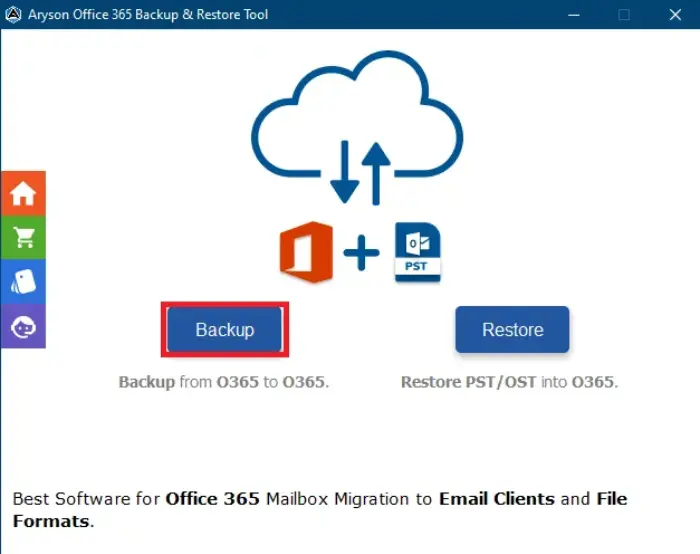
- Open the Aryson Office 365 Backup & Restore Tool on your PC and click Backup.
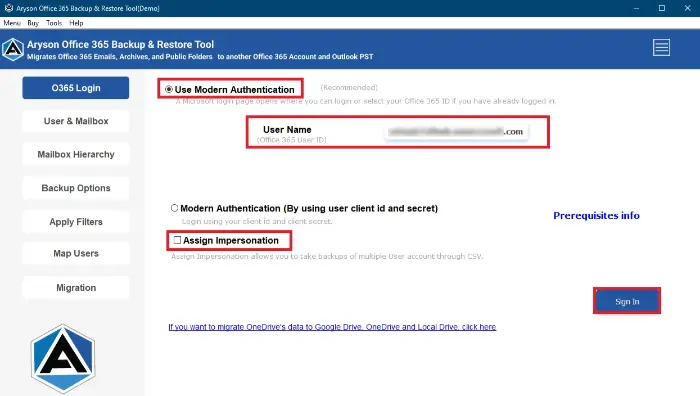
- Enter your Office 365 admin/user credentials and hit the Sign In button to authenticate.
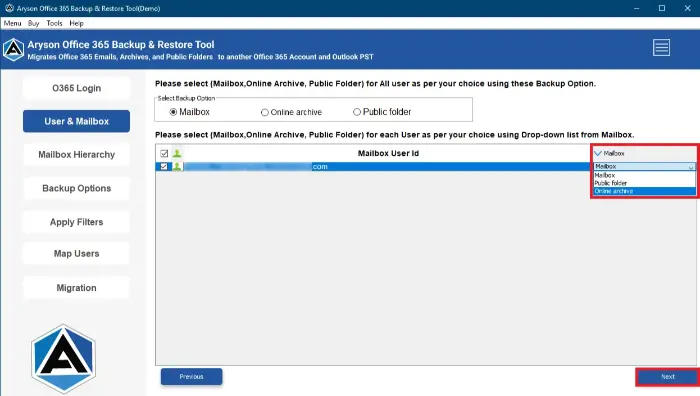
- Select the mailbox: Mailox, Public Folder, or Online Archive accordingly and tap Next.
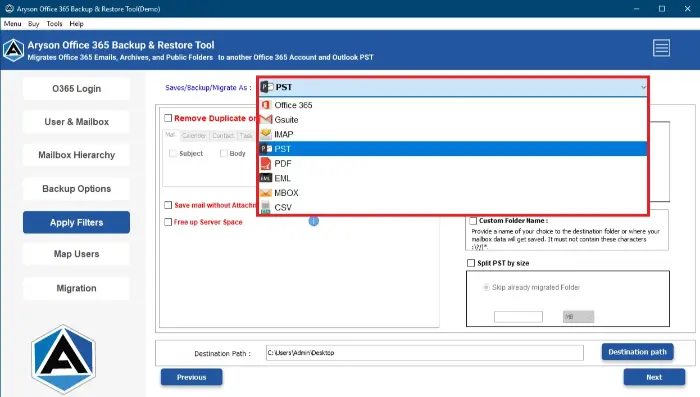
- From the given list of file formats, choose PST as the output and assign a path to save.
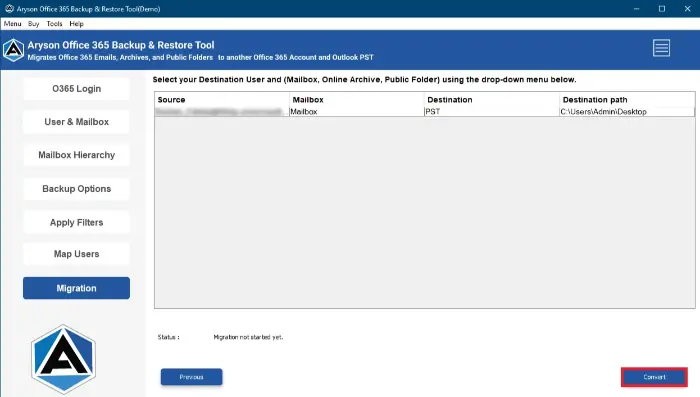
- When you are done with all these steps, click Convert to export Office 365 as a PST.
Note: Apart from file formats, this utility can able to export Microsoft 365 to Google Workspace, IMAP, Gmail, and others.
Conclusion
You can export your Office 365 mailbox to PST in different ways based on what you’re comfortable with. Free methods like eDiscovery, Outlook, or PowerShell can work, but they take time and can be confusing if you’re not very technical. So, many prefer using the Aryson Office 365 Backup & Restore to export Office 365 data and keep a safe backup of their Office 365 mailbox.
Frequently Asked Questions
Q1. How to Export Office 365 Emails to PST Manually?
Ans: Yes, you can use the eDiscovery Export Tool to export all of your Office 365 emails to a PST file. Simply, you can choose the entire mailbox when exporting.
Q 2. Can I Export All Emails from Office 365 to PST?
Ans: Yes, you can use Microsoft Outlook, the eDiscovery Export Tool, or PowerShell scripts to export emails manually. For a more user-friendly and reliable process, Aryson Office 365 Backup & Restore Tool can also be used.
Q3. What Tools Can Be Used to Export Office 365 Emails to PST?
Ans: You can use Aryson Office 365 Backup & Restore Tool that easily export all data or mailboxes from the Office 365 account.
Q4. How to Export Microsoft 365 Emails to PST without Outlook?
Ans: You can use a third-party tool like Aryson Office 365 Backup or Microsoft’s eDiscovery tool if you don’t want to use Outlook. You can export your emails using these options without having to install Outlook on your computer.
Q5. Can I export specific emails from Microsoft Office 365 to a PST file?
Ans: Yes, you can use the software mentioned above to export specific emails from Microsoft Office 365 to PST.
Q6. How to Fix Errors During Export of Office 365 Emails to PST?
Ans: Check your internet connection, Office 365 account permissions, and available storage first if you notice any issues. Additionally, confirm that your mailbox isn’t too large and that you are using the correct login credentials. It is preferable to use an automated tool to prevent such problems and streamline the procedure.
Q7. How to Automate Microsoft Office 365 Email Exports to PST?
Ans: You can use the Aryson Office 365 Backup & Restore Tool to automate the export process. This tool has an easy-to-use interface and offers filters to select what to export. It spares you from having to perform the export manually each time.
About The Author:

Rohan Wiese is a Technical Writer at Aryson Technologies. He is an expert Email Forensic, Cloud Computing, and a passionate nerd with over 10 years of experience in technical content writing. He writes about Cloud Migration, Database Recovery, Email Backup, Windows, Mac, and Tech.
Related Post