-

Written By Rohan Wiese
-
Updated on May 5th, 2026
How to Convert a JFIF File to JPG on Windows or Mac?
It’s 2026, and most of the Windows users still experience issues if their downloaded images are saved as JFIF files instead of JPG. The problem triggers because Windows 10 and 11 sometimes save JPEG images with the .jfif extension by default, making it difficult to upload or use them in applications that only accept JPG. Therefore, in order to help users convert JFIF to JPG format, this blog covers all the relevant details of the process, along with the use of the Aryson JFIF Converter for both technical and non-technical users.
What are JFIF and JPG Files?
JFIF is a standard format used for bitmap graphics, which uses JPEG compression for managing files. These types of files are usually saved in the .JPEG file format. Typically, it is designed to contain all the data separately so that it can be quickly transferred or moved across multiple devices and applications.
On the other hand, the JPG file format, or JPEG, stands for Joint Photographic Experts Group. It is a digital image format that includes all your compressed image data and its details. If we consider its popularity, it is a primarily usable image format to share photos and other images on the internet and between Mobile and PC. Well, the small size also offers benefits to storing thousands of images in a minimum storage space.
What Differentiates JFIF and JPG File Formats
Here is a detailed comparison between JFIF and JPG file formats, which will give a better brief on why a JFIF file needs to be converted to JPG format.
|
JFIF File |
JPG File |
|
The file format (JPEG File Interchange Format) |
The compression algorithm (Joint Photographic Experts Group) |
|
JFIF is the standard file format for storing all your data. |
JPG is the compression method of JPG/JFIF, which is further specified as a JPEG file. |
|
JFIF file supported with almost all image processing applications. |
JPG images are compatible with almost all devices and software. . |
|
You can reduce and compress the size of the JFIF images. |
JPG images can be compressed according to the needs of the application |
|
A JFIF file can be compressed to 5% of its original size. |
JPG images are High-resolution, vibrant and colorful. |
Considering the above pointers, the need to convert JFIF to JPG is very evident. Therefore, go through the sections below to perform the actual conversion.
Top Methods to Convert JFIF files to JPG Format
In this section, we will primarily focus on the two most effective methods to achieve an efficient JFIF to JPG conversion.
- Paint Application on Windows
- Using Photos App
- Using an Advanced Tool for Bulk Conversion
Read through each of these methods carefully and try them as per your requirement.
Method 1: Convert JFIF to JPG Using Paint on Windows
Paint is one of the most reliable tools provided on the Windows operating system. Some users consider it basic, but it can efficiently perform the conversion of image formats. If you need to convert a single JFIF file to JPG without any third-party software, this software would be the most suitable choice for you.
Simplified Steps to Change JFIF to JPG Windows Using Paint
- First, navigate to the required JFIF file on your system.
- After that, right-click on the file & select Open With >> Paint.
- After loading the image in Paint, click on the File tab at the top left.
- Then, select the Save As option from the dropdown list.
- In the Save As dialog box, open the Save as type dropdown.
- Next, choose the JPEG Picture (.jpg) from the list.
- Select the required save location for the restaurant file and click Save.
Method 2: How to open JFIF File as JPG in Windows 10 with Photos
For users who prefer to use a modern interface, the most suitable option is to install the Photos app. This is another built-in option to save JFIF as JPG without any third-party software. Moreover, the software provides users with a clean preview of the image before saving, which makes it a convenient option for users who already use it as their default image viewer.
Steps to Convert JFIF to JPG Using the Photos App
- Firstly, right-click the JFIF file you want to convert on your system.
- After that, select Open With >> Photos from the context menu.
- Then, click on the three-dot menu ( … ) at the top right corner.
- Now, select the Save As option from the dropdown options.
- Furthermore, open the Save as type dropdown and choose JPEG or JPG as the format.
- Next, choose the destination folder where you want to save the converted file.
- At last, click Save to complete the JFIF to JPG conversion.
Method 3: Best Solution to Convert JFIF files to JPG Format
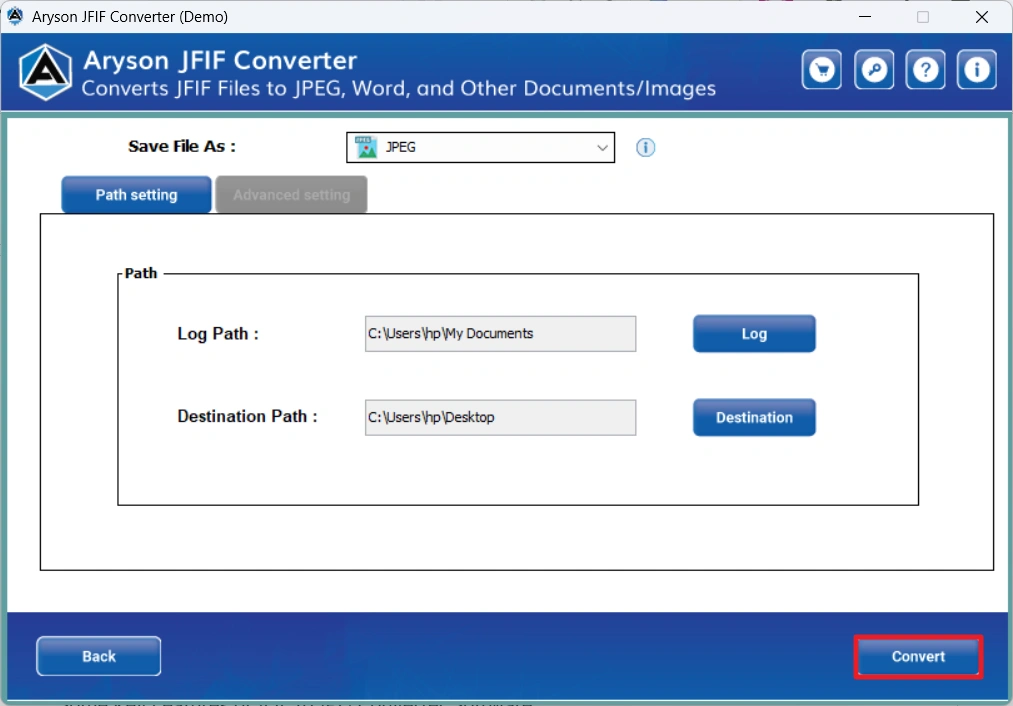
The Aryson JFIF Converter is one of the most recommended software programs that helps organisations and IT professionals to convert JFIF files. This software is designed to provide the user with 100% data integrity and accuracy. Moreover, it allows users to cross-verify the selected data before converting it to maximise accuracy. Even its bulk conversion ability saves organisations hours of manual conversion. With the help of the image converter tool of Aryson, you can even merge multiple JPG/JPEGs into one PDF. Additionally, the advanced features and filters make the entire process simple and quick. Now, follow the steps below to convert JFIF files to PNG format efficiently.
Quick Steps to Convert JFIF to JPG Format are as Follows:
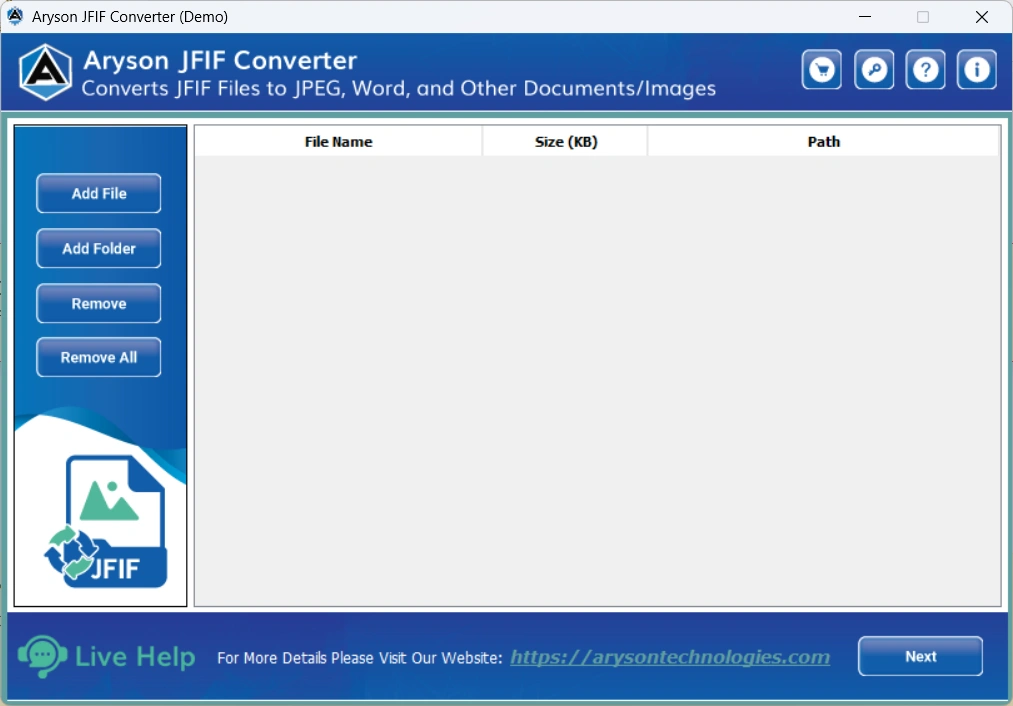
- First, install & run the Aryson JFIF File Converter Tool on your Windows system.
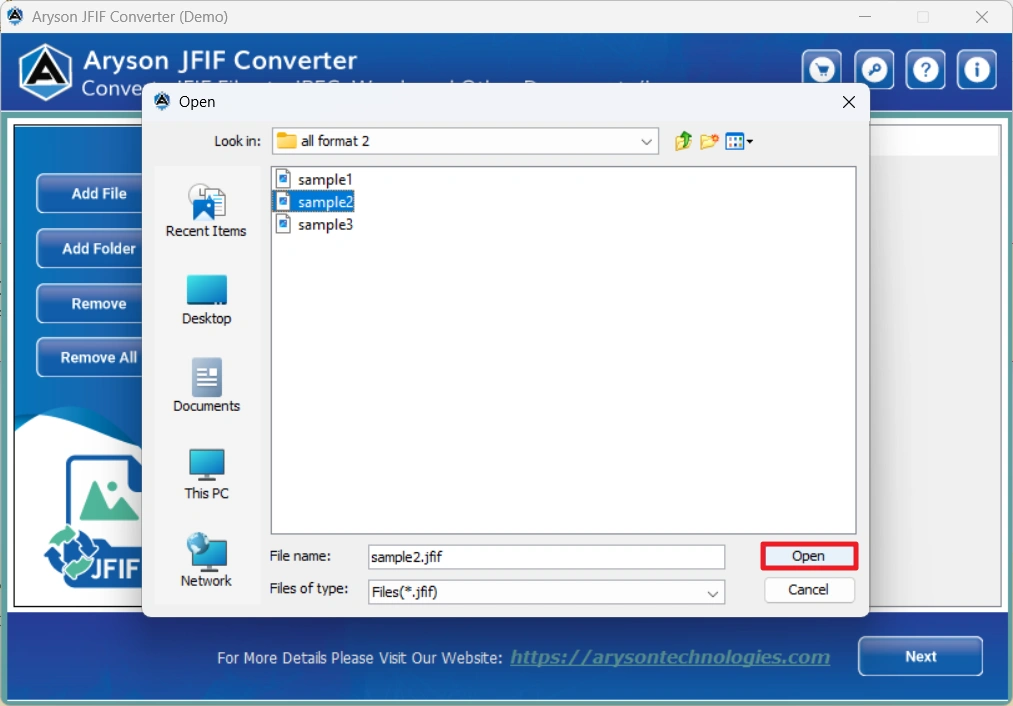
- After that, click on the Add File button to load JFIF files into the software.
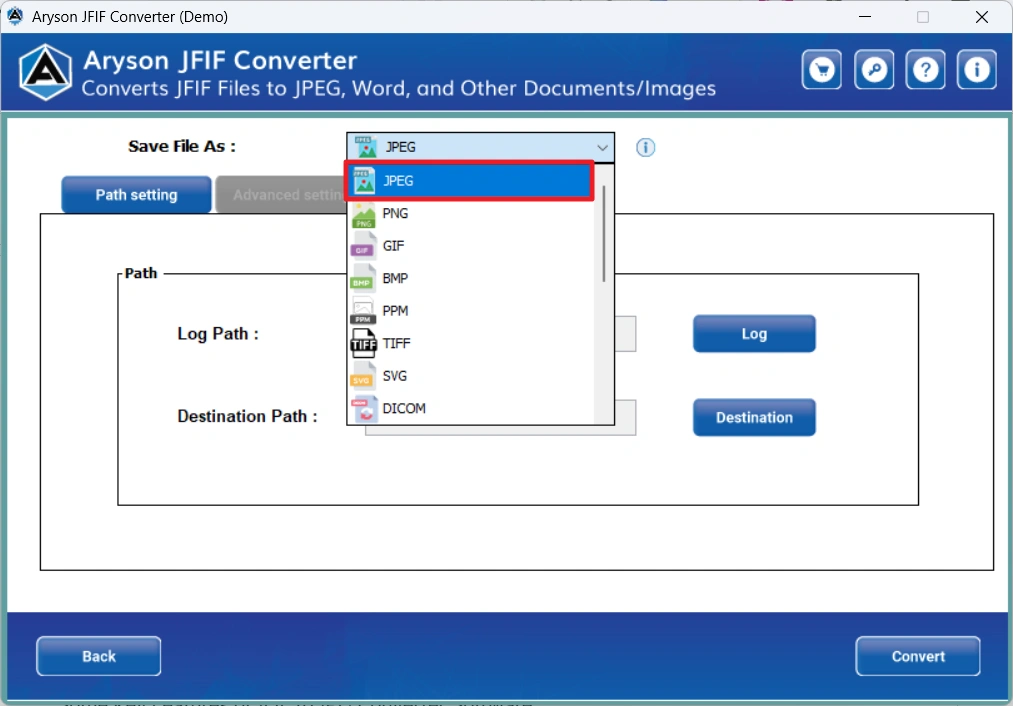
- Choose JPG as the output format among the listed ones.
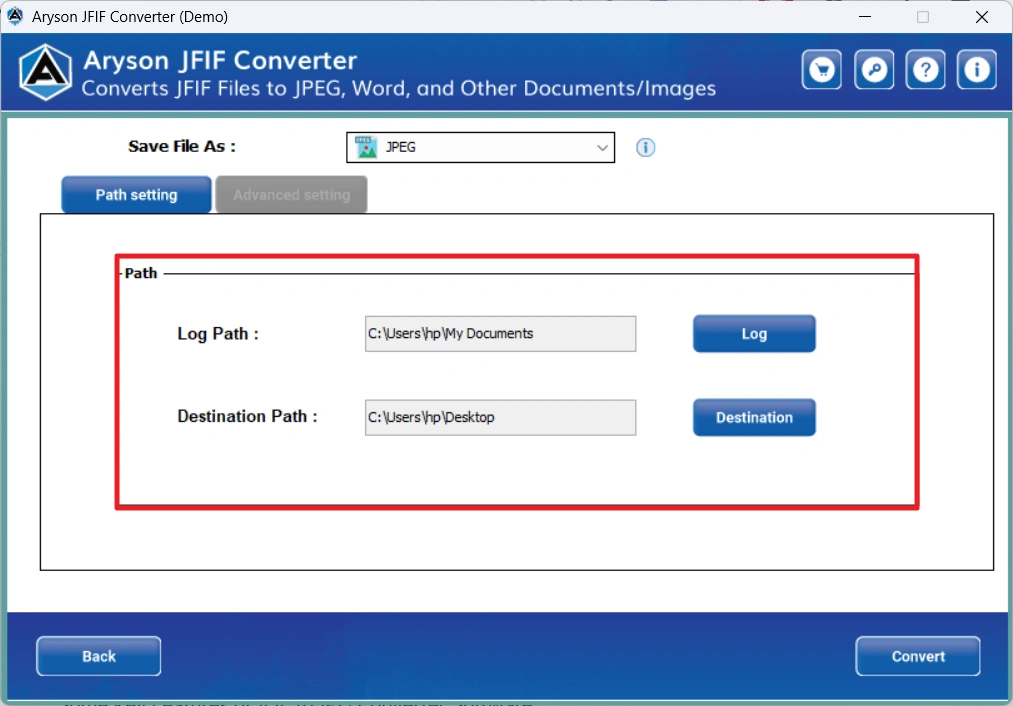
- Specify the destination path for the output files.
- Click Convert to start the JFIF to JPG conversion process.
Some Key Features of JFIF to JPG Converter Software
- This JFIF Converter Tool allows users to perform batch JFIF to JPG conversion.
- The software also offers an option to convert JFIF files to PNG, GIF, BMP, PPM, TIFF, SVG, DICOM, JPG, EMF, ODG, PDF, PSD, DOC, DOCX, XLS, XLSX, and HTML.
- It is designed in such a way that it preserves image quality and other attributes throughout the conversion process.
- It efficiently works on all Windows and Mac Operating system versions.
- You can add a single/multiple or a folder containing various JFIF, JPG, PNG, and JPEG files simultaneously.
- The Software is easier to run and offers a simple user interface.
Conclusion
In this blog, we discussed some of the most effective & simple methods to convert JFIF to JPG format on Windows and Mac Operating systems. You can use either the manual methods or opt for the advanced software for quick and efficient bulk conversion. Ultimately, the decision is up to the user and their personal or professional needs. In case you opt for the advanced software, reach out to the tech support team if you have any issues.
FAQs
Q1. Why does Windows save images as JFIF instead of JPG?
Ans: Windows 10 and 11 sometimes default to saving downloaded JPEG images with the .jfif extension based on how the image metadata is tagged by the source website or browser.
Q2. Can I simply rename a JFIF file to JPG?
Ans: Technically, yes, since both formats use the same JPEG compression. However, renaming alone may not fix compatibility issues in all applications. Following a proper conversion method ensures the file is fully valid.
Q3. How can I convert multiple JFIF files to JPG at once?
Ans: You can use the Aryson JFIF to JPG converter discussed above. It supports batch conversion, which allows users to process hundreds of files in one go without repeating steps manually.
Q4. Will image quality be lost when converting JFIF to JPG?
Ans: No, if you are using the Aryson JFIF Converter, the image quality will not be lost when converting JFIF to JPG.
Q5. Does the conversion method work on Mac as well?
Ans: Yes, Mac users can convert JFIF to JPG using the built-in Preview app. For bulk conversion on Mac, the Advanced JFIF Converter Tool also supports macOS fully.
About The Author:

Rohan Wiese is a Technical Writer at Aryson Technologies. He is an expert Email Forensic, Cloud Computing, and a passionate nerd with over 10 years of experience in technical content writing. He writes about Cloud Migration, Database Recovery, Email Backup, Windows, Mac, and Tech.
Related Post


