-

Written By Harshita Sachdeva
-
Approved By
Shivam Rathore -
Updated on July 6th, 2026
Export IMAP Emails to MBOX for IT Admin: Complete Guide 2026
Fact-checked and reviewed in accordance with our
Editorial Policy
Michael’s Query:
Michael from Canada accidentally lost access to some of the important emails stored in his IMAP account. Now, he needs to export IMAP emails to MBOX format to seurely backup and access them offline without losing any data. Is there any secure way to do so?
Summary: Sometimes, there are situations where we accidentally delete our emails and lose our crucial data. In this circumstance, you should export IMAP emails to MBOX. The MBOX file format stores email messages on your local device, allowing you to keep a copy of emails. Read the full blog to get a detailed description of various manual methods and a professional Aryson IMAP Backup Tool. Moreover, we will also explore the difference between IMAP and MBOX, and the reasons for backup are also explained well.
What is the Difference Between IMAP and MBOX?
| IMAP | MBOX |
| IMAP (Internet Message Access Protocol) is an email protocol that allows users to access and manage emails stored on a mail server across multiple devices. | MBOX, known as Mailbox, is a standard file format that stores email messages in a single file. |
| It stores all the emails on a remote server. | MBOX is used to store emails on your local device. |
| As emails are stored on the server, requires an internet connection to access emails. | It allows to access emails even in an offline mode. |
| It widely supports synchronization. | This file format doesn’t support synchronization. |
What is the Need to Backup IMAP as MBOX File Format?
Let’s go through various reasons to backup IMAP emails in MBOX file format:
- Users who are migrating to email clients that support MBOX, including Mozilla Thunderbird, may choose to export IMAP emails to MBOX format.
- MBOX files can be stored easily and safely on an external storage device or a hard drive.
- Similarly, backing up IMAP emails to MBOX files allows you to access your emails even in offline mode.
- In case of accidental deletion, creating a backup as an MBOX file also allows you to save a copy of your emails.
- By exporting IMAP as MBOX, users can transfer their emails to a different system without any data loss.
Various Solutions to Export IMAP Emails to MBOX
In this section, we are going to discuss some solutions to export IMAP to MBOX file format. Firstly, we will figure out a step-by-step manual procedure and also a professional guide to offer more enhanced solutions. To save IMAP emails as MBOX, you need to go through three stages:
Stage 1: Configure IMAP Account With Thunderbird
Let’s go through the below steps to configure your IMAP with Thunderbird:
- Firstly, install and open the Mozilla Thunderbird application on your system.
- Next, click on the Account Setup option.
- Now, enter your email credentials and tick mark the IMAP option.
- Ultimately, hit the Done button and again enter your credentials for confirmation.
Stage 2: Add ImportExportTools NG To Thunderbird
- First, open Thunderbird and hit the Settings tab.
- In the Settings tab, you have to choose the Add-ons Support option.
- Now, in the search bar, type ImportExportTools NG.
- In a new tab, you will find ImportExportTools NG.
- Next, hit the Add to Thunderbird button.
- As a result, ImportExportTools NG will be enabled.
Stage 3: Export IMAP to MBOX File Format
- Open the Mozilla Thunderbird application.
- Now, right-click on the desired folder you wish to export.
- From the options displayed, pick ImportExportTools NG.
- In the ImportExportTools NG option, click on the Folder Export(mbox) option.
- Later, pick the As mbox file option and hit the OK button.
- At last, choose the desired destination folder to export IMAP emails as MBOX.
Drawbacks of Using the Manual Method
Some of the drawbacks faced while using the manual method are as follows:
- Complications are involved in this method.
- The process is too lengthy to perform.
- Also, this method is very time-consuming.
- You might lose your data during the process.
- Non-tech users might not get accurate results.
A Reliable Approach to Export IMAP emails to MBOX
Aryson IMAP Backup Tool is one of the most recommended tools to back up IMAP emails to MBOX and various other file formats. It also exports IMAP emails to PST file for Outlook and Microsoft 365. This software not just backs up emails but also the complete mailbox items like calendars, contacts, tasks, events, and so on. It allows the user to choose multiple email accounts for the backup process. However, users can easily preview the IMAP mailbox folder before the backup. This software offers the backup of IMAP emails without attachments. In addition, it is perfectly compatible with all the different versions of the Windows OS.
Step-by-Step Process to Backup IMAP Emails as MBOX
If you want to export IMAP emails to MBOX, then consider the following steps:
- First of all, install and run the Aryson IMAP Backup Tool on your system.
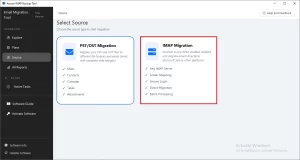
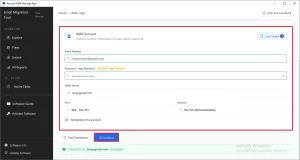
- Select the IMAP Migration card >> enter the valid IMAP credentials to log in.
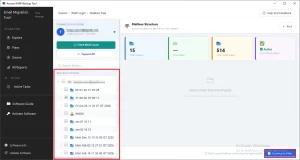
- Choose the desired mailboxes from the folder hierarchy to migrate and click Next.
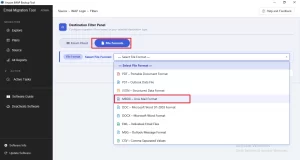
- Under the File Formats, select MBOX as the output format.
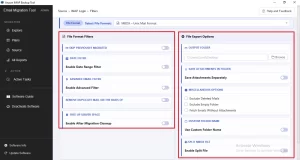
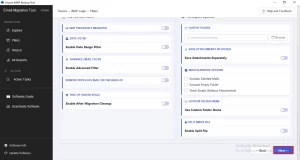
- Apply the required filters and features of the software as required.
- At last, click on the Next button to begin the conversion.
Denial’s Success Story
Daniel, an IT consultant from Canada, needed to preserve years of business emails before changing email providers. Using the Aryson IMAP Backup Tool, he exported his IMAP mailbox to MBOX format with the complete folder structure intact. The backup process finished efficiently, ensuring secure long-term email access.
Concluding Words
Whether you are shifting your existing email client to Thunderbird or if you want to access your emails offline. All you need to do is export IMAP emails to MBOX. We have provided you with various solutions to export IMAP to MBOX. You can either back up your IMAP emails to MBOX manually or with an expert solution that we already discussed.
Frequently Asked Questions
Q.1 Does the Aryson IMAP Backup Tool support multiple IMAP email accounts?
Ans: Yes, the software supports both single and multiple IMAP account backups, making it suitable for individual users and administrators.
Q.2 Can I export IMAP emails to formats other than MBOX?
Ans: Yes, the Aryson IMAP Backup Tool allows users to export IMAP emails to various formats. These formats include PST, EML, MSG, PDF, MBOX, CSV, and more.
Q.3 Does the software preserve the original folder hierarchy during IMAP to MBOX export?
Ans: Yes, if you are using the Aryson IMAP Backup Tool, it will make sure to maintain the original mailbox folder structure throughout the backup and conversion process. Data integrity is the real concern of most of the enterprises and organisations that this software resolves.
Q.4 Can I preview mailbox data before exporting IMAP emails to MBOX?
Ans: Yes, for Aryson users, it is easier to export only the necessary data. This is because the software provides its users with a preview panel to review the single IMAP files.
Q.5 Does the tool support selective IMAP mailbox backup?
Ans: Yes, with the help of the software, users can select specific folders and mailbox items they want to export instead of backing up the entire account.
Q.6 Can I apply a date filter while exporting IMAP emails to MBOX?
Ans: Yes, the software includes a date range filter that allows users to export emails from a specific time period. All because of this feature, the large-scale organizations make sure to export only the relevant data.
Q.7 Does the Aryson IMAP Backup Tool allow backing up emails without attachments?
Ans: Yes, it provides an option to exclude attachments during the backup process to reduce storage usage. Also, it eventually leads to a catalysed processing where it takes hardly few minutes for organisations and professionals to export data.
Q.8 Can I prevent duplicate email exports during multiple backup sessions?
Ans: Yes, the software offers a Skip Duplicate/Skip Existing feature that helps avoid exporting the same emails repeatedly.
Q.9 Does the software maintain email metadata during IMAP to MBOX conversion?
Ans: Yes, the Aryson IMAP Backup Tool makes sure to keep the email properties such as sender details, recipients, subject, timestamps, and attachments intact during export.
Q.10 Is the Aryson IMAP Backup Tool compatible with Microsoft 365 and Gmail IMAP accounts?
Ans: Yes, it supports Gmail, Microsoft 365, Yahoo Mail, AOL, Zoho Mail, and other IMAP-enabled email services. You just have to select the login method, enter the required details, test the connection, and connect.
About The Author:

Harshita Sachdeva, a professional technical writer at Aryson Technologies, specialize in delivering clear, hands-on documentation for data management, migration, and recovery solutions. With a meticulous, reader-first approach, I break down complex technical processes into simple, actionable content - helping IT professionals and decision-makers tackle challenges efficiently.
Related Post