-

Written By Rohan Wiese
-
Updated on December 2nd, 2025
Convert Excel to CSV (Comma Delimited) UTF-8 Format Easily
Excel files are used to store structured data, but some programs only accept CSV format. During conversion, users often face encoding issues. It majorly comes with special characters like €, £, ü, or é. That’s why it becomes necessary to convert Excel to CSV UTF-8. UTF-8 encoding ensures that every character is displayed correctly across all systems and software. This guide will explore three easy methods to export Excel to CSV UTF-8, using different methods, including the Aryson Excel Converter Tool. This tutorial will help both beginners and professionals convert files safely without losing data or formatting.
Why Convert Excel to CSV UTF-8 Format?
Understanding the need to save Excel files in CSV UTF-8 format can make your conversion process smoother and error-free.
A standard CSV file saves data in plain text with commas separating each value. While this format is light and versatile, it can fail to display non-English or special characters correctly if not encoded properly. For example, names with accents, symbols, or international characters may appear garbled after conversion.
On the other hand, UTF-8 encoding is a universal standard that supports almost every character used worldwide. Therefore, converting Excel files to CSV UTF-8 format ensures:
- Proper display of international and special characters.
- Smooth import into databases, CRM tools, and web applications.
- Compatibility with different operating systems like Windows, macOS, and Linux.
Hence, using CSV UTF-8 helps you maintain data consistency and prevents misinterpretation when sharing or uploading files online.
How to Convert Excel to CSV UTF-8
When it comes to conversion, there isn’t just one method. Depending on your needs, you can choose between the different solutions. Further, we will explore each of these methods in detail so that you can decide which one aligns with your requirements.
Method 01: Convert XLSX to CSV UTF-8 Using Microsoft Excel
If you already have Microsoft Excel installed, you can easily save your file as a CSV UTF-8 format without any additional software. However, this method works best for small files or single-sheet data.
- Open your Excel workbook that you want to convert.
- Click on the File tab in the top-left corner of the screen.
- From the menu, choose Save As, then click Browse to select your saving location.
- In the “Save as type” dropdown menu, select CSV UTF-8 (Comma delimited) (*.csv).
- Click Save, and confirm if any dialog box appears regarding multiple sheets.
After saving, you can open the file in Notepad or any text editor to verify the UTF-8 encoding.
Things to Keep in Mind:
- Only the active sheet in your Excel workbook gets converted to CSV.
- Formulas, colors, or formatting won’t appear in CSV files.
- Make sure to recheck data accuracy after conversion.
Although this method is straightforward, it may become time-consuming if you have multiple Excel files or several sheets to process.
Method 2: Convert Excel to CSV UTF-8 Using Google Sheets
If you do not have Excel installed or prefer an online solution, Google Sheets offers a quick and free way to perform this conversion. Furthermore, it automatically saves your file in UTF-8 encoding, which helps prevent unwanted data corruption. Just go through the given steps to export Excel to CSV UTF-8 format:
- To initiate the process, open your web browser and go to Google Drive.
- Upload your Excel file by clicking New>>File Upload.
- Once uploaded, right-click the file and select Open with>>Google Sheets.
- After the file opens, click on File>>Download>>Comma Separated Values (.csv, current sheet).
- The file will be downloaded instantly in UTF-8 format to your system.
Why This Method Is Useful:
- It’s completely free and doesn’t require any installation.
- You can easily make small edits before saving your CSV.
- It automatically exports files in UTF-8 encoding, eliminating manual adjustments.
However, Google Sheets can only convert one sheet at a time and may not be appropriate for large or multiple Excel files.
Most Recommended Solution to Convert Excel to CSV UTF-8
Aryson Excel Converter Tool is an expert-recommended and reliable utility that helps you convert Excel files into CSV UTF-8 format without any data loss. It eliminates the common problems users face during manual conversion. The software supports both .XLS and .XLSX files and ensures that your data, formulas, and formatting remain intact. It even provides a data preview option, so you can verify the content before exporting. Additionally, it is compatible with Windows along the Mac versions. To know details about the feature, navigate to the webpage of this software and save excel as CSV UTF-8 with ease.
Simplify the Working Steps to Convert Excel to CSV UTF-8
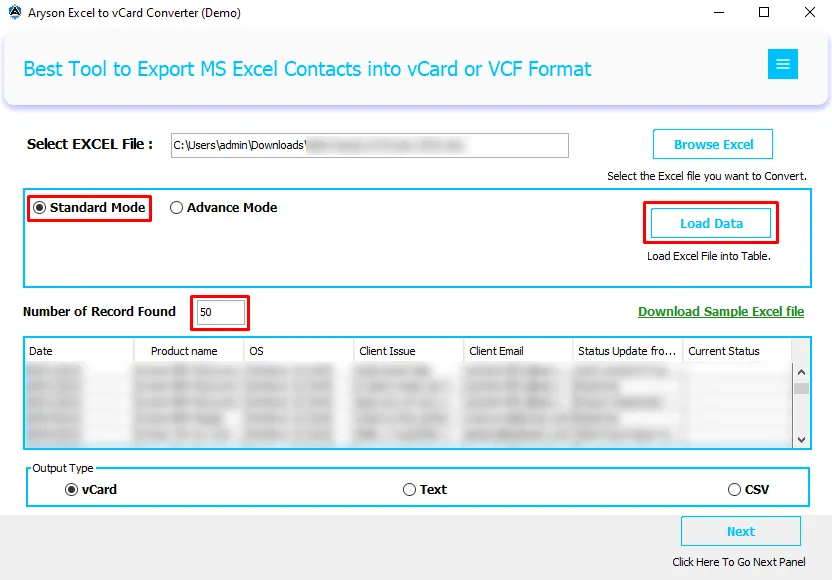
- Download and install the Aryson Excel Converter Tool on your system.
- Click on the Browse Excel button to upload your Excel file(s) to add multiple files at once.
- Select a mode (Standard or Advanced) and click Load to view all rows and columns of the Excel file.
- Now, select CSV as the output type, then click the Next button to proceed.
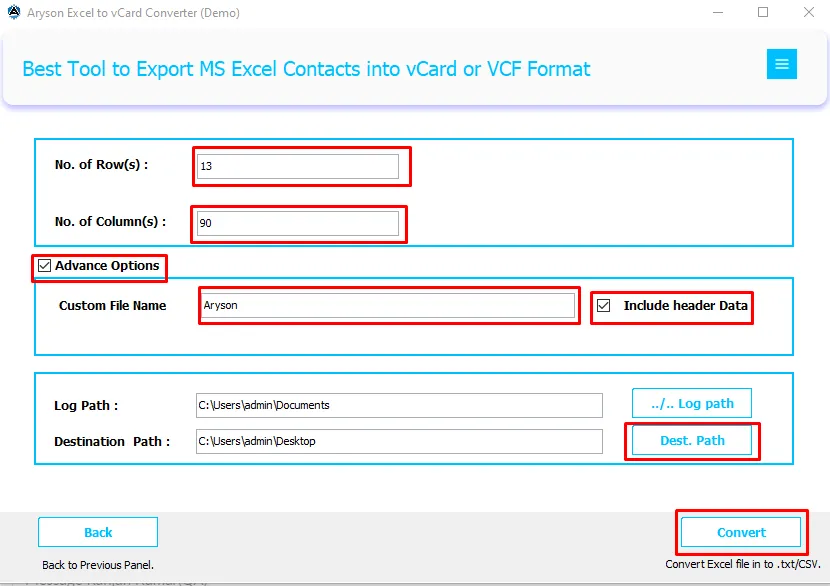
- Use the Advanced Options, click the Dest Path, and hit the Convert button to export your Excel file into CSV format.



Conclusion
This blog is a complete solution for anyone who wants to convert Excel to CSV UTF-8 format easily and accurately. Manual methods may seem simple, but they often lead to formatting or encoding issues, especially with special characters. However, with the Aryson Excel Converter Tool, the process becomes quick, reliable, and completely error-free. It keeps your data structure intact and ensures compatibility with all systems and applications. This makes it the most convenient way to perform Excel to CSV UTF-8 conversion without losing data quality.
Frequently Asked Questions (FAQs):-
Q1. What is the difference between CSV and CSV UTF-8 formats?
Ans: A regular CSV file may not support special characters, while CSV UTF-8 ensures all characters are properly encoded and readable worldwide.
Q2. Can I convert Excel to CSV UTF-8 without Microsoft Excel?
Ans: Yes, you can use Google Sheets or an Excel to CSV Converter Tool to perform the conversion online or offline.
Q3. How do I confirm my CSV file is UTF-8 encoded?
Ans: Open the file in Notepad, click File>>Save As, and check the encoding type at the bottom. It should show UTF-8.
Q4. Can the Aryson Excel Converter convert multiple files at once?
Ans: Absolutely. The Aryson Excel Converter Tool supports batch conversion, saving you time and effort when dealing with multiple Excel files.
About The Author:

Rohan Wiese is a Technical Writer at Aryson Technologies. He is an expert Email Forensic, Cloud Computing, and a passionate nerd with over 10 years of experience in technical content writing. He writes about Cloud Migration, Database Recovery, Email Backup, Windows, Mac, and Tech.
Related Post