-

Written By Rohan Wiese
-
Updated on April 21st, 2026
Change Password For Outlook Data File (.PST) – Quick Guides
Microsoft Outlook stores mailbox data such as emails, contacts, calendars, and notes, in a PST file. To protect this data, Outlook allows users to set a password on the PST file. However, many users forget the password after some time or want to change them for security reasons. When it happens, accessing important emails becomes necessary. So they need to reset the Outlook PST password.
Therefore, this blog explains how to reset or change the password for an Outlook Data File (.PST) using different methods, including the Aryson PST Password Removal Tool. It covers what a PST password is, when you can change it, how to reset it if forgotten, and which method works best without data loss.
What Is an Outlook PST Password?
An Outlook PST password is a basic protection feature that restricts unauthorized access to a local Outlook data file. When a PST file is password-protected, Outlook asks for the password every time the file is opened.
However, it is important to understand that:
- A PST password is not encrypted.
- It is different from your Outlook or Microsoft account password.
- It only protects locally stored data.
In other words, changing your email account password does not remove or reset the PST password.
Why Users Need to Reset or Change PST Password
Users generally forgot Outlook PST password, how to reset them becomes a major question. However, there are several common situations where users face PST password issues.
- Users often forget PST passwords that were set a long time ago.
- PST files remain locked after an employee leaves an organization.
- Old Outlook archive files are received without password details.
- Security policies require updating weak or outdated passwords.
- Shared or inherited systems contain PST files with unknown passwords.
Because of these reasons, individuals have to know the correct method for Outlook data file password reset.
Important Points to Know Before Resetting PST Password
Before moving forward, it is important to understand some key limitations.
- Outlook does not provide a direct recovery option.
- Forgotten PST passwords cannot be retrieved, only removed.
- Manual methods depend heavily on the Outlook version.
- Wrong steps can corrupt the PST file.
Therefore, choosing the correct approach protects both time and data.
How to Change PST Password When You Know the Old Password
If you remember the existing password, Outlook provides a built-in option to change it. This is the safest and easiest method.
Steps to Change Outlook Data File Password in Outlook:
- First, open Microsoft Outlook on your system.
- Next, click on the File tab located in the top-left corner of the Outlook window.
- From the menu, select Account Settings, and then click Account Settings again.
- In the Account Settings window, switch to the Data Files tab. This tab displays all Outlook data files (PST) associated with your profile.
- Now, select the required PST file for which you want to change the password, and then click the Settings button.
- In the new window, click on Change Password.
- Enter the current (old) password, and then type the new password you want to set. Re-enter the new password to confirm it.
- Finally, click OK to save the changes and close all open dialog boxes.
As a result, the selected PST file will now open only after entering the new password, ensuring enhanced security for your Outlook data.
What If You Forgot the PST Password?
If the PST file password is completely forgotten, Microsoft Outlook does not provide any built-in option to recover or reset it. Outlook PST passwords are stored in an encrypted form and cannot be retrieved once lost. In such situations, users can use the Outlook PST Password Recovery Tool to get their old password back.
If they want to reset Outlook PST password, users are left with two choices. Either they can perform the manual workarounds or use specialized professional solution. Before deciding on the best approach, it is important to understand the available manual techniques, their limitations, and why they may not be suitable for modern Outlook environments.
Manual Methods to Reset PST Password
There are a few manual approaches that users often try when they forget their PST password. However, these methods are outdated, risky, and mostly ineffective way to reset Outlook PST password for recent Outlook versions.
Method 1: Using the pst19upg.exe Utility
This method applies only to Outlook 2002 and earlier versions, which used older PST file formats. The process involves the following steps on how to change PST file password:
- First of all, you should create a complete backup of the original PST file.
- After that, run the pst19upg.exe utility.
- Now, convert PST file into a new format without password protection.
However, Microsoft discontinued this utility long ago. As a result:
- This approach does not support Unicode PST files.
- Moreover, it does not work with modern Outlook versions (2007 and later).
- Apart from that, it is no longer available or maintained by Microsoft.
Because of these limitations, this method is no longer practical for most users to reset Outlook PST passwords.
Method 2: Hex Editor Method to Change Outlook PST Password
The Hex Editor method attempts to remove password validation by manually modifying the PST file’s internal header values.
Important points to understand about this method:
- It does not recover the original password
- It requires advanced technical knowledge of file structures
- A single incorrect change can permanently corrupt the PST file
- There is no way to undo the damage if the file becomes unusable
Due to the high level of risk and complexity, this approach is not recommended, especially for business users or anyone handling important email data.
Limitations of Manual PST Password Reset Methods
Although manual solutions exist, they come with serious drawbacks that make them unreliable. Some major limitations include:
- These methods are compatible only with very old Outlook versions.
- Along with that, there is a high risk of PST file corruption or data loss.
- Also, there is no guarantee of successful password removal.
- Keep in mind, manual methods are unsuitable for large or critical PST files.
Because of these risks, relying on manual methods is not a safe or dependable solution. If you want to know how the PST password be removed with ease, proceed with the next section.
Best Alternative to Reset Outlook PST Password Directly
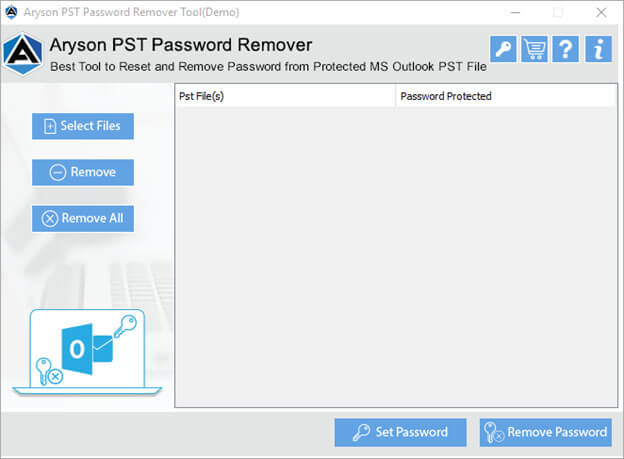
The Aryson PST Password Removal Tool is a reliable solution for users who cannot reset an Outlook PST password directly. It helps remove or change the password from protected PST files without needing the old password. Moreover, this software works independently of Microsoft Outlook, so Outlook installation is not required. It supports both ANSI and Unicode PST files and ensures complete data safety while removing the password. In addition, the simple interface makes the process easy for both technical and non-technical users. Overall, it is an effective alternative when Outlook’s built-in password reset option fails.
How to Reset Password for Outlook PST File
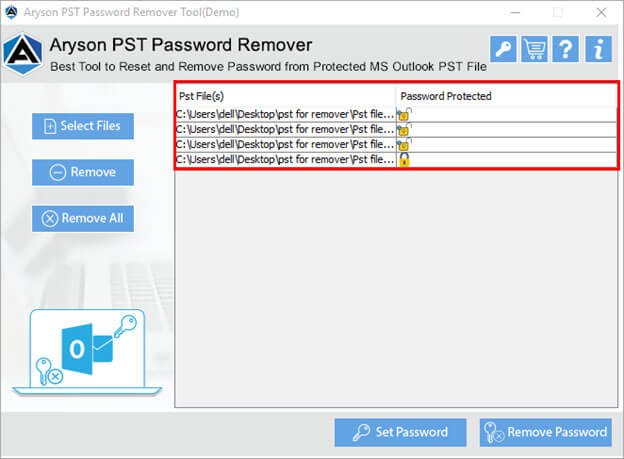
- Download and install the Aryson PST Password Removal Tool on your pc.
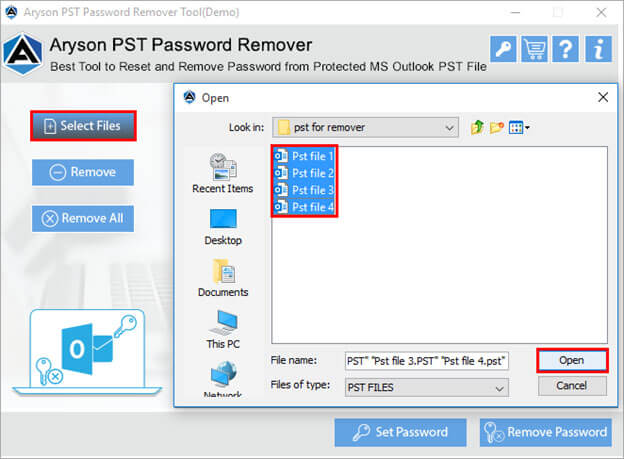
- Now, click on the Select File option to select the password-protected PST file.
- Once the PST file is added, it will show the sign of locked or unlocked PST file.
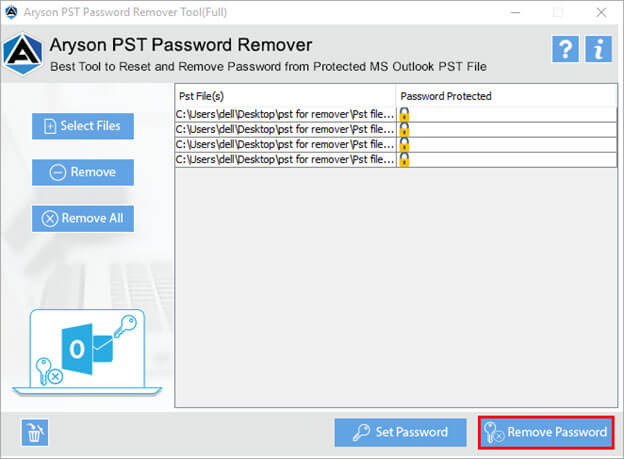
- At last, click on the Reset Password button to reset Outlook PST password.
Conclusion
Outlook PST passwords protect local email data, but forgetting them can block access to important information. While Outlook allows password changes when the old password is known, it offers no direct solution to reset Outlook PST password when the password is forgotten. Manual methods are outdated and risky. Therefore, a secure and reliable solution ensures safe access without damaging data. By choosing the right method, users can restore access to PST files smoothly and confidently.
Frequently Asked Questions:
Q1. Can I recover the original PST password?
Ans: No. Outlook does not store PST passwords in a recoverable format. You can only remove or reset the password, not retrieve the original one.
Q2. Can PST password be removed?
Ans: Yes, you can remove the PST password and reset them according to your choice using Aryson PST Password Removal Tool, that removes only the password and does not affect emails, attachments, or folder structure.
Q3. Where is Outlook PST password stored?
Ans: The Outlook PST password is stored inside the PST file itself in an encrypted form. It is not saved in Outlook settings, Windows Registry, or your email account.
About The Author:

Rohan Wiese is a Technical Writer at Aryson Technologies. He is an expert Email Forensic, Cloud Computing, and a passionate nerd with over 10 years of experience in technical content writing. He writes about Cloud Migration, Database Recovery, Email Backup, Windows, Mac, and Tech.
Related Post