-

Written By Rohan Wiese
-
Approved By
Shivam Rathore -
Updated on September 5th, 2025
How to Extract RAR Archive Files on Windows 10/11/8 Easily
Fact-checked and reviewed in accordance with our
Editorial Policy
When you download software, documents, or media files from the internet, you might find them in a .rar format. A RAR file is a compressed folder that can store one or more files inside it. Unlike ZIP files, Windows (10, 11, or even 8) cannot open RAR files on its own. The process is not that easy. So, you cannot just double-click to see the contents. To access the files, you need to extract RAR Archive files using the right method.
In this blog, we will show you different ways to extract RAR files on Windows. The methods include free options as well as professional solutions. So you can easily handle everything from small archives to large or password-protected ones.
Why Do the Users Need to Extract RAR Files?
As we are aware, RAR files are a very convenient way to compress data. Because, it is helpful to save storage space. They are widely used to bundle multiple files into a single archive. As a result, it becomes easy to transfer or share via email or cloud platforms.
Some of the examples are given here:
- The developer may compress software files into RAR format for distribution.
- A user may receive a RAR archive that contains photos or documents.
- Large files can be split into smaller RAR parts for easier upload and download.
However, you cannot open or use these RAR files until they are extracted. In a simple way, you can say the Extraction is the process to decompress the RAR archive. So, you can access the original files inside.
Method to Extract RAR Archive Files
There are several easy ways to open and extract RAR archives on Windows. Below, we have explained the step-by-step methods you can follow to create RAR files on Windows:
Before you start
- You have to install WinRAR on your Windows PC.
- If the archive file is password-protected, you should remember the password ready.
- For split archives (e.g., file.part1.rar, file.part2.rar), keep all parts in the same folder and start from part1.
Method 1: Extract a Single RAR Archive via the WinRAR app
- Just open the WinRAR App.
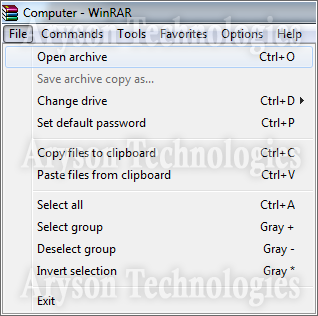
- Then, navigate to the File>> Open (or press Ctrl + O).
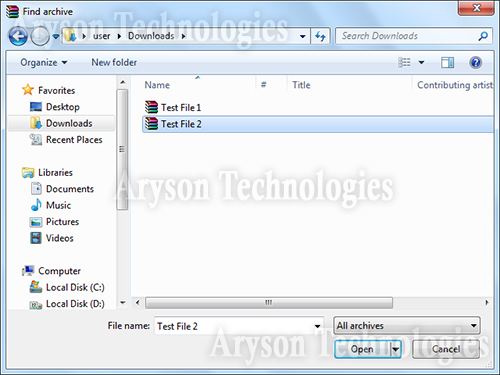
- In the next step, browse to the folder that contains your .rar file.
- After that, select the RAR file and click Open.
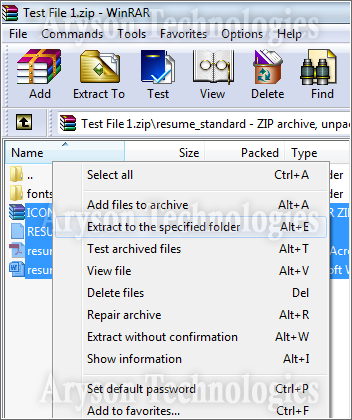
- Inside WinRAR, select the files/folders you want to extract.
- To extract everything, press Ctrl + A.
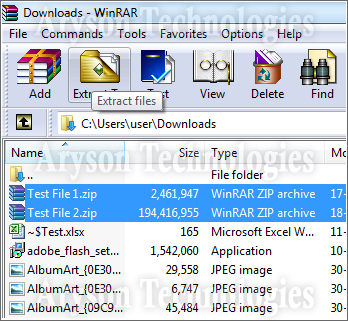
- Click the Extract To button on the toolbar.
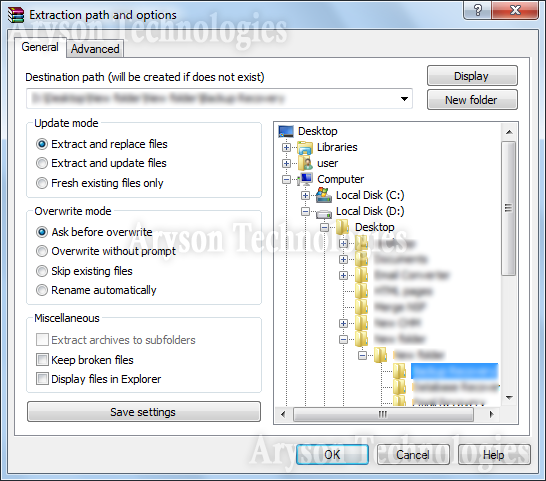
- In the Extraction path and options, do the following:
- Destination path: Click Browse and choose where to save the files.
- Tick Keep broken files only if you’re recovering data and understand the risk.
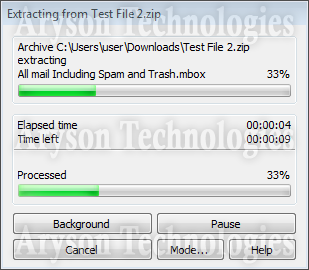
- Click OK to extract RAR Archive files.
- If prompted, enter the password and press OK.
- When the progress window closes, open the destination folder to access your files.
Method 2: Quick Extract with Right-click Context Menu
- Right-click the .rar file in File Explorer.
- Choose one of these:
- Extract Here – puts the files in the same folder as the archive.
- Extract to <ArchiveName>\ – creates a new folder and extracts everything inside it.
- If it requires password then enter the password.
- Now, you should wait for the completion process.
- After that, open the archive file in the extracted folder.
Method 3: Another Way to Extract Multiple RAR Archives at Once
- Again, navigate to the WinRAR and open it.
- Now, move to the folder that contains all your .rar archives.
- You have option to select multiple archives:
- Simply use Ctrl + click for specific files. Also, you can pick Ctrl + A to select all.
- Click the Extract To button on the toolbar.
- In Extraction path and options, set:
- Destination path: Click Browse and choose a target folder.
- (Recommended) Extract archives to subfolders to keep each archive’s files separate.
- (Optional) Choose overwrite rules under Update mode if files already exist.
- Click OK to begin batch extraction.
- If it requires password, then enter the password.
- Now, you can wait until it completes the process.
- When it is done, open the archive file in the extracted folder.
How Can Aryson Archive Recovery Software Be Helpful For Users?
Sometimes, users face the issue to extract RAR Archive files or open RAR files on Windows and the reason behind this is that their archive file is corrupted. If you are also in this kind of situation, then use the Aryson Archive Recovery Software to fix the WinRAR or 7-Zip file. It can repair and recover corrupted archive files, including RAR, ZIP, TAR, and 7z formats. Along with that, it make sure that you can safely access your data without losing important files. Even password-protected or large-sized archives can be recovered smoothly. Download Now Purchase Now
Additional Key Pointers of Aryson Archive Recovery Software:
- You can repair corrupted RAR, ZIP, TAR, and 7z files.
- It is helpful to recover data without altering the original folder structure.
- Also, it can fix when 7zip cannot open the file as archive.
- This software supports both small and large password-protected archives.
- Users will get a user-friendly interface for both technical and non-technical users.
- Additionally, it is compatible with all versions of Windows 10/11/8 and earlier versions.
Tips & Troubleshooting
- “No files to extract” or errors? The archive may be damaged; try WinRAR’s Tools → Repair archive.
- Corrupt or incomplete downloads: Re-download the file; ensure all parts of a split archive are present.
- Issues with Long path: Individual should try to extract to a short path like C:\Extracted to avoid Windows path length limits.
- Slow Extraction Process: You should copy the archive to your local drive (not a network share) before the extract process.
Conclusion
RAR archives are widely used to compress and share files. But Windows does not support them natively. Hence, when you extract them, it becomes easy to work with those files. With tools like WinRAR and 7-Zip, you can extract RAR Archive files manually. In case your archive file is corrupted, then you should first recover it using Aryson Archive Recovery. After that, you can navigate to the process of extracting archive RAR file. Overall, if you proceed with the right method, you can extract RAR files on Windows 10, 11, or 8 without any trouble.
Frequently Asked Questions
Q1. Can Windows 10 or 11 open RAR files natively?
Ans: No. Windows does not have built-in support for RAR files. You need to do it manually with WinRAR, 7-Zip, or a professional extractor tool.
Q2. What is the best free tool to extract RAR files on Windows?
Ans: 7-Zip is one of the most popular free tools to extract RAR archive files free. It is lightweight, open-source, and works on all Windows versions.
Q3. Is WinRAR completely free to use?
Ans: WinRAR offers a 40-day free trial. After that, it still works with reminders, but technically, you’re expected to purchase a license.
Q4. How do I extract multiple RAR archives at once?
Ans: Open WinRAR or 7-Zip, select all the RAR archives, click Extract To, and choose a destination folder. The Aryson Archive Recovery Software will extract all archives in a batch.
About The Author:

Rohan Wiese is a Technical Writer at Aryson Technologies. He is an expert Email Forensic, Cloud Computing, and a passionate nerd with over 10 years of experience in technical content writing. He writes about Cloud Migration, Database Recovery, Email Backup, Windows, Mac, and Tech.
Related Post



