-

Written By Harshita Sachdeva
-
Approved By
Shivam Rathore -
Updated on June 13th, 2026
Transfer BigPond Emails to Gmail: Made Simple in 2026
Fact-checked and reviewed in accordance with our
Editorial Policy
Query: I want my saved emails that are in my folders in my Bigpond account to come over to my new Gmail account. I have added my BigPond account to Gmail, and I am receiving all my emails from both
accounts, but I don’t have any of my emails that are sitting in my BigPond folders.Other than forwarding them all separately to my Gmail, how can I get them across?
Summary: BigPond, now operating under Telstra Mail, has been gradually phased out since 2013. Many IT professionals and organizations now want to transfer BigPond emails to Gmail for better storage, reliability, and features. This guide covers three manual methods, including the Aryson IMAP Email Backup Tool, to migrate BigPond email to Gmail without any data loss.
Quick Steps to Migrate BigPond Email to Gmail
- Download and run the Aryson IMAP Backup Tool on your system.
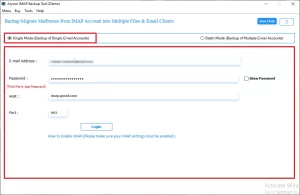
- Choose Single/Batch mode for migration >> login to BigPond via its credentials.
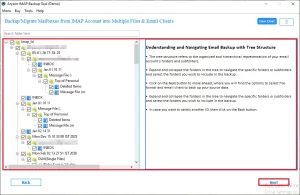
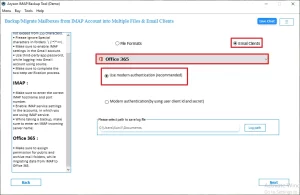
- Review the BigPond emails and other metadata >> Select Gmail under Email clients.
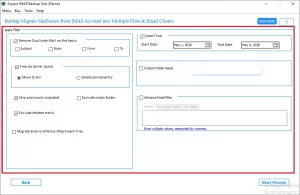
- Enter Gmail credentials to log in >> configure filters >> Next >> Start Migration.
Common Issues Faced Before Migration
- Emails Not Syncing: Saved folder emails fail to appear after linking the BigPond account to Gmail.
- Login Failures: Many users report trouble signing in to BigPond since the Telstra Mail transition began.
- Missing Folder Data: Historical emails stored in custom folders do not carry over through basic forwarding.
- Attachment Errors: Large attachments often fail to load or send from the BigPond Telstra webmail interface.
Does BigPond support IMAP?
Yes, BigPond (Telstra Mail) fully supports IMAP. Unlike POP3, which downloads and removes emails from the server, IMAP reads directly from it—so your source data stays intact throughout migration. IT professionals and experts prefer IMAP-based transfers for exactly this reason.
According to Telstra’s official support documentation, IMAP syncs replies, deletions, and read status across all your devices. This makes it far safer & more reliable than POP3 for any migration work.
| Setting | Value |
| Incoming Mail Server (IMAP) | imap.telstra.com |
| IMAP Port | 993 |
| Security | SSL/TLS |
| Outgoing Mail Server (SMTP) | smtp.telstra.com |
| SMTP Port | 465 |
| Security | SSL/TLS |
Note:
- Enable “Outgoing server requires authentication.” Your username is your full Telstra email address—ending in @bigpond.com, @bigpond.net.au, or @telstra.com.
- If two-step verification is active on your BigPond account, generate an app password from Telstra account security settings before connecting any migration tools.
Proven Methods to Transfer BigPond Emails to Gmail
In this section of the blog, we will mainly discuss the most effective methods to transfer your BigPond emails to Gmail.
Method 1: Import Existing Emails Using Gmail Fetcher
This method pulls your saved historical BigPond emails directly into your Gmail inbox. It is the right choice if you want to move BigPond emails to a Gmail account without losing older folder data.
Note: Gmail ended POP support for this feature in January 2026, so only IMAP accounts work now.
Steps to Forward BigPond Emails to Gmail are as follows:
- Open Gmail >> click the Gear icon >> See all settings.
- Go to the Accounts and Import tab.
- Click Import mail and contacts.
- Enter your BigPond email address >> click Continue
- Enter your BigPond password; verify server: IMAP: mail.bigpond.com, Port: 993, SSL: Enabled.
- Select mail import options >> click Start Import
Method 2: Set Up Auto-Forwarding for Future Emails
This method ensures every new email sent to BigPond is automatically forwarded to Gmail. It does not move existing emails – it only covers incoming mail going forward. Great for users who want to forward BigPond emails to Gmail while keeping the old account active.
- Log into Telstra Webmail (BigPond).
- Click the Cog/Settings icon.
- Select Mail >> then Auto-forward.
- Toggle Enable Auto-forward to ON.
- Enter your Gmail address; check “Keep a copy in your inbox“.
- Click Save.
Method 3: Link Account via Gmailify
Gmailify lets you read, send, and manage your BigPond emails directly inside Gmail – without doing a full migration. You keep your BigPond address but work from Gmail’s interface. Ideal for users who want to add BigPond email to Gmail without permanently moving data.
Simple Steps to Add BigPond Email to Gmail
- Open Gmail >> Gear icon >> See all settings
- Go to the Accounts and Import tab.
- Under “Check mail from other accounts,” click Add a mail account.
- Enter your BigPond email >> click Next.
- Select Link accounts with Gmail (Gmailify) >> click Next.
- Follow the on-screen prompts to complete account linking.
Method 4: Expert Solution to Transfer BigPond Emails to Gmail
Manual methods work fine for individual users. But for IT experts, admins, and organizations managing multiple accounts, those methods are slow and error-prone. Therefore, they prefer to choose the Aryson IMAP Backup Tool for better security and data integrity. This software connects directly to both IMAP accounts and transfers everything in one go. With the help of the same software, users can efficiently convert emails from BT Mail to Office 365, Thunderbird, Gmail, etc., email clients. Now, follow the steps below to carefully perform the data transfer.
Pre-Migration Settings for the Tool
| Account | Setting | Value |
| BigPond (Source) | IMAP Hostname | imap.telstra.com |
| BigPond (Source) | IMAP Port | 993 |
| Gmail (Destination) | Authentication | App Password (mandatory) |
Steps to Move BigPond Emails to Gmail Account Using Aryson Tool
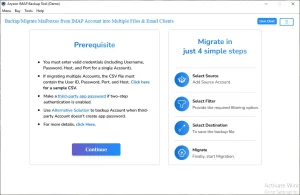
- Download and install the Aryson IMAP Backup Tool on your PC.
- Enter the BigPond credentials to log in to its active account.
- Preview the BigPond emails in the right panel of the software.
- Select Gmail as the destination and log in via Modern OAuth.
- Apply the required filters as per your requirements.
- Click Convert to begin the BigPond to Gmail migraiton.
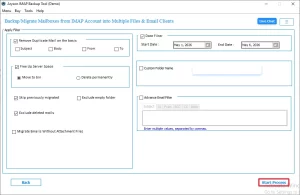
Key Features of the Aryson IMAP Backup Tool
- Transfers all folders, including Sent, Drafts, Spam, and custom folders.
- Supports bulk migration of multiple BigPond accounts to Gmail simultaneously.
- Allows users to filter emails by date range before starting migration.
- Users can transfer BT Internet emails to Gmail, Thunderbird, Yahoo mails etc.
- Keeps the email metadata, timestamps, attachments, & folder structure intact.
- Resumes automatically if migration is interrupted midway.
- Licensed per machine; supports enterprise-level deployment for organizations.
Conclusion
Whether you are an individual user or an IT professional managing accounts for an entire organization, this guide covers every practical way to transfer BigPond emails to Gmail. Manual methods like Gmail Fetcher, Auto-Forwarding, and Gmailify work well for basic needs. For bulk, error-free migration across multiple accounts, the Aryson IMAP Backup Tool is the most reliable option available in 2026.
Frequently Asked Questions
Question 1. How do I transfer my BigPond email to Gmail?
Answer: You can use Gmail’s built-in Import feature (Accounts and Import tab) and set up auto-forwarding via Telstra Webmail. However, it is recommended to use the above Aryson IMAP Backup Tool for complete, bulk migration.
Question 2. Where can I find tutorials or guides for transferring BigPond emails to Gmail using the software?
Answer: The Aryson official website offers step-by-step documentation, video tutorials, and live support guides for the IMAP Backup Tool. For more queries, reach out to the technical support team at Aryson.
Question 3. Does the software support bulk migration from BigPond to Gmail?
Answer: Yes. IT admins and organizations can use the software to migrate multiple BigPond accounts to Gmail simultaneously in a single session. Moreover, the information is kept intact during the entire migration.
Question 4: Is a BigPond to Gmail migration tool licensed per user or per machine?
Answer: No, the Aryson IMAP backup tool provides different licenses with different limitations for machines and users. For instance, for single users, the software can be operated up to two machines.
Question 5. What happens if the migration is interrupted or fails midway?
Answer: If you are using the Aryson IMAP backup tool, there is a minimum chance of getting stuck in between the steps. However, if you face any difficulties, reach out to the tech support team for 24/7 technical support.
Question 6. Can I filter emails by date while transferring from BigPond to Gmail?
Answer: Yes. The software allows users to set a date range filter so they can only migrate emails within a specific time period. This eventually increases the processing speed of the migration.
Question 7. Can businesses use this software to migrate multiple BigPond accounts to Gmail?
Answer: Yes, the major concerns of the large-scale organizations and businesses are security and privacy. The IMAP backup software allows enterprises and IT experts to run multi-account migrations. The software supports batch processing, making it ideal for business-scale operations.
Question 8. Does the software transfer spam or junk folder emails from BigPond to Gmail?
Answer: Yes, the Aryson tool migrates all folders, including Spam, Junk, Sent, Drafts, and any custom-named folders, from the BigPond account. Even the data integrity is maintained at the destination.
Question 9: Is the migration process safe and does it preserve email formatting?
Answer: Yes, the Aryson IMAP backup tool preserves all email metadata, including timestamps, attachments, folder structure, and HTML formatting throughout the migration process.
About The Author:

Harshita Sachdeva, a professional technical writer at Aryson Technologies, specialize in delivering clear, hands-on documentation for data management, migration, and recovery solutions. With a meticulous, reader-first approach, I break down complex technical processes into simple, actionable content - helping IT professionals and decision-makers tackle challenges efficiently.
Related Post