-

Written By Rohan Wiese
-
Approved By
Shivam Rathore -
Updated on May 12th, 2026
Export Emails from cPanel to Outlook – Full Migration Guide
cPanel is one of the most commonly used web hosting control panels, which provides users with built-in email account management. This is implemented via webmail clients like Horde, Roundcube, and SquirrelMail. However, it works well for the basic needs, but when businesses grow, IT professionals look for better platforms and eventually export emails from cPanel to Outlook. This is because Outook offers offline access and integration tools. To help you throughout the export process, this article provides different methods, including the Aryson IMAP Email Backup Tool, for both beginner and technical experts.
5 Quick Steps to Export cPanel Emails to Outlook
- Download & install the Aryson IMAP Email Backup Tool.
- Enter the cPanel credentials to log in to an active account.
- Cross-verify the displayed cPanel data from the software panel.
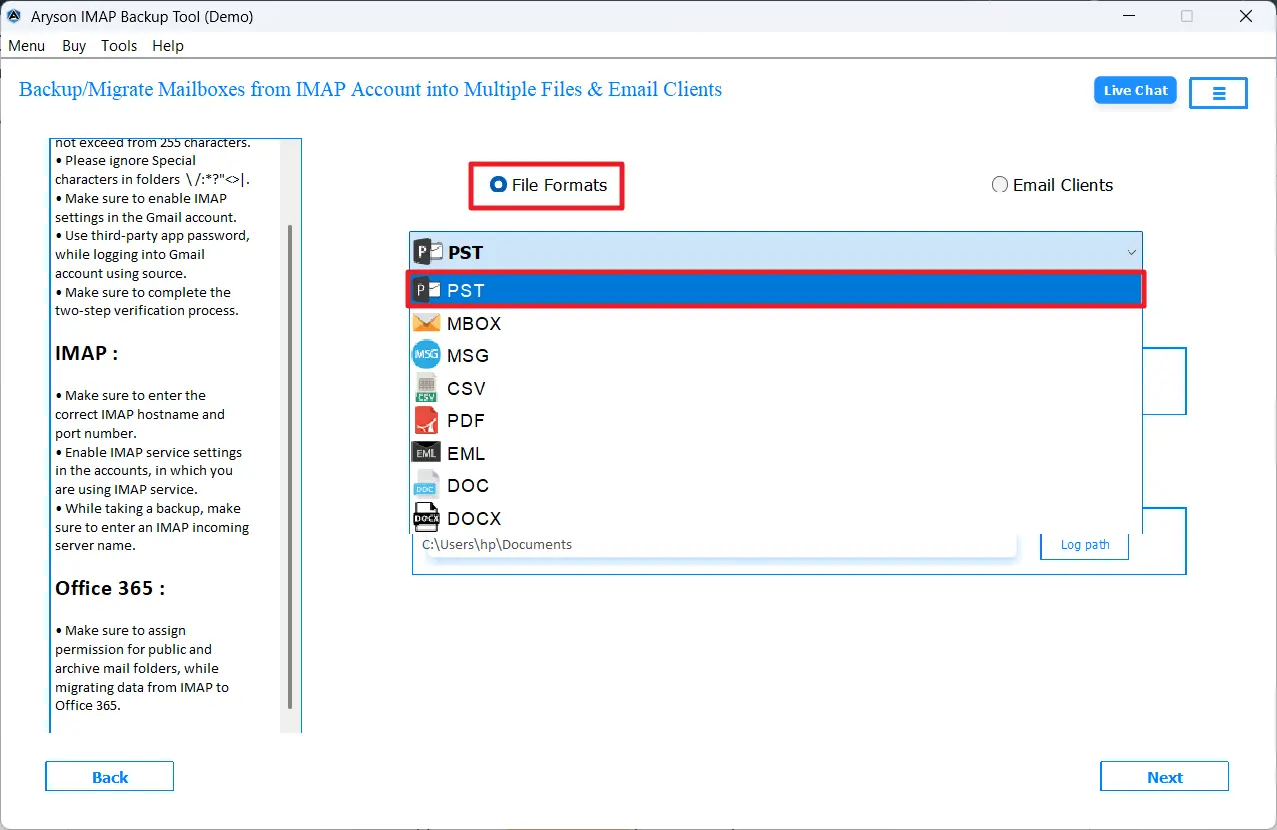
- Choose PST as the output format from File Formats.
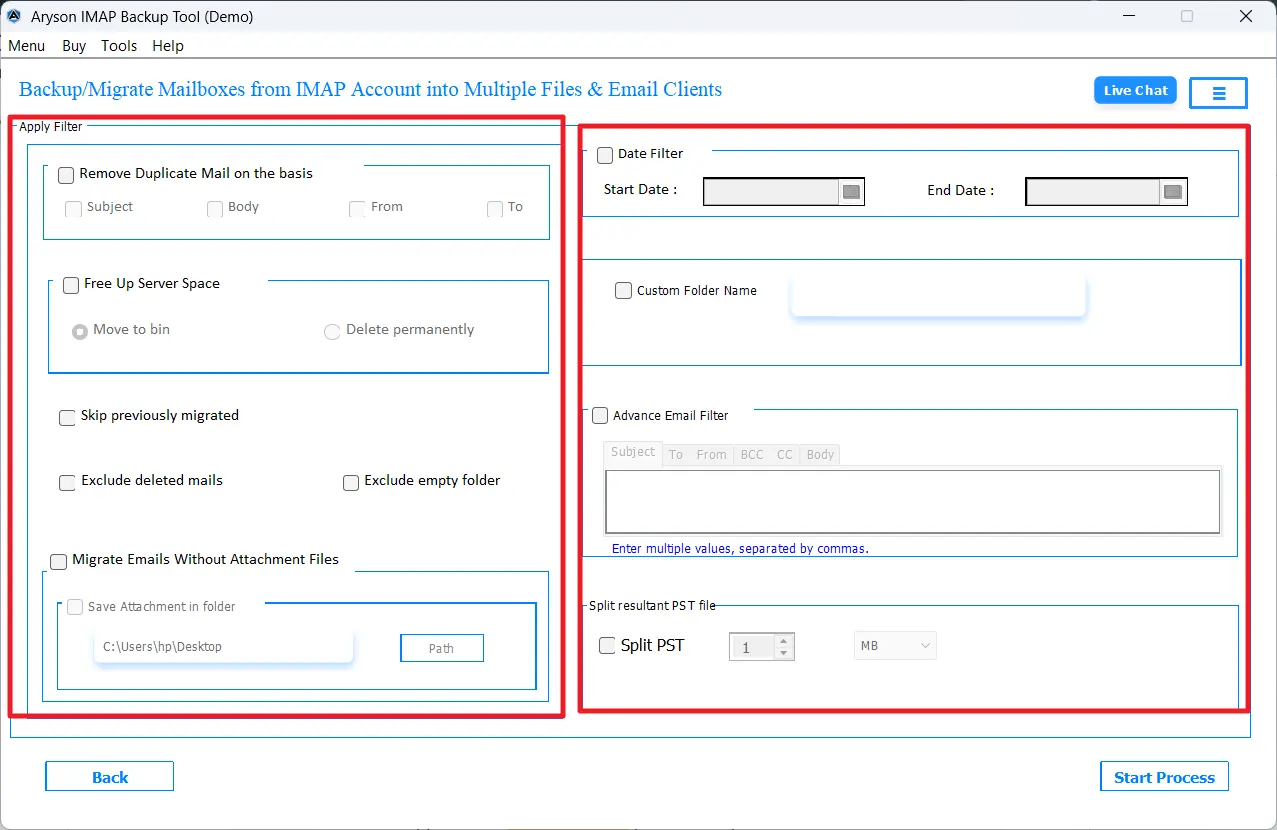
- Apply the advanced filters if required.
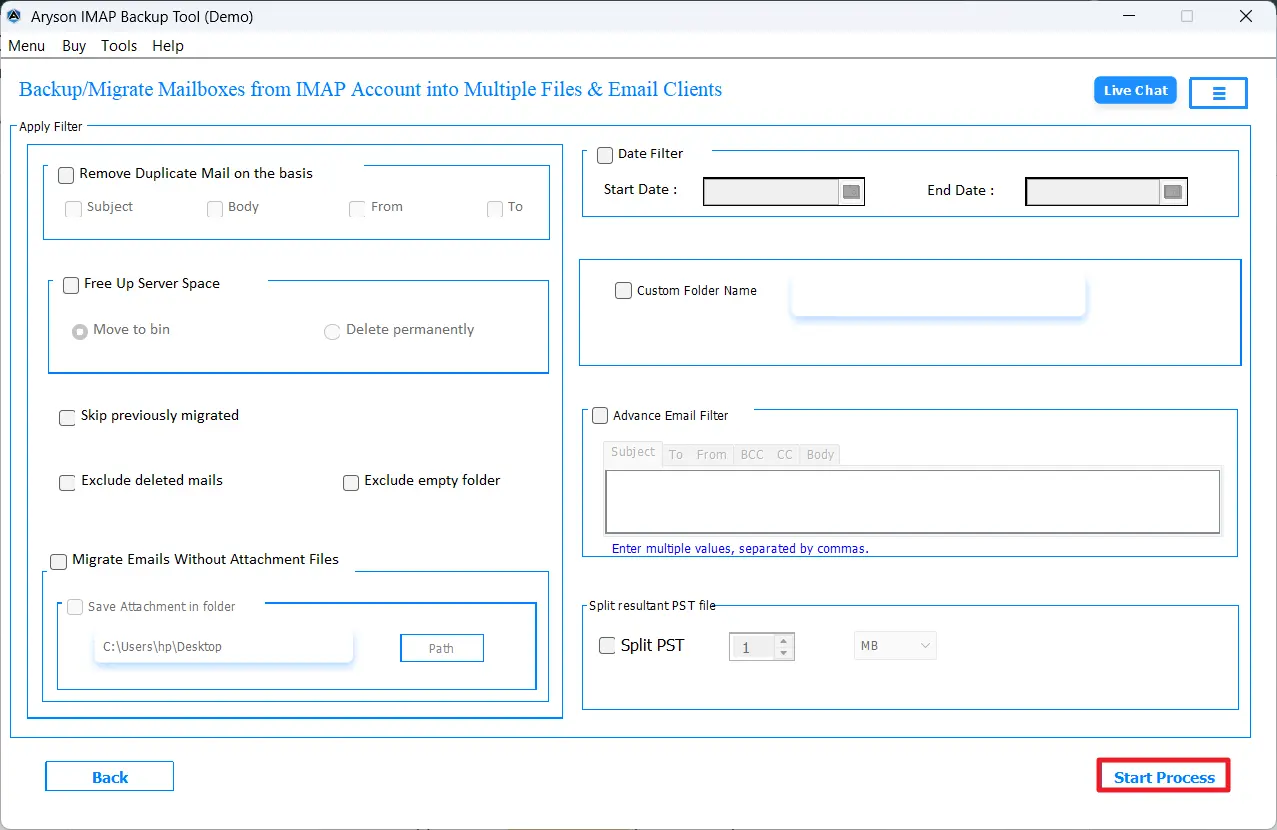
- Click on the Convert button to begin the conversion process.
Why Do Users Export Emails from cPanel to Outlook?
Due to a set of reasons, users prefer to Migrate cPanel email to Outlook.
- IT users can read and access their emails offline without a web server.
- It becomes easier to combine multiple c-Panel accounts into a clean interface.
- Outlook offers far better organization tools like rules, categories, flags, etc.
- Moreover, PST files allow password-protected local storage, making backup safer.
- Businesses moving to Microsoft 365 need their existing cPanel emails consolidated into Outlook PST format.
Proven Methods to Export Emails from cPanel to Outlook
There are two practical ways to get your cPanel emails into Outlook, depending on your comfort level and the size of your mailbox.
- Manual Approach via IMAP Configuration
- Automated Solution Using an IMAP Backup Tool
Read through both methods carefully and pick the one that fits your situation best. If the manual route feels too complex or you are dealing with a large mailbox, the automated solution discussed below will be a much better fit.
Method 01: Manual Approach to Import cPanel Email to Outlook
In this manual method, you just have to first set up your cPanel account inside Microsoft Outlook via the IMAP protocol. Outlook will now scan all your cPanel emails, and after scanning, you can use Outlook’s built-in Import/Export wizard tool to save everything as a PST. This method is most suitable for smaller mailboxes, but it takes 2 stages for complete completion.
Stage 1 – Add Your cPanel Account to Outlook via IMAP
- Firstly, open Microsoft Outlook on your Windows system and go to the File tab.
- After that, click on Add Account and enter your full cPanel email address.
- Now, select the option Let me set up my account manually to proceed.
- Thereafter, under the available options, choose IMAP as the desired one.
- Now, enter your cPanel incoming server(mail.yourdomain.com, Port 993) & outgoing mail server (mail.yourdomain.com, Port 465).
- Provide your cPanel email password & click Connect to link the account.
- At last, wait for Outlook to finish the synchronisation process.
Stage 2 – Export the Synced Emails to a PST File
- Next, click on File Tab >> Open & Export & select Import/Export option.
- After that, select the Export to a file option from the wizard >> Next.
- Now, choose Outlook Data File (.pst) as the required file type >> Next again.
- Then, select the cPanel account or a specific folder to include in the export.
- Click Browse to select the destination folder to save the resultant PST file.
- Toggle on the Do not export duplicate items option for clean output.
- At last, click on the Finish button to complete the export process & save PST.
Limitations of the Manual Approach
- There is a real risk of data loss if any step across the two stages is missed or done incorrectly.
- Users need a working knowledge of IMAP server settings, which can be tricky for non-technical users.
- This method is genuinely time-consuming when the cPanel mailbox is large or has many folders.
- Moreover, it does not support migrating multiple cPanel accounts in one go – each one has to be done separately.
- Likewise, large mailboxes often cause IMAP sync to time out before all emails are fully transferred.
Method 02: Automated Solution to Export Emails from cPanel to Outlook
The Aryson IMAP Backup Tool is a highly recommended software that allows IT administrators as well as enterprises to export cPanel data to Outlook. This software aims to provide the user with 100% data accuracy and security. Moreover, it provides secure authentication methods like Modern Auth 2.0 and Impersonation methods. Additionally, the advanced features of the software, like the Date Range filter, custom folder name, etc., make the entire process simple. Using the same software, users can even migrate cPanel Email to Google Workspace. Even if you are a complete beginner, you can use this software to operate it without any issues.
Simple Steps to Export cPanel Emails to Outlook
- First, install and run the Aryson IMAP Email Backup Tool.
- Provide the valid credentials to log in to an active cPanel account.
- Cross-verify the cPanel files and folders and select the desired ones to export.
- Choose PST as the desired output format under the file formats dropdown.
- Apply the required filters as per your requirements.
- At last, click on the Convert button to begin the cPanel to Outlook migration.
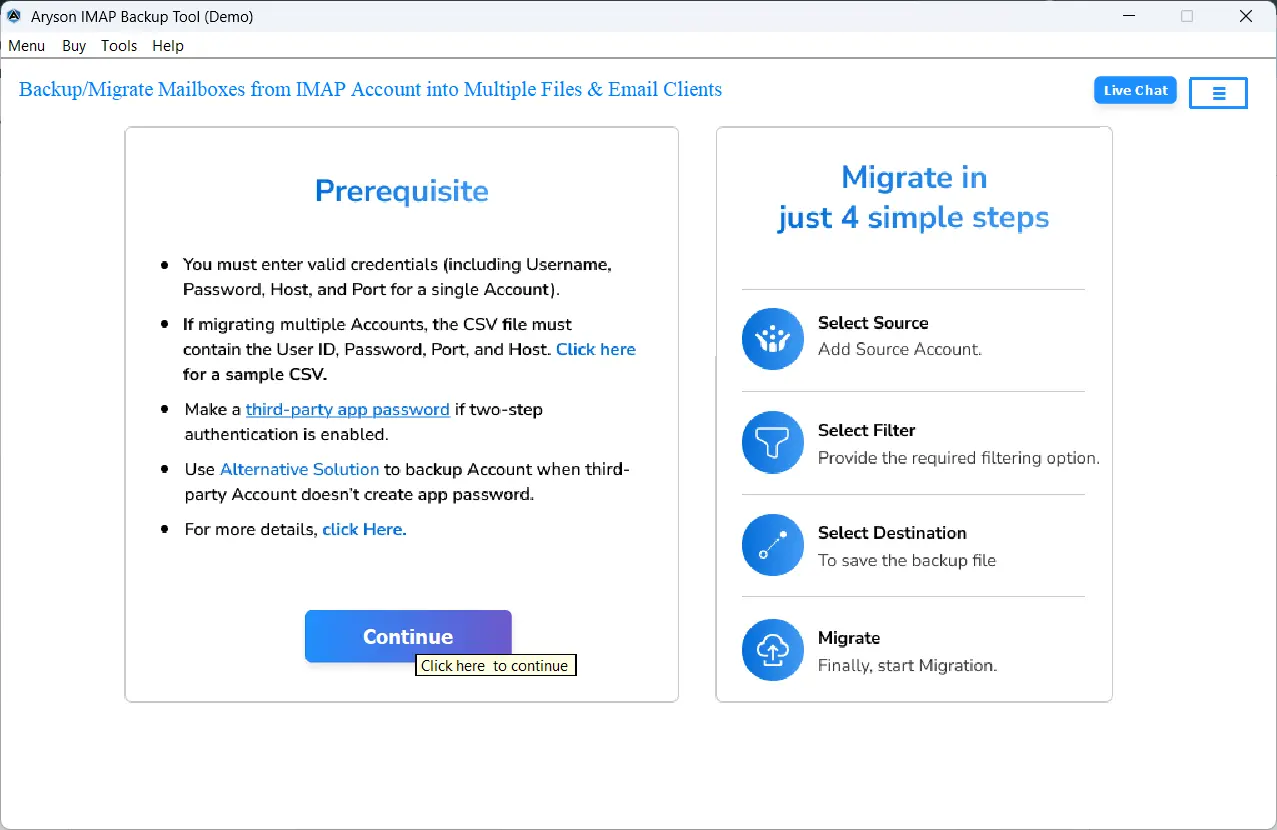
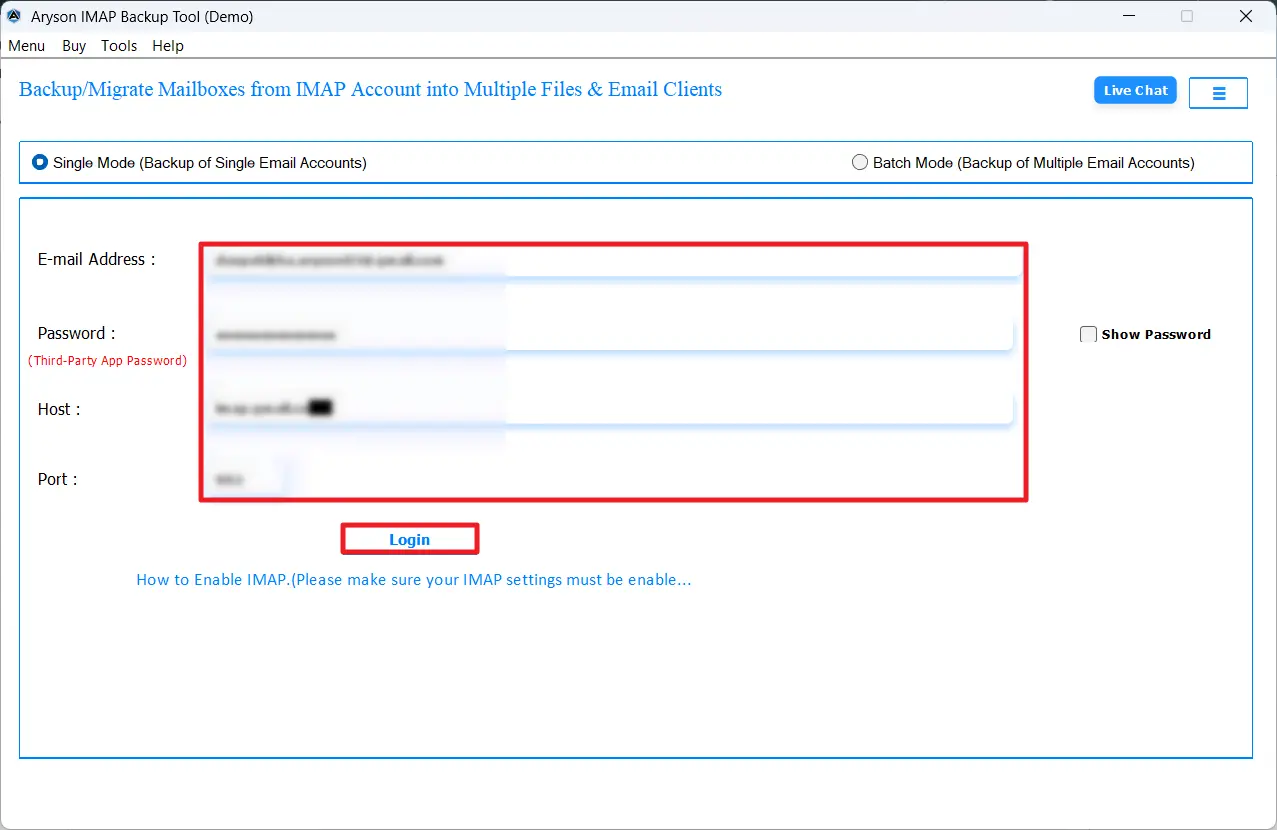
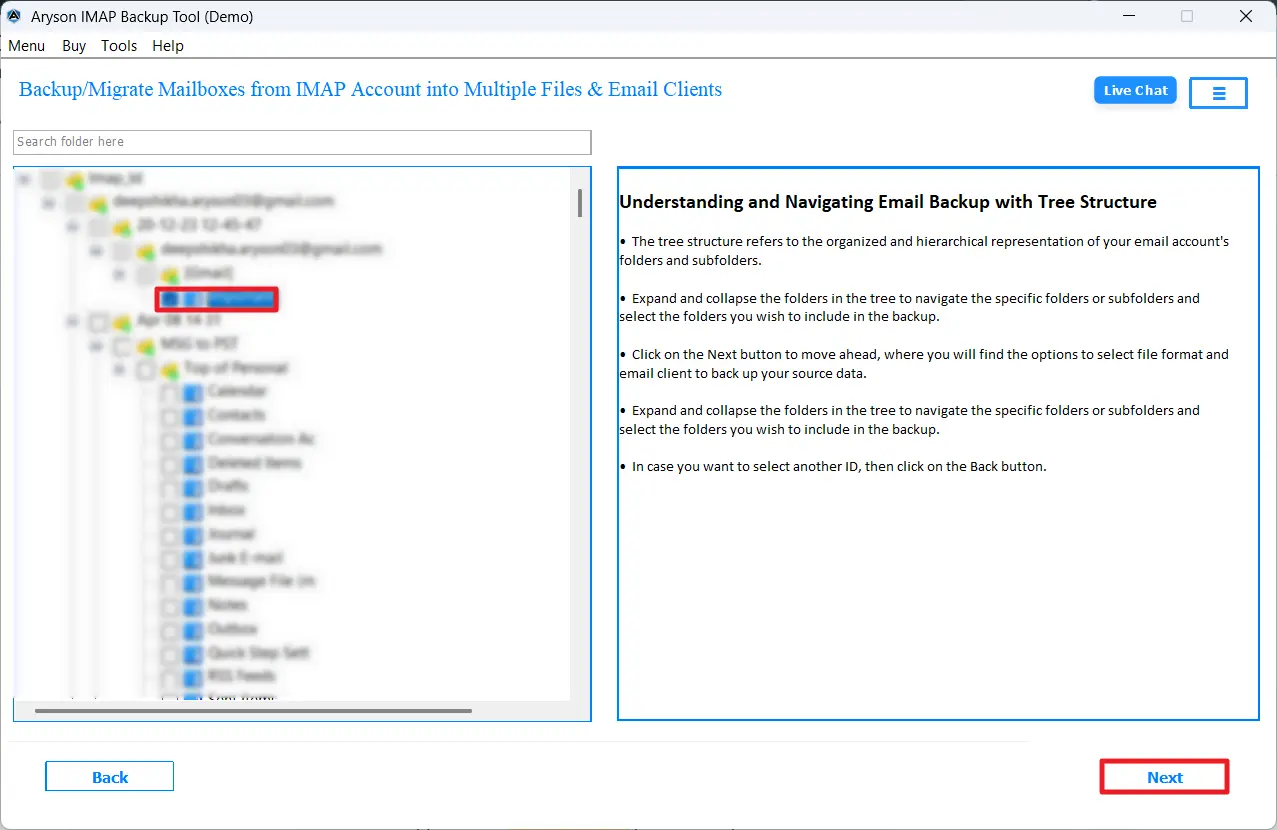
After converting the cPanel emails into PST format, you can use any reliable software or manual approach to import PST into Outlook.
Comparison Between Manual and Automated Methods
|
Feature |
Manual Approach |
Automated Approach |
|
Process Type |
Multi-stage and technically demanding to follow. |
Simple, guided, and easy to complete. |
|
Time Consumption |
Takes considerably longer, especially for large data. |
Fast and efficient, even for bulk migration. |
|
File Handling |
Not practical for large or multiple cPanel accounts. |
Handles multiple accounts and folders at once. |
|
Accuracy Level |
Prone to human error and incomplete transfers. |
Delivers consistent and accurate results every time. |
|
Technical Skills |
Requires IMAP knowledge and Outlook familiarity. |
No technical expertise needed at all. |
|
Data Safety |
Higher chance of data loss or broken folder structure. |
Keeps all data intact with zero loss throughout. |
|
Ease of Use |
It can feel overwhelming for everyday users. |
Clean, straightforward interface for anyone to use. |
End Note
In this article, we explored two different, simple yet effective methods to export emails from cPanel to Outlook. The manual IMAP approach worked well for users who deal with a small mailbox. Whereas the automated software is recommended for IT professionals and enterprises who seek maximum data security and offline processing to safeguard their data. You can use the free demo version of the software to convert up to 50 emails/folders efficiently.
FAQs
Q1. What is the best way to export emails from cPanel to Outlook?
Ans. The Aryson IMAP Backup Tool is the best way to move emails from Webmail to Outlook.
Q2. Can I export cPanel emails to Outlook without any technical knowledge?
Ans. Yes, with the help of the above software, you can efficiently export cPanel emails to Outlook without any technical knowledge.
Q3. Why can’t cPanel emails be opened directly in Outlook?
Ans. cPanel stores emails in MBOX or EML format on the hosting server, while Outlook uses PST format natively. Since these formats do not match, a conversion or IMAP sync step is always required.
About The Author:

Rohan Wiese is a Technical Writer at Aryson Technologies. He is an expert Email Forensic, Cloud Computing, and a passionate nerd with over 10 years of experience in technical content writing. He writes about Cloud Migration, Database Recovery, Email Backup, Windows, Mac, and Tech.
Related Post