-

Written By Rohan Wiese
-
Approved By
Shivam Rathore -
Updated on September 9th, 2025
Export Outlook Contacts to vCard (VCF) in Bulk Using 5 Effective Ways
Fact-checked and reviewed in accordance with our
Editorial Policy
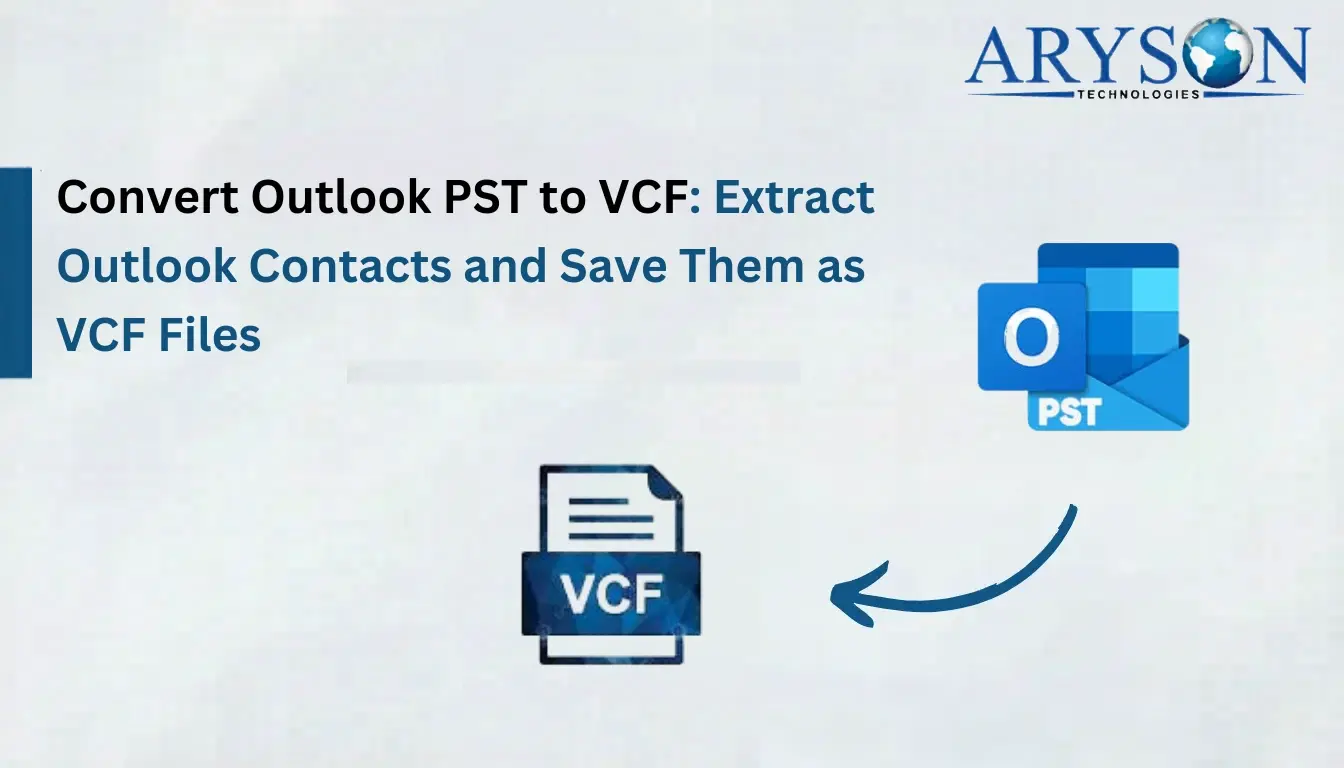
Do you also work in Microsoft Outlook and search for a better way to share, back up, and import your contacts into other applications or devices? If so, you must Export Outlook Contacts to a vCard (VCF) file. In this article, we will be discussing some effective ways to export Outlook contacts to vCard in bulk, including Aryson Outlook PST Converter. Each method is efficient in its way, so you can pick any method suitable for your requirements. Just go through the complete blog, and you will get all your queries answered.
Why convert Outlook contacts to vCard (VCF) file?
Before moving to the export process, let’s just go through the benefits offered by the export process :
- Cross-Platform Compatibility: vCard is supported by all email clients, smartphones (iPhone, Android), and cloud services like Google Contacts or iCloud.
- Multiple Contact Details offered: vCard allows you to store names, phone numbers, email addresses, job titles, company names, and even images in just one file.
- Effortless Contact Sharing: You can easily send A single VCF file to multiple contacts at once via email or messaging apps.
- Quick Import/Export process: You can quickly import or export a VCF file, whether you want to switch to a new device or another email client.
- Easier Backup & Migration: vCard allows you to maintain a secure backup and makes it easier to migrate from one platform to another.
Considering the benefits the export process offers, you must export Outlook contacts to vCard. You can refer to the different methods to perform your task in the section below.
Simple Ways to Export Outlook Contacts to vCard
You can easily save Outlook contacts as vCard using he five methods provided below. Each method has its pros and cons, but you have to pick one of them as per your requirement and expertise. Let’s have a look at these methods:
How to export your Outlook contacts to a vCard directly?
If you are looking for a quick and reliable way to export Outlook contacts to vCard in bulk, the Aryson Outlook Contacts Export Tool is a suitable solution for you. Along with that, it can also export Outlook emails to CSV format according to the date range when needed. Moreover, it keeps the data intact and free from corruption. Rather than following the typical manual methods, you can go for this automatic tool.
Steps by Step Guide to Export Multiple Outlook Contacts to vCard:
- First, install and launch the Aryson Outlook Contacts Export Tool on your existing PC.
- Then, click on the Select File/ Select Folder option and open the desired PST file.
- Now, you can preview your selected file on the Advanced Preview Panel.
- Next, select VCF under File Format.
- You can also use the additional features provided by the software.
- Finally, hit the Convert Button.
Following the above steps carefully, you can easily convert your PST file into a VCF file. However, this method is the quickest and most reliable one; you can proceed with the manual methods if you possess decent technical skills and don’t mind the time consumption.
Using the Attach File Option
- Firstly, launch the MS Outlook client application on your PC.
- There, click on the New Email option to create a blank message.
- Now, click on the Attach File option to attach any files.
- Click on the Attach Items option to include all your necessary files or contacts..
- Now, select the Business Card option from the list appearing and then select Other Business Cards.
- Select the desired contact you want to export and click OK.
- Click the Down Arrow appearing on the selected VCF.
- Then, choose the Save As option.
- Finally, click the Save button.
Using the Save As Option
- Launch Microsoft Outlook on your PC.
- Click on the People section by clicking the People icon.
- Then, select the contact you want to export and open its details.
- Next, select File >> Save As option.
- Now, select the desired destination you want to pick and hit the Save button.
Using Forward Contact
- Open the Outlook client on your existing PC.
- Then, select people.
- Now, select the contact you wish to export and right-click to open more options.
- Click on Forward Contact and pick the As a Business Card choice.
- Enter your credentials and hit the Send button.
- Finally, log in to your email account. And download contacts in vCard.
Convert Outlook contacts to vCard Manually
The manual method takes 3 stages to complete the export process. Also, it requires the installation of MS Outlook as a prerequisite. So, if you don’t have it installed in your system, you can’t proceed with this method. Also, you can perform this method if you are technically decent and willing to proceed despite knowing about the possible data loss.
Simple steps to save Outlook contacts as vCard are given below:
Phase 1: Export Contacts in CSV Format
- Firstly, launch the MS Outlook application on your existing PC.
- Then, select the file you want to export.
- After that, choose the Open & Export option.
- Now, choose the Import/Export option.
- There, select the Export to a file option.
- Pick the CSV(Comma Separated Values) file format and click on the Next button to proceed further.
- Now, properly check the contact folder and click on the Next button.
- Pick the desired destination path and hit the Next button.
- Next, map the custom fields as required, and then click the Finish button to complete the process.
- This will start the Outlook PST contacts to CSV conversion process
Phase 2: Import CSV Contacts to Google Mail
- To proceed further, first, you have to sign in to your Gmail account.
- Then, select the contacts to be exported.
- Now, in Gmail Contacts, click on the Import option.
- Open the resultant CSV file.
- Simply select CSV and press the Open button.
- To start the import process, click the Import option.
- Your contacts would be successfully imported.
Phase 3: Export Contacts from Gmail to VCF
- Now, log in to your Gmail account.
- Choose Contacts and click the Export button.
- Then, select vCard (for iOS contacts) as Export As.
- The export process will start and take some time.
- Now, you can view your resultant vCard contacts under the Download folder.
Conclusion
In the blog above, we discussed 5 effective ways to export Outlook contacts to vCard, both directly and manually. The Aryson Outlook Contacts Export Tool offered quick export with no data loss. Whereas, the manual method offered was suitable fr someone having plenty of time and great technical skills. So, the choice is up to you only. You can choose any of the methods according to your expertise and the amount of data to export. Again, it is very important to pick a suitable method.
Frequently Asked Questions
Q-1. How can I export all my Outlook contacts to vCards at once?
Ans- Yes. Aryson Outlook Contacts Export Tool allows you to bulk export Outlook contacts to VCF without needing to export them in CSV format first, unlike the manual method.
Q-2 If needed, can I import the vCard back into Outlook?
Ans– Yes, you can import vCard files as well as restore your contacts on Outlook, anytime if required.
Q-3. Why choose vCard instead of CSV as a file format?
Ans– A CSV file format is suitable for spreadsheets, whereas the vCard files are far better for contact management as they preserve all contact details like phone numbers, emails, addresses, photos, and job titles in one place, making the import/export process more convenient.
About The Author:

Rohan Wiese is a Technical Writer at Aryson Technologies. He is an expert Email Forensic, Cloud Computing, and a passionate nerd with over 10 years of experience in technical content writing. He writes about Cloud Migration, Database Recovery, Email Backup, Windows, Mac, and Tech.
Related Post