-

Written By Harshita Sachdeva
-
Approved By
Shivam Rathore -
Updated on July 9th, 2026
Step-by-Step Tips to Import PST Files to Office 365 Archive Mailboxes
Summary: This technical article will help you learn how to migrate PST files to Office 365’s Archive mailbox. In the opinion of IT Admins, there are two best ways to move PST Files to Archive Mailbox in Office 365 easily. One is the manual method, and the other is the professional Aryson PST to Office 365 Migration Tool which is famous for importing PST files to the Office 365 archive folder. If you also want to change PST files to archive folders, then stay with this blog till the end.
A Concise Introduction to PST Files and Office 365
A Personal Storage Table (.PST) file is an open proprietary file format used by Microsoft Outlook and contains email folders, notes, and other mail data. So, if you want to keep emails locally on your computer, they try to create a .pst file in Outlook.
Microsoft Office 365 is a Software as a Service(Saas) that includes Microsoft Office. It is a subscription-based service that has the latest versions of Microsoft Office apps. But sometimes the situation arises when a user wants to switch to Microsoft Office 365 from Outlook PST. Now, the question arises is there any possibility to change Microsoft Office 365 from PST files? So. Yes, we have the best two methods by which we can migrate PST files to Office 365 archive mailboxes.
The Top 02 Methods to Import PST Files to Archive Mailbox
We have the best two methods through which we can easily change PST files to Mailbox Office 365. You can use Powershell Commands which is a manual method for importing the PST Files to Office 365 or you can use the Automated tool. So, Let’s explore both methods.
Method 01: Import PST files to Archive Mailbox Manually
In this manual method, there are three preconditions before you start implementing it. On the other hand, it involves three major steps also.
Preconditions for Using Powershell Command
- You must Have an admin account on Office 365.
- Admin Role to Import Export Mailbox.
- High upload Bandwidth is a must.
Phase 1: Provisioning for Storage
Firstly sign in to your Office 365 account for storage provisioning.
- Choose the Import Service > Data Migration in Microsoft Office 365.
- Now, click on the Upload PST file option.
- Click on the + sign and select the Upload Email Messages(PST files) option.
- You need to create a storage account, to import the PST file for the first time. Choose Show network upload SAS URL, which has the following information:
- Storage Account Name
- Container Name
- Shared Access Signature
This URL is used by Azure Azcopy Tool to upload PST Online Archive Office 365.
Phase 2: Upload PST Files
When you have completed the storage provision procedure, now you have to move to the next step which is uploading the PST file by using AzCopy Tool(Command-line Tool) or Azure Storage Explorer (Graphical Tool).
- Firstly, connect to the Microsoft Azure Storage Explorer.
- Then, write the Shared Access Signature(SAS) URL or an account key.
- After providing the required SAS URL, the Connection Summary will be reflected.
- Import the PST file with the help of the Azure Storage Explorer tool.
- For checking the list of files that are available on Azure, use the following cmdlets:

Phase 3: Mapping the PST File
When you successfully uploaded the PST file to Azure Storage, then create a new CSV file. This CSV file is required for mapping PST files to mailboxes and destination folders also.
Phase 4: Move PST Files to Online Archive Office 365
In the last step, Click on the Finish button, and then, your PST file will be imported to the online archive Office 365 through Powershell.

This manual method is difficult to understand for users who don’t have the technical knowledge. Without technical knowledge, if you are implementing the manual method then you can lose your PST file data. Therefore, we preferred you to use Aryson Import PST to Office 365 Tool for moving the PST files to Office 365.
Method 02: Migrate PST Files to Archive Mailbox Professionally
If you want to save your time and avoid the problem of data loss then you can use the automated tool – Aryson Import PST to Office 365 tool. This tool is specially designed to transfer the PST files to archive Mailbox Office 365. The software also migrate PST files to Shared Mailboxes in Office 365 account with all email attachments. The steps of this tool are given below:
Follow the Six Given Steps to Import PST Files into Archive Mailbox
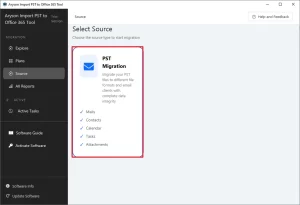
- Launch the Aryson PST to Office 365 Migration.
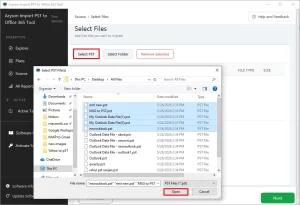
- Click Select PST or Select Folder, browse, and choose the PST(s) to import.
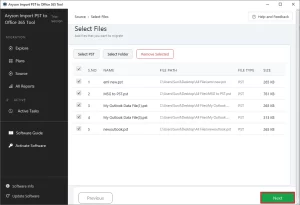
- Review the added PST files in the list and click Next to continue.
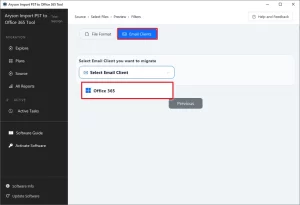
- Select Office 365 as the destination email client.
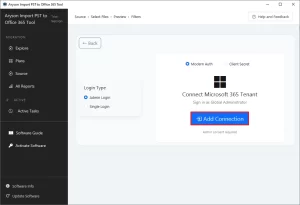
- Connect your Microsoft 365 account using Modern Authentication and click Add Connection.
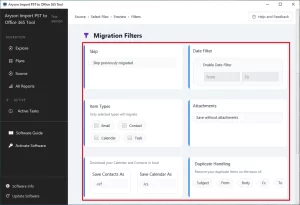
- Configure the required migration filters, such as date range and item types.
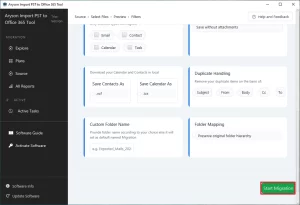
- In the end, click on the Start Migration button to begin the process.
Final Words
In this technical article, we have discussed the top two ways to Import PST Files to Archive Mailbox. If users face problems with the manual method then use Aryson Import PST to Office 365 tool which easily migrates PST files to archive mailboxes.
Frequently Asked Questions
Q. What is the simplest way to migrate PST files into multiple Archive Mailboxes of Office 365?
Ans – You can use Aryson Import PST to Office 365 software which provides the feature to move PST files into multiple Archive Mailboxes of Office 365 through a CSV file.
Follow the below steps for moving PST files into multiple Archive Mailbox Office 365 :
1. Launch Aryson Import PST to Office 365.
2. Browse the PST file and authenticate Office 365 Login.
3. Click Import CSV and select Mailbox User ID.
4. Map the Source and Destination accounts and set Mailbox as Online Archive.
6. At last, Click Convert.
Q. How do I import PST files into the Archive o365 mailbox?
Ans – You can easily move your PST files into Office 365 Mailbox by using the Aryson Import PST to Office 365 Tool. Firstly Install Aryson Import PST to Office 365 tool>Choose PST files> Authenticate Office 365 Login> Choose Online Archive> Import PST Files.
About The Author:

Harshita Sachdeva, a professional technical writer at Aryson Technologies, specialize in delivering clear, hands-on documentation for data management, migration, and recovery solutions. With a meticulous, reader-first approach, I break down complex technical processes into simple, actionable content - helping IT professionals and decision-makers tackle challenges efficiently.
Related Post