-

Written By Harshita Sachdeva
-
Approved By
Shivam Rathore -
Updated on July 3rd, 2026
Migrate Emails from cPanel to O365: Admin Migration Guide in 2026
Fact-checked and reviewed in accordance with our
Editorial Policy
Query: Hi everyone,
What’s the most straightforward way to migrate emails from cPanel to O365, bearing in mind that we’ll be using different emails and domains (and the cPanel emails will mostly be used for reference and archive)?
Summary: This article explains the two best methods to migrate cPanel email to Office 365 in easy steps. Here, we will discuss the step-by-step procedure that allows you to migrate all the mailbox emails from cPanel to an Office 365 account. Moreover, you can also try the Aryson IMAP Email Backup Tool, which will enable users to perform email migration from multiple cPanel accounts to Office 365 efficiently.
Why Migrate Emails from cPanel to O365?
There are various advantages of Office 365 that compel users to move cPanel emails to Microsoft 365 accounts, including:-
- Outlook 365 has a monthly or user-based subscription to access the mailbox data.
- It could work on the cloud, PC, and mobile devices.
- O365 offers an interactive interface for better workflow.
- The advanced filters and Search option help users operate quickly.
- Microsoft 365 offers multiple built-in applications to store the data.
Well, now we know what cPanel and Office 365 are and the main reasons for migrating cPanel mailbox emails to Microsoft Office 365. So, now it is time to move on to the solution to overcome or eliminate the issue.
02 Best Ways to Migrate cPanel Email to Office 365
In this section, we will discuss the right approach to perform mailbox migration from cPanel to Microsoft 365. So, let’s read the steps of the method.
Method 1: Manual Two-Step Migration (MBOX Download + Import)
This approach works if you don’t have admin access to the Exchange Admin Center or if you’re migrating a small number of accounts manually. It’s a two-step process: first export mailbox data from cPanel as MBOX files, then import those files into Microsoft 365.
Step 1: Export Emails from cPanel as MBOX
- Log in to your cPanel account.
- Go to Email Accounts and click on the account you want to migrate.
- Click Check Email to open the webmail client.
- Select Horde and click Open.
- In the webmail interface, right-click on any folder you want to export and select Export.
- Choose Download into an MBOX file >> click OK.
- Save the file locally. It’ll download as a .zip—extract it to get the .mbox file.
Follow the same process to migrate each folder you want (Inbox, Sent, Drafts, etc.).
Step 2: Manually Import MBOX Data into Microsoft 365
- Install Mozilla Thunderbird >> use the ImportExportTools NG add-on to export.
- Cross-check whether all emails, folders, & attachments are accessible.
- Connect your O365 account to MS Outlook via IMAP or Exchange settings.
- Use Outlook or any compatible tool to import the Thunderbird mailbox to PST format.
- Import the PST file into Outlook connected to Microsoft 365, or upload it using Microsoft 365 import services.
- Allow synchronization to complete and verify that all mailbox data appears in Microsoft 365.
Best for: Users who migrate a small number of mailboxes and prefer to use a manual method and have sufficient time to validate the migrated data.
Drawbacks of Manual Methods
- It becomes complicated and slow to export large folders one after another.
- MBOX files not directly compatible with Microsoft 365.
- No bulk export; each account is handled one at a time.
- Risk of data loss if ZIP extraction or export fails midway.
- Attachments may get dropped silently during MBOX conversion.
- No progress tracking or logs were generated during migration.
Method 2: How to Migrate Emails from cPanel to O365 Professionally
In order to avoid the above drawbacks of the manual method, enterprises prefer to use the Aryson IMAP Backup Tool to migrate cPanel email to Office 365. The software is the most recommended and safest way to migrate emails from multiple cPanel accounts to Office 365 within a few simple steps. With the help of the same software, users can transfer BigPond emails to Gmail, Thunderbird, Yahoo Mail, etc. It even allows users to run the software on all versions of Windows and has an easy-to-use interface. Let’s look at the working steps for cPanel to Office 365 migration.
Step-by-Step Guide to Move cPanel Email to Office 365
- First of all, you have to download, install, and run Aryson IMAP Backup Tool on your PC.
- Select single or batch mode >> enter the cPanel credentials >> sign in.
- Select the required cPanel data to migrate >> preview it in the right panel.
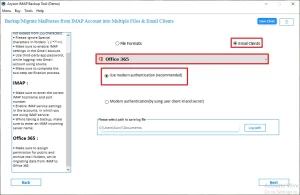
- Select Office 365 as the destination >> login via valid credentials.
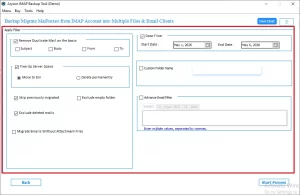
- Apply the additional filters provided by the software.
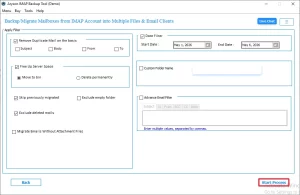
- Select the Convert button to start migration.
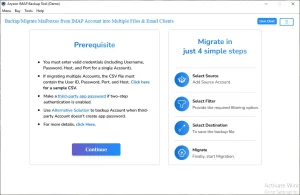
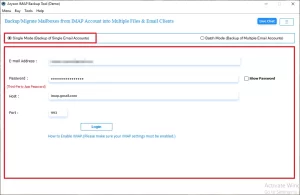
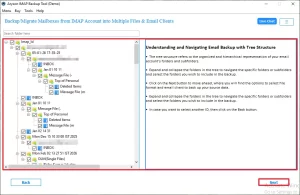
|
Note: Not just cPanel, even this software can convert emails from BT Mail to Office 365, Yahoo Mail, IMAP, and other email clients. |
Marcus Bell’s Success Story
Marcus Bell, IT lead at a 60-person logistics firm in Chicago, transfer emails from cPanel to Office 365 Account( 47 cPanel mailboxes) using the Aryson IMAP Backup Tool. Total migration time: 3.5 hours. Zero data loss. Every folder, attachment, and thread landed exactly where it belonged.
Conclusion
As we discussed above, it is easier to migrate emails from cPanel to O365 using the manual method and expert solution. It allows users to easily move all the emails from cPanel to Microsoft 365 accounts, but in two complicated steps. Therefore, we recommend that you choose the third-party solution over manual methods to perform the migration.
Frequently Asked Questions
Q.1 How to migrate email from cPanel to Office 365?
Answer: Use Aryson IMAP Backup Tool. Enter cPanel and Office 365 credentials. Select mailboxes and start migration. The software transfers emails directly while maintaining accuracy, security, folder hierarchy, and mailbox content.
Q.2 Can I migrate emails from cPanel to O365 without losing folder structure?
Answer: Yes, Aryson software preserves the original mailbox hierarchy during migration. All folders and subfolders remain intact. This ensures organized access to emails after transferring cPanel mailboxes into Office 365.
Q.3 Will my email attachments and metadata be transferred when migrating from cPanel to O365?
Answer: Yes, Aryson migrates emails with attachments and metadata. It preserves sender details, recipients, dates, subjects, and read status. This ensures complete mailbox information remains unchanged after migration.
Q.4 Can I migrate multiple cPanel email accounts to O365 at the same time?
Answer: Yes, Aryson supports bulk mailbox migration. Multiple cPanel accounts can be transferred simultaneously. This saves administrative effort, reduces migration time, and improves productivity during large-scale migrations.
Q.5 Is there any limit on how many cPanel mailboxes I can migrate to Office 365?
Answer: No, Aryson supports migrating a large number of cPanel mailboxes. The actual number depends on licensing and resources. It efficiently handles small, medium, and enterprise-level migration requirements.
Q.6 Can I customize which folders get migrated from cPanel to Office 365?
Answer: Yes, Aryson provides selective migration options. Users can choose specific folders before migration. This helps transfer only the required mailbox data while avoiding unnecessary content movement.
Q.7 Will duplicate emails be migrated from cPanel to Office 365?
Answer: Aryson includes duplicate email handling capabilities. It helps avoid unnecessary duplication during migration. This ensures cleaner Office 365 mailboxes and optimizes storage utilization effectively.
Q.8 Can I try the software before purchasing to migrate cPanel emails to O365?
Answer: Yes, Aryson offers a free demo version. Users can evaluate software functionality before purchasing. This helps verify compatibility, performance, and migration features according to requirements.
Q.9 Does the software guarantee 100% user data integrity during the repair process?
Answer: Yes, Aryson maintains data integrity throughout migration operations. Emails remain unchanged during transfer. The software preserves mailbox content, structure, metadata, and attachments without modification.
Q.10 Is 24×7 chat support available if I get stuck while repairing my corrupt SQL Server database?
Answer: Yes, Aryson provides technical assistance for users. Support is available through multiple channels. The team helps resolve software-related issues and guides users throughout processes.
About The Author:

Harshita Sachdeva, a professional technical writer at Aryson Technologies, specialize in delivering clear, hands-on documentation for data management, migration, and recovery solutions. With a meticulous, reader-first approach, I break down complex technical processes into simple, actionable content - helping IT professionals and decision-makers tackle challenges efficiently.
Related Post